
Sorandy Brown Switch
User Manual for 82 Keys RGB Mechanical Keyboard
Model: Brown Switch | Brand: Sorandy
Introducere
Thank you for choosing the Sorandy 82 Keys RGB Mechanical Keyboard. This manual provides detailed instructions for setting up, operating, and maintaining your new keyboard. Please read this manual thoroughly before use to ensure optimal performance and longevity of your device.
Informații de siguranță
- Țineți tastatura departe de lichide și umiditate excesivă pentru a preveni deteriorarea.
- Evitați expunerea tastaturii la temperaturi extreme (caldă sau rece).
- Nu încercați să dezasamblați sau să modificați tastatura. Acest lucru poate anula garanția și poate provoca daune.
- Use only the provided USB cable for charging and wired connection.
- A nu se lăsa la îndemâna copiilor mici.
Conținutul pachetului
Vă rugăm să verificați conținutul pachetului pentru a vă asigura că toate articolele sunt prezente:
- 1 x Sorandy 82 Keys RGB Mechanical Keyboard
- 1 x Extractor de chei
- 1 x Cablu de date USB tip C
- 1 x 2.4G Wireless Adapter
- 1 x Manual de utilizare (acest document)
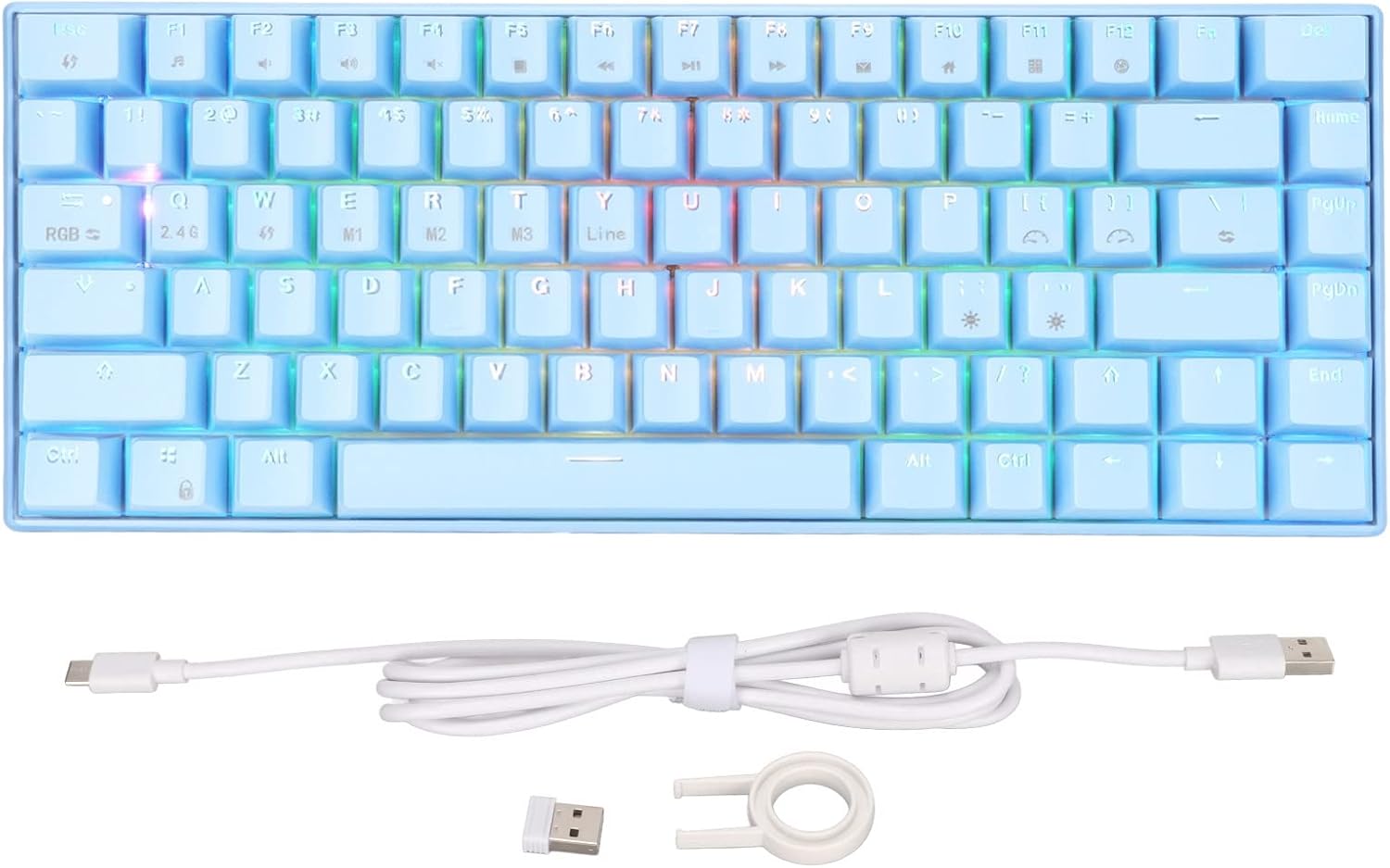
Image: Contents of the keyboard package, including the keyboard, USB cable, 2.4G adapter, and key puller.
Produs terminatview
Familiarize yourself with the layout and features of your mechanical keyboard.

Imagine: Sus view of the 82-key mechanical keyboard, showing the key layout and RGB lighting.

Imagine: Jos view of the keyboard, showing the product label with specifications and rubber feet.

Image: Close-up of the brown mechanical switches, illustrating the switch type used in the keyboard.
Înființat
1. Wired Connection (Type-C)
- Connect the USB Type-C end of the provided cable to the Type-C port on the keyboard.
- Conectați capătul USB-A al cablului la un port USB disponibil al computerului.
- Tastatura va fi recunoscută automat de sistemul dumneavoastră.
2. Conexiune wireless 2.4G
- Locate the 2.4G wireless adapter included in the package.
- Plug the 2.4G adapter into an available USB port on your computer.
- Ensure the keyboard is in 2.4G mode (refer to the keyboard's function keys for mode switching, usually indicated by an LED).
- The keyboard should automatically connect to the adapter.
3. Bluetooth Connection (BT3.0/5.0)
- Asigurați-vă că aveți Bluetooth activat pe computer sau pe dispozitiv.
- Switch the keyboard to Bluetooth mode (usually by pressing Fn + a specific key, e.g., Fn + 1/2/3 for different Bluetooth channels). The indicator light will flash, indicating pairing mode.
- Pe dispozitiv, accesați setările Bluetooth și căutați dispozitive noi.
- Select "Sorandy Keyboard" or a similar name from the list of available devices to pair.
- După asociere, indicatorul luminos de pe tastatură va înceta să clipească și va rămâne aprins continuu.
4. Încărcarea tastaturii
The keyboard has an inbuilt 1800mAh rechargeable lithium battery. To charge:
- Connect the keyboard to a USB power source (computer USB port, wall adapter) using the provided Type-C cable.
- Indicatorul luminos de încărcare se va aprinde în timpul încărcării și se va stinge când bateria este complet încărcată.
Instrucțiuni de operare
RGB Backlight Adjustment
The keyboard features dynamic RGB backlighting with multiple modes. Use the following key combinations to adjust the lighting:
- Fn + \ |: Cycle through different backlight modes.
- Fn + [ {: Reduceți luminozitatea iluminării de fundal.
- Fn + ] }: Măriți luminozitatea iluminării de fundal.
- Fn +; :: Reduceți viteza iluminării de fundal.
- Fn + ' ": Măriți viteza iluminării de fundal.
- Fn + Săgeata la stânga: Change backlight color (in certain modes).
- Fn + Săgeata dreapta: Change backlight color (in certain modes).

Imagine: Tastatura afișează iluminarea vibrantă de fundal RGB.
Combinații de taste funcționale (Fn)
The keyboard utilizes an 82-key layout, requiring the use of the Fn key for accessing certain functions and multimedia controls. Refer to the keycaps for specific Fn combinations.
| Combinaţie | Funcţie |
|---|---|
| Fn + F1 | Computerul meu |
| Fn + F2 | Caută |
| Fn + F3 | Calculator |
| Fn + F4 | Media Player |
| Fn + F5 | Piesa anterioară |
| Fn + F6 | Următoarea piesă |
| Fn + F7 | Redare/Pauză |
| Fn + F8 | Stop |
| Fn + F9 | Mut |
| Fn + F10 | Reducerea volumului |
| Fn + F11 | Creșterea volumului |
| Fn + F12 | Blocare tastatură |
| Fn + Q | Comutați la modul 2.4G |
| Fn + W/E/R | Switch to Bluetooth mode (BT1/BT2/BT3) |
Compatibilitate
This mechanical keyboard is compatible with a wide range of operating systems, including:
- Win 2000, ME, Win XP, Win Vista, Win 7, Win 8, Win 10
- Harmony OS
- Android
- iOS
Întreţinere
Curatenie
- Deconectați tastatura de la computer înainte de curățare.
- Folosiți o cârpă moale, fără scame dampclătite cu apă sau o soluție de curățare blândă pentru a șterge suprafața.
- For dust and debris between keycaps, use compressed air or the provided key puller to remove keycaps and clean underneath.
- Nu utilizați substanțe chimice dure sau materiale abrazive.
Depozitare
- Store the keyboard in a cool, dry place away from direct sunlight.
- Dacă depozitați produsul pentru o perioadă lungă de timp, asigurați-vă că bateria este parțial încărcată (aproximativ 50%) pentru a-l menține în stare de funcționare.
Depanare
| Problemă | Soluţie |
|---|---|
| Tastatura nu răspunde (cu fir) |
|
| Keyboard not connecting (2.4G/Bluetooth) |
|
| Lumina de fundal nu funcționează sau este slabă |
|
| Cheile nu se înregistrează sau se tastează de două ori |
|
Specificații
| Caracteristică | Detaliu |
|---|---|
| Model | 82 Keys RGB Mechanical Keyboard (Brown Switch) |
| Moduri de conectare | 2.4G Wireless, Bluetooth 3.0/5.0, Type-C Wired |
| Iluminat | RGB Multiple Modes |
| Conflict cheie | Cheie completă fără conflict (N-Key Rollover) |
| Capacitatea bateriei | Inbuilt 1800mAh Lithium Battery |
| Ergonomie | Sprijinit |
| Curent de funcționare | 300mA (maximum) |
| Curent de așteptare | 0.5mA |
| Sisteme compatibile | Win 2000/ME/XP/Vista/7/8/10, Harmony OS, Android, iOS |
| Material | ABS (acrilonitril butadien stiren) |
| Numărul de chei | 82 |
Garanție și suport
Sorandy products are manufactured to high quality standards. For information regarding warranty coverage, technical support, or service inquiries, please refer to the warranty card included with your product or visit the official Sorandy website. Vă rugăm să păstrați dovada achiziției pentru reclamații în garanție.
Pentru asistență suplimentară, puteți contacta vânzătorul direct prin intermediul platformei de unde a fost achiziționat produsul.
Documente aferenteComutator maro


Ask a question about this manual
Ask about setup, troubleshooting, compatibility, parts, safety, or missing instructions. Manuals+ will review the question and use this page’s manual context to help answer it.