
1. Introducere
This manual provides detailed instructions for the installation, operation, and maintenance of your INLAND QN450 1000GB M.2 2280 NVMe Solid State Drive (SSD). The QN450 SSD utilizes a PCIe 4.0 Gen4x4 interface, offering high-speed data transfer rates suitable for various computing needs, including personal use, gaming, and business applications. Please read this manual thoroughly before proceeding with installation or use.

Image 1.1: The INLAND QN450 1000GB M.2 2280 NVMe SSD.
2. Măsuri de siguranță
- Opriți întotdeauna computerul și deconectați-l de la sursa de alimentare înainte de a instala sau de a scoate orice componente interne.
- Discharge any static electricity from your body by touching a grounded metal object (e.g., the computer chassis) before handling the SSD.
- Manevrați SSD-ul de margini pentru a evita atingerea conectorilor sau componentelor aurii.
- Keep the SSD away from liquids and extreme temperatures.
3. Conținutul pachetului
Verificați dacă pachetul dvs. conține următoarele articole:
- INLAND QN450 M.2 NVMe SSD
- Mounting screw (may be included with your motherboard or laptop)
4. Cerințe de sistem
- An available M.2 slot on your motherboard or laptop that supports NVMe PCIe Gen4x4. The SSD is backward compatible with PCIe Gen3x4 slots, but performance will be limited to Gen3 speeds.
- Compatible operating system: Windows 8, 10, or 11.
- The SSD is also compatible with Sony PlayStation 5 for storage expansion.

Image 4.1: The INLAND QN450 SSD is widely compatible with various systems.
5. Instalare
5.1. Desktop PC Installation
- Pregătiți-vă sistemul: Power off your computer and unplug the power cable. Open the computer case.
- Localizați slotul M.2: Identify an available M.2 slot on your motherboard. Refer to your motherboard's manual for exact location and any necessary standoff/screw installation.
- Introduceți SSD-ul: Gently insert the INLAND QN450 SSD into the M.2 slot at a 30-degree angle, ensuring the gold contacts are fully seated.
- Securizează SSD-ul: Push the SSD down until it is parallel with the motherboard. Secure it with the M.2 screw.
- Închideți cazul: Reassemble your computer case and reconnect the power cable.
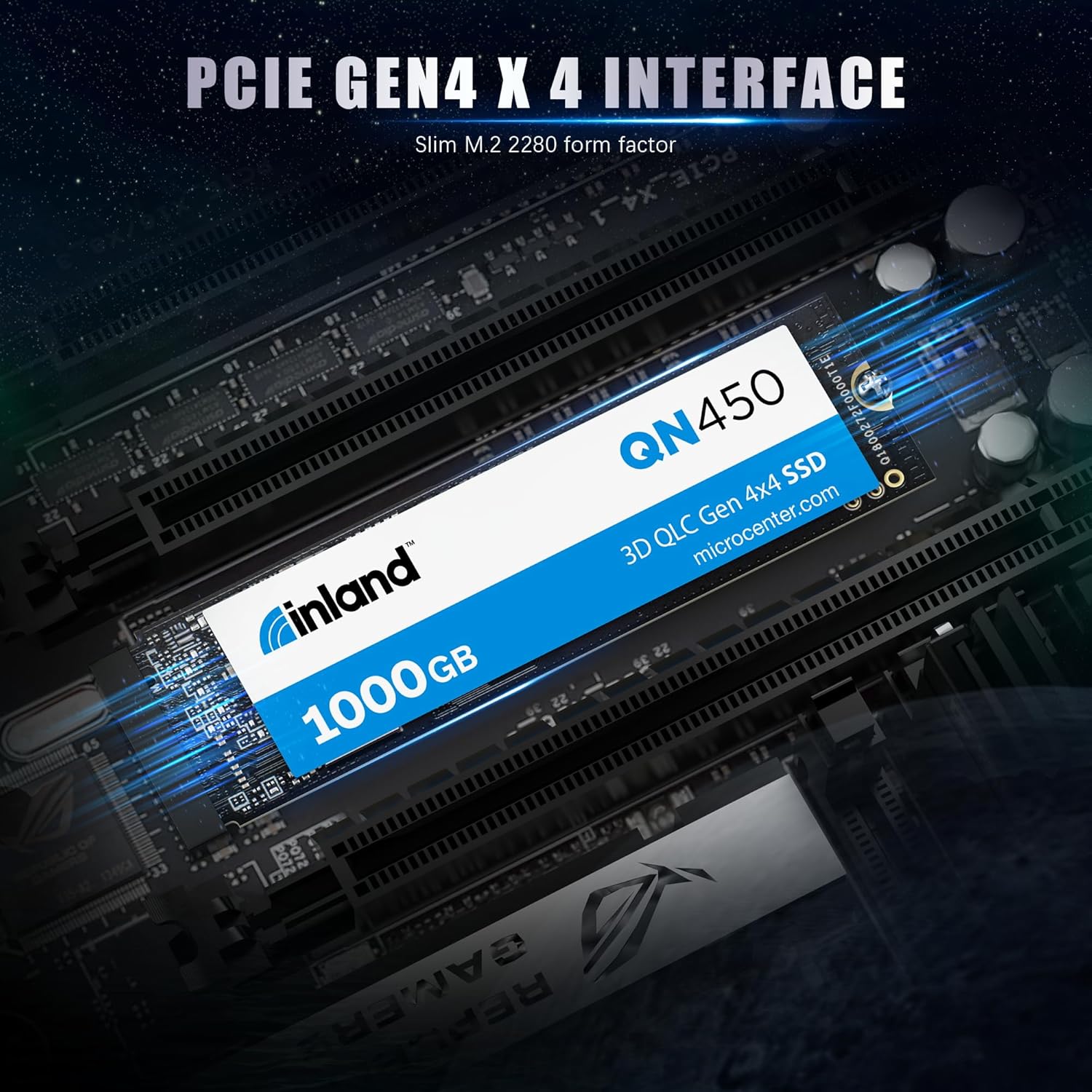
Image 5.1: The INLAND QN450 SSD featuring a PCIe Gen4x4 interface.
5.2. Laptop Installation
Laptop installation steps vary significantly by model. Consult your laptop's service manual for specific instructions on accessing and installing an M.2 SSD.
- Prepare your laptop: Power off your laptop, disconnect the power adapter, and remove the battery if it is external.
- Accesați slotul M.2: Carefully remove the laptop's bottom cover to access the internal components.
- Introduceți și fixați: Locate the M.2 slot, insert the SSD, and secure it with the provided screw or clip.
- Reasamblați: Replace the bottom cover and battery.
6. Configurare și operare inițială
After physical installation, the SSD needs to be initialized and formatted before it can be used for storage.
6.1. Sistemul de operare Windows
- Boot your computer: Start your computer normally.
- Deschideți Gestionare disc: Faceți clic dreapta pe butonul Start și selectați „Disk Management”.
- Inițializare disc: A window will pop up asking you to initialize the new SSD. Select 'GPT (GUID Partition Table)' for modern systems and drives larger than 2TB. Click 'OK'.
- Creați un volum simplu nou: Right-click on the 'Unallocated' space of your new SSD and select 'New Simple Volume'.
- Follow the wizard: Assign a drive letter, choose a file system (NTFS is recommended for Windows), and perform a quick format. Click 'Finish'.
Your INLAND QN450 SSD is now ready for use. You can transfer files, install applications, or use it as a boot drive.
7. Întreținere
Întreținerea corespunzătoare asigură longevitatea și performanța optimă a SSD-ului.
- Activează TRIM: Ensure TRIM is enabled in your operating system. Windows typically enables TRIM by default for SSDs. TRIM helps the SSD manage data more efficiently, preventing performance degradation over time.
- Evitați defragmentarea: Do not defragment your SSD. Defragmentation is designed for HDDs and can reduce the lifespan of an SSD without providing any performance benefits.
- Actualizări firmware: Periodically check the INLAND website for firmware updates for your QN450 SSD. Firmware updates can improve performance, stability, and compatibility.
- Monitor SSD Health: Use S.M.A.R.T. (Self-Monitoring, Analysis, and Reporting Technology) tools to monitor the health and status of your SSD. Many third-party utilities are available for this purpose.

Image 7.1: The INLAND QN450 SSD features advanced power management and reliability features.
8. Depanare
8.1. SSD nedetectat
- Check physical connection: Ensure the SSD is correctly seated in the M.2 slot and the screw is tightened.
- Check BIOS/UEFI settings: Enter your system's BIOS/UEFI settings and ensure the M.2 slot is enabled and configured for NVMe. Some motherboards require specific settings for M.2 slots.
- Instalare driver: For some older operating systems or specific motherboard chipsets, NVMe drivers might need to be installed. Check your motherboard manufacturer's website-ul.
- Managementul discurilor: Verify if the drive appears in Disk Management (Windows) as an uninitialized disk. If so, proceed with initialization and formatting as described in Section 6.
8.2. Performanță lentă
- Slot PCIe: Ensure the SSD is installed in a PCIe Gen4x4 compatible M.2 slot to achieve advertised speeds. If installed in a Gen3 slot, performance will be limited.
- Stare TRIM: Verify that TRIM is enabled for the SSD.
- Șoferi: Ensure you have the latest NVMe drivers installed.
- Regulare termică: High temperatures can cause performance degradation. Ensure adequate airflow in your system and consider a heatsink for the M.2 SSD if temperatures are consistently high.

Image 8.1: Performance metrics of the INLAND QN450 SSD.
9. Specificații
| Caracteristică | Caietul de sarcini |
|---|---|
| Numele modelului | QN450 |
| Capacitate de stocare digitală | 1000 GB |
| Interfață hard disk | PCIE x 4 |
| Tehnologia de conectivitate | PCIe |
| Factor de formă | M.2 2280 de inci |
| Viteza de citire | Până la 5000 MB/s |
| Viteza de scriere | Up to 3500 MB/s (Sequential Writes) |
| Random Read/Write IOPS | 350K/450K IOPS |
| MTTF (Timp mediu până la defecțiune) | 1.5 milioane de ore |
| TBW (număr total de octeți scriși) | 300 TBW |
| Caracteristici speciale | Backward Compatible, Power Management Support (APST / ASPM / L1.2), SMART and TRIM commands, Advanced Wear Leveling, Bad Block Management, Over-Provision |
| Dispozitive compatibile | Desktop, Gaming Console (Sony PlayStation 5), Laptop, Tablet, Television |
| Greutatea articolului | 0.02 kilograme |
10. Garanție și asistență
INLAND products are designed for reliability and performance. For information regarding the warranty period and terms for your QN450 SSD, please refer to the warranty card included with your product or visit the official INLAND website. For technical support, troubleshooting assistance, or to inquire about warranty claims, please contact INLAND customer service or the retailer from whom you purchased the product.
Puteți găsi mai multe informații și resurse de asistență pe Magazin INLAND pe Amazon.