
Introducere
Mulțumesc pentru achizițieasing the KTC H27S17 27-inch WQHD 180Hz Curved Gaming Monitor. This manual provides essential information for the safe and efficient use of your new monitor. Please read it thoroughly before use and retain it for future reference.
Produs terminatview Video
Video: O prezentare video oficială a produsuluiasing the key features and design of the KTC H27S17 27-inch Curved Gaming Monitor.
Conținutul pachetului
Verificați dacă toate articolele enumerate mai jos sunt incluse în pachetul dumneavoastră:
- Cablu de alimentare
- Cablu DisplayPort
- Adaptor de alimentare
- Suport pentru monitor
- Stand de bază
- Driver CD (or download link)
- Șuruburi de montare
- Instruction Manual (Japanese version)
- Ghid de pornire rapidă
- Card de garanție
Instrucțiuni de configurare
1. Asamblarea standului
Attach the stand base to the monitor stand using the provided screws. Then, securely attach the assembled stand to the back of the monitor.
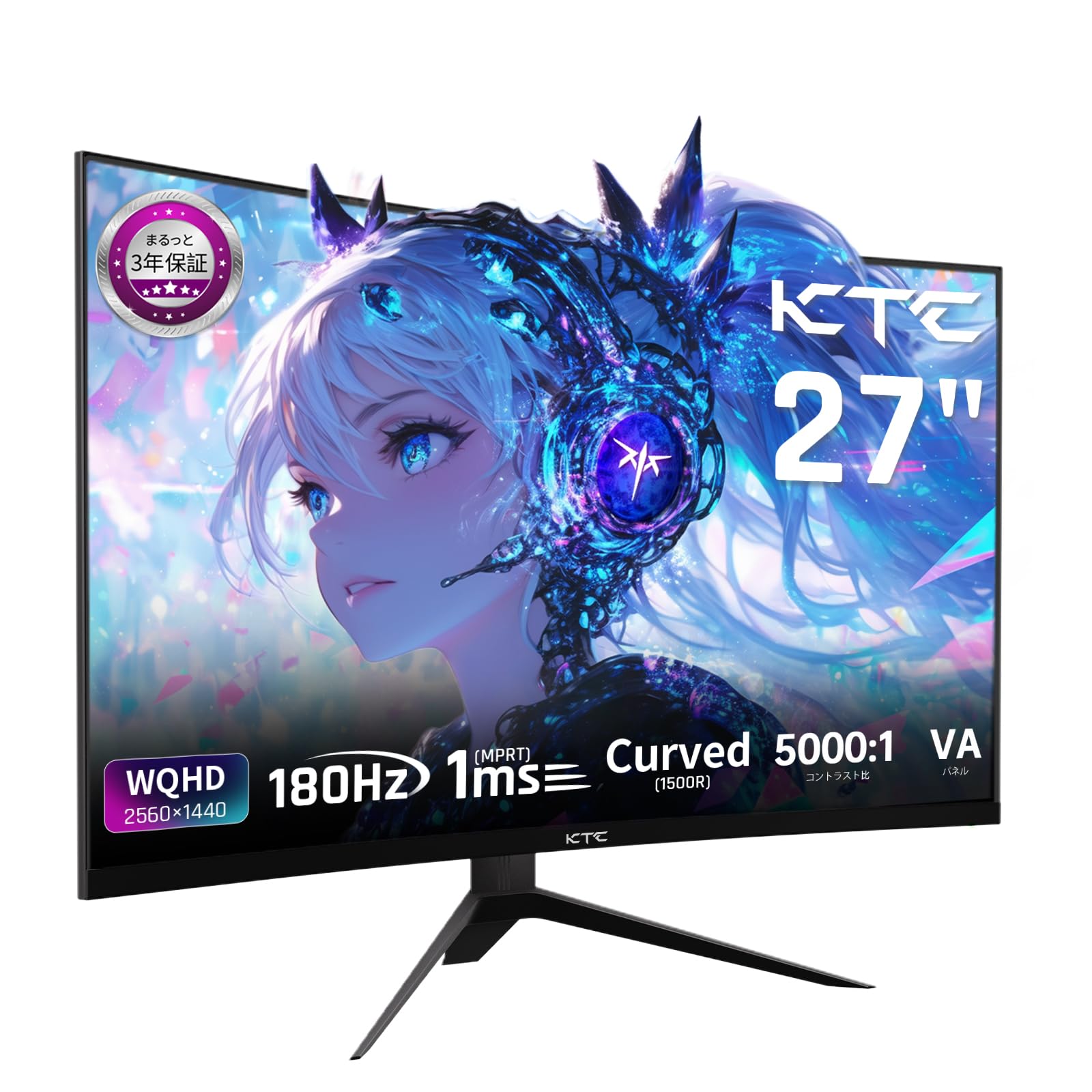
Image: The KTC H27S17 monitor fully assembled with its stand, viewed din faţă.
2. Conectarea la o sursă de alimentare
Connect the power adapter to the monitor's DC input port, then plug the power cable into a wall outlet.
3. Conectarea la un dispozitiv
Use the appropriate cable (DisplayPort or HDMI) to connect your computer or gaming console to the monitor. Ensure the cable is securely connected to both the monitor and your device.

Imagine: Spate view of the monitor showing the various input ports including DC, USB, HDMI, DisplayPort, and headphone jack.
4. Montare VESA (opțională)
The monitor supports VESA 100mm x 100mm mounting. If using a VESA mount, remove the stand and attach the monitor to your VESA-compatible arm or wall mount using appropriate screws.
Image: Diagram illustrating the VESA 100x100mm mounting pattern and tilt adjustment range on the back of the monitor.
Instrucțiuni de operare
Pornire/Oprire
Apăsați butonul de alimentare, situat de obicei în spatele sau în partea de jos a monitorului, pentru a-l porni sau opri. Indicatorul luminos de alimentare se va aprinde când monitorul este pornit.
Meniul de afișare pe ecran (OSD).
Use the joystick or buttons on the monitor to navigate the OSD menu. This menu allows you to adjust various display settings such as brightness, contrast, color temperature, input source, and gaming features.
Selectarea sursei de intrare
If multiple devices are connected, use the OSD menu to select the desired input source (HDMI 1, HDMI 2, DisplayPort 1, DisplayPort 2).
Caracteristici de afișare
Curved Display (1500R)
Curbura de 1500R oferă o experiență captivantă viewing experience, reducing eye strain during extended use by matching the natural curve of the human eye.

Image: A curved monitor displaying a vibrant image, highlighting the 1500R curvature for an immersive experience.
WQHD Resolution (2560x1440)
Experience detailed visuals with WQHD (2560x1440) resolution, offering approximately 1.7 times the pixel density of Full HD displays.

Image: A monitor displaying a high-resolution image, emphasizing the clarity of WQHD (2560x1440) compared to lower resolutions.
High Refresh Rate (180Hz) and Fast Response Time (1ms MPRT)
The 180Hz refresh rate and 1ms (MPRT) response time ensure smooth, blur-free visuals, crucial for fast-paced gaming and action scenes.

Image: A split screen comparison on the monitor, demonstrating the difference between 180Hz/1ms and 60Hz/5ms, highlighting reduced motion blur.
Vibrant Color Reproduction and HDR10
With sRGB 132%, DCI-P3 104%, Adobe RGB 112% color volume, and HDR10 support, the monitor delivers accurate and vivid colors with enhanced contrast between bright and dark areas.

Image: A monitor displaying a colorful scene, illustrating the wide color gamut and high contrast ratio (5000:1).
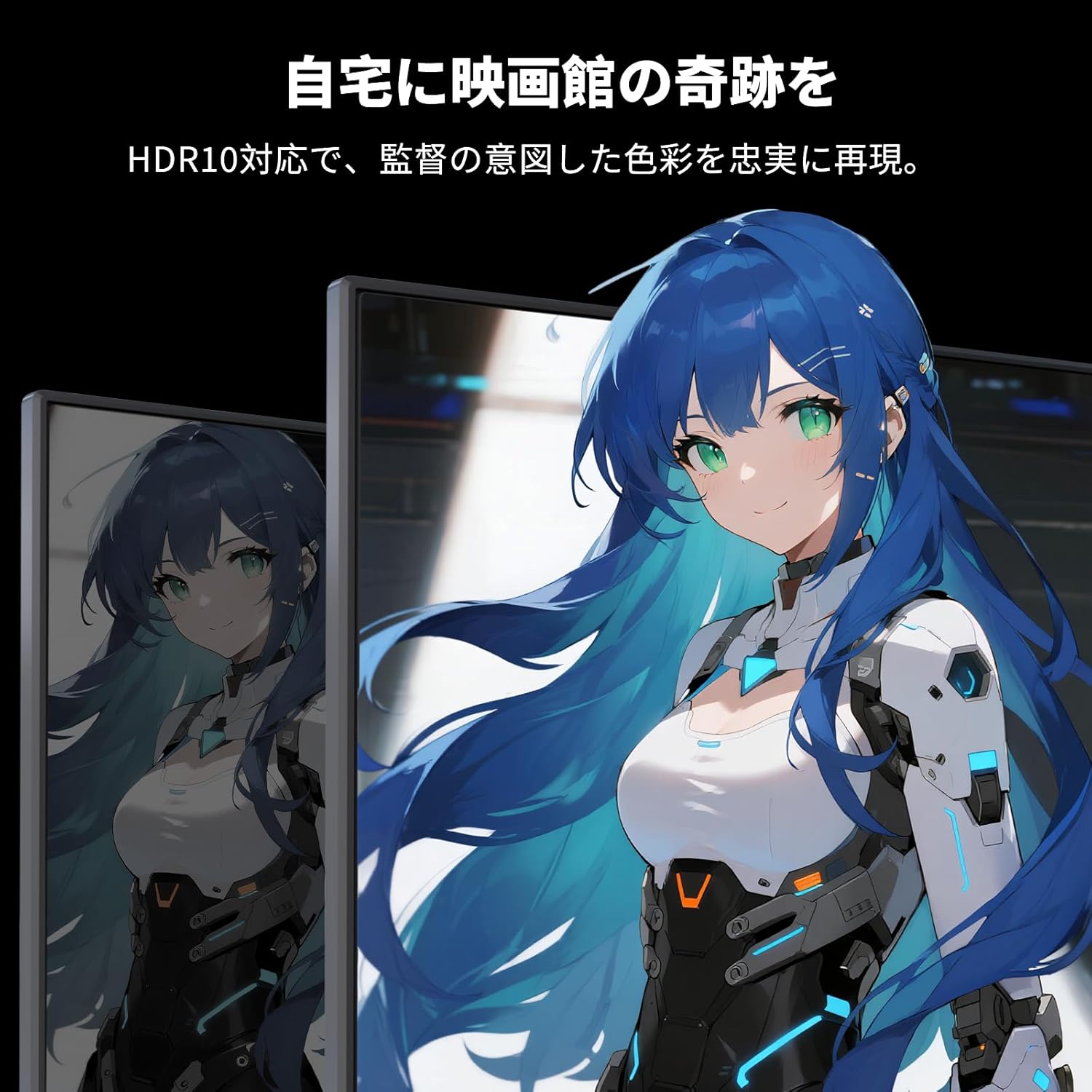
Image: A monitor showing a scene with HDR10 enabled, demonstrating improved dynamic range and detail in both bright and dark areas.
Tehnologia Adaptive Sync
Adaptive Sync (FreeSync and G-Sync compatible) eliminates screen tearing and stuttering, providing a fluid gaming experience.

Image: A split screen comparison on the monitor, showing the difference between Adaptive Sync OFF (screen tearing) and ON (smooth image).
Caracteristici pentru îngrijirea ochilor
The monitor includes Flicker-Free technology and a Low Blue Light mode to reduce eye strain during prolonged use.

Image: Illustrations demonstrating Flicker-Free technology and Low Blue Light mode, designed to reduce eye fatigue.
Conectivitate
The KTC H27S17 monitor offers multiple connectivity options:
- 2 x HDMI 2.0: Supports WQHD (2560x1440) at 144Hz.
- 2 x DisplayPort 1.4: Supports WQHD (2560x1440) at 180Hz.
- 1 x USB 2.0: For firmware upgrades only.
- 1 x 3.5mm Headphone Jack: Pentru ieșire audio.
- 1 x DC Input: Pentru conectarea la rețeaua electrică.
Imagine: Detaliată view of the monitor's rear panel, highlighting the DC input, USB port, HDMI ports, DisplayPort inputs, and headphone jack.
Physical Adjustments
Ajustare înclinare
The monitor stand allows for tilt adjustment from -5 to 15 degrees, enabling you to find an optimal viewunghi pentru confort.
Image: Diagram illustrating the tilt adjustment range of the monitor stand.
Compatibilitate VESA
The monitor is compatible with VESA 100mm x 100mm mounting standards, allowing for flexible installation with monitor arms or wall mounts.
Întreţinere
Curățarea ecranului
Ștergeți ușor ecranul cu o lavetă moale, fără scame. Pentru petele persistente, ștergeți ușorampClătiți laveta cu apă sau cu o soluție de curățare a ecranului. Evitați utilizarea substanțelor chimice dure sau a materialelor abrazive.
Curățarea corpului monitorului
Wipe the monitor body with a soft, dry cloth. Do not use liquid cleaners directly on the monitor.
Depozitare
Când nu îl utilizați pentru perioade lungi de timp, depozitați monitorul într-un loc răcoros și uscat, ferit de lumina directă a soarelui și de temperaturi extreme.
Depanare
Dacă întâmpinați probleme cu monitorul, consultați următoarele soluții comune:
- Fără putere: Ensure the power cable and adapter are securely connected and the power outlet is functional.
- Nici un semnal: Verify that the input cable (HDMI/DisplayPort) is correctly connected to both the monitor and the source device. Select the correct input source via the OSD menu.
- Imagine pâlpâitoare/distorsionată: Check cable connections. Ensure your graphics card drivers are up to date. Try adjusting the refresh rate in your device's display settings.
- Pixeli morți: While rare, a small number of dead pixels may be within manufacturing tolerances. Refer to the warranty policy for details.
- Audio Issues (Headphone Jack): Ensure headphones are fully plugged in. Check audio settings on your connected device.
For further assistance, please contact KTC customer support.
Specificații
| Caracteristică | Caietul de sarcini |
|---|---|
| Marca | KTC |
| Model | H27S17 |
| Dimensiunea ecranului | 27 inci |
| Rezoluţie | WQHD (2560 x 1440 pixeli) |
| Raportul de aspect | 16:9 |
| Curbură | 1500R |
| Tip panou | VA |
| Rata de reîmprospătare | 180 Hz |
| Timp de răspuns | 1 ms (MPRT) |
| Raport de contrast | 5000:1 |
| Luminozitate | 300 cd/m² |
| Gama de culori | sRGB 132% / DCI-P3 104% / Adobe RGB 112% |
| Suport HDR | HDR10 |
| Sincronizare adaptivă | FreeSync, G-Sync Compatible |
| Conectivitate | 2x HDMI 2.0, 2x DisplayPort 1.4, 1x USB 2.0 (Upgrade only), 1x Headphone Jack |
| Muntele VESA | 100 mm x 100 mm |
| Ajustare înclinare | -5 până la 15 de grade |
| Caracteristici pentru îngrijirea ochilor | Fără pâlpâire, lumină albastră redusă |
Garanție și suport
KTC provides a 3-year warranty and a 12-month exchange service for this product. For any questions or issues, please contact customer support.
- Telefon: 050-3606-8990
- E-mail: support@ktcplay.com

Image: Information regarding KTC's 3-year warranty and contact details for customer support.
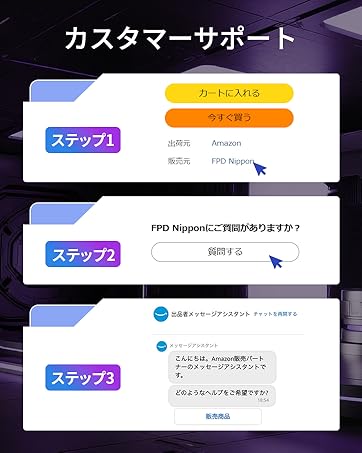
Image: Step-by-step guide on how to contact customer support via Amazon.