
AceGamer PS-P-White
AceGamer RGB Charging Dock for PlayStation Portal - User Manual
Model: PS-P-White
1. Introducere
Mulțumesc pentru achizițieasing the AceGamer RGB Charging Dock for PlayStation Portal. This portable charging station is designed to provide a stable and efficient charging solution for your PlayStation Portal console, featuring customizable RGB lighting and essential protection features. Please read this manual carefully before use to ensure proper operation and maintenance.
2. Conținutul pachetului
- AceGamer RGB Charging Dock (1 unit)
- Cablu de încărcare Type-C (1 unitate)
- Manual de utilizare (Acest document)
3. Caracteristicile produsului
- Dedicated Charging: Specifically designed for the PlayStation Portal console.
- Iluminare RGB: Features 7 distinct lighting modes for personalized aesthetics.
- Încărcare rapidă: Efficient power delivery for fast charging.
- Protecții de siguranță: Supracurent încorporat, supravoltage, și sub-voltagprotecție.
- Design ergonomic: 30-degree comfortable viewing angle for the PlayStation Portal.
- Baza stabila: Equipped with anti-slip mats for secure placement.
- Conectivitate: USB Type-C input for power.
4. Instrucțiuni de configurare
- Conectare alimentare: Insert the provided Type-C charging cable into the charging dock's input port and connect the other end to a suitable USB power adapter (not included).

Figure 4.1: Connecting the Type-C power cable to the charging dock.
- Place PlayStation Portal: Carefully align your PlayStation Portal console with the charging connector on the dock and gently place it into position. Ensure a secure connection for charging. The dock is designed to hold the Portal at a 30-degree angle for optimal viewing.

Figure 4.2: PlayStation Portal placed on the charging dock at a 30-degree angle.
- Anti-slip Stability: The base of the charging dock is equipped with anti-slip mats to prevent accidental movement. Ensure the dock is placed on a flat, stable surface.
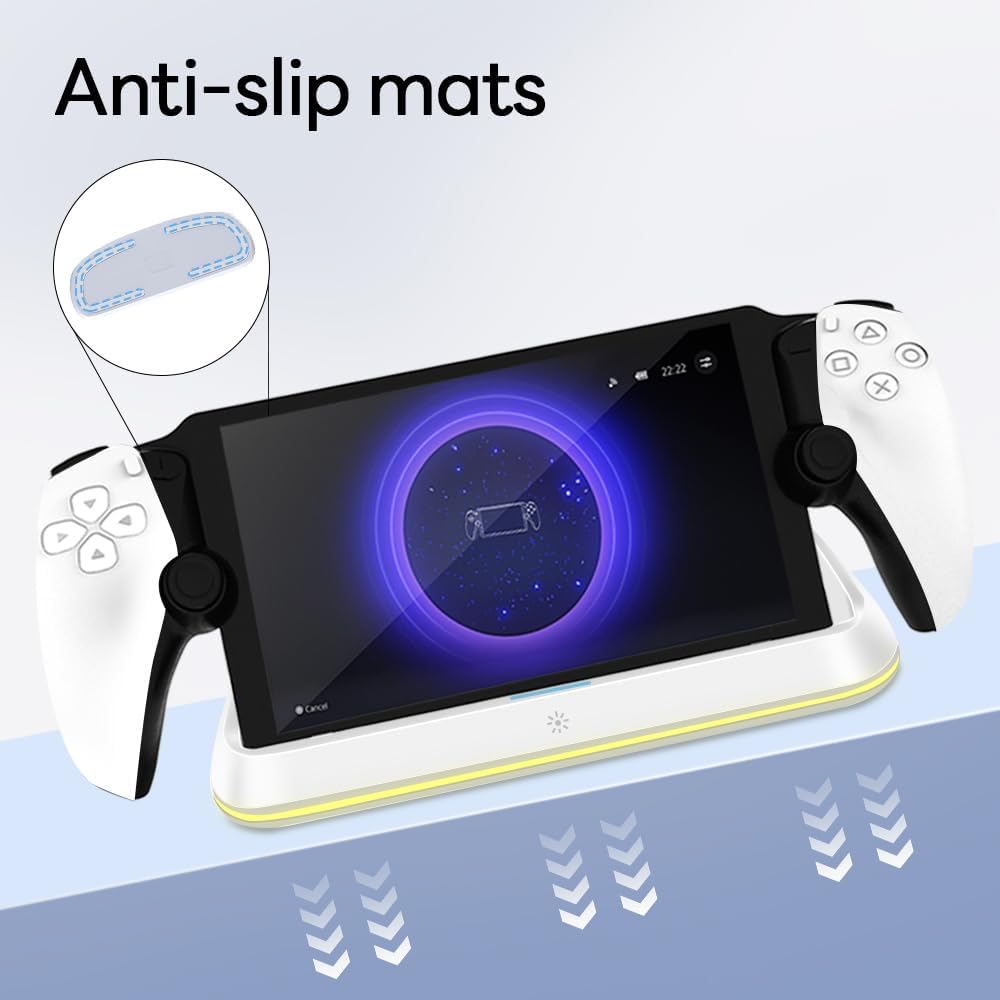
Figure 4.3: Anti-slip mats on the charging dock for enhanced stability.
- Ghid vizual: For a visual demonstration of the setup process, please refer to the video below.
Video 4.1: Demonstration of connecting the power supply and placing the PlayStation Portal onto the charging dock.
5. Instrucțiuni de utilizare
- Charging the PlayStation Portal: Once the PlayStation Portal is correctly seated on the dock and the dock is powered, charging will begin automatically. A full charge typically takes approximately 3.5 hours. The dock includes protection against over-current, over-voltage, și sub-voltage to safeguard your device.

Figure 5.1: Charging indicators and safety protection features.
- Controlul luminii RGB: The charging dock features a touch-sensitive button to control the RGB lighting. Press the button to cycle through 7 different lighting modes or to turn the lights off.

Figure 5.2: RGB lighting modes and touch control button.
6. Întreținere
- Keep the charging dock clean and free from dust. Use a soft, dry cloth for cleaning.
- Evitați expunerea dispozitivului la temperaturi extreme, umiditate sau lumina directă a soarelui.
- Nu folosiți substanțe de curățare abrazive sau solvenți, deoarece acestea pot deteriora suprafața.
- Ensure the charging port and connector are free of debris before placing the PlayStation Portal.
7. Depanare
- Dispozitivul nu se încarcă:
- Ensure the Type-C cable is securely connected to both the dock and the power adapter.
- Verificați dacă adaptorul de alimentare funcționează corect și este conectat la o priză activă.
- Check if the PlayStation Portal is properly seated on the charging connector.
- Încearcă să folosești un alt cablu Type-C sau un alt adaptor de alimentare.
- Luminile RGB nu funcționează:
- Ensure the charging dock is powered on.
- Press the touch light button to cycle through modes or turn the lights on.
- Unstable placement:
- Ensure the dock is placed on a flat, level surface.
- Check if the anti-slip mats are clean and intact.
8. Specificații
| Marca | AceGamer |
| Numărul de model | PS-P-White |
| Dispozitive compatibile | Portalul PlayStation |
| Vol. De intraretage | 5 volți |
| Wattage | 7 wați |
| Tip conector | USB tip C (pentru alimentare) |
| Caracteristici speciale | RGB Lighting, Fast Charging, Over-current Protection, Over-voltage Protection, Sub-voltage Protecție |
| Dimensiuni | Aproximativ 22.5 x 8.9 x 8.4 cm |
| Greutate | Aproximativ 290 g |
9. Garanție și asistență
AceGamer products are designed and manufactured to the highest quality standards. For warranty information or technical support, please contact the retailer where you purchased the product or visit the official AceGamer webpentru detaliile de contact ale serviciului clienți. Vă rugăm să păstrați dovada achiziției pentru reclamațiile în garanție.
Ask a question about this manual
Ask about setup, troubleshooting, compatibility, parts, safety, or missing instructions. Manuals+ will review the question and use this page’s manual context to help answer it.