
1. Introducere
This manual provides detailed instructions for the Headwolf WPad5 Android 14 Tablet. Please read this guide thoroughly before using your device to ensure proper operation and to maximize its features. Keep this manual for future reference.
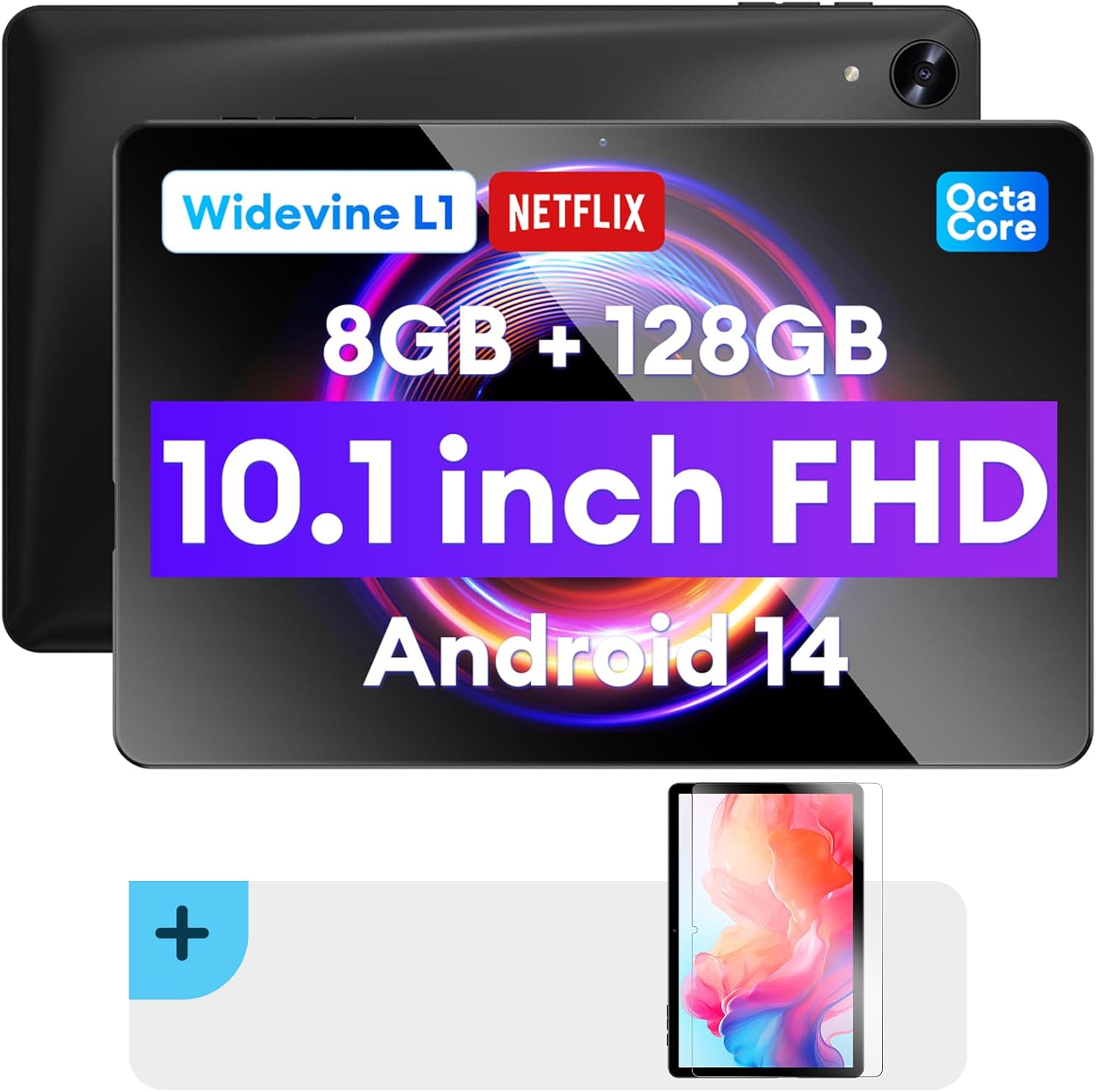
Imagine: Față și verso view of the Headwolf WPad5 tablet, showcasing its 10.1-inch FHD display, 8GB RAM + 128GB ROM, Widevine L1 support, Octa-Core processor, and Android 14 operating system.

Imagine: Un pesteview of the Headwolf WPad5 tablet's main features, including its 10.1-inch 1920x1200 IPS FHD display, Unisoc T606 Octa-Core CPU, 8GB RAM + 128GB ROM, 5500mAh battery, 2.4G/5G WiFi, Android 14, dual stereo speakers, dual camera, and Widevine L1 support for Netflix.
2. Configurare
2.1 Ce se află în cutie
Upon unboxing your Headwolf WPad5 tablet, please verify that all the following items are included:
- Headwolf WPad5 Tablet
- Cablu tip C
- Adaptor AC
- Manual de utilizare
- 2-pack Screen Protector

Image: A visual representation of the Headwolf WPad5 tablet and its accessories (manual, Type-C cable, AC adapter). It also highlights the tablet's physical features such as the 3.5mm headphone jack, rear camera, power button, volume buttons, TF card slot, and Type-C port.
2.2 Încărcarea tabletei
Before initial use, fully charge your tablet. Connect the Type-C cable to the tablet's Type-C port and the other end to the AC adapter. Plug the AC adapter into a power outlet. The battery indicator on the screen will show charging status.
2.3 Pornire/Oprire
- Pentru a porni: Press and hold the Power button located on the side of the tablet until the Headwolf logo appears on the screen.
- Pentru a opri: Press and hold the Power button until a power menu appears. Select "Power off" from the options.
- Pentru a reporni: From the power menu, select "Restart".
2.4 Instalarea protectorului de ecran
Your tablet comes with two screen protectors. Follow these steps for installation:
- Clean the tablet screen thoroughly with a microfiber cloth to remove dust and smudges.
- Peel off the protective film from the adhesive side of the screen protector.
- Carefully align the screen protector with the tablet's screen, ensuring the cutouts for the camera and sensors match.
- Gently lay the protector onto the screen, starting from one edge and slowly lowering it.
- Use a soft card (e.g., a credit card wrapped in cloth) to smooth out any air bubbles, pushing them towards the edges.
- Remove the top protective film (if present).
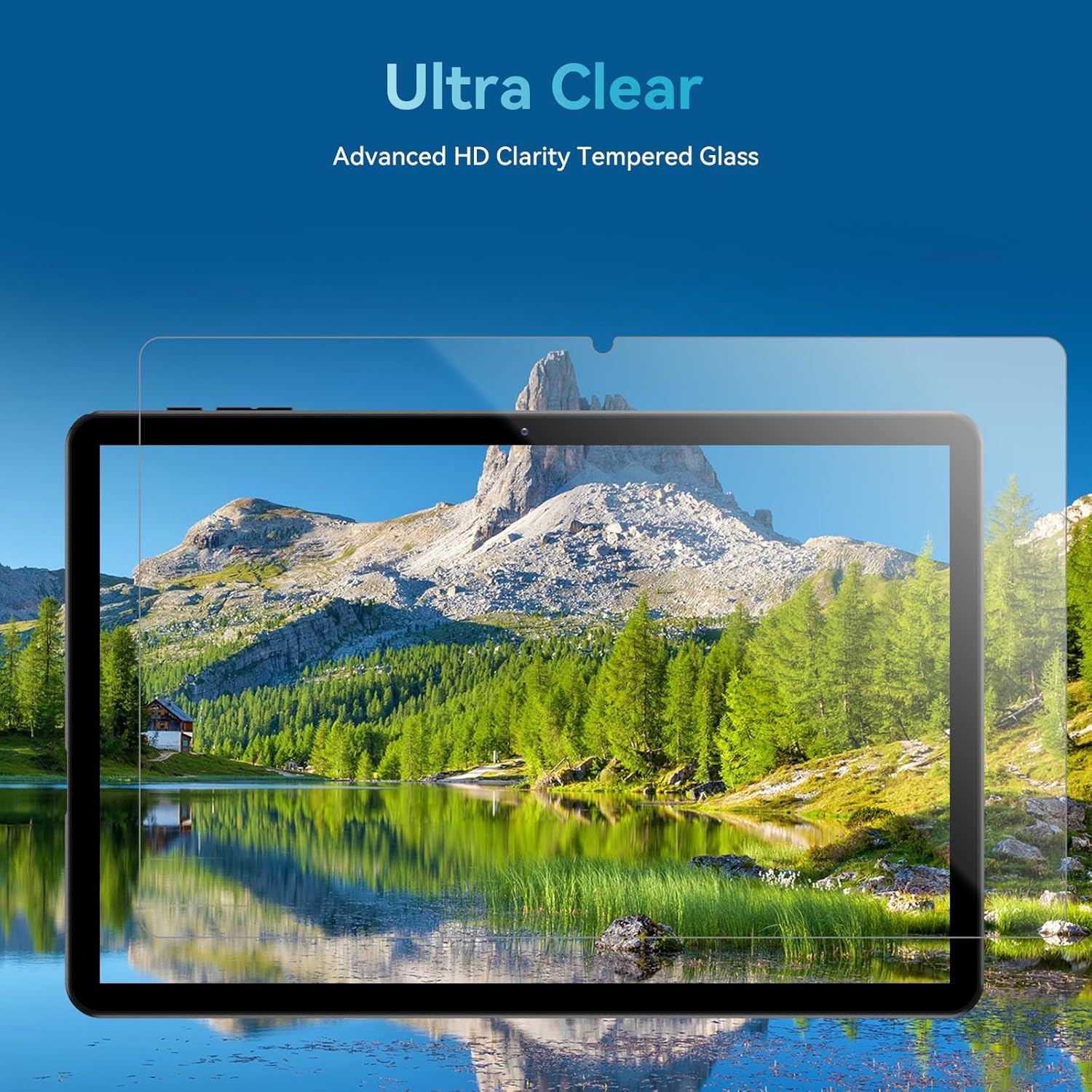
Image: The Headwolf WPad5 tablet with an "Ultra Clear" advanced HD clarity tempered glass screen protector being shown, indicating its protective function and clear display.
3. Utilizarea tabletei
Sistem de operare Android 14 3.1
The Headwolf WPad5 runs on the latest Android 14 operating system, offering enhanced performance, improved privacy features, and a customizable user interface.
- GMS Free App Download: Access millions of applications through the Google Play Store.
- Funcția ecran împărțit: Enhance productivity by using two apps simultaneously.
- Personalizare interfață utilizator: Personalize your interface with various themes, widgets, and settings.
- Protecția confidențialității: Advanced features to ensure your personal data remains secure and confidential.
- Personalized Screen Settings: Empower all users with enhanced usability options.

Image: A graphic illustrating the key features of the Android 14 system on the Headwolf WPad5, such as GMS free app download, UI customization, personalized screen settings, and privacy protection, enhancing user experience.
3.2 Display and Widevine L1 Certification
The tablet features a 10.1-inch FHD 1920x1200 IPS display, providing clear and vibrant visuals. With Widevine L1 certification, you can stream high-definition content from popular platforms like Netflix, Amazon Prime Video, Disney+, and YouTube without interruptions or quality degradation.

Image: A visual demonstrating the Widevine L1 certification on the Headwolf WPad5 tablet, showing high-quality streaming from services like YouTube, Netflix, Amazon Prime Video, Disney+, and Hulu, ensuring a premium viewexperiență.
3.3 Performanță și stocare
Powered by an octa-core Unisoc T606 CPU, the WPad5 ensures smooth multitasking and gaming. It comes with 8GB RAM (achieved via 4GB physical RAM + 4GB expansion) and 128GB of internal storage. The storage can be expanded up to 2TB using a microSD card (not included).

Image: A diagram detailing the Unisoc T606 Octa-Core CPU with 2.0 GHz peak frequency and Mali-G57 GPU, highlighting its high performance, efficient processing, and low heat generation for gaming and high-quality display.

Image: A graphic illustrating the generous storage capacity of the Headwolf WPad5, featuring 8GB RAM (4+4GB) and 128GB ROM, expandable up to 2TB via TF card, suitable for storing software, photos, music, videos, and e-books.
3.4 Conectivitate
The WPad5 offers versatile connectivity options:
- Wifi: Dual-band (2.4GHz/5GHz) 802.11ac for fast and stable internet connection.
- Bluetooth: Versiunea 5.0 pentru conectarea accesoriilor wireless.
- Mufă pentru căști de 3.5 mm: Pentru ieșire audio cu fir.
- GPS: 4-mode satellite positioning for precise location services. For offline navigation, download maps via Wi-Fi before traveling to areas without internet access.

Image: The Headwolf WPad5 tablet displaying a navigation map, illustrating its 4-mode satellite positioning capability for precise location services and route guidance.
3.5 Camere
The tablet is equipped with dual cameras:
- Camera spate: 8MP for capturing photos and videos.
- Camera frontală: 5MP, ideal for video calls and online meetings.

Imagine: O expoziție de colajeasing the capabilities of the Headwolf WPad5's 8MP rear camera for capturing landscapes and moments, and the 5MP front camera for video conferencing and meetings, demonstrating its versatility.
3.6 Durata de viață a bateriei
The WPad5 is powered by a 5500mAh battery, providing approximately 6-8 hours of playtime per charge, depending on usage.
3.7 caracteristici suplimentare
- Ecran împărțit: Rulați două aplicații alăturat pentru o productivitate sporită.
- Deblocare facială: Securely unlock your tablet using facial recognition.
- Oglindirea ecranului: Cast your tablet's display to a larger screen wirelessly.
- Dual Box Stereo Speakers: Enjoy immersive audio with enhanced sound quality.
Imagine: O prezentare graficăasing various features of the Headwolf WPad5 tablet, including Split Screen functionality for multitasking, 2.4G/5G Dual Band WiFi for connectivity, Face Unlock for security, and Screen Mirroring for casting content to external displays.
4. Întreținere
4.1 Îngrijirea bateriei
- Evitați descărcarea completă și frecventă a bateriei.
- Nu expuneți tableta la temperaturi extreme.
- Folosiți doar încărcătorul furnizat sau un încărcător compatibil certificat.
- The 5500mAh battery includes overcurrent, short circuit, over-discharge, and output protection for safety.

Image: A visual highlighting the 5500mAh battery of the Headwolf WPad5 and its built-in protection features: overcurrent protection, short circuit protection, over-discharge protection, and output protection, ensuring safe and reliable power.
4.2 Curățarea tabletei
- Folosiți o lavetă moale, fără scame, pentru a curăța ecranul și corpul tabletei.
- Pentru pete persistente, ușor dampClătiți laveta cu apă sau cu un produs de curățare a ecranelor special conceput pentru electronice.
- Evitați utilizarea substanțelor chimice dure, a materialelor abrazive sau a spray-urilor cu aerosoli.
4.3 Actualizări de software
Regularly check for and install software updates to ensure your tablet has the latest features, security patches, and performance improvements. You can usually find this option in the tablet's Settings menu under "System" or "About tablet".
5. Depanare
5.1 Probleme comune și soluții
| Emisiune | Soluție posibilă |
|---|---|
| Tableta nu pornește | Asigurați-vă că bateria este încărcată. Conectați încărcătorul și așteptați câteva minute înainte de a încerca să îl porniți din nou. Dacă nu răspunde, apăsați și mențineți apăsat butonul de pornire timp de 10-15 secunde pentru a forța o repornire. |
| Probleme de conexiune Wi-Fi | Restart your Wi-Fi router and the tablet. Forget the Wi-Fi network on your tablet and reconnect. Ensure you are within range of the Wi-Fi signal. |
| Aplicațiile se blochează sau se blochează | Ștergeți memoria cache și datele aplicației din Setări > Aplicații. Actualizați aplicația la cea mai recentă versiune. Dacă problema persistă, dezinstalați și reinstalați aplicația. |
| Performanță lentă | Close unnecessary background apps. Clear cache data regularly. Consider uninstalling unused apps. Ensure sufficient free storage space. |
| Ecranul nu răspunde | Reporniți tableta. Dacă problema persistă, efectuați o resetare la setările din fabrică (datele se vor pierde). |
5.2 Resetare din fabrică
O resetare la setările din fabrică va șterge toate datele de pe tabletă și o va restaura la setările inițiale din fabrică. Faceți o copie de rezervă a tuturor datelor importante înainte de a continua.
- Du-te la Setări.
- Navigați la Sistem > Opțiuni de resetare.
- Selecta Ștergeți toate datele (resetarea din fabrică).
- Confirmați alegerea și urmați instrucțiunile de pe ecran.
6. Specificații
| Caracteristică | Detaliu |
|---|---|
| Numele modelului | WPad5 |
| Sistem de operare | Android 14 |
| Dimensiunea ecranului | 10.1 inchi |
| Rezoluția ecranului | 1920 x 1200 (FHD) |
| Procesor | Unisoc T606 Octa-Core |
| RAM | 8 GB (4 GB + 4 GB expansiune) |
| Stocare internă | 128 GB |
| Stocare extensibilă | Până la 2 TB prin card microSD |
| Camera spate | 8 MP |
| Cameră frontală | 5 MP |
| Capacitatea bateriei | 5500mAh |
| Conectivitate wireless | 802.11ac (Dual-band 2.4GHz/5GHz) |
| Bluetooth | Bluetooth 5.0 |
| Porturi | Tip C, mufă pentru căști de 3.5 mm |
| Culoare | Negru |
| Caracteristici speciale | Widevine L1, GPS, Face Unlock, Dual Stereo Speakers, Split Screen, Screen Mirroring |
7. Garanție și asistență
Headwolf provides a one-year repair and replacement warranty for your WPad5 tablet. For any technical assistance, product inquiries, or warranty claims, please contact our dedicated customer service and technical support team.
- Serviciu clienți: Available 24 hours. Please refer to the contact information provided with your purchase or on the official Headwolf website-ul.
- Suport tehnic: Available for assistance with setup, troubleshooting, and feature usage.
- Resurse online: Vizitați Headwolf Store on Amazon pentru informații suplimentare despre produs și asistență.