
1. Introducere
Welcome to the Koiiko Wireless Gaming Controller Z01 user manual. This guide provides detailed instructions for setting up, operating, maintaining, and troubleshooting your new gaming controller. The Koiiko Z01 is designed for multi-platform compatibility, offering an enhanced gaming experience across various devices.
2. Produs terminatview
2.1 Caracteristici cheie
- Compatibilitate cu mai multe platforme: Compatible with iOS (iPhone, iPad), Android (phones, tablets), PC, Nintendo Switch/Switch OLED/Switch Lite, PlayStation 4/3, and various cloud gaming services (Steam Link, Play Space, Nvidia GeForce Now, Xbox Game Pass, Amazon Luna, Google Stadia, Rainway, Moonlight). Note: Not compatible with Apple TV, iPod, Fire TV/TV Box.
- Control avansat: Features clickable thumbsticks, turbo function, 6-axis gyro, responsive Hall Effect linear triggers, and Hall Effect rockers for precise input.
- Iluminare personalizabila: Dazzling 7-color RGB breathing light with 5 adjustable RGB light modes.
- Butoane programabile: Equipped with LB, RB, M1, M2 buttons, offering up to 30 customizable actions.
- Conectivitate wireless: Connects via Bluetooth, eliminating the need for a 2.4G adapter.
- Baterie de lunga durata: Built-in 600mAh lithium battery provides over 10 hours of continuous gameplay.
- Design portabil: Small and lightweight for easy carrying and storage.
2.2 Conținutul pachetului
- 1 x Koiiko Wireless Gaming Controller Z01
- 1 x cablu de încărcare USB
- 1 x Manual de utilizare
3. Specificații

Product Information Table for Koiiko Wireless Gaming Controller Z01
| Atribut | Detaliu |
|---|---|
| Numele produsului | Controler de jocuri fără fir |
| Model | Z01 |
| Distanța de transmisie Bluetooth | ≤ 8 metri |
| Vol. De lucrutage | DC3.7V |
| Curent de lucru | <35mA |
| Durata de utilizare | Aproximativ 10-15 ore |
| Timp de încărcare | Aproximativ 2 de ore |
| Capacitatea bateriei | 600mAh |
| Dimensiuni | 143 mm x 90 mm x 49 mm |
| Greutatea articolului | 4 uncii |
4. Configurare și conectare
Before connecting, ensure your Koiiko Wireless Gaming Controller Z01 is powered off.
4.1 PC Wireless Connection
- Hold down the 'R' key and then press the 'Home' key for 2 seconds. The 'Home' key will show a BLUE light and flash quickly, indicating pairing mode.
- On your PC, turn on the Bluetooth function.
- Caută and select the Bluetooth device named "Xbox Wireless Controller".
- Once connected, the 'Home' key will remain BLUE.
Video demonstrating how to connect the Koiiko Wireless Gaming Controller to a PC via Bluetooth and how to set up Steam Link for PC streaming.
4.2 iOS Wireless Connection (iPhone/iPad)
- Hold down the 'R' key and then press the 'Home' key for 2 seconds. The 'Home' key will show a BLUE light and flash quickly, indicating pairing mode.
- On your iOS device, turn on the Bluetooth function.
- Caută and select the Bluetooth device named "Xbox Wireless Controller".
- Once connected, the 'Home' key will remain BLUE.
Video guide for connecting the Koiiko Wireless Gaming Controller to an iOS device (iPhone/iPad) via Bluetooth.
4.3 Android Wireless Connection
- Hold down the 'Y' key and then press the 'Home' key for 2 seconds. The 'Home' key will show an ORANGE light and flash quickly, indicating pairing mode.
- On your Android device, turn on the Bluetooth function.
- Caută and select the Bluetooth device named "Z01".
- Once connected, the 'Home' key will remain ORANGE.
Video tutorial on connecting the Koiiko Wireless Gaming Controller to an Android device via Bluetooth.
4.4 Nintendo Switch Wireless Connection
- On your Nintendo Switch, navigate to System Settings > Controllers and Sensors > Change Grip/Order.
- Hold down the 'ZR' key and then press the 'Home' key for 2 seconds. The 'Home' key will show a GREEN light and flash quickly, indicating pairing mode.
- The controller will automatically connect to the console. Once connected, the 'Home' key will remain GREEN.
Video instructions for pairing the Koiiko Wireless Gaming Controller with a Nintendo Switch console.
4.5 PC Streaming (Steam Link)
- Ensure your PC and iOS/Android device are connected to the same network.
- Download and open the Steam Link app on your mobile device.
- Sign in to your Steam account on both your PC and the Steam Link app.
- The app will automatically scan for connectable computers. After selecting your PC, enter the PIN code displayed in the app into Steam on your PC.
- Once the connection and speed test are complete, click 'Start Running' in the app to access your Steam library and play games.
5. Instrucțiuni de utilizare
5.1 Funcțiile butoanelor
- Butoane ABXY: Butoane de acțiune standard.
- D-pad: Intrare direcțională.
- Joystick-uri stânga/dreapta: Analog movement and camera control.
- LB/RB Buttons: Butoane bara de protecție stânga și dreapta.
- LT/RT Triggers: Left and Right Analog Triggers (Hall Effect for precision).
- Buton Acasă: Pornire/oprire, revenire la ecranul principal.
- Butoane Selectare/Start: Menu navigation and in-game actions.
- Butoane M1/M2: Butoane programabile pentru întoarcere.
5.2 Interschimb cheie-valoare ABXY
To switch the ABXY key values between Xbox and Switch layouts, press the 'Y + A + HOME' keys simultaneously. This allows you to adapt the button mapping without physically removing buttons.

ABXY Key-Value Interchange Diagram
5.3 Controlul iluminării RGB
The controller features a dedicated light adjustment button. Press this button to cycle through 7-color RGB breathing light effects and 5 different RGB light modes, allowing you to choose your preferred lighting style.

RGB Lighting Modes Illustration
5.4 Funcția Turbo
The turbo function allows for rapid, continuous input of a button press. Refer to the detailed instructions in the included physical user manual for specific button combinations to activate and customize turbo settings.
5.5 Butoane programabile pentru înapoi (M1, M2)
The M1 and M2 back buttons are highly customizable, supporting up to 30 action keys. Consult the included physical user manual for detailed programming instructions to set up your preferred macros and functions.
5.6 6-Axis Gyro and Vibration
The controller features 6-axis gyro and vibration feedback for immersive gameplay. Please note that these functions are supported only on PC, PlayStation 3, PlayStation 4, and Nintendo Switch platforms.
5.7 Joystick-uri și declanșatoare cu efect Hall
The Koiiko Z01 is equipped with e-sports level Hall Effect 3D joysticks and linear triggers. This technology greatly reduces joystick drift, providing smooth handling and precise positioning for an enhanced gaming experience.
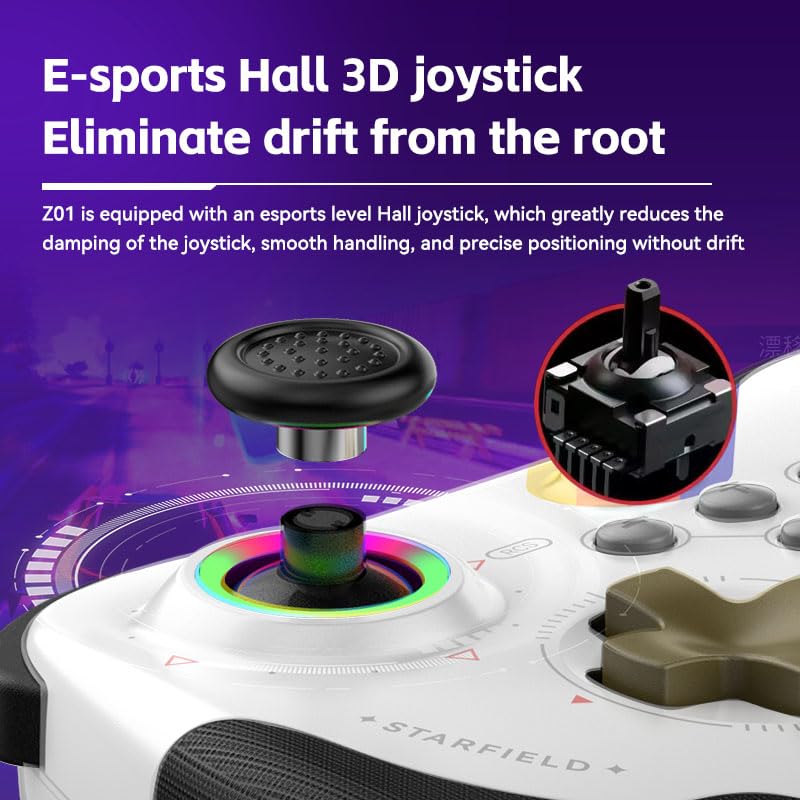
Hall Effect 3D Joystick Detail
6. Întreținere
- curatenie: Folosiți o cârpă moale și uscată pentru a curăța controlerul. Evitați utilizarea substanțelor chimice dure sau a materialelor abrazive.
- Depozitare: Depozitați controlerul într-un loc răcoros și uscat, ferit de lumina directă a soarelui și de temperaturi extreme.
- Îngrijirea bateriei: Pentru a prelungi durata de viață a bateriei, evitați descărcarea completă frecventă a controlerului. Încărcați-l regulat, chiar dacă nu îl utilizați pentru perioade lungi de timp.
- Evitați picăturile: While durable, repeated drops can damage internal components. Handle with care.
7. Depanare
- Controlerul nu se conectează:
- Asigurați-vă că controlerul este complet încărcat.
- Verify you are using the correct button combination for your device's pairing mode (e.g., 'R + Home' for PC/iOS, 'Y + Home' for Android, 'ZR + Home' for Switch).
- Asigurați-vă că Bluetooth este activat pe dispozitiv.
- Eliminați orice asocieri anterioare ale controlerului din setările Bluetooth ale dispozitivului și încercați din nou asocierea.
- Reporniți atât controlerul, cât și dispozitivul.
- Butoanele care nu răspund:
- Verificați dacă controlerul este conectat corect la dispozitivul dvs.
- Ensure the game you are playing supports controller input.
- If playing on PC, ensure 'Xbox Configuration Support' is enabled in Steam settings if using Steam.
- Test the controller with another game or device to isolate the issue.
- Probleme de încărcare:
- Utilizați cablul de încărcare USB furnizat.
- Ensure the charging port on the controller and the USB port on your power source are clean and free of debris.
- Încercați un alt port USB sau adaptor de alimentare.
- Joystick Drift:
- The Koiiko Z01 uses Hall Effect joysticks designed to minimize drift. If you experience drift, try recalibrating the controller through your device's settings if available.
- Ensure the controller's firmware is up to date (check the manufacturer's website pentru actualizări).
8. Garanție și asistență
Your Koiiko Wireless Gaming Controller Z01 comes with a standard manufacturer's warranty. Please refer to the warranty card included in your package for specific terms and conditions.
For any questions, technical support, or assistance with your product, please contact our dedicated technology team. We are committed to providing comprehensive support to ensure your satisfaction.
Informații de contact: Please refer to the contact details provided on the product packaging or the official Koiiko website-ul.