
1. Introducere
The Yesido TV12 Gaming TV Box is a versatile device designed to transform your television into a smart entertainment hub. It combines 4K media streaming capabilities with extensive gaming emulation, offering a comprehensive entertainment experience. This manual provides essential information for setting up, operating, maintaining, and troubleshooting your device.
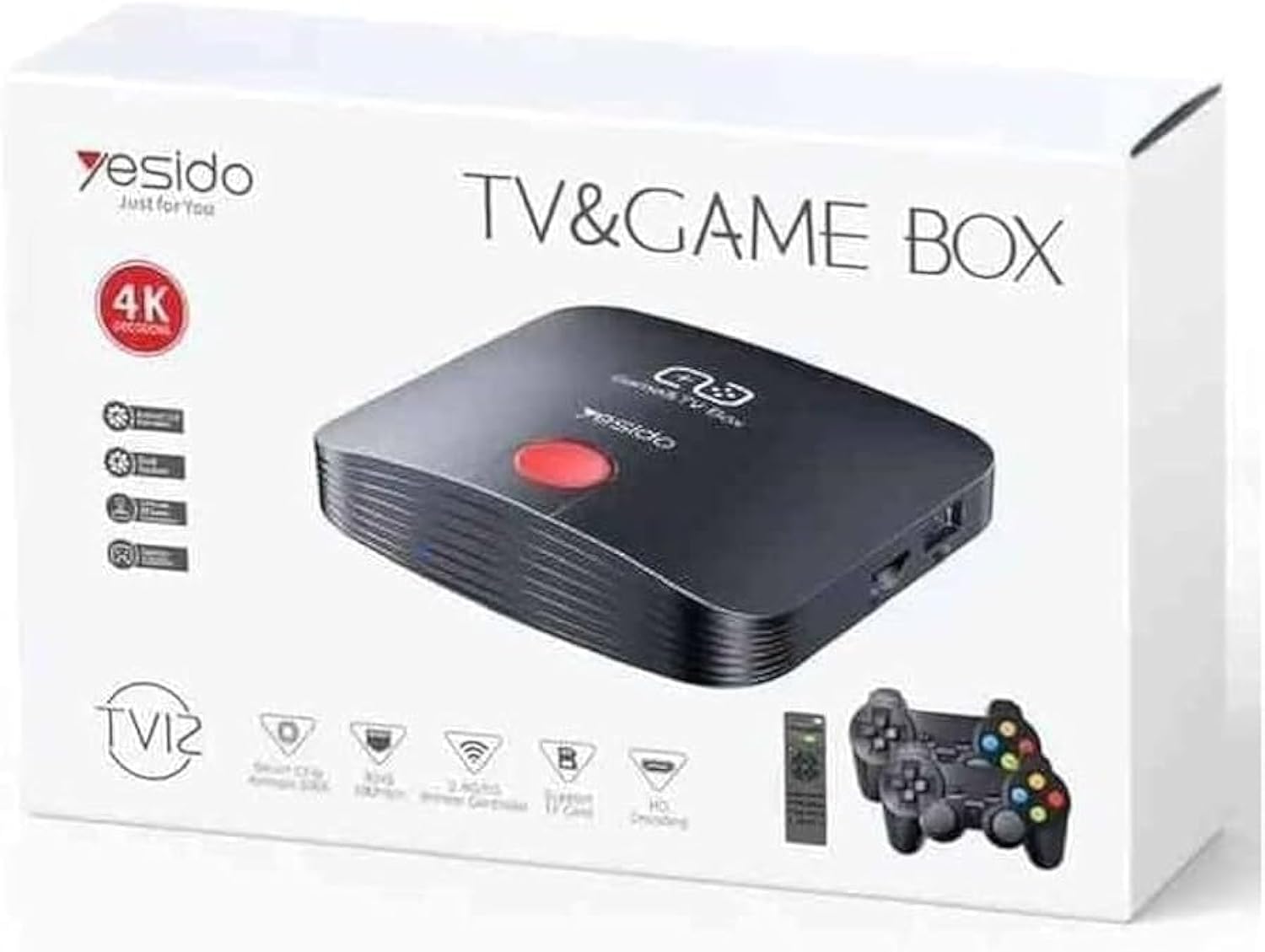
Image 1.1: The Yesido TV12 Gaming TV Box and included game controllers.
2. Produs terminatview
The Yesido TV12 is a high-tech smart TV box that supports high-definition 4K resolution, allowing you to enjoy movies and TV shows with stunning clarity. It features an Amlogic S905 smart chip and runs on an Android 12.0 dual system. The device is equipped with 2GB RAM and 16GB internal storage, facilitating multitasking and storage of your favorite media and games. A powerful Mali-G31 MP2 GPU ensures smooth performance for demanding games.
Caracteristici cheie:
- 4K HD Resolution Support (1080P to 4K)
- Android 12.0 Dual System
- Amlogic S905 Smart Chip
- GPU Mali-G31 MP2
- 2GB RAM and 16GB Storage
- Supports over 10,000 game emulations (14 types)
- Integrated 2.4G/5G Wi-Fi and 100Mbps RJ45 Ethernet
- Compatible with popular streaming services (Netflix, Hulu, Amazon Prime Video, Disney+)
- Voice-controlled remote for easy navigation
- Compatible with two game controllers
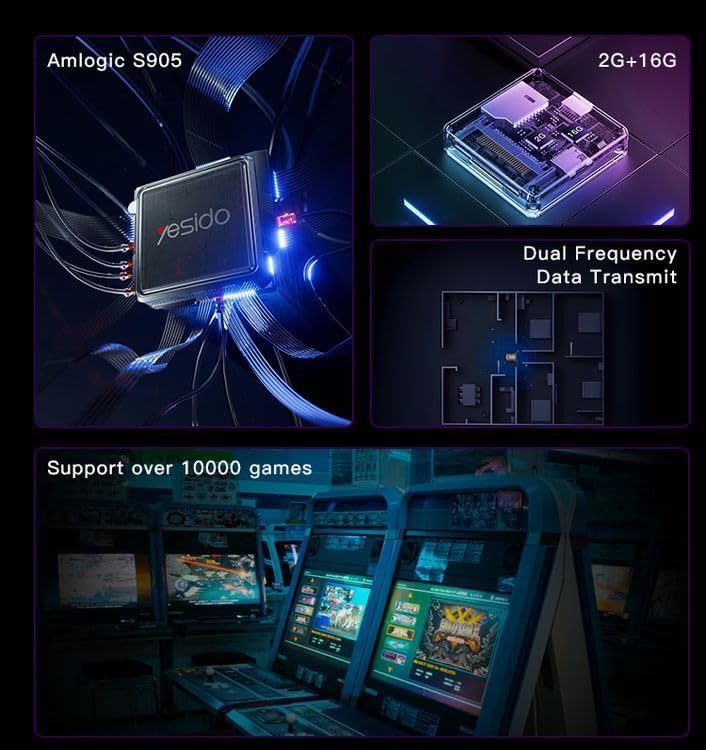
Image 2.1: Internal architecture highlighting the Amlogic S905 chip, memory, and data transmission capabilities.
3. Ghid de instalare
3.1 Despachetare și componente
Scoateți cu grijă toate articolele din ambalaj. Asigurați-vă că sunt prezente următoarele componente:
- Yesido TV12 Gaming TV Box
- Adaptor de alimentare
- Cablu HDMI
- Telecomanda
- Game Controllers (quantity may vary)
- Manual de utilizare (acest document)
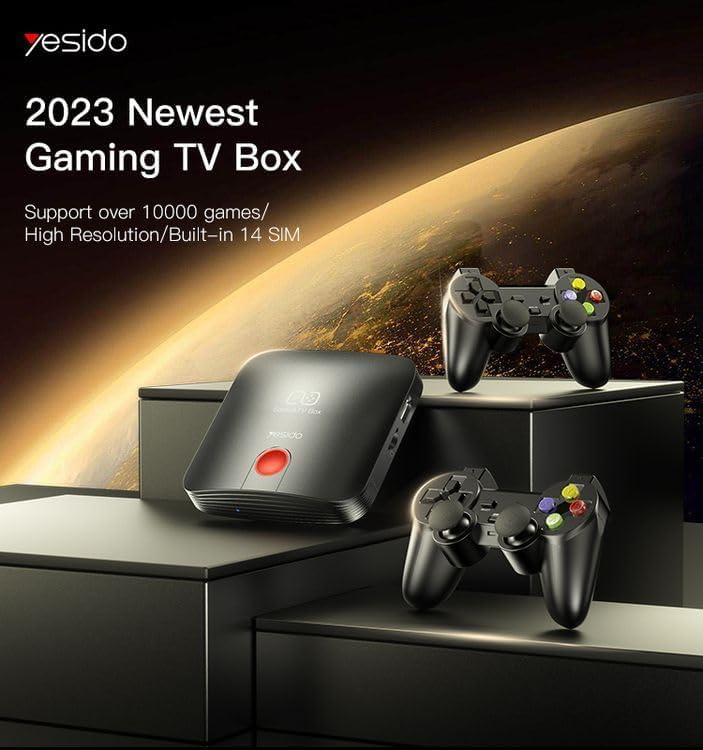
Image 3.1: The TV Box and game controllers, ready for setup.
3.2 Conectarea la televizor
- Connect one end of the HDMI cable to the HDMI port on the Yesido TV12.
- Conectați celălalt capăt al cablului HDMI la un port de intrare HDMI disponibil al televizorului. Notați numărul intrării HDMI (de exemplu, HDMI 1, HDMI 2).
3.3 Pornire
- Conectați adaptorul de alimentare la portul DC IN de pe TV Box.
- Conectați adaptorul de alimentare la o priză de perete.
- Porniți televizorul și selectați intrarea HDMI corespunzătoare folosind telecomanda televizorului.
- The TV Box will automatically power on and display the boot-up screen.
3.4 Conexiune de rețea
For internet access, you can connect via Wi-Fi or Ethernet.
- Wifi: Navigate to Settings > Network > Wi-Fi. Select your network from the list, enter the password, and connect.
- Ethernet: Connect an Ethernet cable from your router to the RJ45 port on the TV Box. The connection should be established automatically.
3.5 Remote Control and Gamepad Pairing
The included remote control is typically pre-paired. If not, or if pairing gamepads:
- Ensure batteries are inserted correctly into the remote/gamepad.
- For Bluetooth gamepads, go to Settings > Connected Devices > Pair new device and follow the on-screen instructions.
4. Instrucțiuni de utilizare
4.1 Navigarea prin interfață
Use the remote control to navigate the Android 12.0 interface. The directional buttons move the cursor, the OK button selects, and the Back button returns to the previous screen. The Home button returns to the main launcher screen.
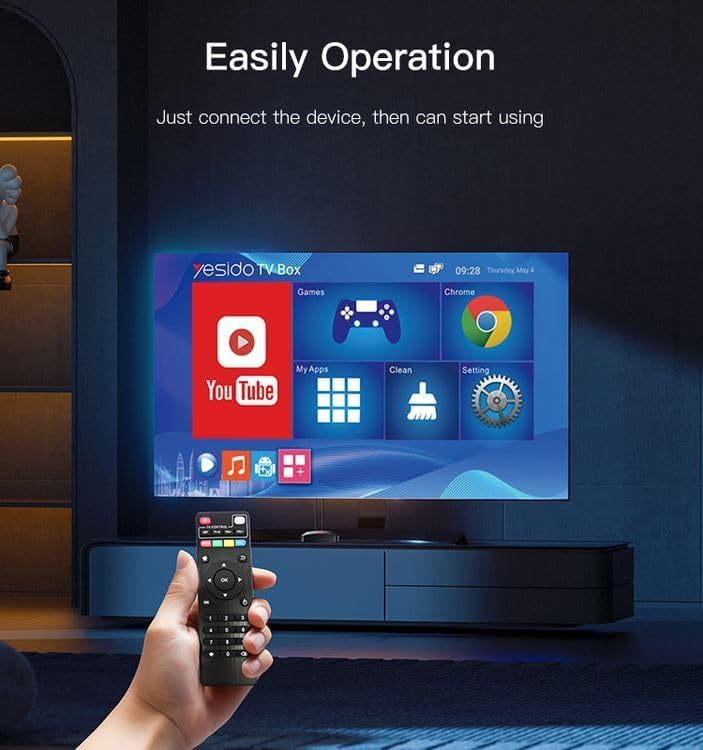
Image 4.1: Navigating the Yesido TV Box interface with the remote control.
4.2 Streaming Media
The TV Box supports various streaming applications. Pre-installed apps like YouTube are available, and you can download more from the app store (e.g., Netflix, Hulu, Amazon Prime Video, Disney+).
- Select the desired streaming app from the home screen or 'My Apps' section.
- Conectați-vă cu datele de autentificare ale contului dvs.
- Browse and select content to watch.
4.3 Jocuri
The Yesido TV12 is designed for gaming, supporting over 10,000 game emulations. Connect your game controllers as described in Section 3.5.
- Access the 'Games' or 'Emulator' section from the home screen.
- Select your desired game or emulator.
- Use the connected game controllers for an immersive gaming experience.

Image 4.2: The wireless gamepads compatible with the TV Box.
4.4 Control vocal
If your remote control supports voice input, press the voice button and speak your commands or search queries. This allows for hands-free content search and device control.
5. Întreținere
5.1 Curăţarea dispozitivului
To maintain optimal performance and appearance, regularly clean the TV Box:
- Deconectați dispozitivul de la priză înainte de curățare.
- Folosiți o lavetă moale și uscată pentru a șterge suprafețele exterioare.
- Do not use liquid cleaners, aerosols, or abrasive materials, as they may damage the device.
5.2 Actualizări de software
Keep your device's software updated to ensure the best performance and access to new features:
- Conectați receptorul TV la internet.
- Navigate to Settings > About > System Update.
- Urmați instrucțiunile de pe ecran pentru a verifica și instala orice actualizări disponibile.
5.3 Managementul stocării
With 16GB of internal storage, managing your space is important:
- Accesați Setări > Stocare pentru a view utilizarea stocării.
- Uninstall unused applications or delete unnecessary files pentru a elibera spațiu.
- The device supports TF cards for expandable storage.
6. Depanare
6.1 Fara putere
- Asigurați-vă că adaptorul de alimentare este conectat corect la TV Box și la o priză funcțională.
- Încercați o priză diferită.
6.2 No Signal / No Display
- Verificați dacă este conectat corect cablul HDMI atât la receptorul TV, cât și la televizor.
- Asigurați-vă că televizorul este setat la sursa de intrare HDMI corectă.
- Încearcă un alt cablu HDMI sau un alt port HDMI pe televizor.
6.3 Probleme de conexiune la rețea
- Wifi: Check if your Wi-Fi router is working correctly. Re-enter the Wi-Fi password in Settings > Network.
- Ethernet: Ensure the Ethernet cable is properly connected to both the TV Box and the router.
- Restart your router and the TV Box.
6.4 Telecomanda nu răspunde
- Verificați și înlocuiți bateriile din telecomandă.
- Asigurați-vă că nu există obstacole între telecomandă și receptorul TV.
- Re-pair the remote control if necessary (refer to Section 3.5).
6.5 Game Performance Issues
- Close any background applications to free up RAM.
- Asigurați-vă că este disponibil suficient spațiu de depozitare.
- For online games, check your internet connection stability.
7. Specificații
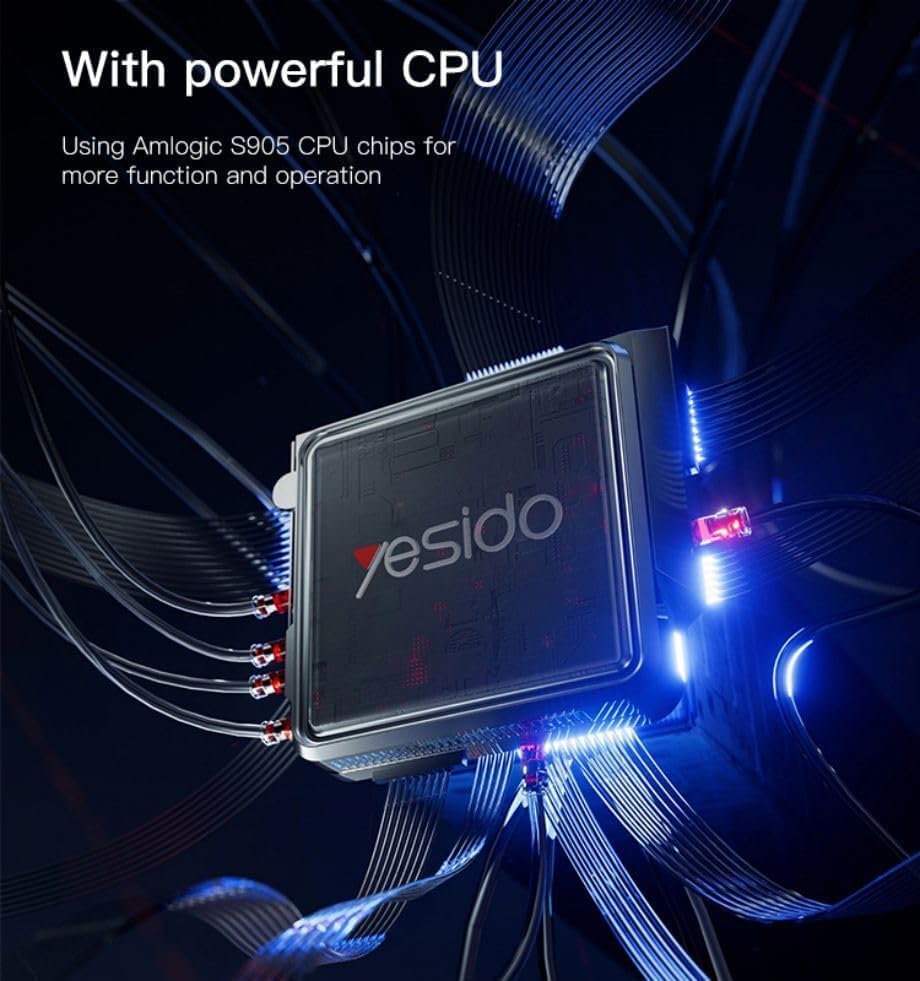
Image 7.1: The powerful Amlogic S905 CPU at the core of the TV Box.
| Caracteristică | Descriere |
|---|---|
| Nume de marcă | Da, o iau |
| Numele modelului | TV12 |
| Sistem de operare | Android 12.0 Dual System |
| CPU | Amlogic S905 |
| GPU | Mali-G31 MP2 |
| RAM instalată | 2 GB |
| Capacitate de stocare a memoriei | 16 GB |
| Rezoluția ieșirii video | 1080P to 4K |
| Tehnologia de conectivitate | HDMI, Wi-Fi (2.4G/5G), RJ45 (100Mbps) |
| Tip conector | HDMI |
| Servicii de Internet acceptate | Netflix, Hulu, Amazon Prime Video, Disney+ |
| Dispozitive compatibile | Televiziune |
| Componente incluse | TV Box, Controllers |
| Culoare | Negru |
| Greutatea articolului | 1200 de grame |
| Dimensiuni produs (L x l x H) | 20 x 5 x 10 cm |
8. Garanție și asistență
8.1 Informații despre garanție
The Yesido TV12 Gaming TV Box comes with a standard manufacturer's warranty. Please refer to the warranty card included in your product packaging for specific terms, conditions, and duration. Keep your proof of purchase for warranty claims.
8.2 Asistență pentru clienți
If you encounter any issues not covered in this manual or require further assistance, please contact Yesido customer support. Contact details can typically be found on the product packaging, the official Yesido website-ul web sau pagina de asistență a distribuitorului.