
1. Introducere
This manual provides instructions for the NYXI Striker Retro Mechanical Gaming Keyboard (Model: CA01). This keyboard features multi-device connectivity, hot-swappable switches, RGB backlighting, and a customizable display screen. It is compatible with Windows, macOS, and iOS systems.

Image 1.1: The NYXI Striker Retro Mechanical Gaming Keyboard, showcasing its GameCube-inspired design and full layout.
2. Conținutul pachetului
Verificați dacă toate articolele sunt prezente în colet:
- NYXI Striker Retro Mechanical Gaming Keyboard
- Extractor pentru chei
- Cablu USB (USB-C la USB-A)
- Additional Switches (5x Red, 5x Blue)
- 2.4GHz Wireless Receiver (stored in keyboard compartment)

Image 2.1: All components included with the NYXI Striker Retro Mechanical Gaming Keyboard.
3. Produs terminatview
The NYXI Striker keyboard features a 97-key layout with several distinct components:
- Tastaturi: Dual-color keycaps for a comfortable typing experience.
- Comutatoare mecanice: Hot-swappable switches for customization.
- Iluminare de fundal RGB: Per-key RGB illumination with various effects.
- Ecran de afișare: A pixelated dot matrix screen for animations and status.
- Rolă de volum: A dedicated roller for audio adjustment.
- Connectivity Switch: Located on the side/back for switching between wired, 2.4G, and Bluetooth modes.
- Port USB-C: Pentru conexiune prin cablu și încărcare.
- 2.4GHz Receiver Compartment: A dedicated slot to store the wireless receiver.
- Picioare reglabile: Trei stage tilt stands for ergonomic positioning.

Imaginea 3.1: Sus view of the keyboard, showing the full key layout and integrated display screen.

Imaginea 3.2: Vedere lateralăfile a tastaturii.

Image 3.3: Location of the 2.4GHz wireless receiver compartment.

Image 3.4: Three-level adjustable tilt stand for ergonomic comfort.
4. Configurare
4.1 Încărcare inițială
Before first use, connect the keyboard to a USB power source using the provided USB-C cable to ensure it is fully charged. The keyboard can be used while charging in wired mode.
4.2 Moduri de conectivitate
The NYXI Striker keyboard supports three connection modes: Bluetooth 5.0, 2.4GHz wireless, and USB wired. Use the switch located on the keyboard to select your desired mode.
- Mod cu fir USB:
- Set the mode switch on the keyboard to the wired (USB) position.
- Conectați capătul USB-C al cablului la tastatură și capătul USB-A la computer.
- Tastatura va fi recunoscută automat de sistemul dumneavoastră de operare.
- Mod wireless de 2.4 GHz:
- Retrieve the 2.4GHz USB receiver from its compartment on the keyboard.
- Set the mode switch on the keyboard to the 2.4G wireless position.
- Conectați receptorul USB de 2.4 GHz la un port USB disponibil de pe computer.
- Tastatura ar trebui să se conecteze automat.
- Mod Bluetooth 5.0:
- Setați comutatorul de mod de pe tastatură în poziția Bluetooth.
- The keyboard supports up to 5 Bluetooth channels. Press Fn + 1/2/3/4/5 to select a Bluetooth channel. The display screen will indicate the selected channel.
- Pentru a intra în modul de asociere, țineți apăsat Fn + 1/2/3/4/5 for 3-5 seconds until the indicator light flashes rapidly or the display screen shows a pairing icon.
- Pe dispozitivul dvs. (computer, tabletă, telefon), accesați setările Bluetooth și căutați dispozitive noi.
- Select "NYXI Striker" from the list of available devices to pair.
- Once paired, the indicator light will become solid, and the display screen will confirm the connection.

Image 4.1: Compatible operating systems for the keyboard.
5. Instrucțiuni de utilizare
5.1 Pornire/Oprire
The keyboard powers on automatically when connected via USB or when a wireless mode is selected and the battery has charge. To conserve battery, ensure the keyboard is switched off when not in use for extended periods.
5.2 Comutarea între dispozitive/moduri
To switch between connected Bluetooth devices, press Fn + 1/2/3/4/5 to select the desired paired channel. To switch between wired, 2.4G, and Bluetooth modes, use the physical switch on the keyboard.
Controlul iluminării de fundal RGB 5.3
The keyboard features 22 RGB lighting modes. Use the following key combinations to control the backlighting:
- Fn + Ctrl stânga: Comutați între diferite efecte de iluminare RGB.
- Fn + Arrow Up/Down: Reglați nivelurile de luminozitate.
- Fn + Arrow Left/Right: Ajustați viteza efectului de iluminare.

Image 5.1: RGB Hybrid Underglow lighting in action.
5.4 Display Screen Operation
The integrated display screen can show various animations and status indicators. Use the NYXI Driver App for advanced customization of the display screen content.
Roller cu 5.5 volume
Rotate the dedicated roller on the top right of the keyboard to adjust the system volume. Pressing the roller typically mutes/unmutes audio.
6. Caracteristici cheie
The NYXI Striker keyboard is designed with several advanced features to enhance your user experience:
- Conexiune cu mai multe dispozitive: Supports Bluetooth 5.0, 2.4GHz wireless, and USB wired modes. It also features a built-in five-channel mode for seamless switching between multiple devices (Windows, Android, macOS, iOS, iPad systems).
- Hot-Swappable and Gasket Structure: The keyboard supports hot-swappable switches, allowing for easy replacement without soldering. Its gasket structure, constructed with PC+ABS material, provides a soft and elastic typing feel, reducing noise and improving overall acoustics.
- Personalized Aesthetics: Features 22-color RGB backlighting with various glow modes and effects. The display screen supports 4 dynamic matrix display modes, which can be customized further via software.
- NYXI Driver App - Macro Customization: A dedicated software application allows for extensive macro customization, key remapping, and lighting management. This app supports wired, 2.4G, and Bluetooth connections for flexible setup.
- Design confort: Integrates a precision volume roller, anti-slip silicone pads for stability, and a three-stage tilt stand for adjustable ergonomic comfort during extended use.

Image 6.1: Gasket structure for enhanced typing experience.

Image 6.2: Hot-swappable PCB for easy switch replacement.
6.1 Using the NYXI Driver App
The NYXI Driver App provides advanced customization options for your keyboard. Download the application from the official NYXI website-ul.
- Personalizare macrocomenzi: Create and assign complex macros to keys.
- Setări de iluminare: Fine-tune RGB effects, colors, and animations.
- Display Screen Customization: Upload custom images or animations to the dot matrix display.

Image 6.3: NYXI Driver App interface for macro customization.
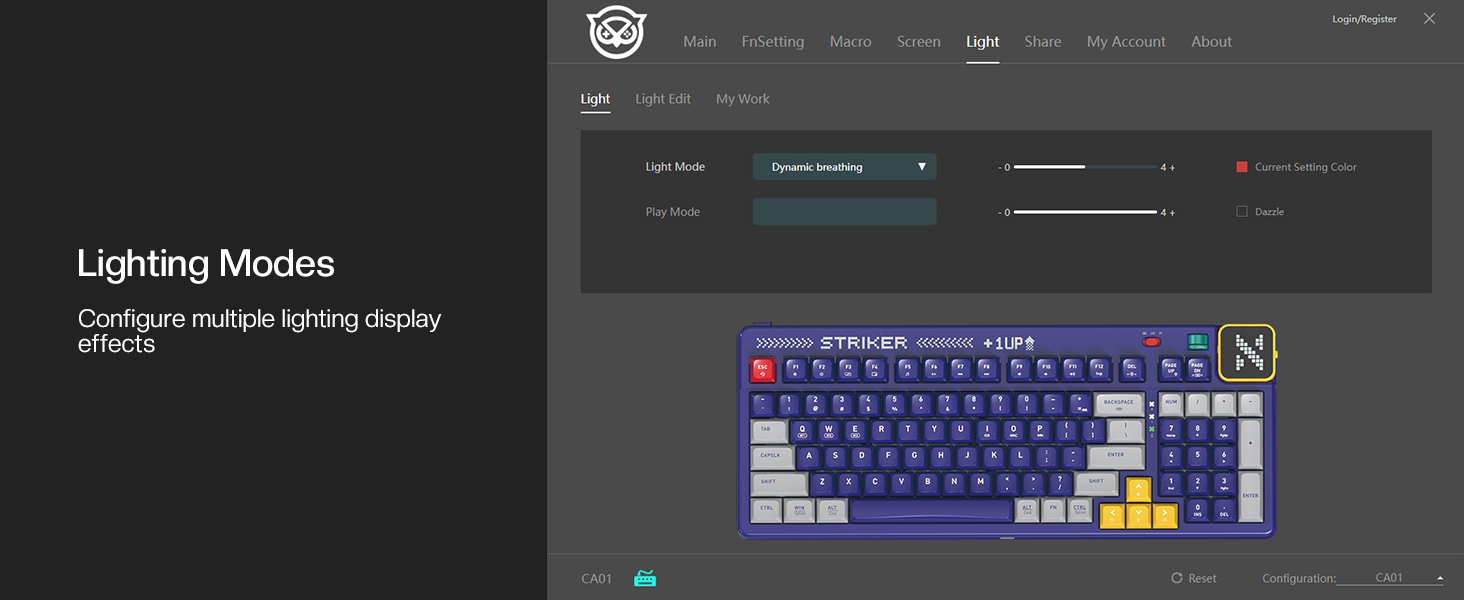
Image 6.4: NYXI Driver App interface for lighting mode configuration.

Image 6.5: NYXI Driver App interface for dot matrix screen customization.
7. Întreținere
7.1 Curățare
- Folosiți o lavetă moale și uscată pentru a șterge suprafața tastaturii.
- For deeper cleaning, use the provided keycap puller to remove keycaps and clean dust or debris with compressed air.
- Avoid using harsh chemicals or abrasive materials that could damage the keyboard finish or keycap legends.
7.2 Depozitare
Store the keyboard in a cool, dry place away from direct sunlight and extreme temperatures. If storing for an extended period, ensure the keyboard is fully charged and then powered off.
8. Depanare
- Tastatura nu răspunde:
- Ensure the keyboard is powered on and the correct connectivity mode (wired, 2.4G, or Bluetooth) is selected.
- For wireless modes, check battery level. Recharge if necessary.
- For 2.4GHz, ensure the receiver is properly plugged into a USB port.
- For Bluetooth, ensure it is paired correctly and the selected channel (Fn + 1-5) matches the paired device. Try re-pairing.
- Încearcă conectarea prin modul USB cu fir pentru a exclude problemele wireless.
- RGB lights not working/displaying correctly:
- Ensure RGB is enabled (check the NYXI Driver App if installed).
- Comutați prin modurile de iluminare folosind Fn + Ctrl stânga.
- Ajustați luminozitatea folosind Fn + Săgeată în sus.
- Cheile nu se înregistrează:
- If a specific key is not working, the switch might be faulty. Utilize the hot-swappable feature to replace the switch with one of the spares provided.
- Asigurați-vă că nu există resturi blocate sub capacul tastei sau sub comutator.
- Probleme de conectivitate (întârziere, deconectări):
- For wireless modes, ensure the keyboard is within range of the receiver/device and there are no significant obstructions.
- Minimizează interferențele de la alte dispozitive wireless.
- Ensure the keyboard's battery is sufficiently charged.
If issues persist, please refer to the Warranty & Support section for further assistance.
9. Specificații
| Caracteristică | Detaliu |
|---|---|
| Numărul de model | CA01 |
| Tehnologia de conectivitate | Wireless 2.4G, Bluetooth 5.0, USB-C cu fir |
| Descrierea tastaturii | Mecanic |
| Numărul de chei | 97 Chei |
| Dispozitive compatibile | macOS, Windows 7 or later, iOS |
| Caracteristici speciale | Backlit (RGB), Customizable Display Keys, Gasket Structure, Hot-Swappable |
| Suport culori pentru iluminarea din spate a tastaturii | RGB (22 modes) |
| Stil | NGC Retro |
| Dimensiunile produsului | 15.32"L x 6.08"l x 1.3"Î (38.91 x 15.44 x 3.3 cm) |
| Greutatea articolului | 3.56 lire (1.61 kg) |
| Producător | NYXI |
10. Garanție și asistență
10.1 Informații despre garanție
NYXI products are covered by a limited warranty against defects in materials and workmanship. Please refer to the official NYXI webConsultați site-ul sau documentația achiziției pentru termenii și condițiile specifice ale garanției, inclusiv detalii despre durată și acoperire.
10.2 Asistență pentru clienți
For technical assistance, troubleshooting, or warranty claims, please contact NYXI customer support through their official website. You may need to provide your product model number (CA01) and proof of purchase.
Thank you for choosing the NYXI Striker Retro Mechanical Gaming Keyboard.