
Introducere
This manual provides detailed instructions for the GAMFAMI TERIOS Wireless Controller. Please read this manual carefully before using the product to ensure proper operation and to maximize your gaming experience. This controller is designed for use with PlayStation 4, PS4 Pro, and PS4 Slim consoles.
Caracteristicile produsului
- Joystick-uri cu efect Hall: Equipped with Hall joysticks to prevent drift and ensure a longer lifespan with smooth, precise control.
- Programare macro: Two programmable back buttons (M1, M2) allow mapping of various inputs (X, O, Triangle, Square, Up, Down, Left, Right, L3, R3, L1, R1, L2, R2) for enhanced gameplay.
- Conectivitate wireless: Enjoy a seamless wireless gaming experience with Bluetooth technology.
- Vibrații cu șoc dublu: Enhanced dual shock motors provide immersive haptic feedback for a realistic gaming experience.
- Funcția Turbo: Activate the Turbo feature for rapid, repeated button presses, offering a competitive advantage.
- Baterie de lunga durata: Features a 1000mAh rechargeable battery for extended play sessions.
- Design ergonomic: Lightweight and durable ABS construction with textured grips for comfortable handling.
- Built-in Speaker & 3.5mm Audio Jack: Provides high-quality audio directly from the controller and supports headset connection.
Conținutul pachetului
Vă rugăm să verificați conținutul pachetului la despachetare:
- GAMFAMI TERIOS Wireless Controller
- Cablu de încărcare USB
- Manual de instructiuni
Aspect controler
Familiarize yourself with the buttons and features of your GAMFAMI TERIOS Wireless Controller.
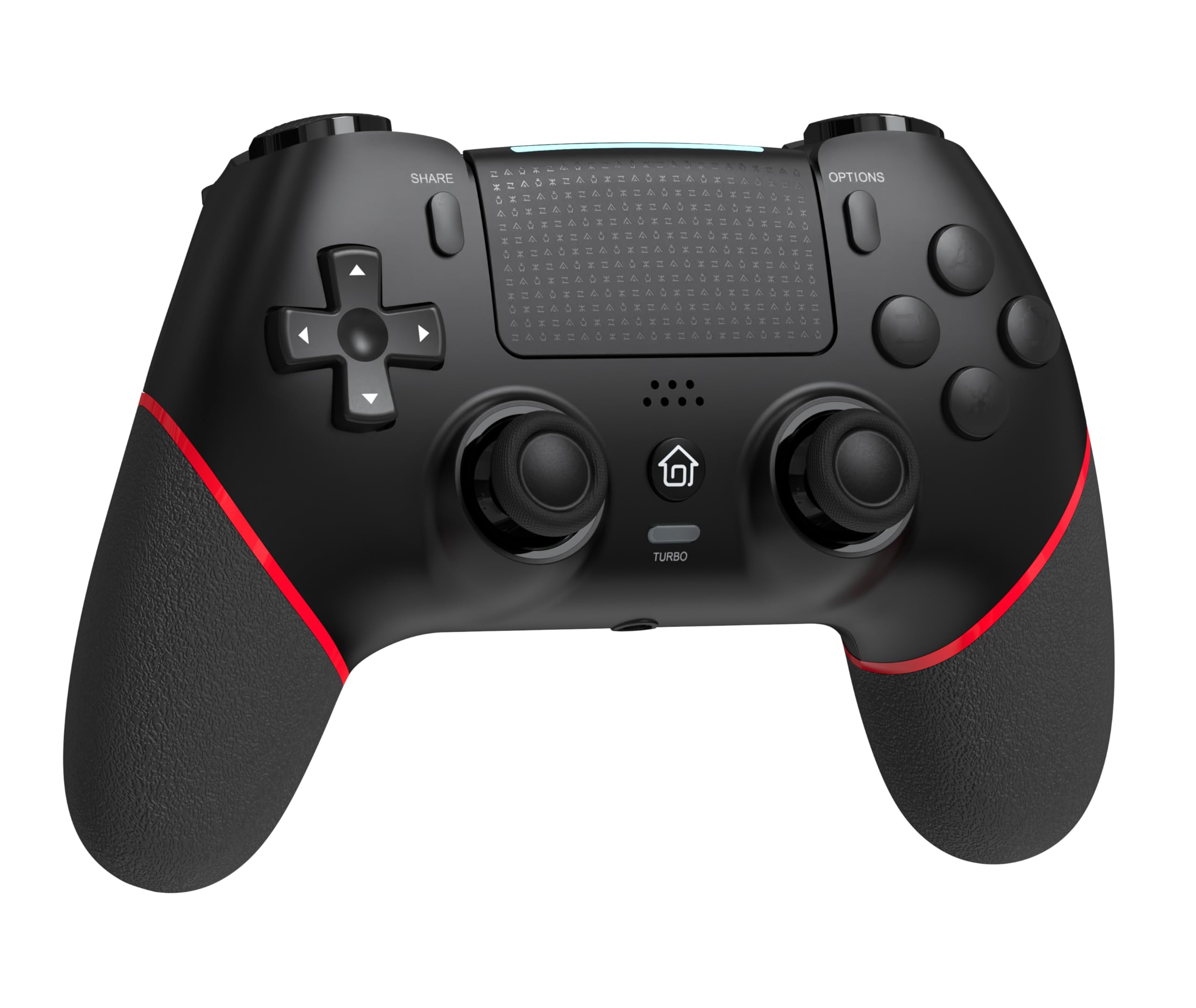
Faţă view of the GAMFAMI TERIOS Wireless Controller, showing the joysticks, D-pad, action buttons, Share, Options, Home, and Turbo buttons, and the touchpad.
- Pad direcțional (D-Pad): Pentru intrare direcțională.
- Butoane de acțiune (Triunghi, Cerc, Cruce, Pătrat): Standard PlayStation action buttons.
- Manete analogice stânga/dreapta: For precise movement and camera control. Features Hall Effect technology.
- Butonul SHARE: Pentru partajarea conținutului de joc.
- Buton OPȚIUNI: For in-game menus and options.
- PS Button (Home Button): To access the PS4 system menu.
- Butoane L1/R1: Nasturi de umăr.
- Declanșatoare L2/R2: Declanșatoare analogice.
- Touchpad: Multi-touch input area.
- Butoane M1/M2: Butoane programabile pentru întoarcere.
- Butonul TURBO: Activates/deactivates turbo function.
- Mufă pentru căști de 3.5 mm: Pentru conectarea unor căști compatibile.
- Port USB-C: Pentru încărcare și conexiune prin cablu.

Spate view of the controller, highlighting the M1 and M2 programmable buttons and product information.
Configurare și conectare
Pairing with PS4/PS4 Pro/PS4 Slim
- Asigurați-vă că consola PS4 este pornită.
- Connect the controller to your PS4 console using the included USB charging cable.
- Press the PS button on the controller. The light bar will flash, indicating it is pairing.
- Once the light bar turns solid, the controller is successfully paired and ready for use.
- You can now disconnect the USB cable for wireless play.
Reconnecting to PS4
After initial pairing, simply press the PS button on the controller to reconnect wirelessly to your PS4 console.
Instrucțiuni de operare
Utilizarea funcției Turbo
- Țineți apăsat butonul TURBO buton.
- În timp ce ține TURBO, press the action button (e.g., Cross, Circle, Square, Triangle, L1, R1, L2, R2) you wish to apply the turbo function to.
- Release both buttons. The selected action button will now rapidly repeat its input when held down.
- To disable turbo for a specific button, repeat the process: hold TURBO and press the turbo-enabled action button.
- To disable turbo for all buttons, press and hold the TURBO butonul pentru 5 secunde.
Macro Programming (M1/M2 Buttons)
The M1 and M2 buttons on the back of the controller can be programmed to replicate other button inputs.
- Țineți apăsat butonul SHARE butonul și M1 or M2 button simultaneously for 3 seconds until the light bar flashes rapidly. This indicates macro programming mode.
- Press the button(s) you wish to map to M1 or M2 (e.g., X, O, Triangle, Square, Up, Down, Left, Right, L3, R3, L1, R1, L2, R2). You can map a single button or a sequence of buttons.
- Apăsați tasta M1 or M2 button again to save the macro. The light bar will stop flashing rapidly and return to its normal state.
- To clear a macro, repeat step 1, then press the M1 or M2 button twice without pressing any other buttons.

Illustration of the advanced buttons and their programming capabilities.
Încărcare și gestionare a bateriei
The controller is equipped with a 1000mAh rechargeable battery.
Încărcarea controlerului
- Connect the included USB charging cable to the USB-C port on the controller.
- Connect the other end of the cable to a USB port on your PS4 console (when powered on or in rest mode) or a compatible USB wall adapter (5V/1A recommended).
- The light bar on the controller will slowly pulse orange while charging.
- Once fully charged, the light bar will turn off.
Indicarea nivelului bateriei
The controller's light bar will indicate battery status. A low battery will cause the light bar to flash red. It is recommended to charge the controller when this occurs.
Întreţinere
- curatenie: Folosiți o cârpă moale și uscată pentru a curăța controlerul. Nu utilizați substanțe chimice dure sau materiale abrazive.
- Depozitare: Depozitați controlerul într-un loc răcoros și uscat, ferit de lumina directă a soarelui și de temperaturi extreme.
- Evitați picăturile: Protejați controlerul de căderi și impacturi, care pot deteriora componentele interne.
Depanare
| Problemă | Soluţie |
|---|---|
| Controller does not connect/pair. |
|
| Controller experiences input lag or disconnection. |
|
| Joysticks exhibit drift. |

Illustration of Hall Effect joystick technology, designed to prevent drift. |
| Controller does not charge. |
|
Specificații
| Numele modelului | TERIOS |
| Marca | GAMFAMI |
| Dispozitive compatibile | PS4, PS4 Pro, PS4 Slim |
| Tip controler | Gamepad |
| Tehnologia de conectivitate | Bluetooth (fară fir) |
| Sursa de alimentare | Alimentat cu baterie |
| Capacitatea bateriei | 1000mAh |
| Greutatea articolului | 0.37 kilograme |
| Culoare | Negru Roșu |
Garanție și suport
For warranty information and technical support, please refer to the documentation included with your purchase or visit the official GAMFAMI webPăstrați bonul fiscal ca dovadă a achiziției pentru orice reclamații în garanție.
For further assistance, please contact GAMFAMI customer service through their official channels.