
Getac K120
Manual de utilizare pentru laptopul Getac K120 Rugged 2 în 1
Model: K120
1. Introducere
The Getac K120 Rugged 12.5-inch 2-in-1 Laptop is engineered for high performance and durability in demanding environments. This manual provides essential information for setting up, operating, maintaining, and troubleshooting your device.
2. Caracteristici cheie
- Design robust: Built to withstand harsh conditions, ideal for fieldwork and industrial use.
- Performanță ridicată: Equipped with an 8th Gen Intel Quad Core i5-8250U processor (up to 3.4 GHz) for efficient processing.
- Memorie și stocare: 16GB DDR4 RAM for multitasking and a 512GB Solid State Drive (SSD) for fast boot times and ample depozitare.
- Afişa: 12.5" FHD Touchscreen (1920 x 1080 pixels) with LumiBond 2.0 technology for clear visibility.
- Sistem de operare: Pre-installed with Windows 10 Professional (64-bit).
- Conectivitate: Features Bluetooth, Wi-Fi, and various ports including USB 3.0, USB 3.1 Gen 1 Type-C, LAN (RJ-45), HDMI, MicroSD slot, and Serial Port.
- Tastatură iluminată din spate: Enhances usability in low-light conditions.
3. Conținutul pachetului
La despachetare, asigurați-vă că sunt prezente toate următoarele articole:
- Getac K120 Rugged 2-in-1 Laptop
- 2 baterii litiu-ion
- Adaptor de curent alternativ
Note: Additional accessories such as a stylus may be sold separately or included depending on your specific package.
4. Dispozitiv terminatview
4.1 Față View
The front of the Getac K120 features the 12.5-inch Full HD touchscreen display. Below the screen are various control buttons and indicators.

Figura 4.1: Față view of the Getac K120 in laptop mode, showing the rugged casing și afișare.
4.2 Modul tabletă
The K120 can be detached from its keyboard dock to function as a standalone tablet, offering flexibility for various work environments.

Figure 4.2: Getac K120 in tablet configuration, highlighting its portability and touchscreen capabilities.
4.3 Latura Views și Porturi
The Getac K120 is equipped with various ports for connectivity and expansion. These ports are protected by rugged covers to maintain the device's durability.

Figura 4.3: lateral view of the Getac K120, illustrating its robust construction and 2-in-1 design.
Tablet Ports:

Figure 4.4: Left side ports of the tablet component, including HDMI, Audio, USB-C, USB-A 3.0, MicroSD, SIM (optional), and Kensington Lock.

Figure 4.5: Right side ports of the tablet component, including DC In Jack, LAN (RJ-45), and Serial Port.
Keyboard Ports:

Figure 4.6: Left side ports of the keyboard dock, including VGA, HDMI, LAN (RJ-45), and USB 3.0.
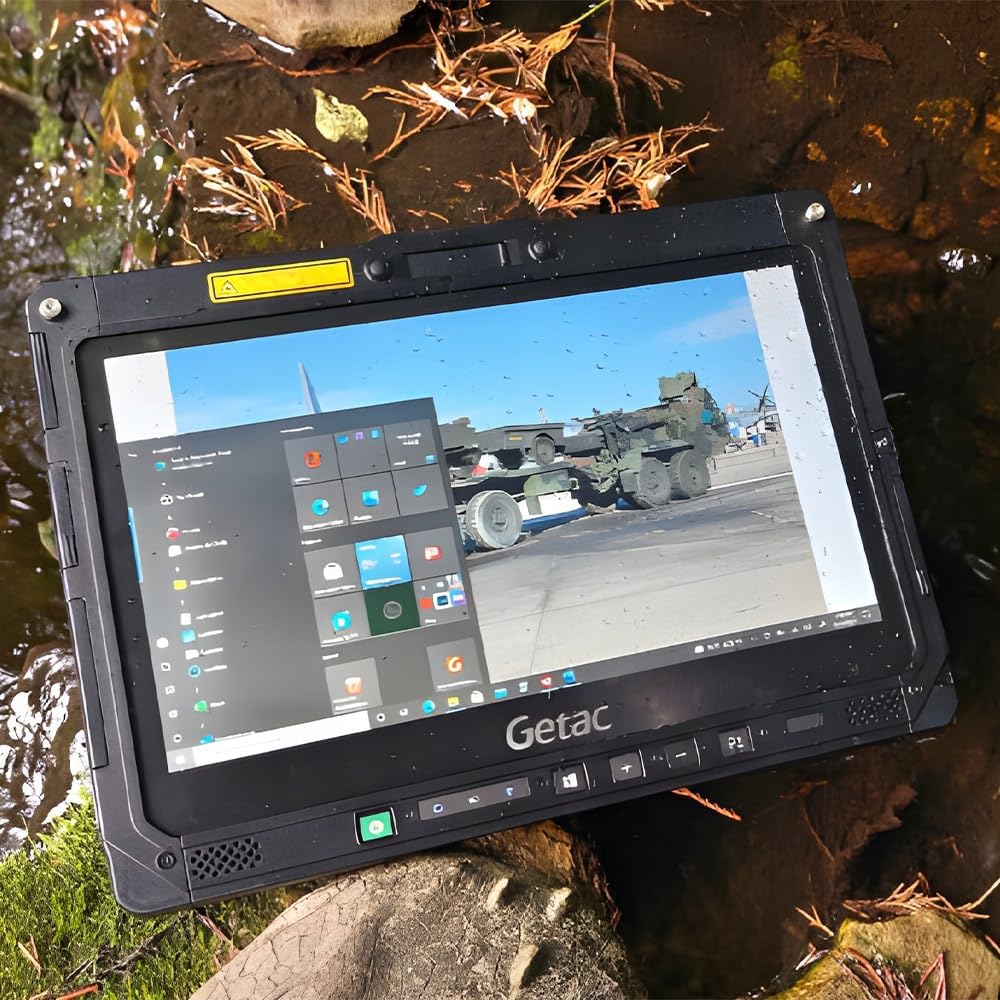
Figure 4.7: Right side ports of the keyboard dock, including two USB 3.0 ports, SDXC slot, Serial port, and DC In Jack.
5. Configurare și prima utilizare
5.1 Încărcarea bateriei
Before initial use, fully charge the Getac K120. Connect the AC power adapter to the DC In Jack on either the tablet or the keyboard dock, then plug it into a power outlet. The charging indicator light will illuminate.
The device includes two Lithium Ion batteries. Ensure both are properly seated for optimal battery life.
5.2 Pornire/Oprire
- Pentru a porni: Press and hold the power button located on the tablet's front panel until the Getac logo appears.
- Pentru a opri: Navigate to the Start Menu in Windows, select Power, and then choose "Shut down." Alternatively, press and hold the power button for several seconds to force a shutdown (not recommended for regular use).
5.3 Configurarea inițială a Windows
Upon first boot, Windows 10 Professional will guide you through the initial setup process. This includes selecting your region, language, connecting to a Wi-Fi network, and creating a user account. Follow the on-screen prompts to complete the setup.
6. Operarea dispozitivului
6.1 Using the Touchscreen and Stylus
The 12.5" FHD touchscreen supports multi-touch gestures. You can interact with the device using your fingers or a compatible capacitive stylus. The stylus provides precision for tasks like drawing, note-taking, or navigating small interface elements.
To use the stylus, simply touch the screen with its tip. For right-click functionality, press and hold the stylus tip on the screen until a context menu appears.
6.2 Detaching and Attaching the Keyboard Dock
The Getac K120 is a 2-in-1 device, allowing you to switch between laptop and tablet modes.
- De detașat: Locate the release latch on the keyboard dock, typically near the hinge. Slide or press the latch to unlock the tablet, then carefully lift the tablet away from the keyboard.
- A atasa: Align the tablet with the keyboard dock's connectors. Gently press the tablet down until it clicks securely into place. Ensure the latch engages to prevent accidental detachment.
6.3 Conectarea perifericelor
Utilize the various ports to connect external devices:
- Dispozitive USB: Connect USB drives, mice, keyboards, or other USB peripherals to the USB 3.0 or USB 3.1 Type-C ports.
- Afișaje externe: Use the HDMI or VGA ports to connect to external monitors or projectors.
- Reţea: For wired network access, connect an Ethernet cable to the LAN (RJ-45) port.
- Audio: Plug headphones or external speakers into the Headphone out / mic-in combo jack.
- Carduri de memorie: Insert MicroSD or SDXC cards into the respective slots for expanded storage or data transfer.
7. Întreținere și îngrijire
To ensure the longevity and optimal performance of your Getac K120, follow these maintenance guidelines:
- curatenie: Utilizați o cârpă moale, fără scame dampened with water or a screen cleaner to wipe the display. For the casing, a mild soap solution can be used. Ensure all port covers are closed before cleaning. Avoid abrasive cleaners or solvents.
- Capace pentru porturi: Always keep all port covers securely closed when not in use to protect against dust, water, and impact, maintaining the device's rugged integrity.
- Îngrijirea bateriei: Avoid fully discharging the batteries frequently. For long-term storage, charge the batteries to about 50% and store the device in a cool, dry place.
- Actualizări de software: Regularly update Windows and device drivers to ensure system stability, security, and performance. Check the Getac support website for specific driver updates.
- Conditii de mediu: While rugged, avoid exposing the device to extreme temperatures, direct sunlight for prolonged periods, or corrosive substances.
8. Depanare
This section addresses common issues you might encounter with your Getac K120.
| Problemă | Cauza posibila | Soluţie |
|---|---|---|
| Dispozitivul nu pornește. | Low or no battery charge; power adapter issue. | Connect the AC adapter and allow the device to charge for at least 30 minutes before attempting to power on. Ensure the power adapter is securely connected to both the device and the outlet. |
| Ecranul tactil nu răspunde. | Software glitch; screen protector interference; dirty screen. | Restart the device. Clean the screen with a soft, lint-free cloth. If a screen protector is installed, ensure it is properly applied and not interfering. |
| Keyboard or touchpad not working. | Keyboard dock not properly connected; driver issue. | Ensure the tablet is securely docked to the keyboard. Detach and reattach the tablet. Check Device Manager in Windows for any driver issues and update if necessary. |
| Nu există conexiune Wi-Fi. | Wi-Fi adapter off; incorrect network settings; out of range. | Check if Wi-Fi is enabled in Windows settings. Verify network password. Move closer to the Wi-Fi router. Restart the router and the device. |
9. Specificații
| Componentă | Detaliu |
|---|---|
| Procesor | 8th Gen Intel Quad Core i5-8250U (1.6 GHz, up to 3.4 GHz) |
| Sistem de operare | Windows 10 Professional (64-biți) |
| Afişa | 12.5" FHD Touchscreen (1920 x 1080 pixels) |
| Memoria RAM | 16 GB RAM DDR4 |
| Hard Drive | Unitate SSD de 512 GB |
| Coprocesor grafic | Intel UHD Graphics 620 |
| Fără fir | Bluetooth, Wi-Fi (802.11bgn) |
| Porturi USB | Tablet: 1x USB 3.0, 1x USB 3.1 Gen 1 Type-C; Keyboard: 3x USB 3.0 |
| Porturi video | Tablet: 1x HDMI; Keyboard: 1x HDMI, 1x VGA |
| Port de rețea | Tablet: 1x LAN (RJ-45); Keyboard: 1x LAN (RJ-45) |
| Port audio | 1x Headphone out / mic-in combo |
| Sloturi pentru carduri | Tablet: 1x MicroSD slot; Keyboard: 1x SDXC slot |
| Port serial | Tablet: 1x Serial Port; Keyboard: 1x Serial Port |
| Conector de andocare | 2x (on tablet) |
| Greutatea articolului | 8.23 lire sterline |
| Dimensiunile produsului | 13.4 x 12.1 x 1.85 inci |
10. Garanție și asistență
This product is offered as a renewed item. Please refer to the specific warranty and return policy provided by the seller at the time of purchase. Typically, renewed products on Amazon come with a 90-day return/replacement policy.
Pentru asistență tehnică, descărcări de drivere sau asistență suplimentară, vă rugăm să vizitați pagina oficială de asistență Getac. website sau contactați direct vânzătorul.
Documente aferenteK120


Ask a question about this manual
Ask about setup, troubleshooting, compatibility, parts, safety, or missing instructions. Manuals+ will review the question and use this page’s manual context to help answer it.