
1. Introducere
The Phomemo M950 Label Maker is a versatile, portable thermal label printer designed for both home and office use. It offers dual printing modes: direct input via its integrated keyboard and wireless printing via Bluetooth connection to a mobile application. This device utilizes thermal printing technology, eliminating the need for ink cartridges, and supports various label tape types for diverse labeling needs.
2. Informații de siguranță
- Keep the device away from water and high humidity to prevent electric shock or damage.
- Nu dezasamblați și nu încercați să reparați singur dispozitivul. Contactați asistența pentru clienți pentru asistență.
- Use only Phomemo-approved label tapes to ensure optimal performance and prevent damage to the print head.
- A nu se lăsa la îndemâna copiilor.
- Evitați expunerea dispozitivului la lumina directă a soarelui sau la temperaturi extreme.
- Charge the device using a compatible Type-C USB power adapter.
3. Conținutul pachetului
Please check the package contents upon unboxing. If any items are missing or damaged, contact your retailer or Phomemo customer support.
- Producător de etichete Phomemo M950
- 12mm Label Tape Roll (pre-installed or included separately)
- Cablu de încărcare USB de tip C
- Manual de utilizare (acest document)
4. Produs terminatview
Familiarize yourself with the components of your Phomemo M950 Label Maker.

Image: Phomemo M950 Label Maker showing its main features including no ink, one-touch key, keyboard editing, app editing, 203 DPI resolution, backlight support, Type-C recharge, and built-in cutter.
Caracteristici cheie:
- Intrare tastatură: Integrated QWERTY keyboard for direct label creation.
- Conectivitate Bluetooth: Connects to smartphones for advanced label design via the Phomemo app.
- Imprimare termică: No ink required, uses thermal label tapes.
- Backlight Screen: Asigură vizibilitate în condiții de lumină slabă.
- Cutter incorporat: For clean and precise label cutting.
- Baterie reîncărcabilă: Integrated 1200mAh battery, rechargeable via Type-C port.
5. Configurare
5.1. Încărcarea dispozitivului
Before first use, fully charge the label maker.
- Connect the provided USB Type-C cable to the charging port on the side of the label maker.
- Conectați celălalt capăt al cablului la un adaptor de alimentare USB compatibil (nu este inclus) sau la un port USB al computerului.
- The charging indicator light will show the charging status. Once fully charged, the indicator will change or turn off.

Image: Phomemo M950 Label Maker highlighting the Type-C charging port and its compact dimensions.
5.2. Încărcarea benzii de etichete
Ensure the device is powered off before loading or replacing tape.
- Open the tape compartment cover located on the top or back of the device.
- Insert the label tape roll with the label side facing up, ensuring it sits securely in the compartment.
- Feed the end of the label tape through the tape guide until it protrudes slightly from the output slot.
- Close the tape compartment cover firmly.
5.3. Pornire/Oprire
Apăsați și mențineți apăsat butonul de pornire (de obicei marcat cu simbolul de pornire) timp de câteva secunde pentru a porni sau opri dispozitivul.
6. Instrucțiuni de utilizare
The Phomemo M950 offers two primary methods for creating labels.

Image: Phomemo M950 Label Maker illustrating the two usage modes: direct printing from the keyboard and printing via a mobile device using the 'Print Master' app.
6.1. Imprimare la tastatură
This mode allows you to create labels directly on the device without needing a smartphone.
- Pornire: Turn on the label maker. The screen will illuminate.
- Type Text: Use the QWERTY keyboard to type your desired label text. The text will appear on the display.
- Personalizați: Use the function keys (e.g., 'Fn', 'Shift', 'Symbol', 'Caps', 'Accent') to access various customization options such as font styles, sizes, symbols, and borders. The device supports multiple languages, borders, and symbols.
- Preview: Use the 'Preview' button to see how your label will look before printing.
- Imprimare: Press the 'Print' button to print the label. The built-in cutter will automatically cut the label after printing.

Image: Phomemo M950 Label Maker showcasing its extensive features including support for 23+ languages, 103+ borders, and 790+ symbols and icons for label customization.
6.2. Bluetooth App Printing
For more advanced design options, connect your label maker to the 'Print Master' mobile app.
- Descărcați aplicația: Download the 'Print Master' app from your mobile device's app store (App Store for iOS, Google Play for Android).
- Activați Bluetooth: Ensure Bluetooth is enabled on your mobile device and the Phomemo M950.
- Conectare: Open the 'Print Master' app and follow the on-screen instructions to connect to your M950 label maker via Bluetooth.
- Etichetă de design: Use the app's interface to design your label. The app offers massive templates, additional fonts, borders, and icons.
- Imprimare: Once your design is complete, tap the print icon in the app to send the label to the M950 for printing.

Image: Phomemo M950 Label Maker demonstrating the use of the 'Print Master' app with numerous templates, 270+ borders, 110+ fonts, 1500 icons, and 14+ languages for creative label design.
6.3. Adjusting Print Density
For optimal print quality, especially with ribbon tapes, adjust the print density.
- Press the 'Fn' key, then select 'Pinter Densities' (Printer Densities).
- Choose 'High' for clearer prints, particularly when using ribbon tapes.

Image: Step-by-step guide on how to set the print density to 'High' on the Phomemo M950 Label Maker for clear prints, especially for ribbon tapes.
7. Întreținere
7.1. Curățarea capului de imprimare
Regular cleaning ensures consistent print quality.
- Turn off the label maker and open the tape compartment.
- Ștergeți ușor capul de imprimare cu o lavetă moale, fără scameampterminat cu alcool izopropilic.
- Lăsați capul de imprimare să se usuce complet înainte de a închide compartimentul și a porni dispozitivul.
7.2. Tape Storage
Store label tapes in a cool, dry place away from direct sunlight to preserve their quality and adhesive properties.
8. Depanare
If you encounter issues with your Phomemo M950, refer to the following common problems and solutions.
| Problemă | Cauza posibila | Soluţie |
|---|---|---|
| Fără putere | Baterie descărcată; Dispozitiv oprit | Charge the device; Press and hold power button to turn on. |
| Calitate slabă a imprimării | Print head dirty; Incorrect print density; Low battery | Clean print head; Adjust print density to 'High'; Charge device. |
| Label not feeding | Tape incorrectly loaded; Tape jammed; Out of tape | Re-load tape correctly; Clear any jams; Replace tape roll. |
| Eroare de conexiune Bluetooth | Bluetooth off; Device not paired; App issue | Ensure Bluetooth is on for both devices; Re-pair in app; Restart app/device. |
| Cutterul nu funcționează | Tape jammed; Cutter mechanism obstructed | Clear any tape jams; Ensure no debris is blocking the cutter. |
9. Specificații
| Caracteristică | Detaliu |
|---|---|
| Numele modelului | M950 |
| Marca | Phomemo |
| Tehnologia de imprimare | Termic |
| Tehnologia de conectivitate | Bluetooth, Keyboard |
| Ieșire imprimantă | Monocrom |
| Rezoluție maximă de imprimare | 203 dpi |
| Dimensiune maximă media | 12mm * 4000mm |
| Dispozitive compatibile | Smartphone-uri |
| Putere | 10 wați |
| Tip baterie | Litiu-ion de 1200 mAh încorporat |
| Port de încărcare | USB tip C |
| Dimensiunile produsului | 15.2 x 5.4 x 11.2 cm |
| Greutatea articolului | 490 de grame |
| Culoare | Alb |
| Caracteristica specială | Portable, Backlight Screen, Built-in Cutter |
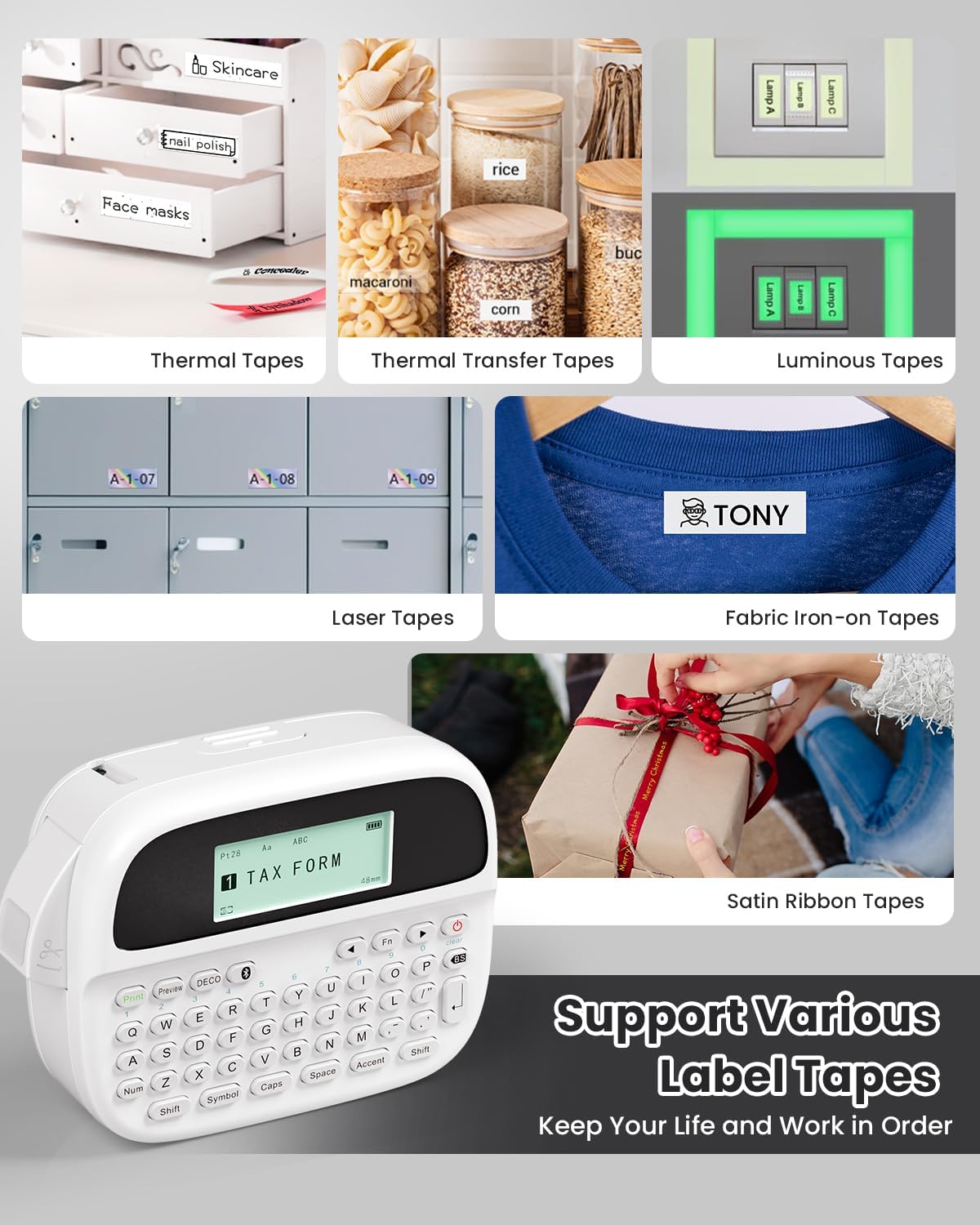
Image: Phomemo M950 Label Maker supporting various label tape types including Thermal, Thermal Transfer, Luminous, Laser, Fabric Iron-on, and Satin Ribbon tapes.

Image: Phomemo M950 Label Maker demonstrating its backlight screen feature, allowing for comfortable use even at night.
10. Garanție și asistență
For warranty information, technical support, or service inquiries, please refer to the official Phomemo website-ul lor web sau contactați direct serviciul lor de asistență pentru clienți. Păstrați bonul fiscal ca dovadă a achiziției pentru reclamațiile în garanție.
Phomemo Oficial Website: Visit Phomemo Store