
1. Introducere
Welcome to the instruction manual for your new Xiaomi Curved Gaming Monitor G34WQi. This guide provides essential information for the safe and optimal setup, operation, and maintenance of your monitor. Please read this manual thoroughly before use to ensure you get the best experience from your device.
The Xiaomi G34WQi features a 34-inch UWQHD (3440x1440) ultrawide curved display with a 1500R curvature, designed to provide an immersive viewing experience. It boasts a high 180Hz refresh rate and a rapid 1ms response time (MPRT) for smooth, fluid gameplay. With FreeSync Premium technology, it minimizes screen tearing and stuttering. The monitor also offers a wide color gamut (95% DCI-P3, 100% sRGB) and a low blue light mode for eye comfort.
2. Configurare
2.1 Conținutul pachetului
Înainte de asamblare, vă rugăm să verificați dacă toate componentele sunt prezente:
- Xiaomi Curved Gaming Monitor G34WQi
- Suport monitor (bază și braț)
- Adaptor de alimentare și cablu
- Cablu DisplayPort
- Cablu HDMI
- Manual de utilizare
2.2 Asamblarea standului
- Așezați cu grijă monitorul cu fața în jos pe o suprafață moale și curată pentru a preveni zgârieturile.
- Attach the stand arm to the back of the monitor using the provided screws. Ensure it is securely fastened.
- Connect the stand base to the arm and tighten the thumb screw at the bottom of the base.
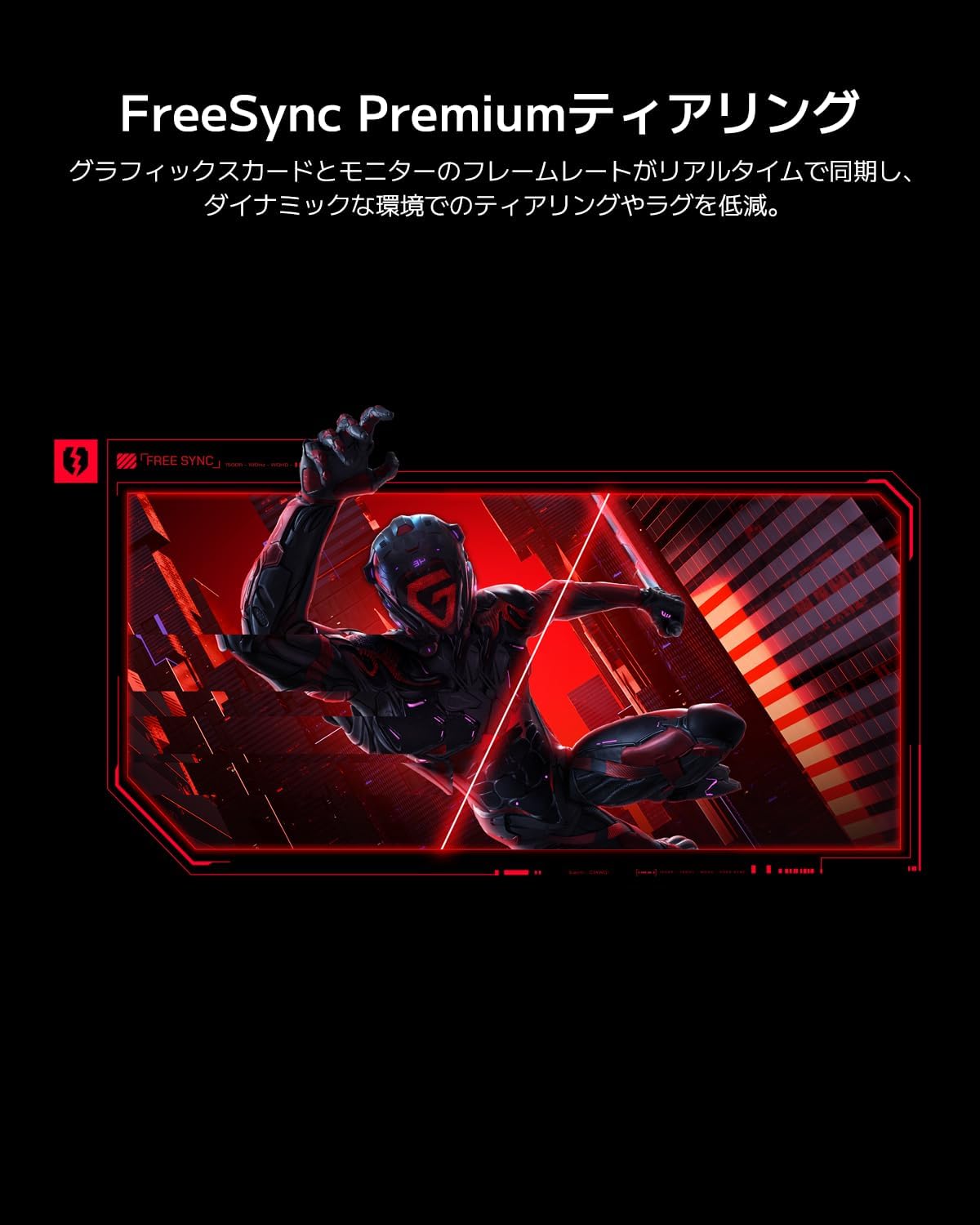
Image: The Xiaomi G34WQi monitor securely mounted on its adjustable stand.
2.3 Cabluri de conectare
Conectați cablurile necesare la porturile din spate ale monitorului:
- Cablu de alimentare: Conectați adaptorul de alimentare la intrarea de alimentare a monitorului, apoi introduceți cablul de alimentare într-o priză de perete.
- DisplayPort (Recommended for Gaming): For optimal performance, including 180Hz refresh rate and FreeSync Premium, connect the DisplayPort cable from your computer's graphics card to the monitor's DisplayPort input.
- HDMI: Alternatively, connect an HDMI cable from your computer to one of the monitor's HDMI inputs. Note that HDMI may have limitations on refresh rate at UWQHD resolution compared to DisplayPort.
- Ieșire audio: Dacă doriți, conectați difuzoare externe sau căști la mufa de ieșire audio de 3.5 mm.

Imagine: Spate view of the monitor highlighting the input ports for connectivity.
2.4 Pornirea inițială
After connecting all cables, press the power button, usually located on the back or bottom of the monitor, to turn it on. The monitor should automatically detect the input signal. If not, you may need to manually select the input source using the OSD menu.
3. Instrucțiuni de utilizare
3.1 Pornire/Oprire
Press the power button to turn the monitor on or off. A status indicator light will show the monitor's power state.
3.2 Meniul de afișare pe ecran (OSD).
The OSD menu allows you to adjust various monitor settings. It is typically controlled by a joystick or a set of buttons located on the back or bottom of the monitor.
Navigare:
- Press the joystick/center button to open the OSD menu.
- Move the joystick (up/down/left/right) or use the directional buttons to navigate through menu options.
- Press the joystick/center button again to select an option or confirm a setting.
- Move the joystick left or press a dedicated 'Back' button to exit a sub-menu or the OSD.
3.3 Key Settings
- Luminozitate/Contrast: Ajustați aceste setări pentru a se potrivi viewing mediu.
- Setări de culoare: Fine-tune color temperature, gamma, and saturation. The monitor supports 95% DCI-P3 and 100% sRGB for accurate color reproduction.
- Rata de reîmprospătare: Ensure your refresh rate is set to 180Hz in both the monitor's OSD and your computer's display settings for the smoothest experience.
- Timp de răspuns: The monitor offers a 1ms MPRT (Moving Picture Response Time). This can often be adjusted in the OSD, sometimes referred to as 'Overdrive' or 'Response Speed'.
- FreeSync Premium: Enable FreeSync Premium in the OSD menu and in your AMD graphics card settings to synchronize the monitor's refresh rate with your GPU's frame rate, eliminating screen tearing and stuttering.

Image: Visual representation of FreeSync Premium preventing screen tearing.
- Mod lumină albastră scăzută: Activate this mode to reduce blue light emissions, which can help reduce eye strain during prolonged use.

Image: The monitor displaying content with low blue light mode enabled for eye protection.
4. Întreținere
4.1 Curățarea ecranului
Pentru a curăța ecranul, ștergeți-l ușor cu o lavetă moale, fără scame. Pentru petele persistente, ștergeți ușorampClătiți laveta cu apă sau cu o soluție specială de curățare a ecranelor. Nu pulverizați niciodată lichid direct pe ecran.
4.2 Cleaning the Monitor Body
Use a soft, dry cloth to wipe the monitor's body. Avoid using abrasive cleaners or solvents, as they can damage the surface.
4.3 Îngrijire generală
- Evitați să așezați obiecte grele pe monitor sau pe cablurile acestuia.
- Nu expuneți monitorul la lumina directă a soarelui, la surse de căldură și la umiditate excesivă.
- Asigurați o ventilație adecvată în jurul monitorului pentru a preveni supraîncălzirea.
5. Depanare
Dacă întâmpinați probleme cu monitorul, consultați următoarele probleme și soluții frecvente:
5.1 Fără alimentare / Fără afișaj
- Verificați dacă cablul de alimentare este bine conectat atât la monitor, cât și la priză.
- Verificați dacă adaptorul de alimentare funcționează corect.
- Press the power button on the monitor to ensure it is turned on.
5.2 Fără semnal
- Ensure the video cable (DisplayPort or HDMI) is securely connected to both the monitor and your computer's graphics card.
- Verificați dacă computerul este pornit și nu este în modul repaus.
- Use the OSD menu to manually select the correct input source (e.g., DisplayPort 1, HDMI 1).
- Try a different video cable or port on your graphics card/monitor to rule out a faulty connection.
5.3 Flickering or Tearing Screen
- Ensure FreeSync Premium is enabled in both the monitor's OSD and your graphics card settings.
- Verify that your graphics card drivers are up to date.
- Check the video cable. Some users have reported better stability with DisplayPort cables for high resolutions and refresh rates compared to HDMI.
- If using multiple monitors, ensure your system can handle the combined load, as some configurations might cause instability.
5.4 Incorrect Resolution or Refresh Rate
- Accesați setările de afișare ale computerului (de exemplu, Setări afișare Windows, Panou de control NVIDIA, Software AMD Radeon) și setați rezoluția la 3440x1440 și rata de reîmprospătare la 180Hz.
- Ensure you are using a DisplayPort cable, as some HDMI versions may not support UWQHD at 180Hz.
5.5 Image Reflection
- The monitor has a non-glare (VA) panel, but reflections can still occur in brightly lit environments. Adjust the monitor's position or room lighting to minimize reflections.
6. Specificații
| Caracteristică | Caietul de sarcini |
|---|---|
| Marca | Xiaomi |
| Numărul de model | G34WQi |
| Dimensiunea ecranului | 34 inci |
| Rezoluţie | UWQHD (3440 x 1440 pixels) |
| Raportul de aspect | 21:9 |
| Curbură | 1500R |
| Tip panou | VA (Non-glare) |
| Rata de reîmprospătare | 180 Hz |
| Timp de răspuns | 1 ms (MPRT) |
| Gama de culori | 95% DCI-P3, 100% sRGB |
| Conectivitate | HDMI, DisplayPort, 3.5mm Audio Out |
| Putere Voltage | 12 volți |
| Dimensiuni produs (D x L x H) | 99.1 x 18.8 x 46 cm (aprox.) |
| Greutatea produsului | 6.9 kg |
| Tip de montare | Suport de perete (compatibil VESA) |
7. Informații despre garanție
This Xiaomi Curved Gaming Monitor G34WQi comes with a Garanție de 1 an de la producător. Please retain your proof of purchase for warranty claims. For detailed terms and conditions, refer to the warranty card included in your product packaging or visit the official Xiaomi support website-ul.
8. Suport
For further assistance, technical support, or service inquiries, please contact Xiaomi customer service:
- Asistență telefonică: 0120-767-378 (Reception hours: 9:00-18:00, excluding year-end and New Year holidays)
- Asistență prin e-mail: service.jp@support.mi.com
You can also visit a Xiaomi Service Center for in-person support:
Xiaomi Service Center Akihabara Store
Address: 4-6-7 Kanda Sakumacho, Chiyoda-ku, Tokyo
Business Hours: 10:00-19:00
Closed: Wednesdays
(Last reception is at 18:00)

Image: A collection of Xiaomi products, showcasing the brand's commitment to smart living.


