
1. Introducere
This manual provides comprehensive instructions for the installation, operation, and maintenance of your Taffio CH7102-F3 Android Car Radio GPS CarPlay System. This system is specifically designed for Mazda 3 vehicles, models BM and BN, manufactured between 2013 and 2019. It integrates advanced navigation, communication, and entertainment features into your vehicle's dashboard, enhancing your driving experience with modern multimedia capabilities.
Please read this manual thoroughly before installation and use to ensure proper functionality and to prevent damage to the unit or your vehicle. Keep this manual for future reference.
2. Informații de siguranță
- Instalare profesională recomandată: Due to the complexity of car electrical systems, professional installation is highly recommended to avoid damage to the unit or vehicle.
- Deconectare de la curent: Deconectați întotdeauna bateria vehiculului înainte de a efectua orice lucrare electrică pentru a preveni scurtcircuitele sau electrocutarea.
- Cablaj: Ensure all wiring connections are secure and properly insulated to prevent electrical hazards. Do not modify the wiring harness unless specifically instructed.
- Siguranța la conducere: Nu utilizați sistemul într-un mod care vă distrage atenția de la condus. Puneți întotdeauna siguranța rutieră la punct.
- Ventilare: Ensure the unit has adequate ventilation and is not obstructed by other components.
- curatenie: Folosiți o lavetă moale și uscată pentru curățarea ecranului și a unității. Evitați substanțele de curățare abrazive sau solvenții.
3. Conținutul pachetului
Before beginning installation, verify that all components listed below are present in your package. If any items are missing or damaged, please contact your vendor.

Figura 3.1: Pesteview of all components included in the delivery. This includes the Android Display, Main Unit, Frame, Power Cable, LVDS cable, Speaker Cables, USB Cable, Mic Cable, Aux Adapter, Screws, Display Cable, GPS Antenna, and 4G Antenna.
- Android Display (10.25-inch touchscreen)
- Main Unit (Processor box)
- Vehicle-specific Frame
- Cablaj de alimentare
- Cablu LVDS
- Cabluri pentru difuzoare
- Cablu(uri) USB
- Cablu microfon
- Adaptor Aux
- Șuruburi de montare
- Cablu de afișare
- Antena GPS
- Antenă 4G
4. Configurare și instalare
The Taffio CH7102-F3 system is designed for a plug-and-play installation, requiring no modifications, restrictions, or coding of the original vehicle system. The original system's functions, including radio, controller, steering wheel controls, and vehicle settings, are fully preserved and supported.
4.1 Instalare terminatăview
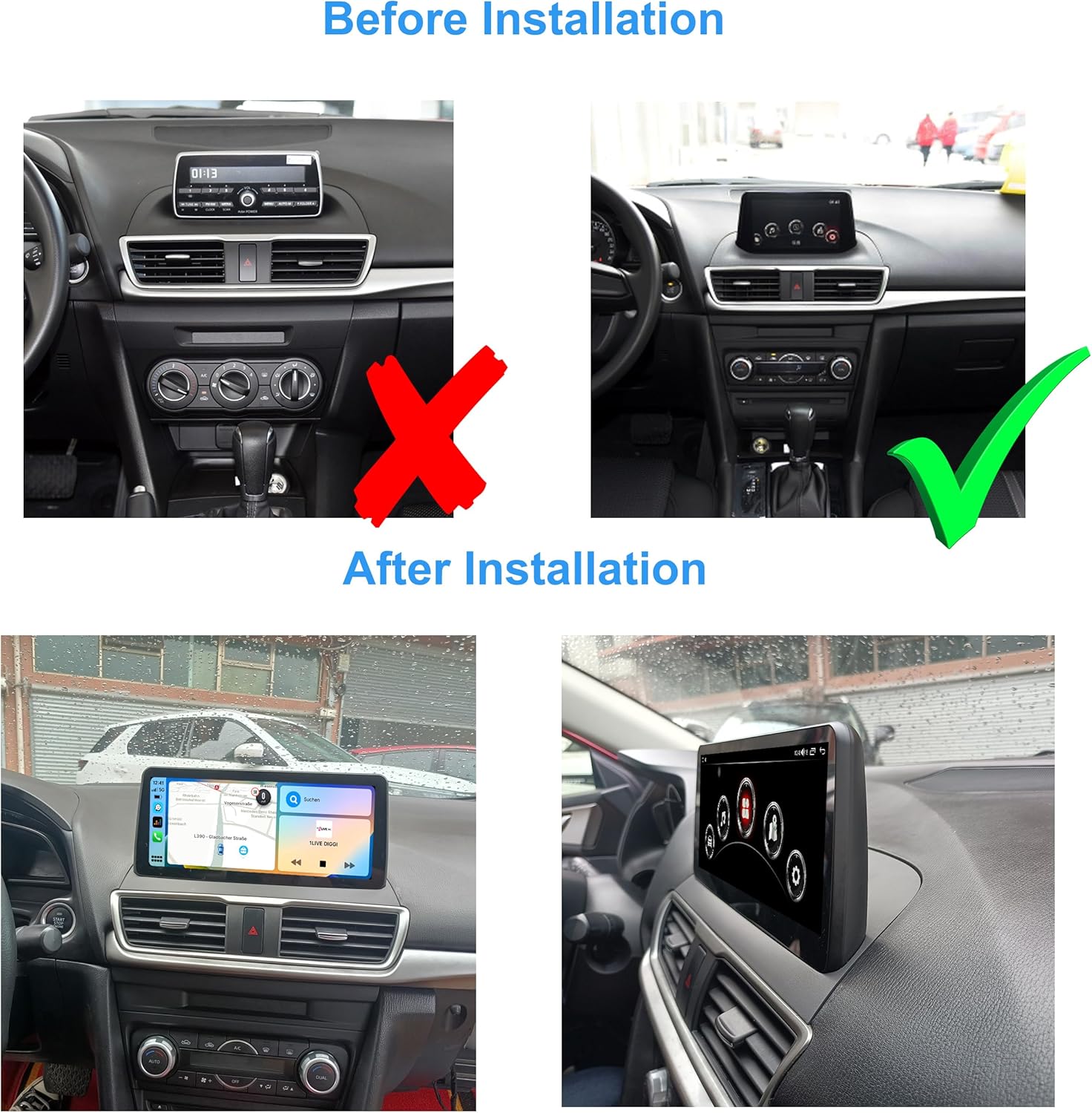
Figura 4.1: Visual comparison of the Mazda 3 dashboard before and after the Taffio Android display installation. The original small display is replaced with the larger 10.25-inch Android unit.
The installation involves replacing the original display with the new 10.25-inch Android display and connecting the main unit and associated cables. The process is designed to be straightforward, primarily involving connecting the display and the main connection cable.
4.2 Diagrama conexiunii
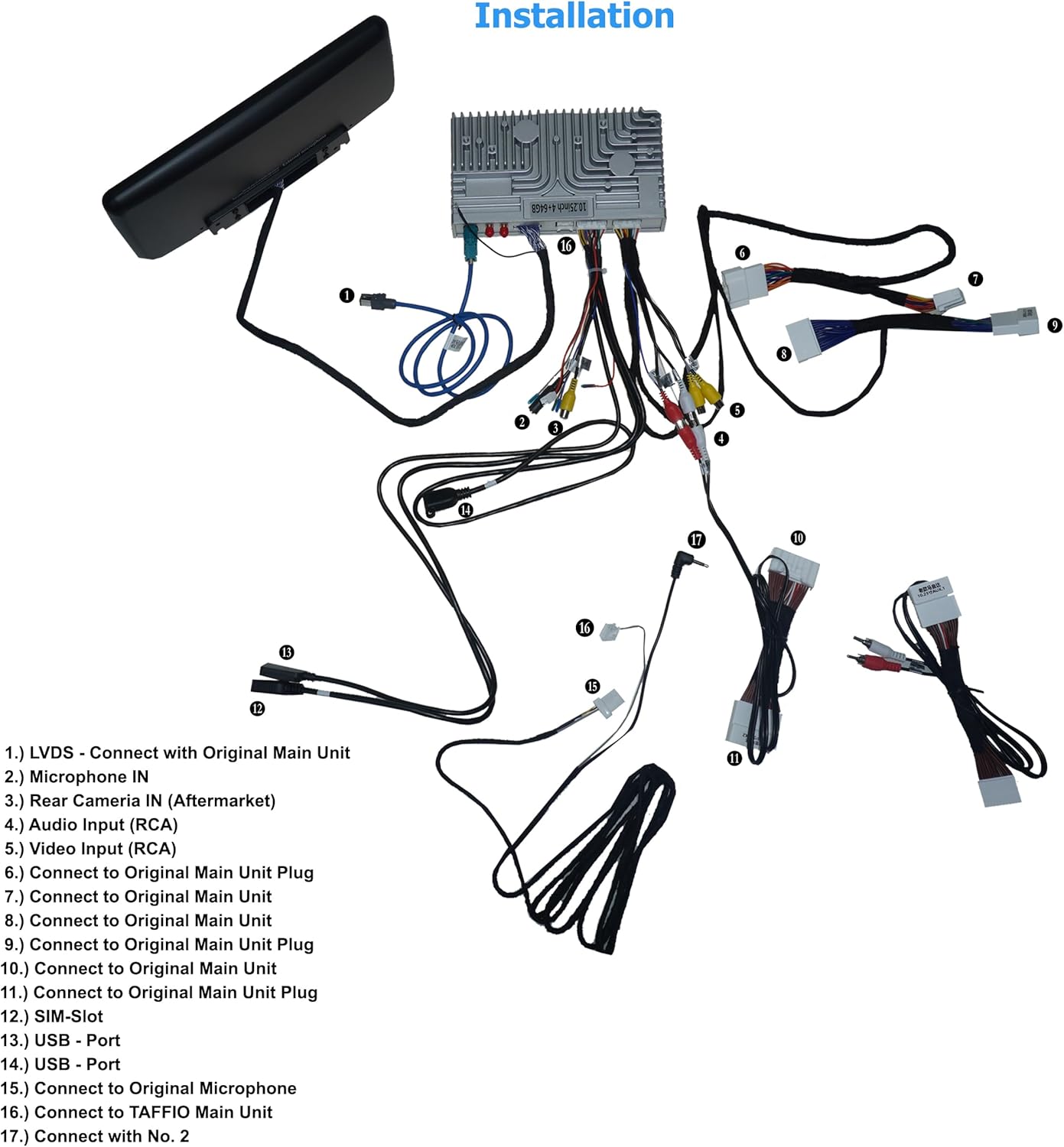
Figura 4.2: Detailed wiring diagram illustrating how to connect the Taffio CH7102-F3 components. Key connections include LVDS to the original main unit, microphone input, rear camera input, audio/video inputs, USB ports, SIM slot, and antennas.
Refer to the diagram above for specific connection points. The numbered points correspond to the following:
- LVDS: Connect with Original Main Unit.
- Microphone IN: Input for external microphone.
- Rear Camera IN (Aftermarket): Connect aftermarket rear view aparat de fotografiat.
- Intrare audio (RCA): Pentru surse audio externe.
- Intrare video (RCA): Pentru surse video externe.
- Connect to Original Main Unit Plug: Main power and data connection.
- Connect to Original Main Unit: Additional data connection.
- Connect to Original Main Unit: Additional data connection.
- Connect to Original Main Unit Plug: Main power and data connection.
- Connect to Original Main Unit Plug: Main power and data connection.
- Connect to Original Main Unit Plug: Main power and data connection.
- SIM-Slot: Insert 3G/4G SIM card for mobile data.
- USB - Port: Conectați dispozitive USB.
- USB - Port: Conectați dispozitive USB.
- Connect to Original Microphone: If applicable, connect to the vehicle's original microphone.
- Connect to TAFFIO Main Unit: Connect the display to the main processing unit.
- Connect with No. 2: Specific connection point as per diagram.
5. Instrucțiuni de utilizare
The Taffio CH7102-F3 operates on Android 12, providing a familiar and intuitive user interface. The 10.25-inch capacitive multi-touch screen allows for easy navigation through menus and applications.
5.1 Interfață de sistem

Figura 5.1: Main home screen of the Android system, displaying various application icons.

Figura 5.2: Secondary home screen with additional application icons, including vehicle settings.

Figura 5.3: Third home screen displaying connectivity and utility applications.
Swipe left or right on the screen to navigate between different home screens. Tap on an icon to launch the corresponding application. The system supports multi-touch gestures for zooming and scrolling.
5.2 CarPlay și Android Auto
The unit features integrated CarPlay and Android Auto functionality, allowing seamless integration with your smartphone without the need for additional adapters.
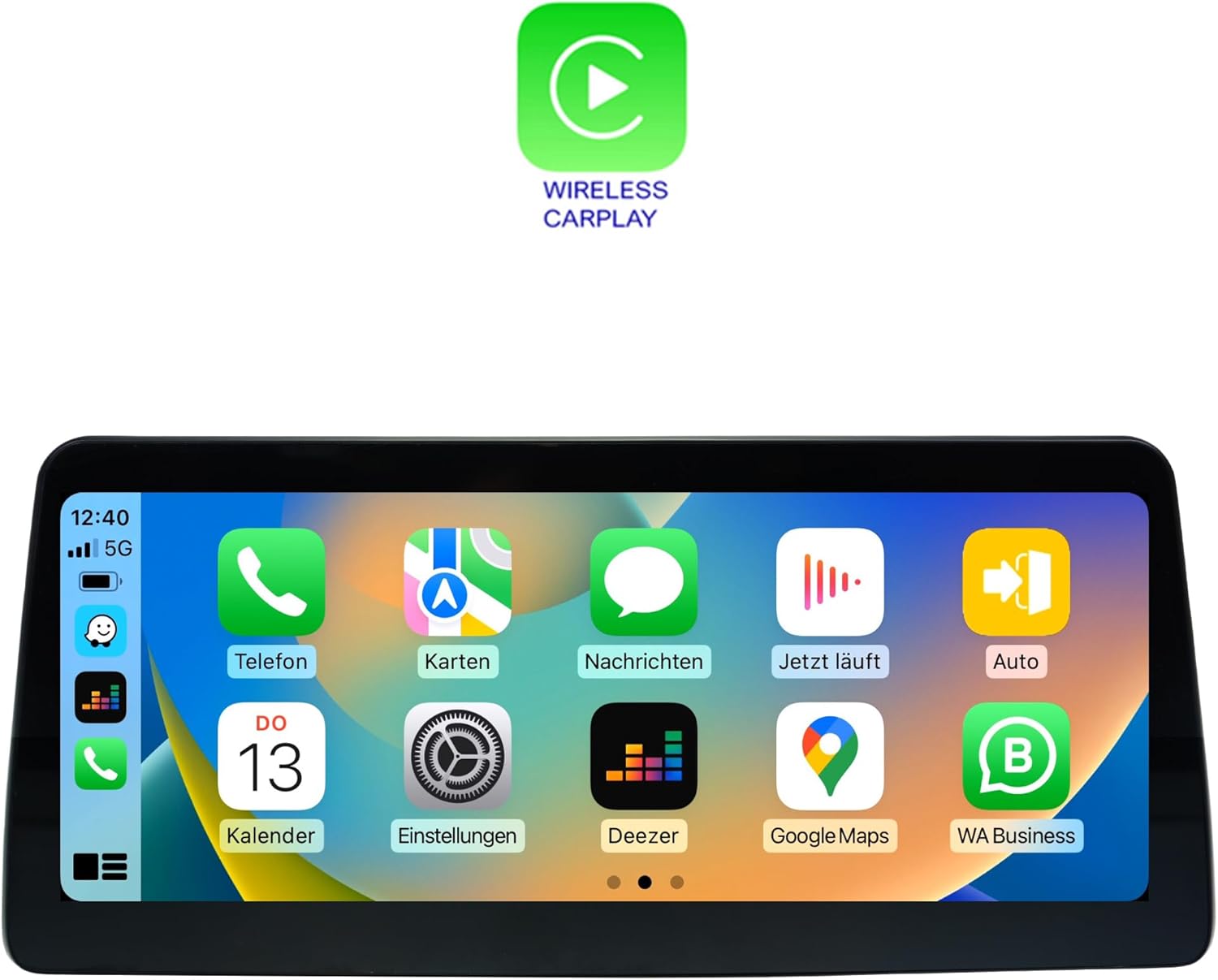
Figura 5.4: Wireless CarPlay interface, mirroring your iPhone's essential apps.

Figura 5.5: Android Auto interface, providing access to Android apps optimized for driving.
To use CarPlay or Android Auto, connect your compatible smartphone via USB or wirelessly (if supported by your phone and the unit). Follow the on-screen prompts to establish the connection. Once connected, you can access navigation, music, messages, and other apps directly from the unit's display.
5.3 Navigație (GPS)
The unit includes an integrated GPS receiver with high sensitivity and accuracy. It comes with 3D map material and free lifetime updates. To use navigation, launch the 'Navi' or 'Maps' application from the home screen. Ensure the GPS antenna is properly installed and has a clear view cerului pentru o recepție optimă a semnalului.
5.4 Connectivity (Wi-Fi, Bluetooth, 4G LTE)
- Wifi: Connect to Wi-Fi hotspots or your smartphone's hotspot for internet access. Go to Settings > Network & Internet > Wi-Fi to configure.
- Bluetooth 5.0: Asociați smartphone-ul pentru apeluri hands-free și streaming audio. Accesați Setări > Dispozitive conectate > Asociați dispozitiv nou.
- 3G/4G LTE: Insert a SIM card into the dedicated slot for faster navigation and streaming capabilities. Ensure the 4G antenna is connected.
5.5 Redare multimedia
The system supports various audio and video formats:
- Formate video: 1080p, H264, AVI, RMVB, FLV, MKV.
- Formate audio: MP3, WMA, FLAC, APE, AAC.
Play media from USB drives, internal storage, or streaming apps. The unit also supports DVR functions via USB 2.0 & AV/CVBS.
5.6 Conectarea camerei din spate
The unit supports connection to a rear view camera. It features an automatic switching function when the vehicle is put into reverse gear, displaying the camera feed on the screen.
6. Specificații
| Caracteristică | Caietul de sarcini |
|---|---|
| Numărul de model | CH7102-F3 |
| Sistem de operare | Android 12 |
| CPU | 8-core (Cortex A75 x 2 @ 1.80 GHz, Cortex A55 x 6 @ 1.80 GHz) |
| RAM | 4 GB |
| Stocare internă | 64 GB |
| GPU | Mali-G52 |
| Dimensiunea afișajului | LCD de 10.25 inchi |
| Rezoluția afișajului | 1920 x 1080 |
| Tehnologia Touch | Capacitive Multi-touch |
| Conectivitate | Bluetooth 5.0, Wi-Fi, USB, Ethernet, 3G/4G LTE (SIM slot) |
| Modem | X11 LTE (Max 390 Mbit/s download, 150 Mbit/s upload) |
| Receptor GPS | Integrated, high sensitivity and accuracy |
| Integrarea mașinii | Built-in CarPlay, Android Auto |
| Formate video acceptate | 1080p, H264, AVI, RMVB, FLV, MKV |
| Formate audio acceptate | MP3, WMA, FLAC, APE, AAC |
| Asistență DVR | USB 2.0 & AV/CVBS |
| Intrare camera spate | Yes, with automatic switching |
| Greutate | 3 kilograme |
| Tip de montare | Suport tablou de bord |
7. Întreținere
7.1 Curățare
To clean the display screen, use a soft, lint-free cloth. For stubborn smudges, slightly dampen the cloth with water or a screen-safe cleaning solution. Avoid using harsh chemicals, abrasive cleaners, or solvents, as these can damage the screen coating or plastic components.
7.2 Actualizări de software
Periodically check for software updates to ensure optimal performance and access to new features. Updates can typically be found through the system's settings menu under 'System' or 'About device'. Ensure a stable internet connection (Wi-Fi or 4G) during the update process and do not power off the unit.
7.3 Îngrijire generală
- Evitați expunerea unității la temperaturi extreme sau la lumina directă a soarelui pentru perioade lungi de timp.
- Do not place heavy objects on the unit or apply excessive force to the screen.
- Keep liquids away from the unit to prevent electrical damage.
8. Depanare
This section addresses common issues you might encounter with your Taffio CH7102-F3 system. If you experience a problem not listed here, or if the suggested solutions do not resolve the issue, please contact customer support.
| Problemă | Cauza posibila | Soluţie |
|---|---|---|
| Unitatea nu pornește | Conexiune de alimentare slăbită, siguranță arsă, problemă cu bateria vehiculului. | Check all power cable connections. Verify vehicle's fuse box and battery. Consult a professional installer. |
| Nici un sunet | Volume too low, incorrect audio source selected, speaker cable issue. | Increase volume. Ensure correct audio output is selected (e.g., AUX). Check speaker cable connections. |
| Semnal GPS pierdut sau inexact | GPS antenna obstructed, antenna not connected, poor satellite coverage. | Asigurați-vă că antena GPS este instalată corect și are o vizibilitate clară. view Verificați conexiunea antenei. Mutați-vă într-o zonă deschisă. |
| CarPlay/Android Auto nu se conectează | Cablu USB incorect, setări telefon, incompatibilitate software. | Use a high-quality USB data cable. Ensure CarPlay/Android Auto is enabled on your phone. Restart both phone and unit. |
| Ecranul tactil nu răspunde | Înghețarea sistemului, daune fizice. | Perform a soft reset (refer to system settings for reset option). If issue persists, contact support. |
| Original vehicle functions not working | Incorrect wiring, system conflict. | Double-check all connections to the original main unit. Ensure the system is correctly configured to switch between original and Android modes. |
9. Garanție și asistență
9.1 Informații despre garanție
Please refer to the warranty card included with your product for specific warranty terms and conditions. Typically, products come with a limited warranty covering manufacturing defects for a specified period from the date of purchase. Keep your proof of purchase for warranty claims.
9.2 Asistență pentru clienți
For technical assistance, troubleshooting, or warranty inquiries, please contact your retailer or the manufacturer's customer support. Have your product model number (CH7102-F3) and purchase details ready when contacting support.
Manufacturer: Real Media GmbH & Co. KG