
1. Introducere
This manual provides detailed instructions for the installation, operation, and maintenance of your UNITOPSCI Android Car Stereo, Model A7321A2516KTA3. Please read this manual thoroughly before use to ensure proper functionality and safety.

Figure 1.1: UNITOPSCI Android Car Stereo with accessories.
2. Compatibility and Important Notes
This UNITOPSCI Android Car Stereo is specifically designed for the following vehicle models:
- Subaru Legacy (2010, 2011, 2012, 2013, 2014)
- Subaru Outback (2010, 2011, 2012, 2013, 2014)
Notă importantă privind compatibilitatea:
- Această unitate este incompatibil with vehicles equipped with the original Harman Kardon Sound System. If your vehicle has this system, please contact customer support for guidance on suitable wiring harnesses.
- For vehicles without an OEM sound system, the provided wire harness is typically plug-and-play.
- This unit is suitable for vehicles with a small original screen. If your vehicle has a large original screen, a different frame may be required.

Figure 2.1: Vehicle compatibility overview.
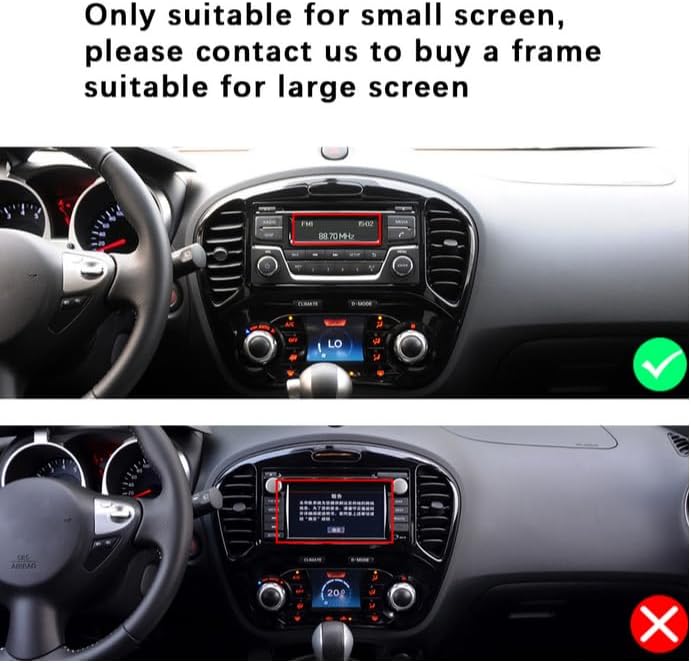
Figure 2.2: Visual guide for screen size compatibility.
3. Conținutul pachetului
Vă rugăm să verificați dacă toate articolele enumerate mai jos sunt incluse în pachetul dumneavoastră:
- Android Car Stereo Unit (9-inch display)
- Spate View Camera (12 LEDs, night vision, waterproof, 170-degree angle)
- RCA prin cablu
- Cablu de alimentare
- Instrument de instalare
- Cablu de intrare pentru cameră
- Antena GPS
- Cabluri USB (cu 6 pini și 4 pini)
- Manual de utilizare (acest document)

Figura 3.1: Conținutul pachetului și dimensiunile produsului.
4. Ghid de instalare
Se recomandă instalarea de către un profesionist. Asigurați-vă că bateria vehiculului este deconectată înainte de a începe instalarea.
4.1. Verificare înainte de instalare
- Verificați compatibilitatea vehiculului (consultați Secțiunea 2).
- Confirmați că este prezent tot conținutul pachetului.
4.2. Îndepărtarea unității originale
- Carefully remove the trim panels surrounding the original car stereo.
- Unscrew and detach the original stereo unit.
- Deconectați toate cablajele și cablurile de antenă de la unitatea originală.
4.3. Installing the New Unit
- Connect the provided power cable and other necessary harnesses to the UNITOPSCI Android Car Stereo.
- Connect the GPS antenna and route it to a suitable location (e.g., dashboard, A-pillar) for optimal signal reception.
- If installing the backup camera, route its cable from the rear of the vehicle to the head unit's camera input. Refer to Section 4.4 for wiring details.
- Introduceți cu grijă noua unitate stereo în deschizătura de pe bord.
- Secure the unit with screws and reattach the trim panels.

Figura 4.1: Comparație vizuală a tabloului de bord înainte și după instalare.

Figure 4.2: Installation comparison for proper fitment.
4.4. Spate View Diagrama de cablare a camerei
To connect the backup camera:
- Connect the camera's video output to the head unit's 'CAM IN' or 'REVERSE IN' port.
- Connect the camera's power wire (red) to the vehicle's reverse light positive (+12V).
- Conectați firul de împământare (negru) al camerei la o priză de împământare (GND) adecvată a șasiului.
- Connect the trigger wire (labeled 'back' or 'reverse' on the power cable) from the head unit to the reverse light positive. This signals the head unit to switch to the camera view când treapta de marșarier este cuplată.

Figura 4.3: Spate View Schema de cablare a camerei.
5. Configurare inițială
After installation, turn on your vehicle's ignition to power on the stereo. The unit will boot into the Android operating system.
- Setări limbă și oră: Navigate to 'Settings' to set your preferred language, time zone, and date.
- Conexiune Wi-Fi: Go to 'Settings' > 'Network & Internet' > 'Wi-Fi' to connect to an available Wi-Fi network. This is necessary for online maps, app downloads, and internet browsing.
- GPS Configuration: Ensure the GPS antenna is properly connected. The system should automatically detect GPS signals. You can verify this in the GPS settings.
- Învățarea controlului volanului: If your vehicle supports steering wheel controls, go to 'Settings' > 'Steering Learn' to program the buttons. Follow the on-screen instructions to assign functions to each button.
6. Instrucțiuni de utilizare
6.1. Funcția Bluetooth
The built-in Bluetooth 4.2 module allows for hands-free calling and audio streaming.
- Asociere: On your mobile device, search for Bluetooth devices and select 'UNITOPSCI' (or similar name). Confirm the pairing code if prompted.
- Apeluri fără mâini: Once paired, you can make and receive calls directly from the stereo's touch screen. The unit supports automatic phone book download.
- Streaming audio: Play music from your paired phone through the car stereo speakers.

Figura 6.1: Interfață Bluetooth pentru apeluri și muzică.

Figure 6.2: Bluetooth handsfree calling in use.
6.2. Navigație GPS
The unit comes with built-in GPS and preloaded offline maps. Online navigation is also supported via Wi-Fi.
- Hărți offline: The stereo includes free offline maps. You can download additional maps via Wi-Fi using applications like 'Here WeGo'.
- Navigare online: Connect to Wi-Fi to use online navigation apps for real-time traffic updates and more detailed mapping.

Figura 6.3: Navigație GPS în acțiune.

Figure 6.4: Built-in WiFi and GPS Navigation features.
6.3. Conectivitate Wi-Fi
Connect the stereo to a Wi-Fi hotspot (e.g., from your phone) to access online features.
- Browse the internet, watch real-time TV shows, use social media, and download apps from the app store.
6.4. Funcția de legătură în oglindă
Mirror Link allows you to display your smartphone's screen on the car stereo.
- For iPhone (iOS): One-way operation via Wi-Fi. The phone screen is mirrored to the stereo.
- Pentru telefoanele Android: Two-way operation via Wi-Fi or USB. You can control your phone from the stereo's touch screen.

Figura 6.5: Funcționalitatea Mirror Link.

Figura 6.6: Mirror Link pentru dispozitive iOS și Android.
6.5. Radio FM/RDS
Access local radio stations and enjoy news, music, and weather broadcasts.
- The unit supports FM radio with 18 preset stations.
- RDS (Sistemul de date radio) oferă informații suplimentare, cum ar fi numele postului și titlul melodiei, acolo unde sunt disponibile.

Figura 6.7: Interfață radio FM/RDS.
6.6. Controlul volanului (SWC)
Control basic functions of the stereo using your vehicle's existing steering wheel buttons for convenience and safety.
- Refer to Section 5 for initial setup of SWC.
- Functions typically include volume control, track skipping, mode switching, and answering/ending calls.

Figura 6.8: Configurarea comenzii pe volan.
6.7. Intrare cameră de rezervă
The included 12LEDs rear view camera oferă o claritate view la mers înapoi.
- The stereo automatically switches to display the HD reversing image when the vehicle is put into reverse gear.
- Features include night vision, a 170-degree viewing angle, and waterproof design for enhanced parking safety.

Figura 6.9: Cameră de marșarier view pe ecranul stereo.

Figure 6.10: Parking Assistant features.
6.8. Setări audio EQ
Reglați ieșirea audio după preferințe folosind egalizatorul încorporat.
- The digital chip allows adjustment of delay time, loudness, equalizer settings (e.g., Jazz, Pop, Rock, Classical), and balance.

Figure 6.11: EQ Sound Settings interface.
6.9. Funcția Split Screen
The unit supports split-screen display, allowing you to run two applications simultaneously.
- De example, use navigation on one side and music playback on the other.

Figura 6.12: Funcționalitatea ecranului divizat.
7. Depanare
If you encounter issues, please refer to the following common problems and solutions before contacting support.
| Problemă | Cauza posibila | Soluţie |
|---|---|---|
| Head unit not turning on when car starts | Pink wire or KEY 1 blocking electricity. | Locate the pink wire or KEY 1 wire. Cut it off and ensure it is isolated. This wire may be designed to prevent operation while driving, but can interfere with normal power-on. |
| Fără ieșire audio | Incorrect wiring; volume too low; mute function active; incompatible sound system. | Check all speaker wire connections. Ensure volume is up and not muted. Verify compatibility with your vehicle's sound system (especially Harman Kardon). Check EQ settings. |
| Probleme de conexiune Bluetooth | Phone not paired; interference; unit/phone software glitch. | Ensure Bluetooth is enabled on both devices. Delete previous pairings and re-pair. Restart both the stereo and your phone. |
| Semnal GPS slab sau inexact | GPS antenna placement; environmental interference. | Ensure the GPS antenna is mounted in a clear, unobstructed location (e.g., dashboard, not under metal). Check antenna connection. |
| Camera video pentru marșarier nu afișează | Cablare incorectă; funcționare defectuoasă a camerei. | Verify all camera wiring connections, especially the trigger wire and power supply to the reverse light. Check camera for damage. |
8. Specificații

Figure 8.1: Core system specifications.
| Caracteristică | Detaliu |
|---|---|
| Numărul de model | A7321A2516KTA3 |
| Sistem de operare | Android |
| CPU | Quad Core |
| RAM | 1 GB |
| ROM | 32 GB |
| Dimensiunea afișajului | 9 inchi |
| Rezoluţie | 1024 x 600 |
| Putere de ieșire | 4 x 45W |
| Versiune Bluetooth | 4.2 |
| Tehnologia de conectivitate | Fără fir (Wi-Fi, Bluetooth) |
| Caracteristici speciale | Backup Camera Input, Bluetooth, FM Radio, Mirror Link, Touchscreen, GPS Navigation, Steering Wheel Control |
| Mod ieșire audio | Stereo |
| Greutatea articolului | 3.78 lire sterline |
| Dimensiuni pachet | 16.73 x 13.07 x 4.06 inci |

Figure 8.2: Display resolution comparison.
9. Garanție și asistență
UNITOPSCI is committed to providing high-quality products and satisfactory services.
- Garantie: Acest produs vine cu o garanție de 1 ani.
- Politica de înlocuire: Replacement available within 24 months for eligible issues.
- POLITICA DE RETURNARE: 60-day no-worry return period.
- Suport tehnic: Lifetime after-sales consultation and technical support are provided.
- Contactați asistența: For any inquiries or technical assistance, please contact UNITOPSCI customer support via email at UNITOPSCI@126.com. Expect a quick response within 16 hours.

Figure 9.1: UNITOPSCI Customer Support Information.