
1. Introducere
This manual provides essential information for the safe and efficient use of your Amazon Basics 24 Inch FHD 100Hz Monitor. Please read these instructions carefully before operating the device and retain them for future reference.
The Amazon Basics 24 Inch Monitor features a 23.8-inch viewable IPS panel with Full HD (1080p) resolution and a maximum refresh rate of 100Hz. It includes built-in speakers and is VESA compatible for flexible mounting options. The monitor is designed for various uses, including office work, entertainment, and gaming.

Faţă view of the Amazon Basics 24 Inch FHD 100Hz Monitor.
2. Conținutul pachetului
Verificați dacă toate articolele sunt prezente în colet:
- Amazon Basics 24 Inch Monitor
- Stand de bază
- Stand Gât
- Adaptor de alimentare
- Cablu HDMI

Image showing the monitor's package contents: stand base, stand neck, power adapter, and HDMI cable.
3. Instrucțiuni de configurare
3.1 Atașarea suportului
- Insert the stand neck into the stand base until it clicks securely into place.
- Align the assembled stand with the mounting slot on the back of the monitor. Push the stand into the slot until it locks. Ensure it is firmly attached.
3.2 Cabluri de conectare
The monitor features multiple input ports for connectivity:
- DP 1.2: DisplayPort input for high-resolution video and audio.
- HDMI1.4: HDMI input for video and audio from compatible devices.
- VGA: VGA input for analog video signals.
- INTRARE AUDIO: 3.5mm audio input for external audio sources.
- IEȘIRE AUDIO: Ieșire audio de 3.5 mm pentru căști sau difuzoare externe.
- Connect the provided HDMI cable from your computer's video output port to the HDMI input port on the monitor. Alternatively, use a DisplayPort or VGA cable if your device supports those connections.
- Connect the power adapter to the monitor's power input port, then plug the power adapter into a wall outlet.
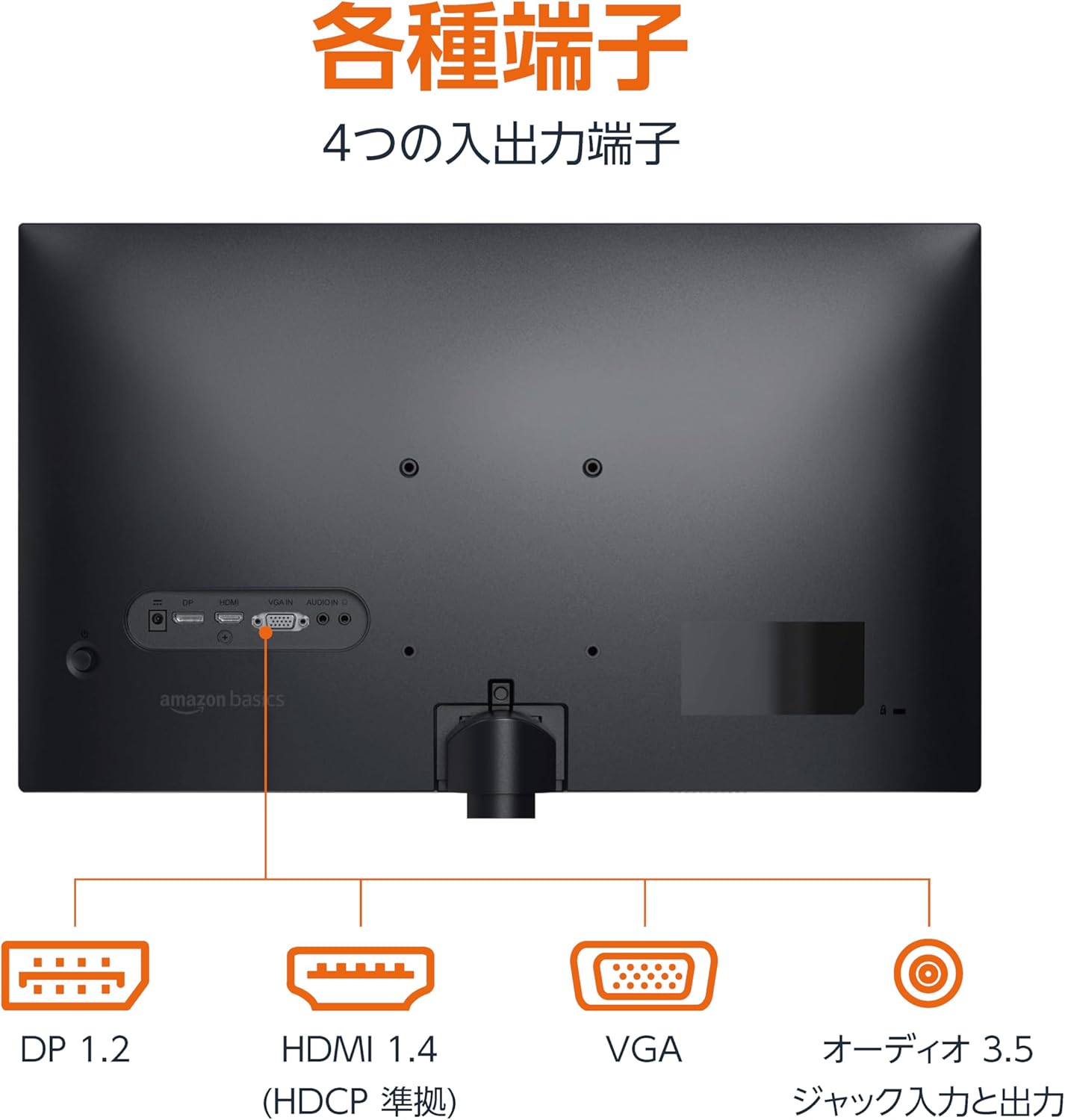
Spate view al monitorului care afișează diverse porturi de intrare și ieșire.
3.3 Pornire
Press the power button located on the back or bottom of the monitor to turn it on. The monitor will automatically detect the active input signal.
3.4 Reglarea înclinării
The monitor allows for tilt adjustment to achieve an optimal viewing angle. Gently hold the top and bottom edges of the monitor and tilt it forward or backward. The tilt range is approximately -5° to 20°.

Monitor demonstrating its tilt adjustment capability.
3.5 Optional: VESA Mounting and Cable Lock
The monitor is VESA compatible, allowing it to be mounted on a wall or an adjustable arm (mounting hardware sold separately). Refer to the VESA mount's instructions for installation.
An optional cable lock slot is available on the rear of the monitor to secure it to a stable object, preventing theft.
3.6 Ghid video de configurare
For a visual guide on setting up your Amazon Basics monitor, please watch the video below:
This video demonstrates the assembly of the stand, connecting cables, and basic adjustments for the Amazon Basics monitor.
4. Instrucțiuni de utilizare
4.1 Meniul de afișare pe ecran (OSD).
The monitor features an On-Screen Display (OSD) menu for adjusting various settings. Use the buttons located on the back or bottom of the monitor to navigate the menu. Common settings include:
- Luminozitate/Contrast: Reglați nivelurile de luminozitate și contrast ale afișajului.
- Setări de culoare: Modificați temperatura culorii, nuanța și saturația.
- Selectare intrare: Manually switch between DP, HDMI, and VGA inputs.
- Audio: Reglați volumul pentru difuzoarele încorporate sau pentru căștile conectate.
- Mod imagine: Select from preset display modes (e.g., Standard, Game, Movie).
4.2 Using Built-in Speakers
The monitor includes integrated speakers. Audio will be played through these speakers when connected via HDMI or DisplayPort. If using a VGA connection, ensure an audio cable is connected to the 'AUDIO IN' port on the monitor and your computer's audio output.
5. Specificații
| Caracteristică | Caietul de sarcini |
|---|---|
| Marca | Bazele Amazon |
| Numărul de model | 24M2020DJP |
| Dimensiunea ecranului | 24 Inches (23.8 inch viewcapabil) |
| Tip panou | IPS |
| Rezoluţie | Rezoluție FHD 1080p (1920 x 1080) |
| Rata de reîmprospătare | Max 100 Hz |
| Raportul de aspect | 16:9 |
| Difuzoare încorporate | Da |
| Compatibilitate VESA | Da |
| Porturi de intrare | 1x DisplayPort 1.2, 1x HDMI 1.4, 1x VGA, 1x Audio In (3.5mm) |
| Porturi de ieșire | 1x Ieșire audio (3.5 mm) |
| Greutatea produsului | 2.8 kg |
| Grosimea ramei | 1.44 mm (slim bezel) |
| garanție | 1 an garanție limitată |
5.1 Dimensiuni
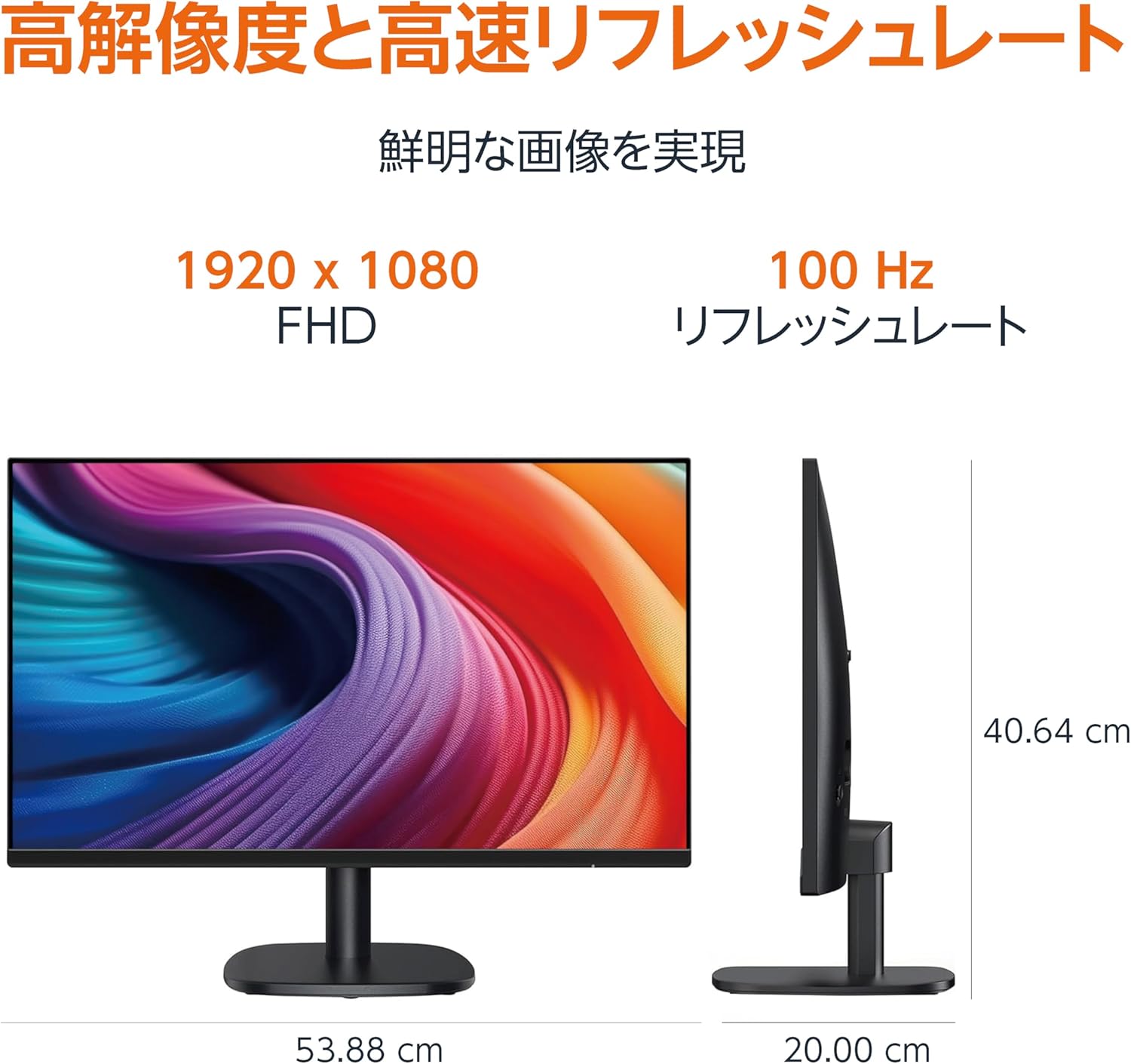
Diagram showing the monitor's dimensions (Width: 53.88 cm, Height: 40.64 cm, Depth: 20.00 cm).
5.2 Slim Bezel Design

Detail showing the monitor's slim bezel design, measuring 1.44 mm.
6. Depanare
Dacă întâmpinați probleme cu monitorul, consultați următoarele soluții comune:
- Fără putere: Ensure the power cable is securely connected to both the monitor and a working power outlet. Check if the power adapter's indicator light is on.
- Nici un semnal: Verify that the video cable (HDMI, DP, or VGA) is firmly connected to both the monitor and your computer. Ensure the correct input source is selected in the monitor's OSD menu. Try restarting your computer.
- Ecran pâlpâitor: Check the video cable for damage or loose connections. Ensure your computer's graphics driver is up to date. Adjust the refresh rate in your computer's display settings.
- Nu se aude sunet de la difuzoare: If using HDMI or DisplayPort, ensure the audio output is set to the monitor in your computer's sound settings. If using VGA, confirm the 3.5mm audio cable is connected. Check the volume level on both the monitor and your computer.
- Probleme de calitate a imaginii: Adjust brightness, contrast, and color settings via the OSD menu. Ensure the display resolution on your computer matches the monitor's native resolution (1920 x 1080).
Dacă problema persistă după ce încercați acești pași, contactați serviciul de asistență pentru clienți.
7. Întreținere
Proper maintenance helps ensure the longevity and performance of your monitor:
- Curățarea ecranului: Ștergeți ușor ecranul cu o lavetă moale, fără scame. Pentru petele persistente, ștergeți ușorampClătiți laveta cu apă sau cu o soluție specială de curățare a ecranelor. Evitați utilizarea substanțelor chimice dure, a alcoolului sau a materialelor abrazive.
- Curățarea C-uluiasing: Folosiți o cârpă moale și uscată pentru a șterge suprafața monitorului.asing.
- Ventilare: Asigurați-vă că orificiile de ventilație ale monitorului nu sunt blocate pentru a preveni supraîncălzirea.
- Opriți când nu este utilizat: Opriți monitorul atunci când nu îl utilizați pentru perioade lungi de timp pentru a economisi energie și a-i prelungi durata de viață.
8. Garanție și asistență
This Amazon Basics monitor comes with a Garanție limitată de 1 an de la data achiziției. Această garanție acoperă defectele de fabricație și de manoperă în condiții normale de utilizare.
For warranty claims, technical support, or further assistance, please refer to the Amazon Basics support page or contact Amazon customer service directly. Keep your proof of purchase for warranty validation.