
Introducere
Thank you for choosing the Lexip Tsume Kakashi Kamui Naruto Shippuden Controller. This high-performance gaming controller is designed to enhance your gaming experience with its unique design and advanced features. This manual provides essential information for setting up, operating, and maintaining your controller.
Conținutul pachetului
Vă rugăm să verificați pachetul pentru următoarele articole:
- Lexip Tsume Kakashi Kamui Naruto Shippuden Controller
- Cablu de date/încărcare USB
- Manual de utilizare (acest document)
Aspect controler
Familiarize yourself with the various components of your controller.

Figura 1: Faţă view al controlerului, aratăasing the limited edition design inspired by Naruto Shippuden.
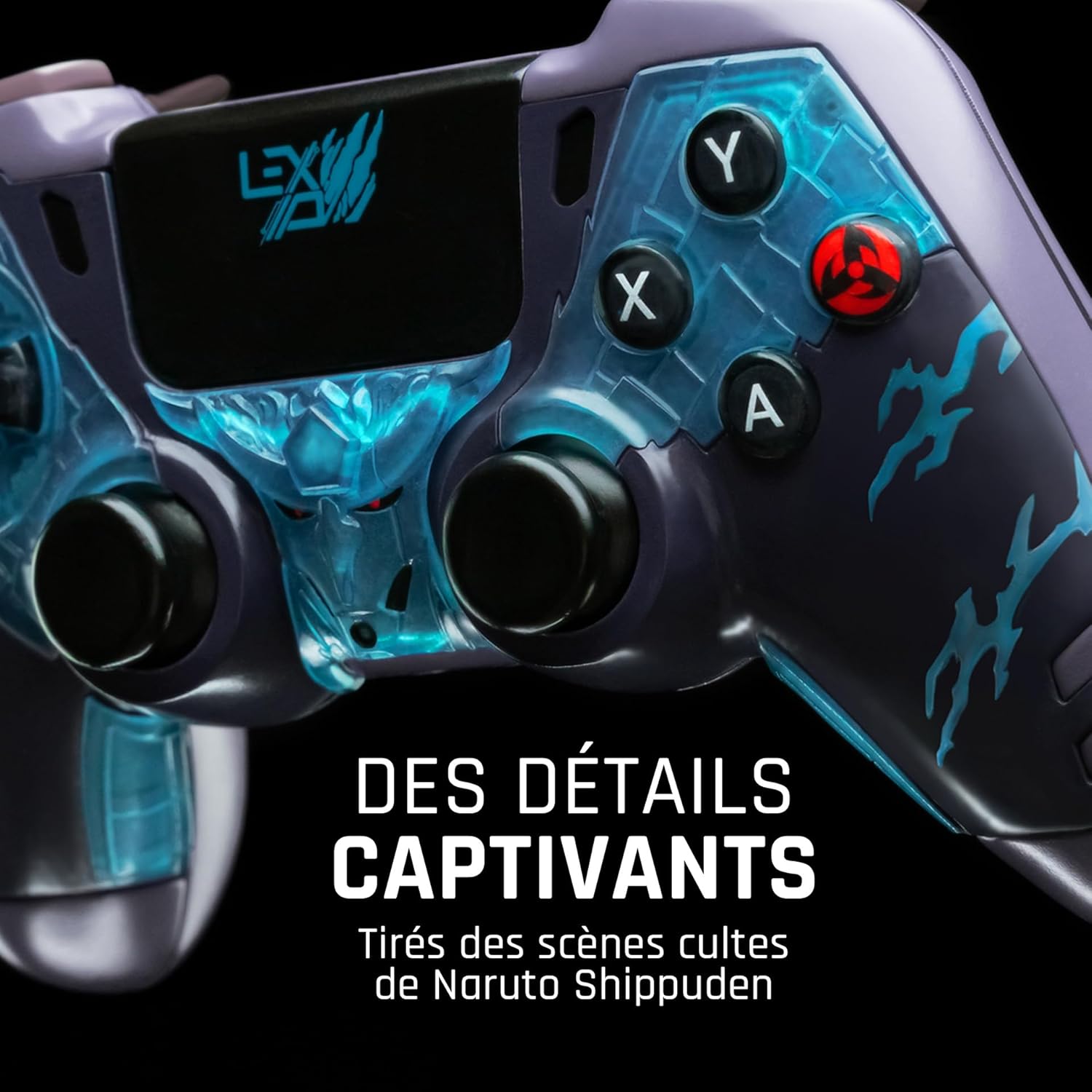
Figura 2: Detaliat view of the controller's face buttons and analog sticks, highlighting the intricate Naruto Shippuden design elements.

Figura 3: Spate view of the controller, illustrating the placement of the programmable paddles (M1, M2, M3) for enhanced gameplay.
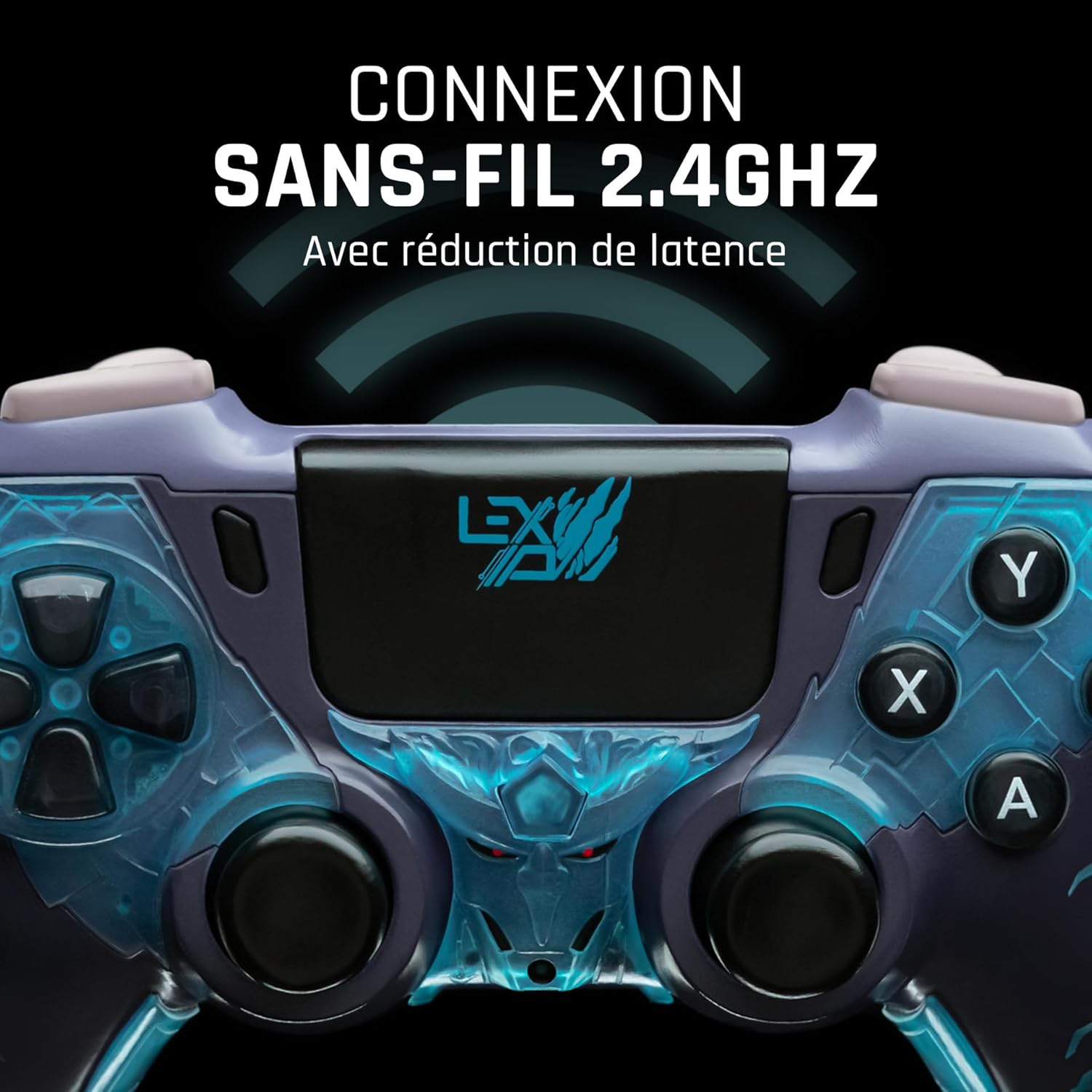
Figura 4: Faţă view of the controller, indicating its 2.4GHz wireless connection capability for reduced latency.
Componente cheie:
- Manete analogice: Two high-precision analog sticks for movement and camera control.
- D-pad: Pad direcțional pentru introducere precisă.
- Butoane frontale (A, B, X, Y): Butoane de acțiune standard.
- Butoane de umăr (L1, R1) și declanșatoare (L2, R2): For various in-game actions.
- Programmable Paddles (M1, M2, M3): Located on the rear for custom button assignments.
- Buton Acasă: For system menu access.
- Share/Options Buttons: For in-game menu and sharing functions.
- Port USB-C: Pentru încărcare și conexiune prin cablu.
Înființat
1. Încărcarea inițială
Before first use, fully charge the controller. Connect the supplied USB cable to the controller's USB-C port and the other end to a powered USB port (e.g., console, PC, or USB wall adapter). The charging indicator will show the charging status and turn off when fully charged.
2. Conectare wireless (2.4 GHz)
- Insert the 2.4GHz wireless dongle (if included, typically found in the controller's packaging or a dedicated slot) into an available USB port on your gaming console or PC.
- Porniți controlerul apăsând butonul Acasă.
- The controller will automatically attempt to pair with the dongle. The indicator light on the controller will stop flashing and remain solid once connected.
3. Connecting via USB Cable
To use the controller in wired mode or if wireless connection is not desired:
- Connect the USB cable to the controller's USB-C port.
- Connect the other end of the USB cable to an available USB port on your gaming console or PC.
- The controller will be recognized as a wired device and is ready for use.
Instrucțiuni de operare
Pornire/Oprire
- Pentru a porni: Press the Home button. The controller will attempt to connect to the last paired device.
- Pentru a opri: Press and hold the Home button for approximately 5-10 seconds until the indicator lights turn off. The controller will also power off automatically after a period of inactivity to conserve battery.
Using Programmable Paddles
The controller features three programmable paddles (M1, M2, M3) on the rear. These paddles can be assigned to replicate other button inputs for quick access during gameplay. Refer to your console or PC's controller settings for specific button remapping options, as dedicated software for programming these paddles may not be available.

Figura 5: A user holding the controller, demonstrating its ergonomic design during use.
Întreţinere
- curatenie: Folosiți o cârpă moale și uscată pentru a curăța controlerul. Pentru murdăria persistentă, ștergeți ușor.ampClătiți cârpa cu apă. Nu folosiți substanțe chimice dure sau produse de curățare abrazive.
- Depozitare: Depozitați controlerul într-un loc răcoros și uscat, ferit de lumina directă a soarelui și de temperaturi extreme.
- Îngrijirea bateriei: Pentru a prelungi durata de viață a bateriei, evitați descărcarea completă frecventă a controlerului. Încărcați-l regulat, chiar dacă nu îl utilizați pentru perioade lungi de timp.
Depanare
Controlerul nu se conectează
- Asigurați-vă că controlerul este încărcat.
- For wireless connection, ensure the 2.4GHz dongle is securely plugged into the console/PC and the controller is powered on.
- Try connecting the controller via the USB cable to verify functionality.
- Restart your console/PC and try connecting again.
Buttons/Sticks Unresponsive
- Ensure the controller is properly connected and powered on.
- Verificați dacă există obstrucții fizice sau resturi în jurul butoanelor sau stick-urilor.
- Test the controller with another game or application to determine if the issue is specific to one program.
Durată scurtă de viață a bateriei
- Asigurați-vă că controlerul este complet încărcat înainte de utilizare.
- Reduce rumble intensity if possible through system settings, as vibration motors consume significant power.
- Avoid extreme temperatures during use and storage.
Specificații
| Caracteristică | Detaliu |
|---|---|
| Numărul de model | TSXLXGC0002 |
| Conectivitate | Wireless 2.4 GHz, USB cu fir |
| Dimensiuni (L x l x H) | 3.94 x 1.97 x 0.5 inci |
| Greutate | 1.01 lire sterline |
| Vol. De intraretage | 3V - 500mA |
| Programmable Paddles | Yes (M1, M2, M3) |
Garanție și suport
For warranty information and technical support, please refer to the official Lexip website or contact Lexip customer service. Keep your proof of purchase for warranty claims.
Lexip Official Website: www.lexip.com (Note: This is a placeholder link, please refer to actual Lexip support channels.)