
1. Introducere
This manual provides comprehensive instructions for the Hyperkin Pixel Art Bluetooth Controller, Tetris™ Edition (Model M01328-TETS). This limited-edition wireless controller is designed for use with various gaming platforms, offering a blend of retro aesthetics and modern functionality. Please read this manual thoroughly before use to ensure proper setup and operation.

Image 1.1: The Hyperkin Pixel Art Bluetooth Controller, Tetris™ Edition, showcasing its unique Tetris-themed design.
2. Conținutul pachetului
Verificați dacă toate articolele sunt prezente în colet:
- Hyperkin Pixel Art Bluetooth Controller (Tetris™ Edition)
- Cablu de încărcare USB-C
- Manual de utilizare (acest document)
3. Aspectul controlerului
Familiarize yourself with the buttons and features of your controller:

Imaginea 3.1: Față view of the controller, displaying the D-pad, analog sticks, action buttons (A, B, X, Y), SELECT, START, and Tetris™ logo.
- D-pad: Intrare direcțională.
- Manete analogice stânga/dreapta: Precise 360-degree movement.
- Butoane de acțiune (A, B, X, Y): Primary interaction buttons.
- Buton SELECT: Function varies by platform/game.
- Butonul de start: Function varies by platform/game.
- Shoulder Buttons (L1, R1): Butoane montate în partea superioară.
- Trigger Buttons (L2, R2): Bottom-mounted analog triggers.
- Buton Acasă: Returns to system menu (functionality varies by platform).
- Buton Turbo: Activates/deactivates turbo function for selected buttons.
- Port USB-C: Pentru încărcare și conexiune prin cablu.

Imaginea 3.2: Spate view of the controller, showing the ergonomic grip and product label.
4. Configurare
4.1. Încărcarea controlerului
Before initial use, fully charge the controller. Connect the included USB-C charging cable to the controller's USB-C port and the other end to a USB power source (e.g., computer, USB wall adapter). The charging indicator light will show charging status and turn off when fully charged.
4.2. Asociere Bluetooth
The controller supports wireless connection via Bluetooth up to 30 feet. Follow these general steps for pairing:
- Asigurați-vă că controlerul este încărcat.
- Turn on the controller (specific method may vary, typically holding the Home button).
- Activate pairing mode on the controller (refer to specific platform instructions below, usually a combination of buttons or a dedicated pairing button). The indicator lights will flash rapidly.
- On your device (Nintendo Switch, PC, Mac, Android, iOS), navigate to the Bluetooth settings.
- Caută available devices and select "Hyperkin Pixel Art Controller" or similar.
- Once paired, the indicator lights on the controller will become solid.
4.2.1. Pairing with Nintendo Switch/OLED Model
- From the HOME Menu, select "Controllers" > "Change Grip/Order."
- While on this screen, press and hold the pairing button on the Hyperkin controller until the indicator lights flash.
- Once paired, the controller will appear on the screen, and the player indicator will light up.
4.2.2. Pairing with PC (Windows 10/11)
- Go to "Settings" > "Devices" > "Bluetooth & other devices."
- Turn on Bluetooth and click "Add Bluetooth or other device."
- Select "Bluetooth" and then choose "Hyperkin Pixel Art Controller" from the list.
4.2.3. Pairing with Mac
- Open "System Settings" (or "System Preferences") > "Bluetooth."
- Ensure Bluetooth is on. The controller should appear in the list of devices.
- Click "Connect" or "Pair" next to "Hyperkin Pixel Art Controller."
4.2.4. Pairing with Android/iOS Devices
- Go to your device's "Settings" > "Bluetooth."
- Turn on Bluetooth. The controller should appear in the list of available devices.
- Tap on "Hyperkin Pixel Art Controller" to pair.

Image 4.1: The controller demonstrating wireless connectivity with a Nintendo Switch console, highlighting its Bluetooth capability.
5. Instrucțiuni de utilizare
5.1. Controale de bază
The controller functions as a standard gamepad. Button mapping may vary depending on the game and platform. Refer to your game's instructions for specific control schemes.
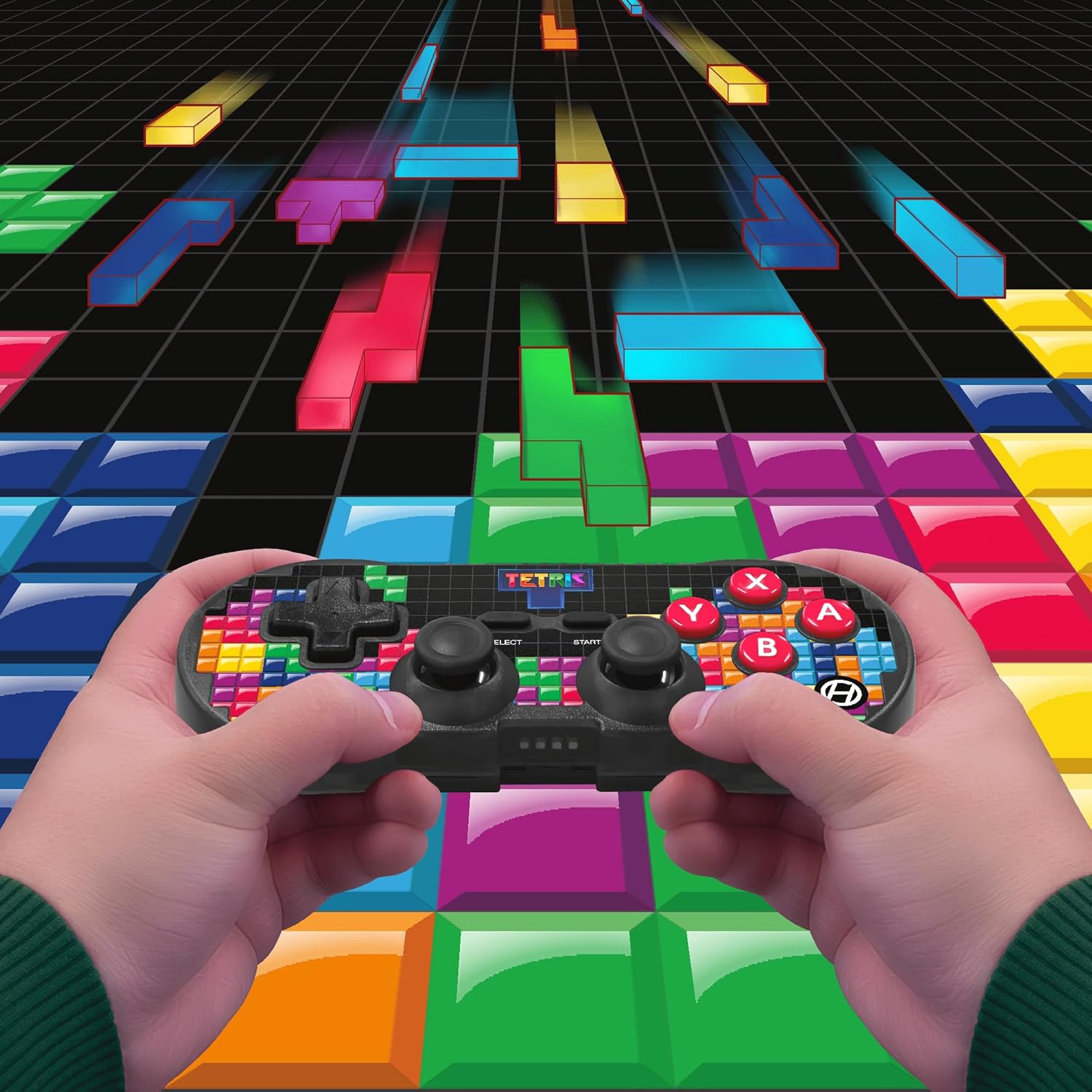
Image 5.1: A user holding the controller, illustrating its use during gameplay.
5.2. Funcția Turbo
The controller features a turbo function for rapid button presses. To activate or deactivate turbo for a specific button:
- Țineți apăsat butonul Buton Turbo.
- While holding the Turbo button, press the desired butonul de acțiune (A, B, X, Y, L1, R1, L2, R2) you wish to apply turbo to.
- Release both buttons. The selected action button will now have turbo enabled.
- To disable turbo for that button, repeat the process.
6. Compatibilitate
The Hyperkin Pixel Art Bluetooth Controller is compatible with a wide range of platforms:
- Nintendo Switch
- Nintendo Switch OLED Model
- PC Windows 10/11
- Mac
- dispozitive Android
- dispozitive iOS
- Aburi
- Raspberry Pi
- Amazon Games
- Amazon Luna
- Tesla

Image 6.1: Visual representation of the controller's broad compatibility across multiple gaming and computing platforms.
7. Întreținere
To ensure the longevity and optimal performance of your controller:
- curatenie: Folosiți o lavetă moale și uscată pentru a curăța controlerul. Evitați substanțele de curățare abrazive sau solvenții.
- Depozitare: Depozitați controlerul într-un loc răcoros și uscat, ferit de lumina directă a soarelui și de temperaturi extreme.
- Îngrijirea bateriei: Do not attempt to replace the internal Lithium Polymer battery. Avoid fully discharging the battery for extended periods.
- Evitați picăturile: Protejați controlerul de căderi și impacturi, care pot deteriora componentele interne.
8. Depanare
If you encounter issues with your Hyperkin Pixel Art Bluetooth Controller, refer to the following common problems and solutions:
| Problemă | Soluție posibilă |
|---|---|
| Controlerul nu pornește. | Ensure the controller is fully charged. Connect it to a power source using the USB-C cable. |
| Controller does not pair via Bluetooth. |
|
| Input lag or dropped connection. |
|
| Butoanele nu răspund sau sunt blocate. | Clean around the buttons with a soft, dry cloth. Avoid liquid cleaners. If the issue persists, contact support. |
9. Specificații
| Caracteristică | Detaliu |
|---|---|
| Numărul de model | M01328-TETS |
| Conectivitate | Bluetooth (Wireless up to 30 ft.), USB-C (Wired) |
| Compatibilitate | Nintendo Switch/OLED, Windows 10/11 PC, Mac, Android, iOS, Steam, Raspberry Pi, Amazon Games, Amazon Luna, Tesla |
| Caracteristici speciale | Turbo function, Retro design with modern ergonomics, High-quality symmetrical sticks, Responsive action buttons, Reliable triggers |
| Tip baterie | 1 Lithium Polymer battery (internal) |
| Dimensiuni pachet | 7.24 x 5 x 2.48 inci |
| Greutatea articolului | 9.9 uncii |
| Producător | Hyperkin |
10. Garanție și asistență
For warranty information and technical support, please visit the official Hyperkin website-ul lor web sau contactați departamentul de asistență pentru clienți. Păstrați dovada achiziției pentru solicitările de garanție.
Hyperkin Official Website: www.hyperkin.com