
MISONDA Fiat 500 Android Car Stereo
MISONDA 9-inch IPS Android Car Stereo for Fiat 500 (2007-2015) User Manual
Model: Fiat 500 Android Car Stereo
1. Introducere
This manual provides detailed instructions for the installation, operation, and maintenance of your MISONDA 9-inch IPS Android Car Stereo, designed specifically for Fiat 500 models manufactured between 2007 and 2015. Please read this manual thoroughly before using the product to ensure proper function and safety.
2. Informații de siguranță
- Always operate the device responsibly. Distracted driving can lead to accidents.
- Do not attempt to install or repair the unit if you are not qualified. Improper installation can cause damage to the vehicle or the device.
- Asigurați-vă că toate cablurile sunt conectate corect pentru a preveni scurtcircuitele sau pericolele electrice.
- Păstrați ecranul curat și liber de obstacole pentru a menține o vizibilitate clară.
- Evitați expunerea unității la temperaturi extreme, la lumina directă a soarelui pentru perioade lungi de timp sau la umiditate excesivă.
3. Conținutul pachetului
Verificați dacă toate articolele enumerate mai jos sunt incluse în pachetul dumneavoastră:
- MISONDA 9-inch Android Car Stereo Unit
- Power Socket Cable
- RCA Output Socket A
- RCA Output Socket B
- Antena GPS
- Cablu USB (x2)
- Manual de utilizare
- Microfon extern
- Camera spate
- Adaptor antenă radio

Image 3.1: Included components and the main unit's dimensions.
4. Specificații
| Caracteristică | Caietul de sarcini |
|---|---|
| Sistem | Android (Latest Version), 8 Core Cortex A53, 2.5 GHz |
| Dimensiunea ecranului | Ecran tactil IPS de 9 inchi |
| Rezoluția ecranului | 1080 x 680 pixeli |
| Memorie | 4 GB RAM + 64 GB ROM |
| Cip fără fir | TDA7786 |
| Putere de ieșire | 4 x 45W |
| Putere Amplifier Chip | TDA7851 |
| Temperatura de operare | -40℃ până la 80℃ |
| Radio | FM/AM with RDS, 18 preset FM stations |
| Bluetooth | BT 5.0 (A2DP, Hands-free, Phone Book, Call Records) |
| Wifi | Wi-Fi încorporat |
| Conectivitate | Bluetooth, USB, Wi-Fi |
5. Ghid de instalare
Se recomandă instalarea de către un profesionist. Asigurați-vă că vehiculul este deconectat de la rețeaua electrică înainte de a începe instalarea.
5.1. Pregătire
- Adunați uneltele necesare (șurubelnițe, dezizolator de fire, bandă izolatoare etc.).
- Deconectați borna negativă a bateriei mașinii.
- Carefully remove the factory radio unit and trim panels from your Fiat 500 (2007-2015). Refer to your vehicle's service manual for specific instructions.
5.2. Conexiuni de cablare
- Conexiune de alimentare: Connect the provided Power Socket Cable to the car stereo and the vehicle's wiring harness. Ensure correct positive, negative, and accessory wire connections.
- Antena GPS: Connect the GPS antenna to the designated port on the back of the stereo. Mount the antenna in a location with a clear view ale cerului, cum ar fi pe bord sau sub parbriz.
- Cabluri USB: Connect the USB cables to the stereo. Route them to a convenient location, such as the glove compartment, for connecting USB devices.
- Microfon extern: Connect the external microphone for improved call quality. Position it near the driver for optimal voice pickup.
- Camera spate: Connect the rear camera cable to the stereo's video input. Route the camera cable to the rear of the vehicle and mount the camera securely. Connect the camera's power to the reverse light circuit.
- RCA Output Sockets: Dacă se conectează un dispozitiv extern amplifiers or additional displays, use the provided RCA output sockets.
- Antena radio: Connect the vehicle's radio antenna to the stereo, using the provided adapter if necessary.
- Controlul volanului (SWC): Connect the SWC wires according to your vehicle's wiring diagram. This allows integration with existing steering wheel buttons.
5.3. Mounting and Testing
- Carefully slide the new MISONDA car stereo into the dashboard opening. Secure it using the vehicle's mounting brackets.
- Reconectați bateria mașinii.
- Turn on the vehicle's ignition and power on the stereo. Test all functions: radio, GPS, Bluetooth, USB, rear camera, and steering wheel controls.
- If all functions operate correctly, reassemble the trim panels.
6. Instrucțiuni de utilizare

Image 6.1: Main interface of the MISONDA Android Car Stereo.
6.1. Operare de bază
- Pornire/Oprire: Apăsați și țineți apăsat butonul de pornire de pe unitate sau folosiți contactul vehiculului.
- Touch screen: Navigate the interface by tapping, swiping, and pinching on the IPS touch screen.
- Controlul volumului: Adjust volume using the physical buttons on the unit, steering wheel controls, or on-screen controls.
- Ecranul principal: Access the main application launcher from any screen by pressing the Home button.
6.2. Carplay wireless și Android Auto
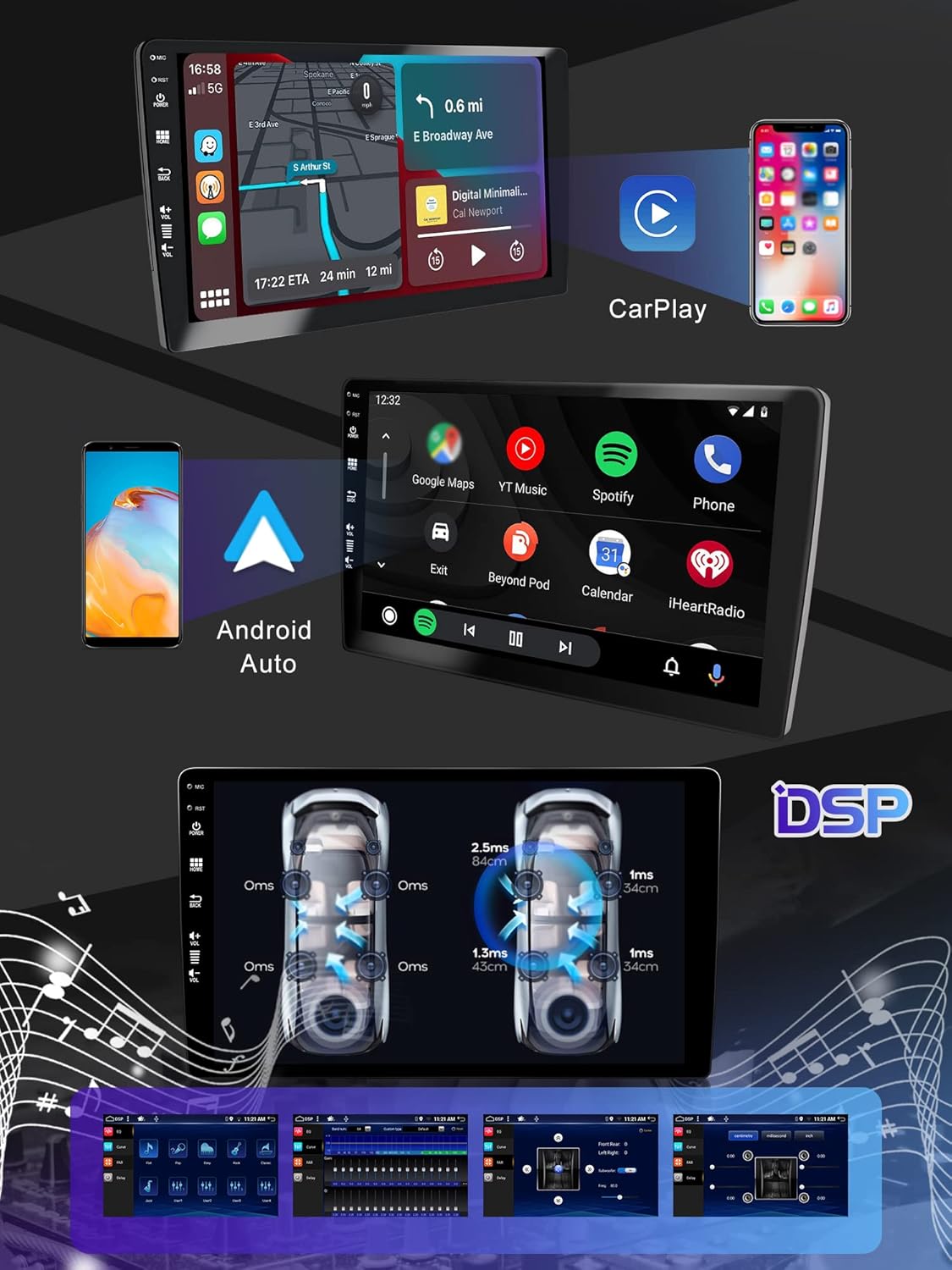
Image 6.2: Wireless Carplay and Android Auto in operation.
Connect your smartphone wirelessly via Bluetooth to access Carplay or Android Auto features. This allows you to use your phone's navigation, make calls, send messages, and enjoy music directly through the car stereo interface.
- Asigurați-vă că Bluetooth este activat pe smartphone și pe sistemul stereo al mașinii.
- Pair your phone with the car stereo via Bluetooth settings.
- Once paired, select the Carplay or Android Auto icon on the stereo's home screen.
- Follow any on-screen prompts on your phone to grant permissions.
6.3. Navigație GPS
The unit comes with preloaded offline maps. For real-time traffic updates and online map features, connect to Wi-Fi.
- Tap the 'Navigation' or 'Maps' icon on the home screen.
- Introduceți destinația utilizând tastatura de pe ecran.
- Select your preferred route.
- Voice prompts will guide you to your destination.
6.4. Conectivitate Bluetooth
Bluetooth 5.0 supports hands-free calling, audio streaming (A2DP), phone book synchronization, and call record access.
- Go to the 'Bluetooth' application.
- Activați Bluetooth și căutați dispozitivele disponibile.
- Select your phone from the list and confirm the pairing code.
- Once connected, you can make/receive calls and play music from your phone.
6.5. Conectivitate Wi-Fi
Connect to a Wi-Fi hotspot (e.g., from your smartphone) to access online features, download apps, and stream content.
- Navigate to 'Settings' > 'Network & Internet' > 'Wi-Fi'.
- Activați Wi-Fi-ul și selectați rețeaua dorită.
- Introduceți parola dacă vi se solicită.
6.6. Funcția Split Screen

Image 6.3: Split Screen and Mirror Link features.
Funcția de ecran divizat permite rularea simultană a două aplicații pe ecran. De exempluample, you can use navigation while listening to music or watching a video.
- Deschideți prima aplicație pe care doriți să o utilizați.
- Press and hold the 'Recent Apps' button or swipe up from the bottom of the screen (depending on Android version) to enter split-screen mode.
- Select the second application from the list of recent apps or the app drawer.
6.7. Legătură în oglindă
Mirror Link enables two-way control between your smartphone and the car stereo, displaying your phone's screen on the stereo.
- Open the 'Mirror Link' application on the stereo.
- Follow the on-screen instructions to connect your smartphone via USB or Wi-Fi.
- Grant necessary permissions on your phone.
6.8. Controlul volanului (SWC)
If properly connected during installation, you can program the steering wheel buttons to control various functions of the stereo, such as volume, track skipping, and answering calls.
- Accesați „Setări” > „Comandă pe volan”.
- Follow the on-screen instructions to map each physical button on your steering wheel to a desired function on the stereo.
6.9. Setări audio DSP
The built-in Digital Sound Processor (DSP) allows for advanced audio customization to optimize sound quality for various environments and personal preferences.
- Access the 'DSP' or 'Sound Settings' application.
- Adjust equalizer settings, balance, fader, and subwoofer levels.
- Experiment with different sound profiles to find your preferred audio experience.
6.10. Radio (FM/AM/RDS)
The unit supports FM and AM radio reception with RDS (Radio Data System) for displaying station information.
- Deschideți aplicația „Radio”.
- Folosiți funcția de scanare pentru a găsi posturile disponibile sau pentru a regla manual o frecvență.
- Salvați posturile preferate în cele 18 sloturi presetate disponibile pentru acces rapid.
7. Caracteristici opționale
The following features require additional accessories, which are sold separately.
7.1. 360 Panorama Camera System
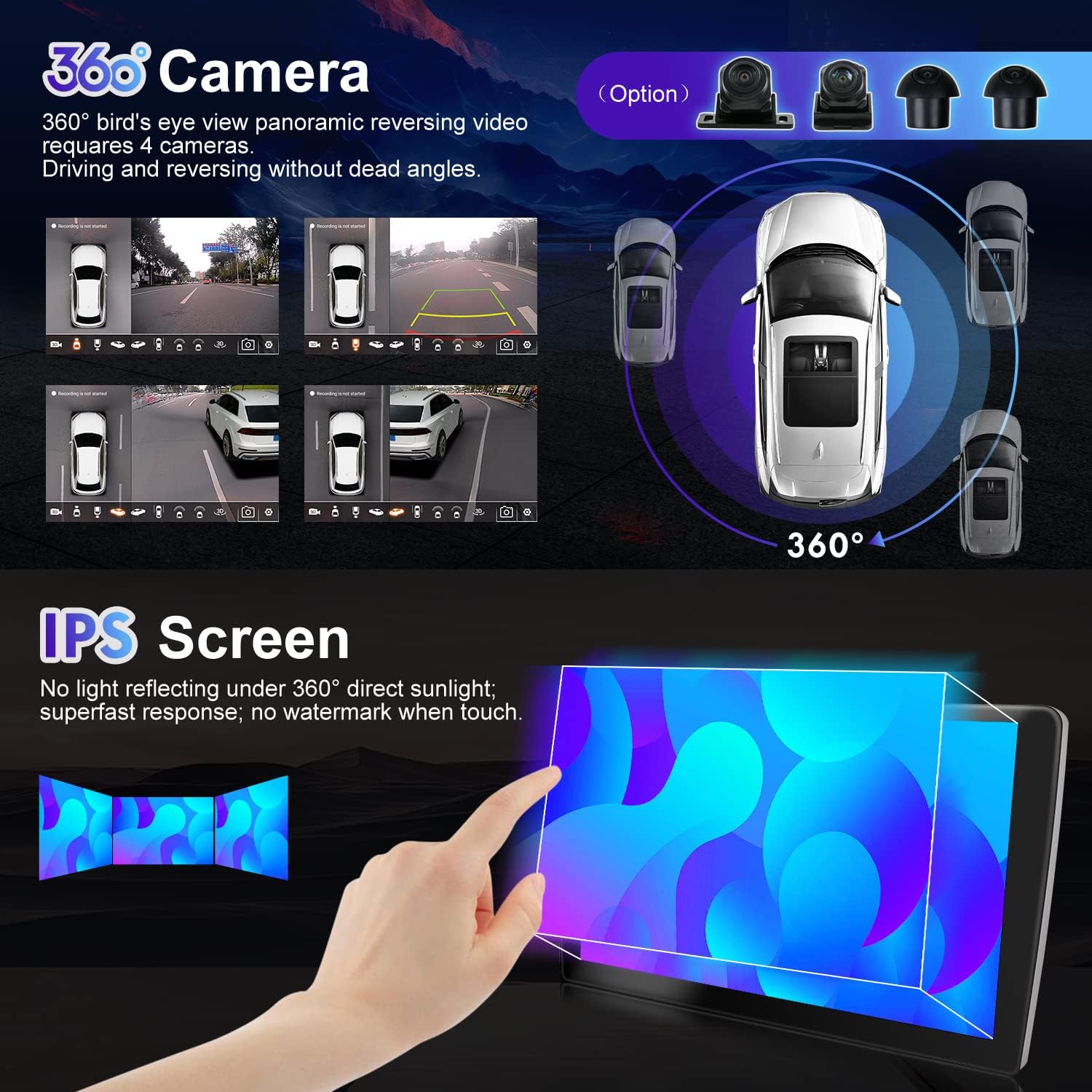
Image 7.1: 360 Panorama Camera System overview.
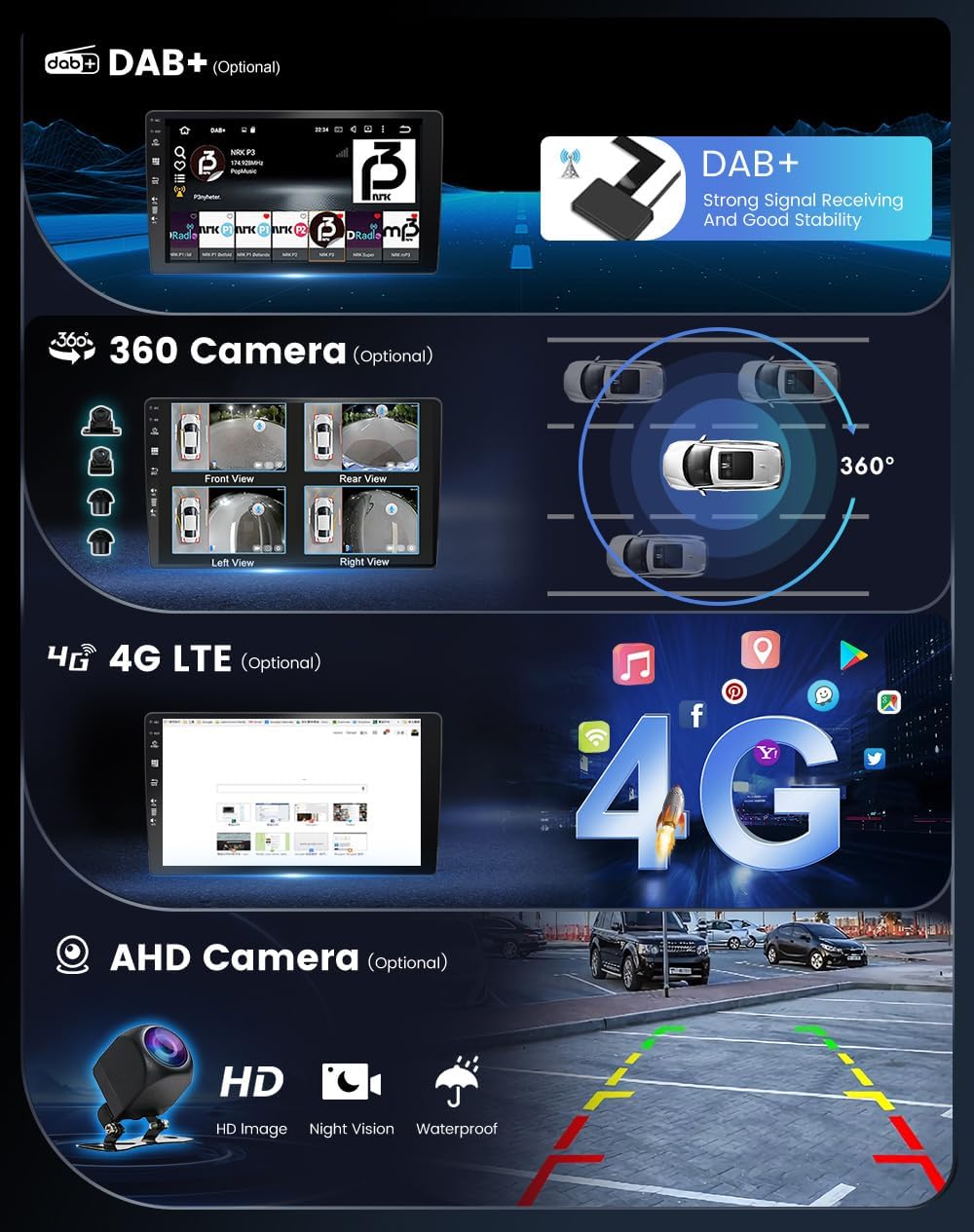
Image 7.2: Various optional features including 360 Camera and AHD Camera.
This system provides a surround view (1080P AHD) using front, rear, left, and right cameras, eliminating blind spots during driving and reversing. It offers night vision and 3D dynamic road condition display compatibility.
7.2. DAB+ (Digital Audio Broadcasting)
An external DAB+ module allows access to a wider range of radio programs with clear, high-quality digital audio broadcasting, free from interference.
7.3. DVR (Driving Video Recorder)
Connect an external DVR to record your driving footage, providing evidence in case of incidents and enhancing driving safety.
7.4. OBD (On-Board Diagnostics)
An external OBD adapter can connect to the stereo to display real-time vehicle data, engine codes, and performance metrics.
7.5. Conectivitate 4G LTE
For enhanced internet connectivity on the go, an optional 4G LTE module can be integrated, allowing for faster data speeds and a more stable connection.
8. Întreținere
- Curățarea ecranului: Folosiți o cârpă moale, fără scame dampened with water or a screen cleaner. Do not use harsh chemicals or abrasive materials.
- Actualizări de software: Verificați periodic dacă există actualizări de software pentru a asigura performanțe optime și acces la funcții noi. Actualizările pot fi găsite de obicei pe site-ul producătorului. website or through the device's settings when connected to Wi-Fi.
- Îngrijire generală: Păstrați unitatea fără praf și resturi. Evitați vărsarea de lichide pe dispozitiv.
9. Depanare
| Problemă | Soluție posibilă |
|---|---|
| Unitatea nu pornește | Check power connections and vehicle's fuse box. Ensure battery is connected. |
| Nici un sunet | Check volume levels, speaker connections, and audio settings (DSP). |
| Semnal GPS pierdut sau inexact | Asigurați-vă că antena GPS este conectată corect și are o vizibilitate clară. view a cerului. Actualizați datele hărții dacă este necesar. |
| Bluetooth nu se conectează | Ensure Bluetooth is enabled on both devices. Delete previous pairings and try pairing again. Restart both devices. |
| Ecranul tactil nu răspunde | Reporniți unitatea. Dacă problema persistă, contactați asistența. |
| Comenzile de pe volan nu funcționează | Verify SWC wiring connections. Reconfigure SWC settings in the unit's menu. |
10. Garanție și asistență
For warranty information, please refer to the documentation provided with your purchase or contact your retailer. If you encounter any issues not covered in this manual, please contact MISONDA customer support for assistance.
Ask a question about this manual
Ask about setup, troubleshooting, compatibility, parts, safety, or missing instructions. Manuals+ will review the question and use this page’s manual context to help answer it.