
1. Introducere
The Poly Studio Table Microphone is designed to enhance audio capture in conference environments, specifically for Poly Studio X50, X52, V52, X70, X72, and V72 video systems. It features superior 3-way audio pickup, automatically leveling voices and suppressing background noise and echo for clear, natural conversations. Its robust design includes an easily accessible mute button with an indicator light and offers a pick-up range of 2.5 meters (8.2 feet).
This manual provides instructions for setting up, operating, and maintaining your Poly Studio Table Microphone.
2. Ce se află în cutie
Verificați dacă toate componentele sunt prezente în ambalaj:
- Poly Studio Table Microphone (Model 875M6AA)
- Cablu RJ-11
- Ghid de instalare (acest document)
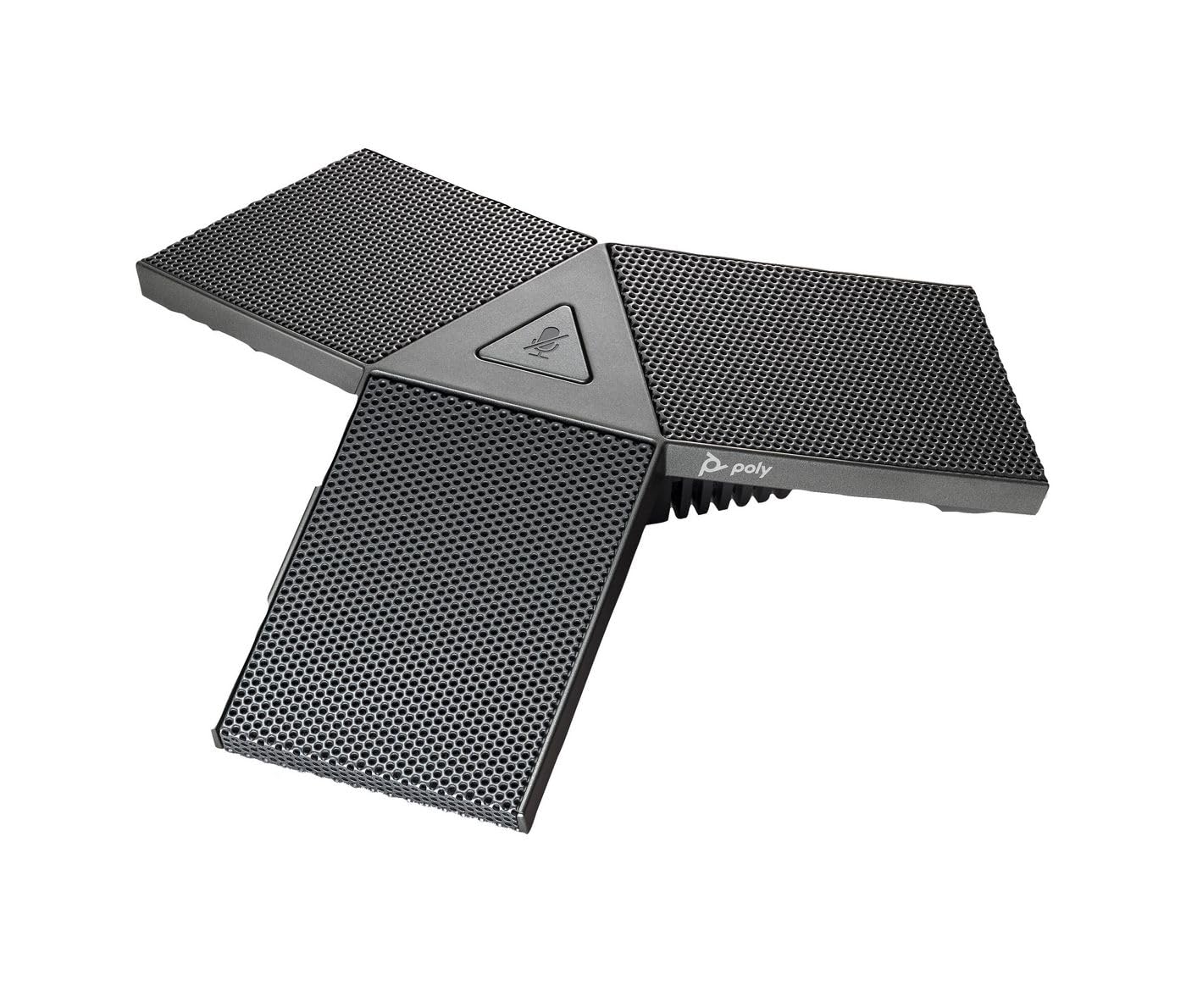
Image 1: Poly Studio Table Microphone with its RJ-11 connection cable.
3. Configurare
The Poly Studio Table Microphone is designed for simplified setup. Follow these steps to connect the microphone to your Poly Studio video system:
- Plasare: Position the Poly Studio Table Microphone on a flat surface in your conference room. Ensure it is centrally located to maximize its 2.5-meter (8.2 feet) audio pickup range.
- Conexiune: Locate the RJ-11 port on the underside of the microphone and on your Poly Studio video system (X50, X52, V52, X70, X72, or V72).
- Cable Insertion: Connect one end of the provided RJ-11 cable into the microphone's RJ-11 port.
- Conexiune sistem: Connect the other end of the RJ-11 cable into the corresponding RJ-11 port on your Poly Studio video system.
- Pornire: Ensure your Poly Studio video system is powered on. The microphone will automatically be detected and configured.
De obicei, nu sunt necesare drivere sau software suplimentar pentru funcționalitatea de bază.
4. Instrucțiuni de utilizare
The Poly Studio Table Microphone is designed for intuitive operation, integrating seamlessly with your Poly Studio video system.
4.1 Audio Pickup
- The microphone features three (3) directional microphones for 360-degree audio coverage, ensuring voices are captured from all directions within its 2.5-meter (8.2 feet) range.
- Advanced audio technology automatically levels voices and suppresses background noise and echo, providing clear audio for remote participants.
4.2 Funcția Mute
- A convenient mute button is located on the microphone for quick control.
- Press the mute button to toggle the microphone's audio input on or off.
- An indicator light on the microphone will illuminate or change color to clearly show the mute status. Refer to your Poly Studio video system's documentation for specific indicator light behaviors.
5. Întreținere
To ensure optimal performance and longevity of your Poly Studio Table Microphone, follow these maintenance guidelines:
- curatenie: The microphone features integrated Microban® protection to help keep surfaces cleaner and fresher for longer. For general cleaning, gently wipe the exterior surfaces with a soft, dry, or slightly damp Evitați utilizarea substanțelor chimice dure, a produselor de curățare abrazive sau a solvenților.
- Depozitare: When not in use for extended periods, store the microphone in a clean, dry environment away from extreme temperatures and direct sunlight.
- Îngrijirea cablului: Avoid bending or crimping the RJ-11 cable excessively. Ensure it is not placed where it can be tripped over or damaged.
6. Depanare
If you encounter issues with your Poly Studio Table Microphone, refer to the following common troubleshooting steps:
- Fără audio:
- Ensure the RJ-11 cable is securely connected to both the microphone and the Poly Studio video system.
- Verify that the microphone is not muted (check the indicator light).
- Check the audio settings on your Poly Studio video system to ensure the external microphone is selected and volume levels are appropriate.
- Restart the Poly Studio video system.
- Poor Audio Quality (Echo, Noise):
- Ensure the microphone is placed on a stable surface and not too close to speakers or other noise sources.
- Confirm that the room acoustics are suitable for conferencing.
- Verify that the microphone's surface is clean.
- Butonul „Dezactivare sunet” nu răspunde:
- Asigurați-vă că microfonul este conectat și alimentat corespunzător.
- Restart the Poly Studio video system.
If problems persist, consult the comprehensive user manual for your specific Poly Studio video system or contact Poly technical support.
7. Specificații
| Caracteristică | Detaliu |
|---|---|
| Marca | POLY |
| Numele modelului | Studio |
| Numărul de model | 875M6AA |
| Tehnologia de conectivitate | USB (via RJ-11 connection to Poly Studio system) |
| Tip conector | RJ-11 |
| Model polar | Unidirectional (3-way audio pickup for 360-degree coverage) |
| Factor de formă a microfonului | Suport de masă |
| Caracteristica specială | Mute button with indicator light, Microban® protection |
| Dispozitive compatibile | Poly Studio X50, X52, V52, X70, X72, V72 video systems |
| Raza de ridicare | 2.5 metri (8.2 picioare) |
| Raspuns in frecventa | 20 Hz - 20 kHz |
| Raportul semnal-zgomot | 78 dB |
| Greutatea articolului | 0.2 livre (aproximativ 90 grame) |
| Dimensiuni articol (L x l x H) | 1.1 x 4.9 x 5.6 inci (aprox. 2.8 x 12.4 x 14.2 cm) |
| Culoare | Gunmetal |
| Producător | HP Inc. |
8. Garanție și asistență
Informații despre garanție: The warranty description for this product is not explicitly available in the provided details. Please refer to the official Poly (HP Inc.) webconsultați site-ul sau documentația de achiziție pentru termenii și condițiile specifice de garanție.
Suport tehnic: For further assistance, technical support, or service inquiries, please contact Poly (HP Inc.) customer support through their official website or the contact information provided with your Poly Studio video system.
You can often find support resources, FAQs, and updated documentation on the Poli website-ul.