
1. Introducere
This manual provides essential instructions for setting up, operating, maintaining, and troubleshooting your VIBOX VI-63 PC Gamer. Please read this guide thoroughly before using your new computer to ensure optimal performance and longevity.
2. Informații de siguranță
- Ensure the PC is placed on a stable, flat surface with adequate ventilation.
- Do not block any ventilation openings on the PC case.
- Keep the PC away from direct sunlight, heat sources, and liquids.
- Use only the power adapter supplied with your PC.
- Deconectați cablul de alimentare înainte de curățare sau de efectuarea oricărei operațiuni de întreținere.
- Avoid opening the PC case unless instructed by VIBOX support, as this may void your warranty.
3. Conținutul pachetului
Verificați dacă toate articolele enumerate mai jos sunt incluse în pachetul dumneavoastră:
- VIBOX VI-63 PC Gamer Tower
- Monitor de 22 inchi
- Tastatură pentru jocuri RGB
- Mouse pentru jocuri RGB
- Black Mouse Pad
- Căști de gaming cu microfon
- Wireless WiFi Network Adapter (600 Mbps)
- Cablu(i) de alimentare
- Display Cable (HDMI or VGA, depending on monitor)
- Documentație (acest manual)
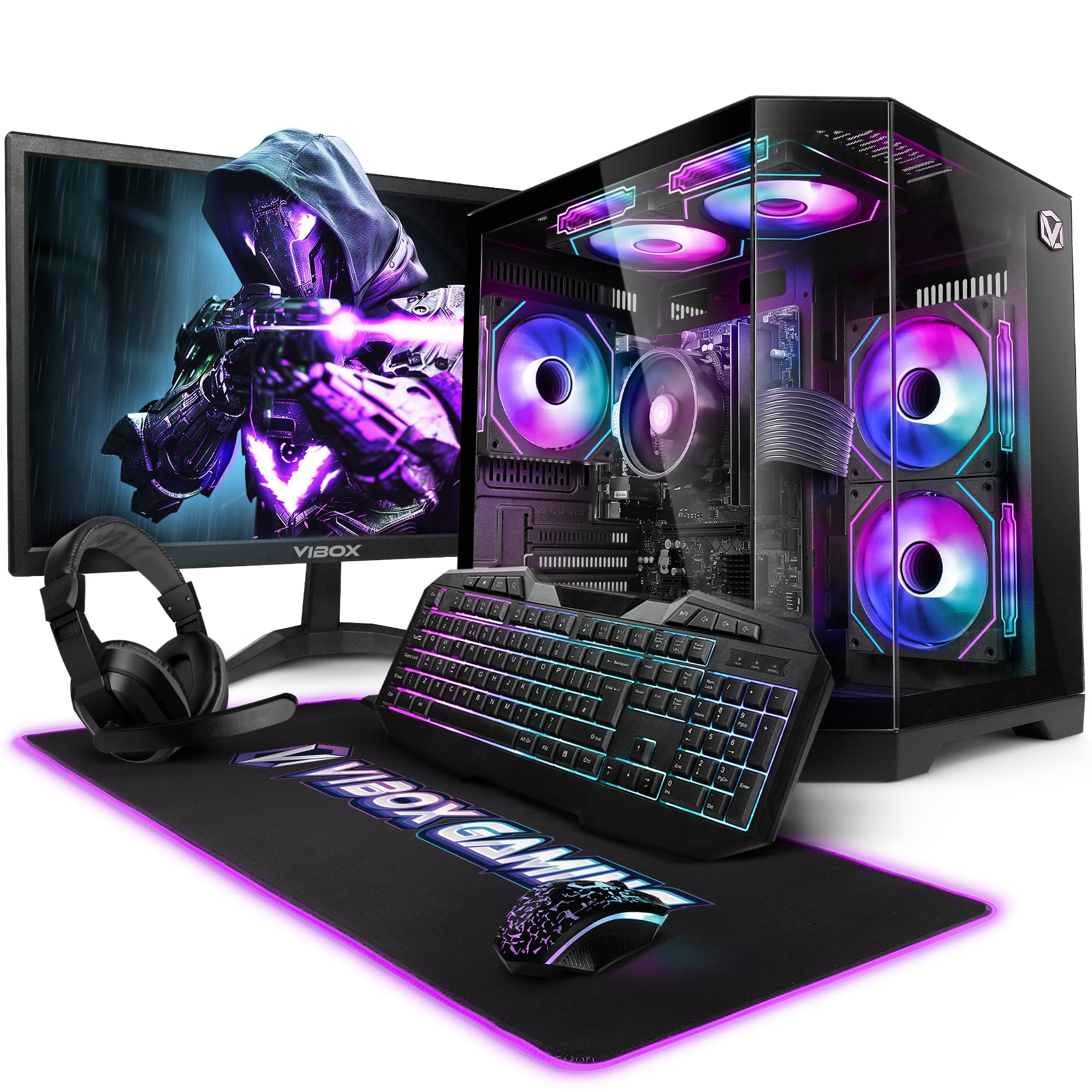
Image 3.1: VIBOX VI-63 PC Gamer Tower with internal RGB lighting.
4. Instrucțiuni de configurare
4.1. Despachetarea și plasarea
- Scoateți cu grijă toate componentele din ambalajul lor.
- Place the PC tower on a flat, stable surface. Ensure there is sufficient space around the tower for proper airflow.
- Place the monitor on a stable surface at a comfortable viewînălțimea ing.
4.2. Conectarea perifericelor
- Monitor: Connect one end of the display cable (HDMI or VGA) to the corresponding port on the back of the PC and the other end to the monitor.
- Tastatură și mouse: Connect the USB cables of the keyboard and mouse to any available USB ports on the PC.
- Setul cu cască: Connect the headset to the audio jacks (headphone and microphone) on the front or rear of the PC.
- Adaptor WiFi: Insert the wireless WiFi network adapter into an available USB port.
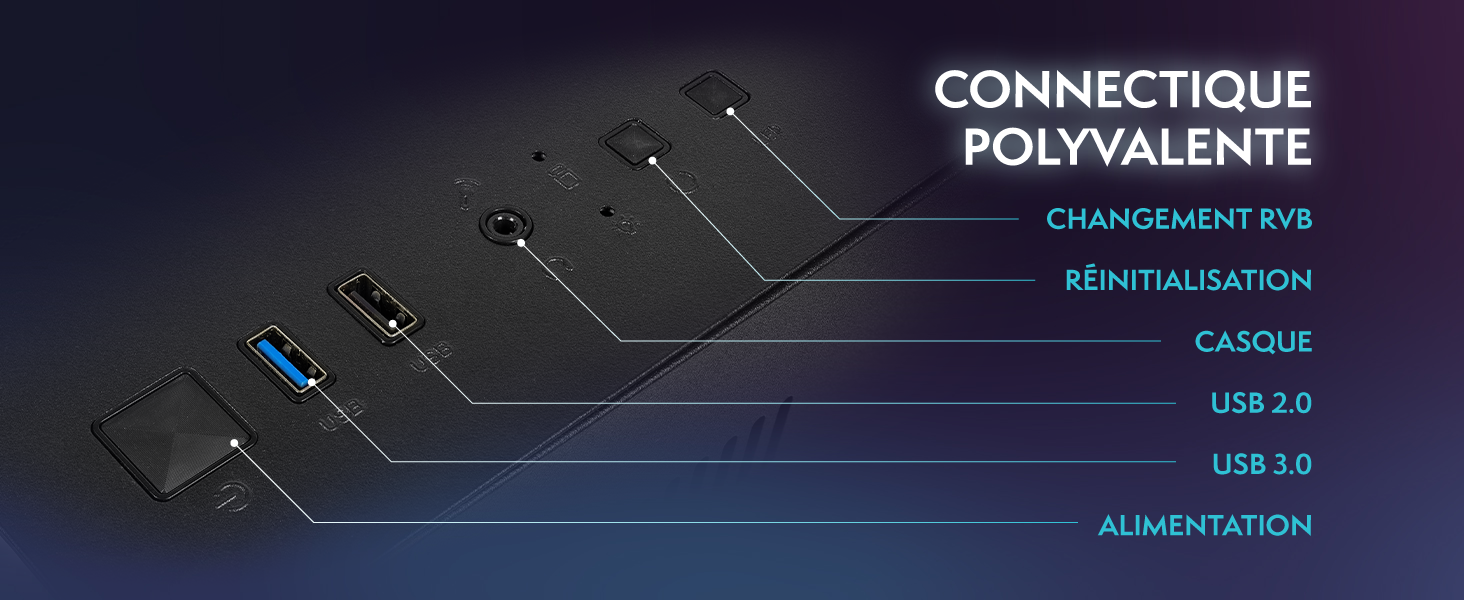
Image 4.1: Front panel connections including USB 2.0, USB 3.0, headset jack, reset button, and RGB change button.
4.3. Conexiune la alimentare
- Connect the power cable to the power supply unit (PSU) at the back of the PC.
- Connect the other end of the power cable to a wall outlet.
- Connect the monitor's power cable to a wall outlet.
4.4. Pornirea inițială și configurarea Windows 11
- Press the power button on the front of the PC tower.
- Porniți monitorul.
- Follow the on-screen instructions to complete the Windows 11 Home setup. This typically involves selecting your region, language, creating a user account, and connecting to a Wi-Fi network.
5. Instrucțiuni de utilizare
5.1. Operare de bază
- Pornire/Oprire: Press the power button to turn on the PC. To shut down, click the Start button in Windows, then Power > Shut down.
- Repornire: Din meniul Start, selectați Alimentare > Repornire.
- Modul de somn: Din meniul Start, selectați Alimentare > Repaus.
5.2. Windows 11 Features
Your VIBOX VI-63 PC Gamer comes with Windows 11 Home pre-installed, offering features designed to enhance your computing and gaming experience:
- DirectStorage: Enables faster loading times for compatible games.
- AutoHDR: Automatically enhances visuals for a wider range of games.
- Xbox Game Pass Integration: Seamless access to a library of games (subscription may be required).
- Optimized CPU Performance: Windows 11 is designed to optimize CPU usage for gaming and multitasking.
5.3. Performanța în jocuri
The VIBOX VI-63 is equipped with an AMD Ryzen 3 3200GE processor and integrated Radeon Vega 8 graphics, providing solid performance for everyday computing and gaming at 720p to 1080p resolutions.

Imaginea 5.1: Pesteview of internal components including CPU, GPU, RAM, and storage.
5.4. Controlul iluminării RGB
Your PC features RGB lighting. Use the dedicated RGB change button on the front panel (refer to Image 4.1) to cycle through different lighting modes and colors.
6. Întreținere
6.1. Cleaning the PC
- Exterior: Folosiți un moale, damp cloth to wipe down the exterior of the PC case and monitor. Avoid abrasive cleaners.
- Praf: Periodically use compressed air to clear dust from the ventilation openings and fan grilles. Ensure the PC is powered off and unplugged before doing so.
- Periferice: Curățați tastatura și mouse-ul în mod regulat pentru a preveni acumularea de praf și resturi.
6.2. Actualizări software
- Verificați și instalați periodic actualizări Windows pentru a asigura stabilitatea și securitatea sistemului. Accesați Setări > Windows Update.
- Keep your graphics drivers updated for optimal gaming performance. You can usually download the latest drivers from the AMD website-ul.
6.3. System Care
- Avoid installing unnecessary software to keep your system lean and fast.
- Run regular antivirus scans to protect against malware. Windows Defender is pre-installed.
- Ensure proper airflow around the PC to prevent overheating. The inverted airflow design helps with cooling.
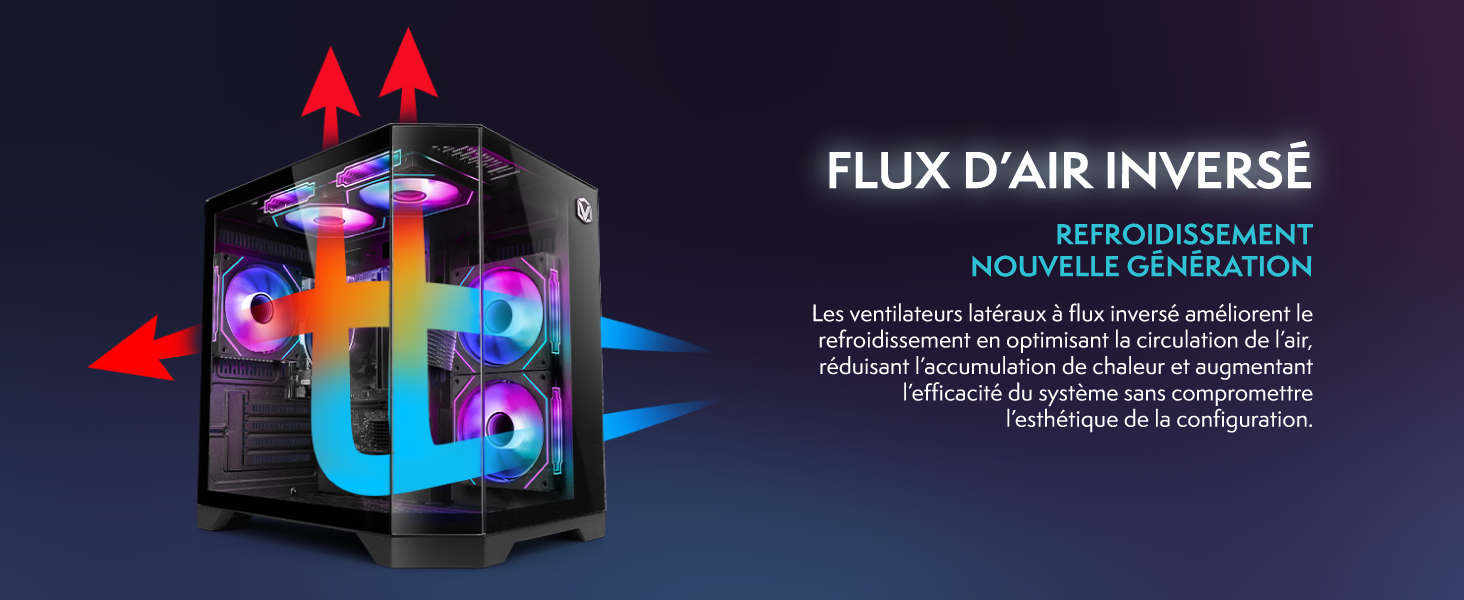
Image 6.1: Inverted airflow design for efficient cooling.
7. Depanare
- Fără putere: Check all power cable connections. Ensure the wall outlet is functional.
- Fără afișare: Ensure the monitor is powered on and the display cable is securely connected to both the PC and the monitor. Try a different display cable or port if available.
- Fără conexiune internet: Verify the WiFi adapter is properly installed. Check your router and internet service. In Windows, go to Settings > Network & internet to troubleshoot.
- PC Freezes/Crashes: Restart the PC. Ensure all drivers are updated. Check for overheating (ensure good airflow).
- Perifericele nu funcționează: Try connecting the keyboard, mouse, or headset to different USB/audio ports. Ensure drivers are installed if required.
8. Specificații
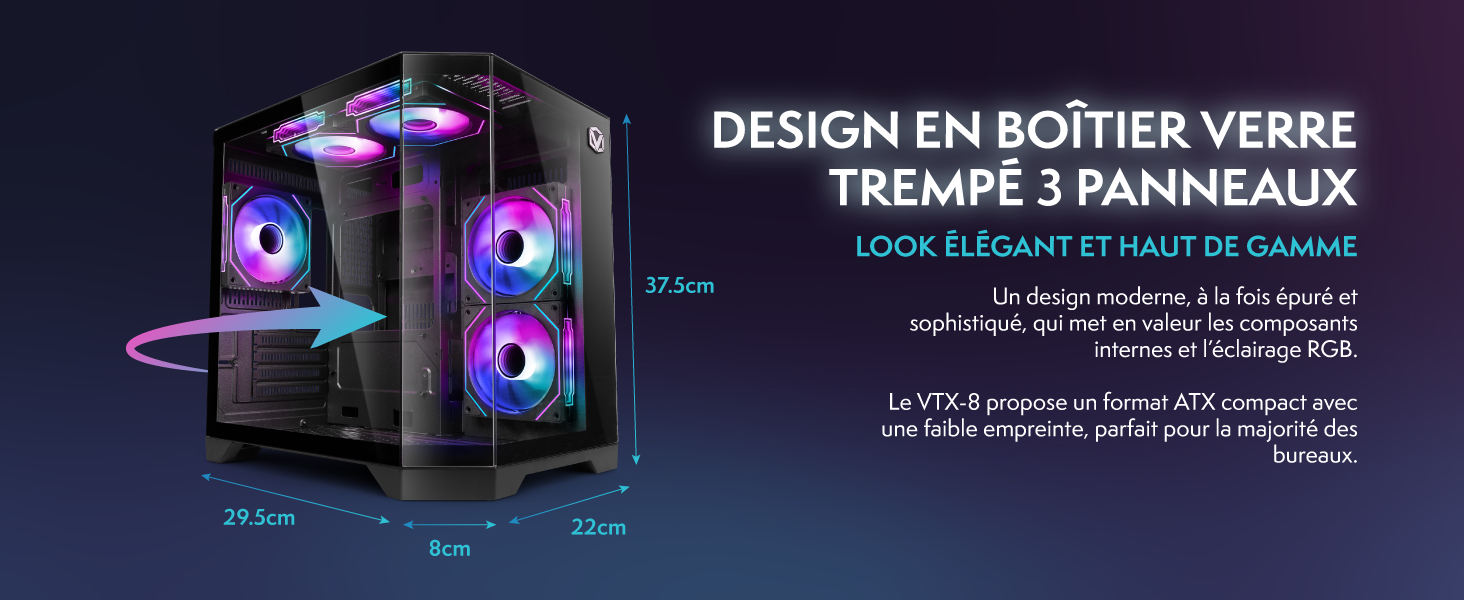
Image 8.1: VIBOX VI-63 PC Gamer case dimensions.
| Caracteristică | Caietul de sarcini |
|---|---|
| Marca | VIBOX |
| Numele modelului | Vibox VI-63 Gaming PC |
| Sistem de operare | Windows 11 Home |
| Model CPU | AMD Ryzen 3 3200G |
| Viteza procesorului | 3.6 GHz (4 GHz Turbo) |
| Nuclee CPU | 4 |
| Coprocesor grafic | Radeon Vega 8 (Integrated) |
| Graphics RAM | 2 GB (Shared) |
| RAM Installed | 16 GB DDR4 |
| RAM Speed | 2666 MHz |
| Capacitate de stocare | SSD de 1 TB |
| Tehnologia hard disk-ului | SSD |
| Dimensiunea monitorului | 22 inchi |
| Rezoluție maximă a afișajului | 1920x1080 pixeli |
| Interfață de ieșire video | hdmi, vga |
| Tehnologia de conectivitate | AMD Radeon Vega 8, Ethernet, HDMI, USB, Wi-Fi |
| Dimensiuni (L x l x H) | 32.6 x 19.5 x 42 cm |
| Culoare | VTX-1 Black |
9. Garanție și asistență
9.1. Informații despre garanție
Your VIBOX VI-63 PC Gamer comes with a 2 an garanție on spare parts. This warranty covers manufacturing defects and component failures under normal use. Please retain your proof of purchase for warranty claims.
9.2. Asistență pentru clienți
For technical assistance, troubleshooting, or warranty inquiries, please contact VIBOX customer support. Refer to the contact information provided with your purchase documentation or visit the official VIBOX website-ul pentru detalii de asistență.
Resurse online: For additional support and FAQs, please visit the VIBOX official website-ul.