
1. Introducere
This manual provides essential instructions for the installation, operation, and maintenance of your PureLink Vuelogic VB200 Huddle Space Videobar. Please read this manual thoroughly before using the product to ensure proper functionality and to prevent damage.
The PureLink Vuelogic VB200 is an all-in-one conferencing solution designed for huddle spaces and small to medium meeting rooms. It integrates a 4K camera, multiple microphones, and stereo speakers to provide a comprehensive audio and video experience.
2. Informații de siguranță
Respectați următoarele măsuri de siguranță pentru a preveni deteriorarea dispozitivului și a asigura siguranța utilizatorului:
- Nu expuneți dispozitivul la apă, umezeală sau temperaturi extreme.
- Evitați plasarea dispozitivului în apropierea surselor de căldură sau în lumina directă a soarelui.
- Utilizați numai adaptorul de alimentare furnizat împreună cu dispozitivul.
- Nu încercați să deschideți sau să reparați dispozitivul singur. Apelați la personal calificat pentru toate lucrările de service.
- Asigurați o ventilație adecvată în jurul dispozitivului în timpul funcționării.
3. Produs terminatview
The PureLink Vuelogic VB200 combines a high-quality camera, microphone array, and speakers into a single, compact unit for streamlined video conferencing.
3.1. Conținutul pachetului
Verificați dacă toate articolele sunt prezente în colet:
- PureLink Vuelogic VB200 Videobar
- Adaptor de alimentare
- Cablu USB
- Suport de montare (dacă este inclus)
- Ghid de pornire rapidă

Figure 3.1: The retail packaging for the PureLink Vuelogic VB200 Videobar, indicating it is an all-in-one conferencing solution.

Figura 3.2: Detaliat view of the product packaging, showing the model number VL-VB200 and UPC 4251364736913.
3.2. Componentele dispozitivului
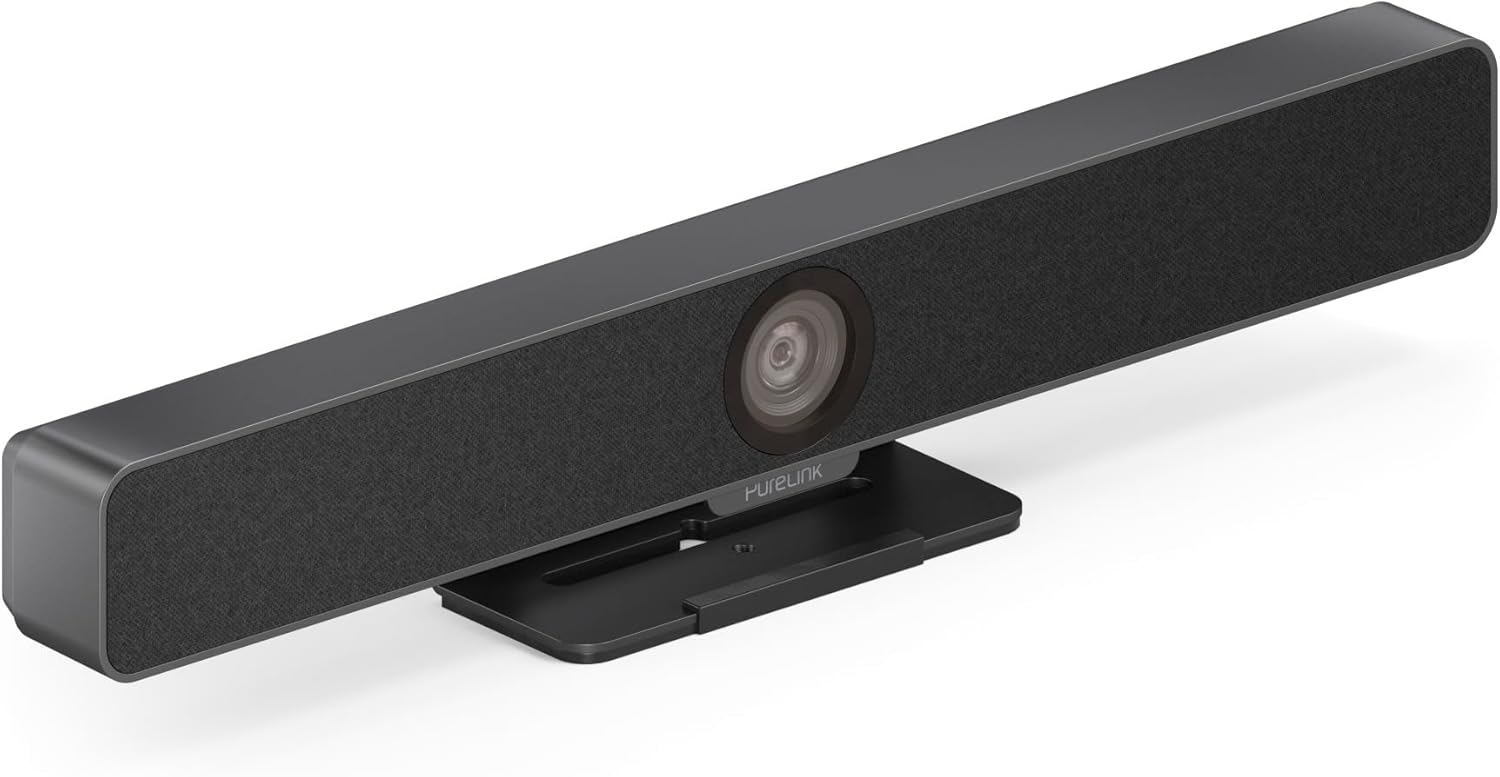
Figura 3.3: Față view of the PureLink Vuelogic VB200 Huddle Space Videobar, showcasing the integrated camera and speaker grille.

Figura 3.4: Față și spate views of the videobar. The rear view displays the power input, USB-C port, and other connectivity options.
- Faţă: Integrated 4K camera, speaker grille, PureLink branding.
- Spate: Power input, USB-C port for data and power, HDMI output (if applicable), mounting points.
4. Configurare
Follow these steps to set up your PureLink Vuelogic VB200 Videobar:
- Plasare: Position the videobar on a stable surface, such as a table or monitor, ensuring the camera has a clear view of the meeting participants. The integrated stand allows for flexible placement.
- Conexiune de alimentare: Connect the provided power adapter to the videobar's power input and then to a wall outlet.
- Conexiune USB: Connect the videobar to your computer using the supplied USB-C cable. The device is plug-and-play and should be recognized automatically by your operating system.
- Conexiune HDMI opțională: If your setup requires video output to a display, connect an HDMI cable from the videobar's HDMI output (if available) to your display.
- Recunoaștere software: Once connected, your computer's operating system (Windows, macOS, etc.) should detect the device. You may need to select the "PureLink Vuelogic VB200" as your preferred camera, microphone, and speaker in your video conferencing application settings (e.g., Zoom, Microsoft Teams, WebEx).

Figure 4.1: The videobar positioned on a surface, demonstrating its flexible mounting options for various work environments.
5. Instrucțiuni de utilizare
The PureLink Vuelogic VB200 is designed for ease of use with popular video conferencing platforms.
5.1. Începerea unei întâlniri
- Ensure the videobar is connected and powered on.
- Open your preferred video conferencing application (e.g., Zoom, Microsoft Teams, WebEx, Google Meet, Skype, Slack, GoToMeeting).
- In the application's audio and video settings, select "PureLink Vuelogic VB200" as your camera, microphone, and speaker device.
- Start or join your meeting.

Figure 5.1: The videobar is compatible with leading communication platforms such as Zoom, Slack, GoToMeeting, Google Hangouts, Skype, Microsoft Teams, and Google Meet.
5.2. Caracteristici cheie
- Calitate video 4K: The 120° wide-angle lens captures sharp, high-resolution video, suitable for small to medium rooms.
- Intelligent Auto Framing and Tracking: The camera automatically adjusts its frame to keep all participants visible and can track the active speaker, ensuring optimal framing during dynamic meetings.
- High-Quality Audio Capture: Equipped with 4 MEMS digital microphone arrays, offering a 3-5m range and 180° coverage. Features like Acoustic Echo Cancellation (AEC), Automatic Gain Control (AGC), and Automatic Noise Suppression (ANS) ensure clear communication.
- Hi-Fi Stereo Speakers: Two 3W stereo speakers with bass boost provide clear and powerful audio output for an immersive sound experience.
6. Întreținere
To ensure the longevity and optimal performance of your videobar:
- curatenie: Use a soft, dry cloth to clean the exterior of the device. For the camera lens, use a lens cleaning cloth and solution specifically designed for optics. Do not use abrasive cleaners or solvents.
- Depozitare: Când nu este utilizat pentru perioade lungi de timp, depozitați dispozitivul într-un loc răcoros și uscat, ferit de lumina directă a soarelui.
- Actualizări firmware: Periodically check the PureLink webpentru orice actualizări de firmware disponibile, pentru a vă asigura că dispozitivul are cele mai recente funcții și îmbunătățiri de performanță.
7. Depanare
If you encounter issues with your PureLink Vuelogic VB200, refer to the following common problems and solutions:
| Problemă | Cauza posibila | Soluţie |
|---|---|---|
| Fără ieșire video / Camera nu a fost detectată | Loose USB connection, incorrect software settings, driver issue. |
|
| No audio from speakers / Microphone not working | Incorrect audio settings, muted device. |
|
| Auto-framing not functioning correctly | Poor lighting, obstruction, software glitch. |
|
8. Specificații
| Caracteristică | Detaliu |
|---|---|
| Marca | PureLink |
| Numărul de model | VL-VB200 |
| Dimensiuni | 20.47 x 7.87 x 5.12 inci |
| Greutate | 2.2 lire sterline |
| Culoare | Negru |
| Rezoluție captură video | 4K |
| Zoom optic | 5x |
| Tehnologia senzorului foto | CMOS |
| Caracteristici speciale | Auto Framing and Tracking |
| Tip microfon | 4 MEMS Digital Microphone Arrays |
| Gama de microfon | 3-5m, 180° coverage |
| Caracteristici audio | AEC, AGC, ANS |
| Difuzoare | Two 3W Stereo Speakers with Bass Boost |
| Tehnologia de conectivitate | HDMI, USB |
| Format audio acceptat | AAC, MP3 |
| Format video acceptat | MP4 |
| Compatibilitate | Windows, macOS, Zoom, WebEx, Tencent Meeting, Teams, etc. |
9. Garanție și asistență
PureLink products are designed for reliability and performance. For specific warranty information, please refer to the warranty card included with your product or visit the official PureLink website-ul.
For technical support, troubleshooting assistance, or to inquire about service, please contact PureLink customer support through their official channels. Keep your purchase receipt and product model number (VL-VB200) handy when contacting support.
Official PureLink Website: www.purelink.de