

Introducere
This manual provides detailed instructions for the setup, operation, maintenance, and troubleshooting of your One Car Stereo CarPlay Ai Box HE. This device converts your vehicle's wired CarPlay system into a wireless CarPlay and Android Auto experience, allowing access to various multimedia applications directly on your car's display.
Înființat
Follow these steps to correctly set up your CarPlay Ai Box HE:
- Verificați compatibilitatea: Ensure your vehicle has an OEM wired CarPlay system. This device is not compatible with vehicles that only have OEM wireless CarPlay (e.g., some BMW Series) or vehicles with Uconnect 5 systems or Tesla-style screens.
- Despachetare conținut: Verify all accessories are present: the CarPlay Ai Box HE, one USB-C to USB-C cable, and one USB-A to USB-C cable.
- Conectați-vă la vehicul: Plug the CarPlay Ai Box HE into your car's USB port designated for wired CarPlay. Use the appropriate USB cable (Type C to C or Type A to C) based on your car's port.
- Pregătiți-vă telefonul:
- Turn off your phone's hotspot.
- Ensure your phone's Wi-Fi switch is turned on, but do not connect to any third-party Wi-Fi networks.
- If previously connected to other devices, manually forget those connections or turn off Bluetooth and Wi-Fi on those devices to avoid interference.
- Stabiliți conexiunea wireless:
- On your car's head unit, find and click on "Car Auto" or a similar option.
- On your phone, go to Wi-Fi and Bluetooth settings. Caută the CarPlay Ai Box HE's Bluetooth signal, typically named "BT-xxxx".
- Pair your phone with the device.
- Once paired, select "Use CarPlay" on your phone to achieve a wireless connection.
- Utilizatori Android: If using an Android smartphone, ensure the "Android Auto" app is downloaded on your phone.

Image: A visual comparison showing a phone connected to a car display via a USB cable (wired) and then wirelessly connected to the same display via the CarPlay Ai Box HE (wireless).

Image: A diagram illustrating the three steps to connect the CarPlay Ai Box HE: 1. Connect the box to the car's USB port. 2. Find 'Car Auto' and connect via phone's Wi-Fi/Bluetooth. 3. Select 'Use CarPlay' on the phone.
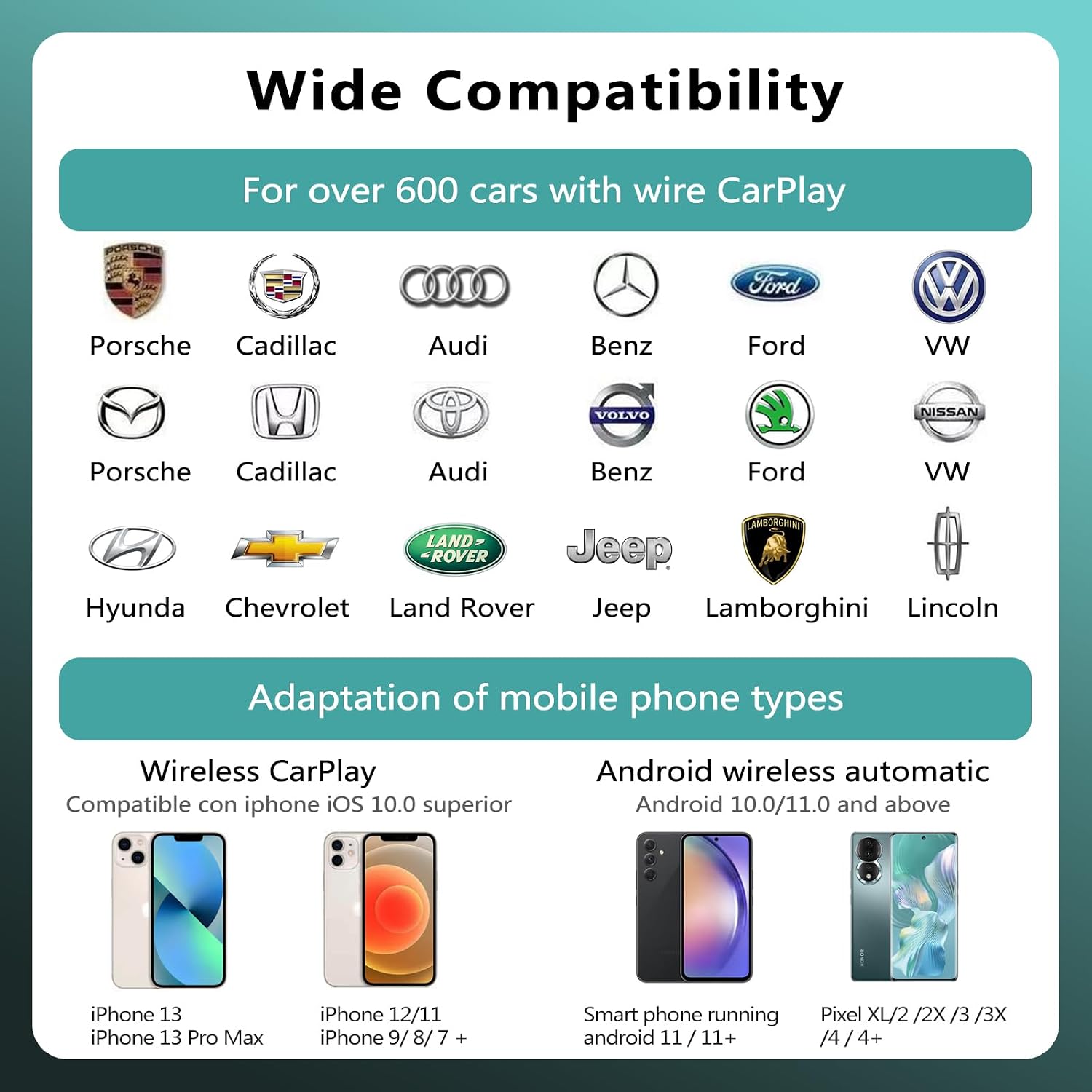
Image: Contents of the CarPlay Ai Box HE package, including the device, instruction manual, a USB-C to USB-C cable, and a USB-A to USB-C cable.
Instrucțiuni de operare
The CarPlay Ai Box HE provides a comprehensive in-car multimedia experience:
- CarPlay wireless și Android Auto: After initial setup, your phone will automatically connect wirelessly, providing access to navigation, music, calls, and messages through your car's display.
- Streaming Video Applications: The device comes with pre-installed video apps such as YouTube and Netflix. You can also install other applications from the built-in Google Play Store and APK Pure.
- Ieșire HDMI: Utilize the HDMI functionality to output videos to an additional screen, such as rear-seat entertainment systems.
- Conectivitate la internet: The device supports dual-channel wireless networks (2.4G and 5G). To access internet-dependent apps (e.g., streaming video), connect the Ai Box HE to a mobile hotspot.
- Simultaneous Functionality Note: The internet function of the box (e.g., connecting to a phone's hotspot for streaming) cannot be used simultaneously with wireless CarPlay or wireless Android Auto if using the same phone. This is because both functions require the box's Wi-Fi channel. To use both, you will need two separate devices: one to provide the hotspot connection to the box, and another phone for wireless CarPlay/Android Auto.

Image: A graphic displaying the three main multimedia systems supported: Android Auto, the AI Box Android Home Page with various apps, and Apple CarPlay.

Image: An in-car view showing a car's infotainment screen displaying a video streaming service (Prime Video) and a phone displaying YouTube, demonstrating the video playback capabilities of the device.

Image: A visual representation of the CarPlay Ai Box HE surrounded by various app icons, indicating its ability to download applications from Google Play and APK Pure.

Image: A collage showing the HDMI output function for external screens, online map navigation on the car display, and the simple plug-and-play nature of the device.
Întreţinere
To ensure optimal performance and longevity of your CarPlay Ai Box HE:
- Păstrați dispozitivul curat și fără praf. Folosiți o cârpă moale și uscată pentru curățare.
- Evitați expunerea dispozitivului la temperaturi extreme sau la lumina directă a soarelui pentru perioade lungi de timp.
- Do not attempt to disassemble or repair the device yourself. Refer to the troubleshooting section or contact customer support for assistance.
- Ensure cables are connected securely but without excessive force to prevent damage to ports.
Depanare
If you encounter issues with your CarPlay Ai Box HE, refer to the following common problems and solutions:
- Device Not Connecting Wirelessly:
- Ensure your car has OEM wired CarPlay.
- Verify your phone's hotspot is off, and Wi-Fi is on (but not connected to other networks).
- Check for other previously connected phones interfering with Bluetooth/Wi-Fi.
- Restart both the Ai Box HE (by unplugging and re-plugging) and your phone.
- Blank Screen After Boot Up:
- Perform a power reset by unplugging and re-plugging the device.
- Ensure the car's infotainment system is fully booted before connecting the device.
- Slow Application Loading/Performance:
- Ensure a strong and stable internet connection if streaming or downloading.
- Close unnecessary background applications on the Ai Box HE.
- Consider clearing cache for problematic apps.
- Internet Function and Wireless CarPlay/Android Auto Not Working Simultaneously:
- This is a known limitation. If you need both, use a separate mobile Wi-Fi device or a second phone to provide the hotspot connection to the Ai Box HE, while your primary phone connects for wireless CarPlay/Android Auto.
- Actualizări de software: If you need to upgrade the software or have any questions, contact customer support.

Image: A stylized graphic representing Frequently Asked Questions (FAQ) with a human figure.
Specificații
| Sistem de operare | Android 11 |
| CPU | A53-1.5GHz (4-core smart chip) |
| Memory (DDR+eMMC) | 4 GB RAM + 64 GB stocare |
| Conectivitate la Internet | Built-in Wi-Fi 2.4G + 5G |
| GPS | Built-in GPS module for online/offline navigation |
| Ieșire HDMI | Audio and video HDMI output |
| Aplicații | Google Play & APKPure Download |
| Bluetooth | Bluetooth 5.0 Hands-Free Link |
| Telefon Link | CarPlay fără fir și Android Auto fără fir |
| Suport USB | USB flash disk audio and video supported |
| USB Flash Disk Expansion | Până la 128 GB |
| Intrare de putere | 5V-1A |
| Putere de ieșire | 5V-1A |
| Dimensiunile produsului | 4.15 x 2.58 x 0.58 inci |
| Greutatea articolului | 6.7 uncii |
| Material | Plastic |
| Compatibilitate | Car with OEM Wired CarPlay |

Image: A graphic displaying the technical specifications of the CarPlay Ai Box HE, including OS, CPU, memory, internet, GPS, HDMI output, apps, Bluetooth, phone link, USB, power, and compatible models.
Garanție și suport
One Car Stereo is committed to providing excellent customer service and support for your CarPlay Ai Box HE.
- Un an de garanție: The product comes with a 1-year worldwide warranty. Technical support is available to assist with questions, setup, or software updates.
- 24-Hour Online After-sales Service: If you encounter any product problems or have questions, please contact customer service via Amazon message or email. Responses are typically provided within 24 hours.
- Informații de contact:
- E-mail: support@onecarstereo.com
- Pagina vânzătorului Amazon: Visit One Car Stereo Store

Image: A graphic detailing post-purchase care, including a one-year warranty and 24-hour service contact information.