
Introducere
This manual provides essential instructions for the installation, operation, maintenance, and troubleshooting of your HIKSEMI Hikvision Wave SATA 3.0 512GB Solid State Drive. Please read this manual thoroughly before using the product to ensure proper functionality and longevity.
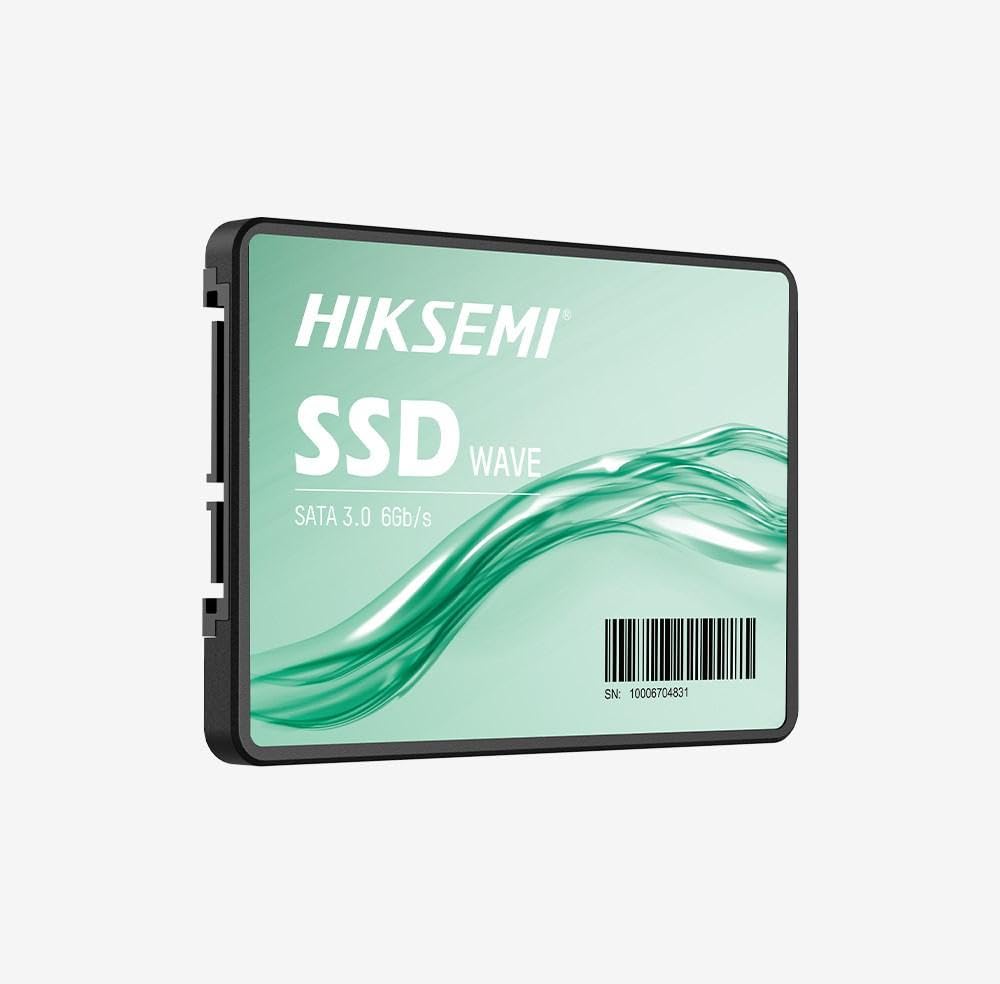
Image: HIKSEMI Hikvision Wave SATA 3.0 512GB Solid State Drive. This image displays the compact 2.5-inch form factor of the SSD, highlighting its sleek design and standard SATA interface connectors.
Informații de siguranță
Observe the following safety precautions to prevent damage to the drive or injury to yourself:
- Always handle the SSD by its edges to avoid touching the circuit board or connectors.
- Ensure your computer is powered off and unplugged before installation.
- Descărcați electricitatea statică atingând un obiect metalic împământat înainte de a manipula SSD-ul.
- Nu expuneți SSD-ul la umiditate, temperaturi extreme sau câmpuri magnetice puternice.
- Nu încercați să dezasamblați sau să modificați SSD-ul. Aceasta va anula garanția.
Conținutul pachetului
Verificați dacă toate articolele sunt prezente în colet:
- HIKSEMI Hikvision Wave SATA 3.0 512GB Solid State Drive (HS-SSD-WAVE-S-512G)
- Ghid de pornire rapidă (dacă este inclus)
Note: SATA data and power cables are typically not included and must be purchased separately if not already present in your system.
Configurare și instalare
1. Physical Installation (Desktop PC)
- Pregătiți-vă sistemul: Power off your computer and unplug the power cord. Open the computer case.
- Localizați un compartiment de unitate: Find an available 2.5-inch drive bay. If only 3.5-inch bays are available, you may need a 2.5-inch to 3.5-inch adapter bracket (not included).
- Montați SSD-ul: Secure the SSD into the drive bay using screws.
- Conectați cablurile:
- Connect one end of a SATA data cable to the SSD and the other end to an available SATA port on your motherboard.
- Conectați un cablu de alimentare SATA de la sursa de alimentare (PSU) la SSD.
- Închideți cazul: Reassemble your computer case and reconnect the power cord.
2. Physical Installation (Laptop)
- Prepare your laptop: Power off your laptop, unplug the power adapter, and remove the battery (if removable). Consult your laptop's manual for specific instructions on accessing the drive bay.
- Remove old drive (if applicable): Carefully remove the existing hard drive or SSD.
- Instalați SSD-ul: Insert the HIKSEMI Wave SSD into the drive bay. Secure it with any screws or brackets that held the previous drive.
- Reasamblați: Close the drive bay cover, reinsert the battery, and reconnect the power adapter.
3. Initializing and Formatting the SSD (Windows)
- Boot your computer: Porniți computerul.
- Deschideți Gestionare disc: Right-click on the Start button (Windows 10/11) or search for "Disk Management" (Windows 7/8). Select "Disk Management".
- Initialize the disk: A "Initialize Disk" window should appear automatically for new drives. Select GPT (Tabelă de partiții GUID) for drives larger than 2TB or for UEFI-based systems, or MBR (Master Boot Record) for older systems or drives 2TB or smaller. Click "OK".
- Create a new simple volume: Locate your new SSD (it will likely show as "Unallocated Space"). Right-click on the unallocated space and select "New Simple Volume...".
- Follow the wizard: Follow the on-screen prompts to assign a drive letter, choose a file system (NTFS is recommended for Windows), and perform a quick format.
- Your SSD is now ready for use.
Operarea SSD-ului
Once installed and formatted, your HIKSEMI Wave SSD functions like any other storage drive. You can use it for:
- Instalarea sistemului de operare: Install your operating system (Windows, macOS, Linux) for faster boot times and overall system responsiveness.
- Stocarea aplicațiilor: Install frequently used applications and games to benefit from quicker loading times.
- Stocarea datelor: Store documents, photos, videos, and other files.
The SSD utilizes the SATA 3.0 interface, providing theoretical transfer speeds up to 6 Gbps. Actual performance may vary based on your system hardware, software, and workload.
Întreţinere
SSDs require less maintenance than traditional hard drives, but a few practices can help ensure optimal performance and longevity:
- Activează TRIM: Ensure your operating system has TRIM enabled. TRIM helps the SSD manage deleted data blocks efficiently, maintaining performance over time. Modern operating systems (Windows 7+, macOS 10.6.8+, most Linux distributions) typically enable TRIM by default.
- Evitați defragmentarea: Do not defragment an SSD. Defragmentation is unnecessary for SSDs and can reduce their lifespan by increasing write cycles.
- Actualizări firmware: Periodically check the HIKSEMI official website for firmware updates for your specific SSD model. Firmware updates can improve performance, stability, and compatibility. Follow the manufacturer's instructions carefully when performing updates.
- Mențineți spațiul liber: While not strictly necessary, keeping some free space (e.g., 10-15%) on your SSD can help maintain performance, especially for drives with smaller capacities.
- Backup de date: Faceți în mod regulat copii de rezervă ale datelor importante pe un alt dispozitiv de stocare. Deși SSD-urile sunt fiabile, niciun dispozitiv de stocare nu este imun la defecțiuni.
Depanare
If you encounter issues with your HIKSEMI Wave SSD, refer to the following common troubleshooting steps:
- SSD nedetectat:
- Verificați toate conexiunile cablurilor de date și alimentare SATA. Asigurați-vă că sunt fixate corect.
- Try a different SATA port on your motherboard and a different SATA power connector from your PSU.
- Verify that the SATA controller mode in your system's BIOS/UEFI is set to AHCI (Advanced Host Controller Interface).
- Check Disk Management (Windows) or Disk Utility (macOS) to see if the drive is detected but uninitialized/unformatted.
- Performanță lentă:
- Ensure TRIM is enabled (as described in the Maintenance section).
- Verify that the SSD is connected to a SATA 3.0 (6 Gbps) port on your motherboard, not an older SATA 2.0 (3 Gbps) port.
- Verificați procesele de fundal care consumă resurse de sistem.
- Ensure your system drivers (especially chipset drivers) are up to date.
- Erori/Blocaje ale sistemului de operare:
- Rulați un utilitar de verificare a discului (de exemplu,
chkdskin Windows) to scan for file erori de sistem. - Consider reinstalling the operating system if issues persist after checking hardware connections and drivers.
- Rulați un utilitar de verificare a discului (de exemplu,
Specificații
| Caracteristică | Caietul de sarcini |
|---|---|
| Numărul de model | HS-SSD-WAVE-S-512G |
| Capacitate de stocare digitală | 512 GB |
| Interfață hard disk | Serial ATA (SATA 3.0) |
| Factor de formă | 2.5 inchi |
| Viteză de citire (max.) | 560 de megaocteți pe secundă |
| Viteză de scriere (maximă) | 490 de megaocteți pe secundă |
| Dispozitive compatibile | Desktop, Laptop |
| Caracteristica specială | Ușoare |
| Greutatea articolului | 0.02 kilograme |
| Producător | Hangzhou Hikvision Digital Technology Co., Ltd. |
Informații despre garanție
The HIKSEMI Hikvision Wave SATA 3.0 512GB Solid State Drive comes with a Garanție limitată de 3 ani from the date of purchase. This warranty covers defects in materials and workmanship under normal use. It does not cover damage caused by misuse, accident, modification, unauthorized repair, or improper installation.
Vă rugăm să păstrați dovada achiziției pentru cererile de garanție.
Asistență pentru clienți
For technical assistance, warranty claims, or further inquiries, please visit the official HIKSEMI support website-ul lor web sau contactați departamentul de asistență pentru clienți. Consultați ambalajul produsului sau fișa oficială website pentru cele mai recente informații de contact.
Online resources may include FAQs, driver downloads, and firmware updates.
Informații privind eliminarea
This product contains electronic components and should not be disposed of with household waste. Please follow local regulations for the proper disposal of electronic waste. Recycling helps protect the environment and human health.