
1. Produs terminatview
The TP-Link ER707-M2 is an Omada Multi-Gigabit VPN Router designed for high-performance networking environments. It features dual 2.5 Gigabit WAN ports, a Gigabit SFP WAN/LAN port, and multiple Gigabit RJ45 WAN/LAN ports, providing flexible connectivity and high-bandwidth aggregation. This router integrates seamlessly with the Omada SDN Controller for centralized management and offers robust security features including an SPI Firewall and various VPN protocols.
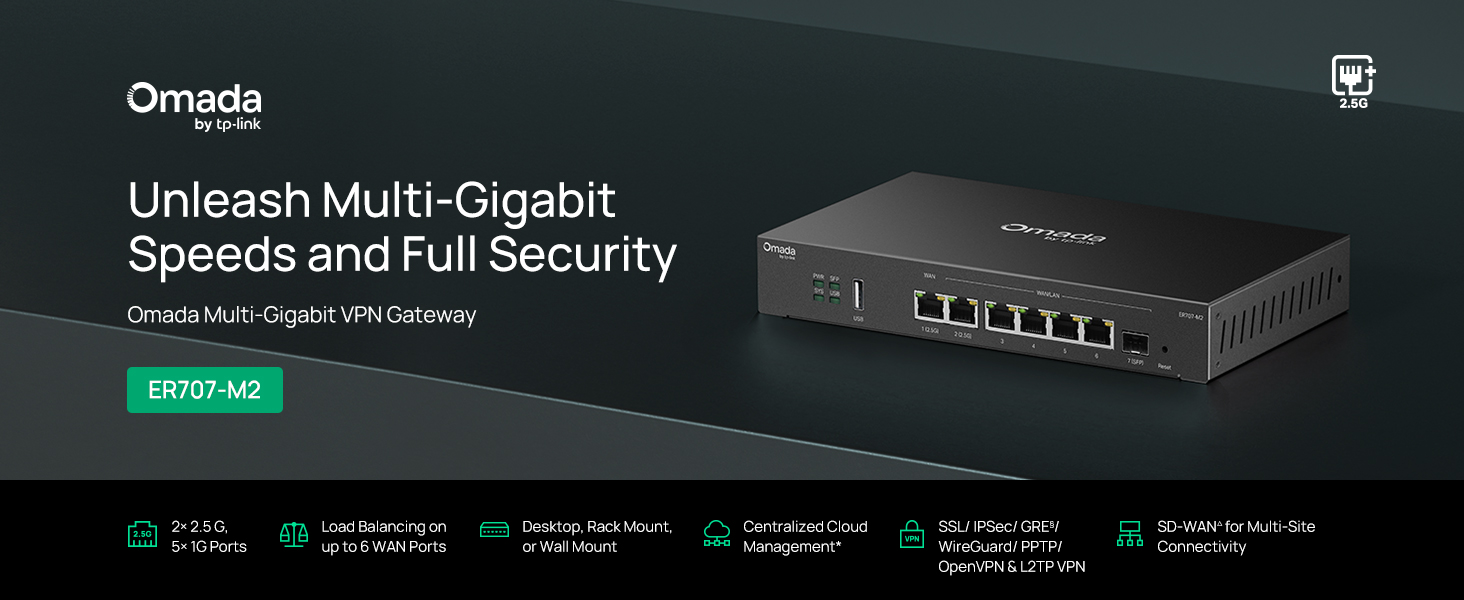
Figura 1: Față view of the ER707-M2 router, highlighting its ports and indicators.
Caracteristici cheie:
- Configurație flexibilă a portului: Includes 1x 2.5Gigabit WAN Port, 1x 2.5Gigabit WAN/LAN Port, 4x Gigabit WAN/LAN Ports, 1x Gigabit SFP WAN/LAN Port, and 1x USB 2.0 Port.
- High-Performance Network Capacity: Supports up to 500,000 concurrent sessions and over 1000 clients.
- Acces la cloud: Centralized cloud management via Omada app and web interfata.
- VPN extrem de sigur: Acceptă până la 100 de conexiuni LAN-to-LAN IPsec, 66 OpenVPN, 60 L2TP și 60 conexiuni PPTP VPN.
- Securitate avansată: Features SPI Firewall, Policy-based Firewall, Static Routing, Policy Routing, Multi-net DHCP, Guest Portal, and VLAN support.
- Load Balance & Link Backup: Optimizes multi-line broadband efficiency and reliability.
- Port USB 2.0: Supports USB storage and LTE backup with a compatible LTE dongle.
2. Conținutul pachetului
Verificați dacă pachetul dvs. conține următoarele articole:
- TP-Link ER707-M2 Omada Multi-Gigabit VPN Router
- Adaptor de alimentare
- Ghid de instalare rapidă
If any item is missing or damaged, please contact your reseller or TP-Link support.
3. Configurare
3.1 Instalare hardware
- Conexiune de alimentare: Connect the provided power adapter to the router's power input and then to a power outlet.
- Conexiune WAN: Connect your modem or internet service provider's device to one of the WAN ports (e.g., WAN1 2.5G or WAN/LAN2 2.5G) using an Ethernet cable. For fiber connections, use the SFP port with a compatible SFP module.
- Conexiune LAN: Connect your local network devices (e.g., computers, switches, Omada Access Points) to the LAN ports (WAN/LAN2-6) using Ethernet cables.
- Dispozitiv USB (opțional): If using a USB storage device or an LTE dongle for backup, insert it into the USB 2.0 port.
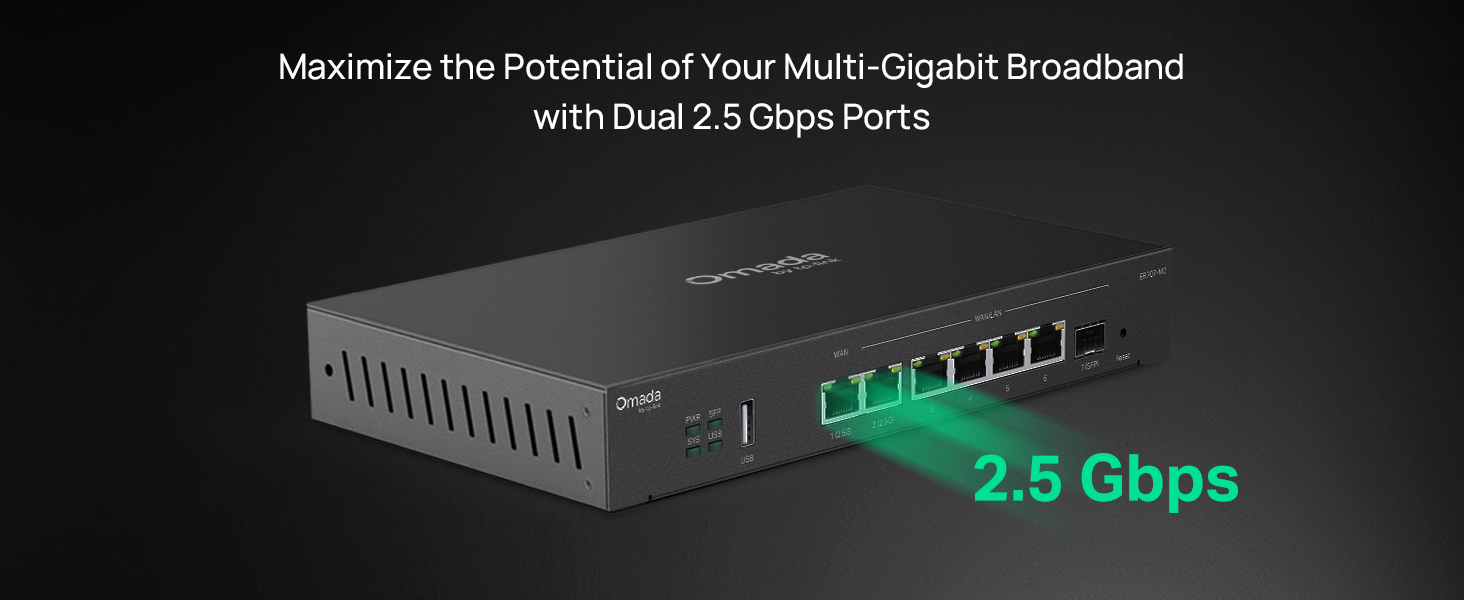
Figure 2: Illustration of the router's 2.5 Gbps ports for high-speed connectivity.
3.2 Configurare inițială
The ER707-M2 can be managed via the Omada SDN Controller or through its local web interfata.
- Conectați-vă la router: Asigurați-vă că ați conectat computerul la unul dintre porturile LAN ale routerului.
- Acces Web Interfata: Deschide a web browser și introduceți adresa IP implicită (de obicei
192.168.0.1or192.168.1.1) in the address bar. Refer to the Quick Installation Guide for the exact default IP and login credentials. - Urmați Expertul de configurare: The first time you log in, a setup wizard will guide you through basic internet connection settings, changing the default password, and configuring Wi-Fi (if applicable).
- Omada SDN Integration (Optional): For centralized management, adopt the router into your Omada SDN Controller. This allows for remote management and unified control of your network devices.
4. Instrucțiuni de utilizare
4.1 Configurarea rețelei
The router offers extensive configuration options for your network:
- Setări WAN: Configure WAN ports for different connection types (Dynamic IP, Static IP, PPPoE).
- Setări LAN: Manage IP addresses, DHCP server, and VLANs for your local network segments.
- Echilibrarea încărcării multi-WAN: Distribute internet traffic across multiple WAN connections to optimize bandwidth and provide redundancy.
- Link Backup: Configure a secondary WAN connection (e.g., via LTE dongle) to automatically take over if the primary connection fails.
4.2 Funcționalitate VPN
The ER707-M2 supports various VPN protocols for secure remote access and site-to-site connectivity.
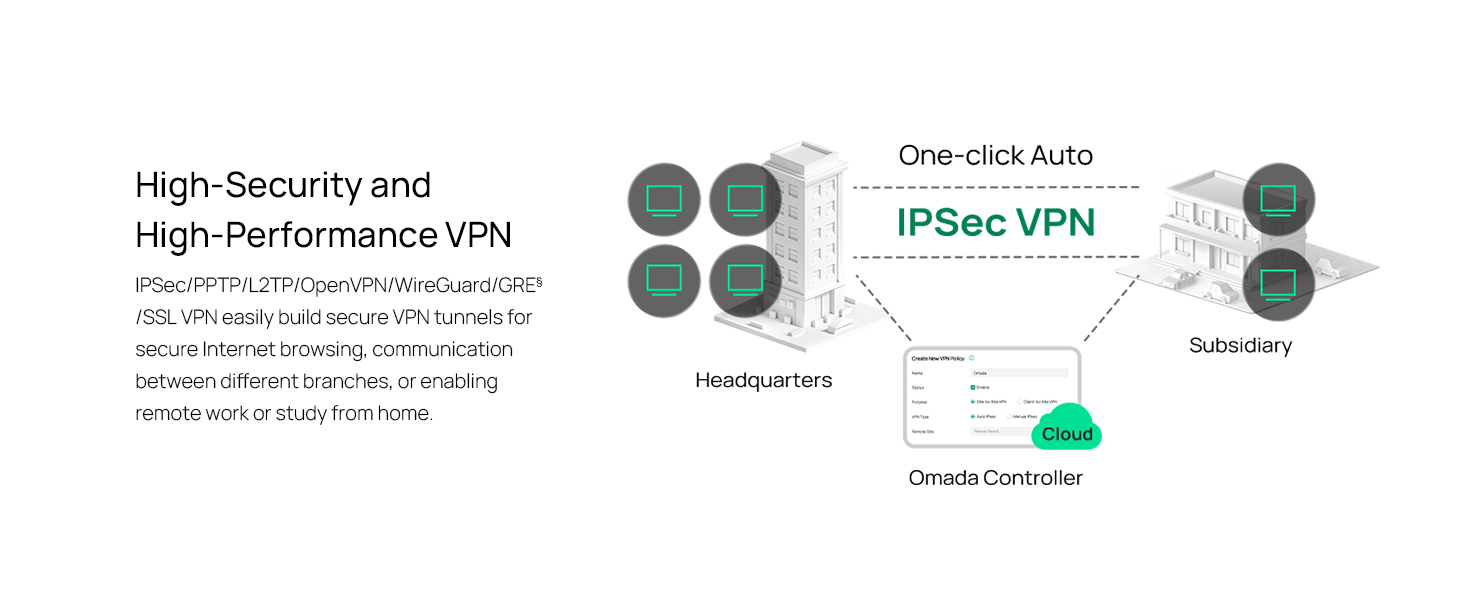
Figure 3: Visual representation of a secure VPN tunnel setup.
- VPN IPsec: Establish secure tunnels between networks (e.g., office to branch office).
- OpenVPN/SSL VPN: Provide secure remote access for individual users.
- PPTP/L2TP VPN: Legacy VPN protocols for various client connections.
4.3 Caracteristici de securitate
The router includes advanced security measures to protect your network:
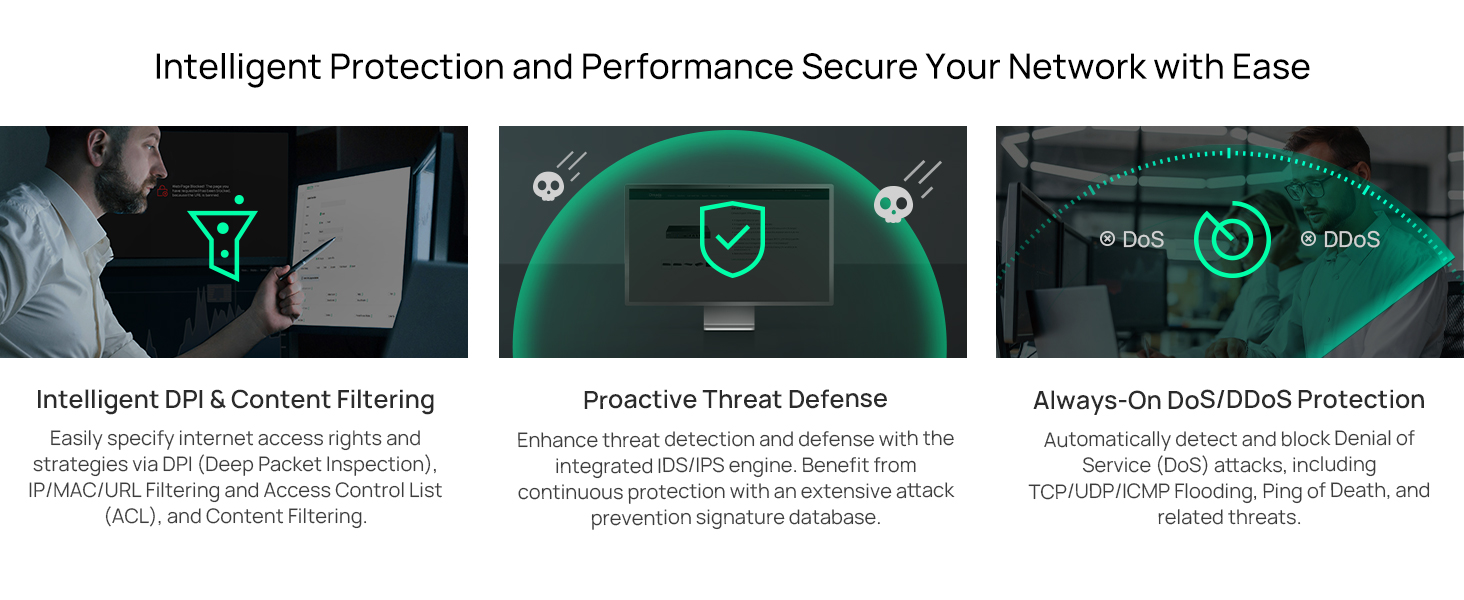
Figura 4: Pesteview of intelligent protection and performance features.
- Firewall SPI: Stateful Packet Inspection firewall for network protection.
- Policy-based Firewall: Define rules to control network traffic based on specific criteria.
- Protecție DoS/DDoS: Defend against Denial of Service and Distributed Denial of Service attacks.
- Lista de control al accesului (ACL): Manage network access for specific devices or users.
4.4 Integrare Omada SDN
The ER707-M2 is part of the Omada Software-Defined Networking (SDN) solution, allowing for centralized management of your entire network.

Figure 5: How the ER707-M2 integrates into an Omada SDN network.
- Management centralizat: Manage the router, access points, and switches from a single interface via the Omada Controller (hardware or software).
- Acces de la distanță: Access and manage your network from anywhere using the Omada app or cloud portal.
- Seamless Scalability: Easily expand your network by adding more Omada devices.
5. Întreținere
To ensure optimal performance and security of your ER707-M2 router, regular maintenance is recommended:
- Actualizări firmware: Verificați periodic oferta oficială TP-Link website pentru cele mai recente versiuni de firmware. Actualizarea firmware-ului poate îmbunătăți performanța, poate adăuga noi funcții și poate remedia vulnerabilități de securitate.
- Backup de configurare: Regularly back up your router's configuration settings. This allows for quick restoration in case of accidental changes or system issues.
- Inspectie fizica: Ensure the router is placed in a well-ventilated area, free from dust and obstructions. Check cable connections for secure fit.
- Securitate Review: Periodic review your firewall rules, VPN settings, and access control lists to ensure they meet your current security requirements.
6. Depanare
If you encounter issues with your ER707-M2 router, consider the following troubleshooting steps:
- Fara acces la internet:
- Check all cable connections (WAN, LAN, Power).
- Verify your modem or ISP device is working correctly.
- Confirm WAN settings in the router's web interfata sunt corecte.
- Restart the modem, then the router, and then your connected devices.
- Nu se poate accesa Web Pagina de management:
- Asigurați-vă că ați conectat computerul la un port LAN al routerului.
- Verify your computer's IP address is in the same subnet as the router (e.g., if router is 192.168.0.1, computer should be 192.168.0.x).
- Încearcă să golești memoria cache a browserului sau să folosești un alt browser.
- If the issue persists, perform a factory reset (see below).
- Viteză redusă a rețelei:
- Verificați viteza furnizorului dvs. de servicii de internet.
- Ensure all cables are Cat5e or higher for Gigabit/2.5Gig connections.
- Monitorizați utilizarea rețelei pentru a identifica aplicațiile sau dispozitivele care consumă multă lățime de bandă.
- Verify duplex settings on connected devices and router ports.
- Resetare din fabrică: If all else fails, you can restore the router to its factory default settings. Locate the Reset button on the router (often a small pinhole button), press and hold it for about 5-10 seconds until the system LED blinks, then release. This will erase all custom configurations.
7. Specificații
| Caracteristică | Detaliu |
|---|---|
| Marca | TP-Link |
| Numele modelului | ER707-M2 |
| Tehnologia de conectivitate | Ethernet |
| Numărul de porturi | 6 (1x 2.5G WAN, 1x 2.5G WAN/LAN, 4x Gigabit WAN/LAN, 1x Gigabit SFP WAN/LAN, 1x USB 2.0) |
| Lățime de bandă a portului LAN | 10/100/1000/2500Mbps |
| Rata de transfer de date | 2500 de megabiți pe secundă |
| Rată maximă de transfer de date în amonte | 5000 de megabiți pe secundă |
| Protocol de securitate | SSL, IPSec, GRE, SSH, IKEv1/v2, PPTP, L2TP, OpenVPN |
| Metoda de control | aplicație, Web Interfață |
| Sistem de operare | ZyNOS (TP-Link Omada) |
| Greutatea articolului | 1.1 kilograme |
| Dimensiuni articol (L x l x H) | 12.9 cm L x 9.5 cm l x 3.1 cm Î |
8. Informații despre garanție
The TP-Link ER707-M2 Omada Multi-Gigabit VPN Router is backed by an industry-leading Garanție de 5 an de la producătorAceastă garanție acoperă defectele de materiale și de fabricație în condiții normale de utilizare. Vă rugăm să păstrați dovada achiziției pentru reclamațiile în garanție.
9. Suport
For technical assistance, product information, or warranty inquiries, please contact TP-Link support:
- Asistență telefonică: (866) 225-8139 (Disponibil de luni până vineri, între orele 6:00 și 18:00 PST)
- Produs Website: myproducts.tp-link.com/us
- Asistență prin e-mail: support.USA@tp-link.com