
1. Introducere
This manual provides detailed instructions for the setup, operation, maintenance, and troubleshooting of your Cosmic Byte ARES Wired Controller for PC. Designed for an enhanced gaming experience, this controller features Hall Effect joysticks and triggers, dual vibration, and customizable Turbo functions.
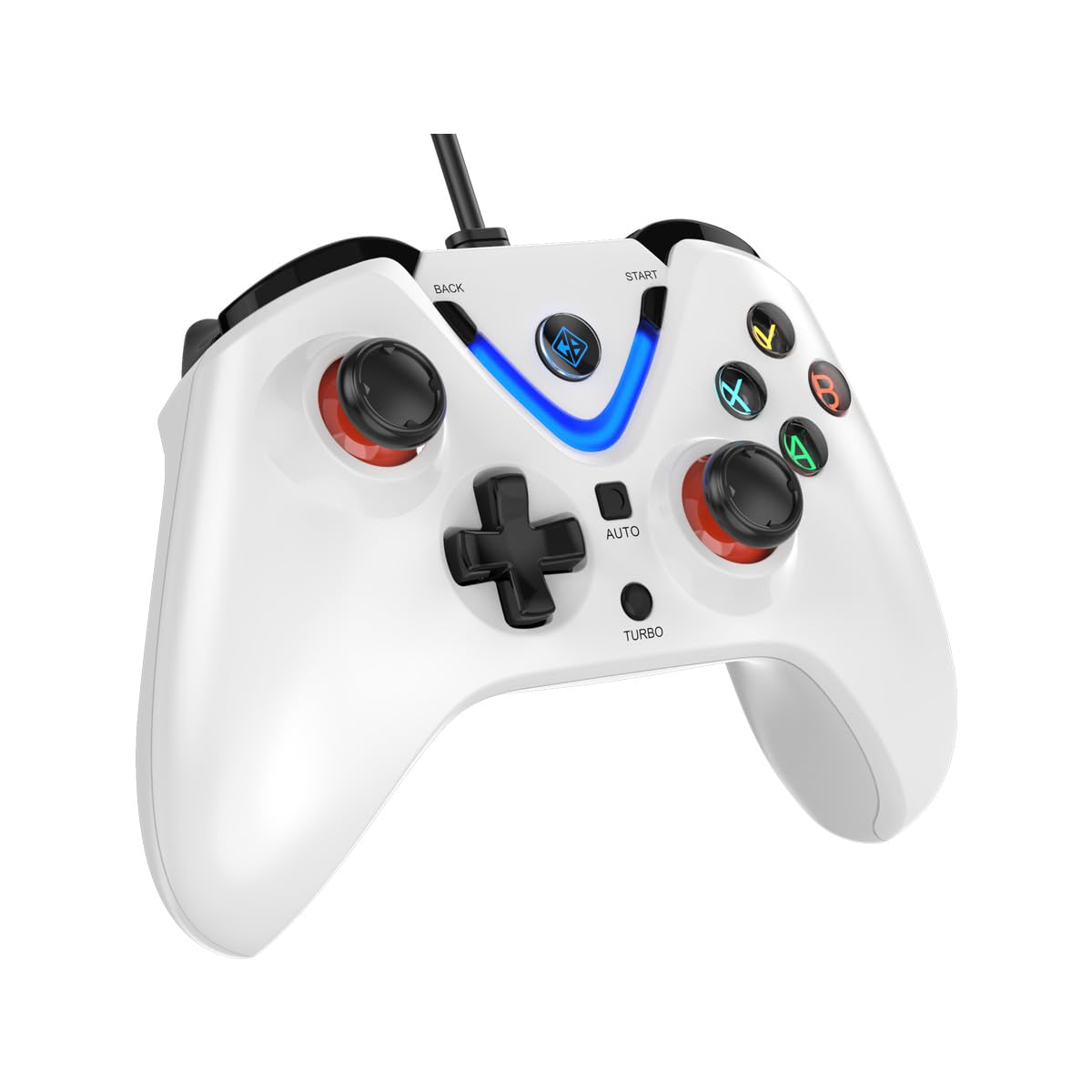
Image 1: The Cosmic Byte ARES Wired Controller in white, showcasindesignul său ergonomic.
2. Instrucțiuni de configurare
2.1 Conectarea la PC
- Asigurați-vă că computerul este pornit.
- Găsiți un port USB disponibil pe computer.
- Plug the USB connector of the Cosmic Byte ARES Wired Controller into the USB port.
- Sistemul de operare va detecta și instala automat driverele necesare. Acest proces poate dura câteva momente.
- Odată ce instalarea este completă, controlerul este gata de utilizare.

Image 2: The controller connected via its wired USB connection, ensuring fast response.
3. Instrucțiuni de utilizare
3.1 Controale de bază
The Cosmic Byte ARES controller features standard gamepad layouts, including:
- Left and Right Analog Joysticks: Pentru mișcare precisă și control al camerei.
- D-pad: Pentru introducere direcțională, adesea folosită în meniuri sau pentru acțiuni specifice în joc.
- Butoane de acțiune (A, B, X, Y): For primary game interactions.
- Butoane de umăr (L1, R1) și declanșatoare (L2, R2): For various in-game functions like shooting, aiming, or accelerating.
- Butoanele Start și Înapoi: For pausing games, accessing menus, or specific in-game commands.
- Buton Turbo: For activating rapid-fire functions.
- Buton automat: For activating automatic rapid-fire functions.
3.2 Joystick-uri și declanșatoare cu efect Hall
The controller is equipped with Hall Effect joysticks and triggers, which use magnetic sensors instead of physical contacts. This technology provides:
- Precizie îmbunătățită: More accurate and responsive input.
- Increased Durability: Reduces wear and tear, preventing stick drift over time.
- Funcționare lină: Consistent and linear response for triggers, allowing for nuanced control in games.

Imaginea 3: O explozie view illustrating the Hall Effect joystick mechanism and the Hall Effect triggers.
3.3 Dual Vibration Feedback
The controller features dual vibration motors that provide tactile feedback during gameplay, enhancing immersion by simulating in-game events such as impacts, explosions, or engine rumbling.
3.4 Backlit LED Buttons
The action buttons (A, B, X, Y) and the central V-shaped indicator feature LED backlighting, providing visibility in low-light conditions and adding to the controller's aesthetic.

Image 4: The controller with its LED buttons illuminated and visual representation of vibration effects.
3.5 Turbo and Auto Turbo Functions
The Turbo and Auto Turbo functions allow for rapid, repeated input of a button press without continuously pressing the button.
- Activarea Turbo: Press and hold the desired action button (e.g., A) and then press the Turbo button. The button will now rapidly repeat its input as long as you hold it down.
- Activating Auto Turbo: Press and hold the desired action button (e.g., A) and then press the Auto button. The button will now rapidly repeat its input automatically without needing to be held down.
- Deactivating Turbo/Auto Turbo: To deactivate, repeat the activation steps for the specific button, or press the Clar button (if available) or disconnect and reconnect the controller.

Image 5: Close-up of the controller showing the Turbo and Auto function buttons.
4. Întreținere
- curatenie: Folosiți o lavetă moale și uscată pentru a curăța controlerul. Pentru murdăria persistentă, ștergeți ușor.amp cloth can be used, ensuring no liquid enters the controller. Avoid harsh chemicals or abrasive cleaners.
- Depozitare: Depozitați controlerul într-un loc răcoros și uscat, ferit de lumina directă a soarelui și de temperaturi extreme. Evitați așezarea obiectelor grele pe controler.
- Îngrijirea cablului: Do not sharply bend or pull the USB cable. Always grasp the plug when disconnecting from the PC.
5. Depanare
- Controler nerecunoscut:
- Asigurați-vă că ați conectat cablul USB în siguranță atât la controler, cât și la PC.
- Încearcă să conectezi controlerul la un alt port USB.
- Reporniți computerul.
- Check Device Manager on Windows to see if the controller is listed and if there are any driver issues.
- Butoanele/Joystick-urile nu răspund:
- Verify the controller is recognized by your PC (see above).
- Test the controller in a different game or a controller testing utility to rule out game-specific issues.
- Asigurați-vă că nu există interferențe între alte dispozitive de intrare.
- Vibrațiile nu funcționează:
- Verificați setările din joc pentru a vă asigura că feedback-ul prin vibrații este activat.
- Some games may not support vibration or may have limited vibration effects.
6. Specificații
| Caracteristică | Detaliu |
|---|---|
| Marca | Cosmic Byte |
| Numele modelului | Ares |
| Dispozitive compatibile | PC |
| Tip controler | Gamepad |
| Tehnologia de conectivitate | USB |
| Caracteristicile produsului | Ergonomic |
| Cantitate de butoane | 16 |
| Platformă hardware | PC |
| Tipul sursei de alimentare | Electric cu fir, cablu USB |
| Greutatea articolului | 220 grame |
| Dimensiunile articolului | 6 x 10 x 4 centimetri |
| Culoare | Alb |
| Țara de origine | China |

Image 6: A comparison table highlighting features of different ARES controller models.
7. Garanție și asistență
7.1 Informații despre garanție
The Cosmic Byte ARES Wired Controller comes with a 1 an garanție împotriva defectelor de fabricație de la data achiziției. Vă rugăm să păstrați dovada achiziției pentru reclamațiile în garanție.
7.2 Informații de contact ale producătorului
For support, service, or warranty inquiries, please contact:
Cosmic BytePrakash Warehousing, S. No.163, Hissa No 1-2-3-4-5A-5B/2/1,
Phursungi, Pune 412308, Maharashtra, India
For further assistance, please visit the official Cosmic Byte website-ul sau contactați serviciul pentru clienți.