
Introducere
This user manual provides essential information for setting up, operating, maintaining, and troubleshooting your MI Xiaomi Notebook Ultra. Please read this manual thoroughly before using your device to ensure proper function and longevity. Keep this manual for future reference.
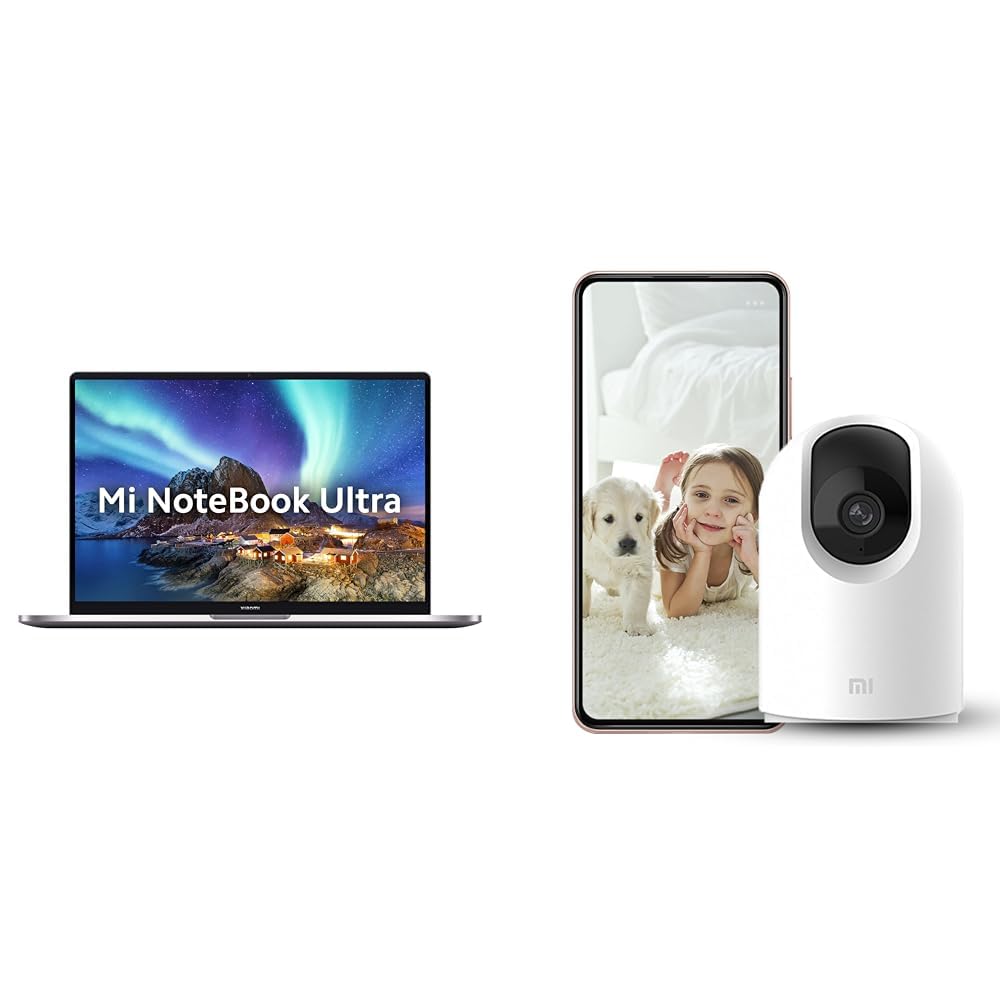
Image: The MI Xiaomi Notebook Ultra laptop, showcasing its display with a scenic wallpaper.
Produs terminatview
The MI Xiaomi Notebook Ultra is a thin and light laptop designed for performance and portability. It features an 11th Gen Intel Core i5-11320H processor, a high-resolution 3.2K IPS display, and integrated Intel Iris Xe Graphics. This section details the main components and features of your new laptop.
Caracteristici cheie:
- Procesor: 11th Gen Intel Tiger Lake Core i5-11300H processor with speeds up to 4.4 GHz, 4 cores, 8 threads, and 8 MB Cache.
- Afişa: 39.62 cm (15.6-inch) IPS 3.2K resolution (3200x2000) with 16:10 aspect ratio, 100% sRGB, 90Hz refresh rate, 241 PPI, 1500:1 contrast ratio, anti-glare, and TUV Low blue light certification.
- Memorie și stocare: 8GB DDR4 3200 MHz RAM and 512GB PCIe NVMe M.2 SSD.
- Operating System & Software: Pre-installed Windows 11 Home and Microsoft Office Home and Student 2021.
- Grafică: Integrated Intel Iris Xe graphics.
- Conectivitate: Dual Band Wi-Fi and Bluetooth.
- Securitate: Fingerprint Recognition.
- Porturi: Includes Thunderbolt 4 and USB Type-C ports.

Imagine: Un pesteview of the MI Xiaomi Notebook Ultra's key features, including its 3.2K display, all-metal design, 90Hz refresh rate, 12-hour battery, thin and light profile, Thunderbolt 4, USB Type-C, Intel Core i5/i7 H35 processor, 8/16GB RAM, 512GB SSD, Wi-Fi 6, and fingerprint reader.

Imagine: Side profile of the MI Xiaomi Notebook Ultra, highlighting the various ports including Thunderbolt 4 and USB Type-C.
Ghid de instalare
1. Despachetare și inspecție inițială:
Carefully remove the laptop and all accessories from the packaging. Check for any visible damage. Ensure all components listed in the packaging are present.
2. Putere de conectare:
- Connect the power adapter to the laptop's USB Type-C charging port.
- Conectați cablul de alimentare la o priză de perete.
- Lăsați laptopul să se încarce timp de cel puțin 30 de minute înainte de prima utilizare sau până când indicatorul bateriei arată o încărcare suficientă.
3. Initial Boot and Windows Setup:
- Deschideți capacul laptopului și apăsați butonul de pornire.
- Urmați instrucțiunile de pe ecran pentru a finaliza procesul de configurare Windows 11 Home. Aceasta include selectarea regiunii, a limbii, conectarea la o rețea Wi-Fi și crearea unui cont de utilizator.
- Register your Microsoft account if prompted to activate Windows and Microsoft Office Home and Student 2021.
4. Conectarea perifericelor:
You can connect external displays, wireless keyboards, mice, webcams, and other Bluetooth/Wi-Fi enabled devices. Refer to the device's specific instructions for pairing or connecting.
- Dispozitive USB: Use the available USB Type-C or Thunderbolt 4 ports.
- Dispozitive Bluetooth: Enable Bluetooth on your laptop via Windows settings and pair with your device.
- Afișaj extern: Connect an external monitor using a compatible cable to the Thunderbolt 4 port (which supports display output).
Instrucțiuni de operare
Gestionare a energiei:
- Pornire: Apăsați butonul de alimentare situat pe platforma tastaturii.
- Modul de somn: Închideți capacul sau selectați „Repaus” din meniul Start din Windows.
- Închidere: Selectați „Oprire” din meniul Start al Windows.
- Repornire: Selectați „Repornire” din meniul Start al Windows.
Utilizarea afișajului:
Your laptop features a 3.2K IPS display with a 90Hz refresh rate. You can adjust display settings (resolution, refresh rate, brightness) through Windows Display Settings. The anti-glare coating helps reduce reflections, and TUV Low blue light certification aims to reduce eye strain.
Recunoașterea amprentei:
The integrated fingerprint sensor allows for secure and quick login. To set up, navigate to Windows Settings > Accounts > Sign-in options and follow the instructions to register your fingerprint.
Tastatură și touchpad:
The laptop includes a full-sized keyboard and a precision touchpad. Customize touchpad gestures and keyboard backlight settings (if available) through Windows Settings.
Audio:
The laptop is equipped with integrated speakers. Adjust volume using the function keys or Windows sound settings.
Webcamera:
Cea integrată webcam can be used for video calls and conferences. Ensure the physical lens shield is open when using the webcam. Manage webcam privacy settings in Windows.
Întreţinere
curatenie:
- Ecran: Utilizați ușor o cârpă moale, fără scame dampCurățați cu apă sau cu un detergent de ecran. Nu pulverizați lichid direct pe ecran.
- Tastatură și șasiu: Folosiți o cârpă moale și uscată. Pentru murdăria persistentă, uscați ușor.amp se poate folosi o cârpă. Evitați substanțele chimice dure.
- Porturi: Păstrați porturile fără praf și resturi. Folosiți aer comprimat dacă este necesar, dar faceți acest lucru cu grijă.
Îngrijirea bateriei:
- Evitați descărcarea completă frecventă a bateriei.
- Store the laptop in a cool, dry place if not used for extended periods, with the battery charged to around 50%.
- Folosiți doar adaptorul de alimentare original furnizat împreună cu laptopul.
Actualizări de software:
Regularly update Windows, drivers, and other software to ensure optimal performance and security. You can check for updates via Windows Settings.
Depanare
Această secțiune oferă soluții pentru problemele frecvente pe care le puteți întâmpina. Dacă problema persistă, contactați serviciul de asistență pentru clienți.
No Power / Laptop Not Turning On:
- Asigurați-vă că adaptorul de alimentare este conectat corect atât la laptop, cât și la o priză funcțională.
- Verificați dacă priza funcționează conectând un alt dispozitiv.
- Dacă bateria este complet descărcată, lăsați-o să se încarce cel puțin 30 de minute înainte de a încerca să o porniți.
Probleme de afișare:
- Ecran gol: Try connecting an external monitor to check if the laptop is outputting video. If the external monitor works, there might be an issue with the laptop's internal display.
- Ecran oprit: Adjust brightness using the function keys or Windows Display Settings.
- Rezoluție incorectă: Adjust the display resolution in Windows Display Settings.
Probleme de conectivitate Wi-Fi / Bluetooth:
- Ensure Wi-Fi and Bluetooth are enabled in Windows Settings.
- Reporniți routerul/modemul pentru problemele Wi-Fi.
- Pentru Bluetooth, încercați să anulați asocierea și să reasociați dispozitivul.
- Actualizați driverele adaptorului de rețea prin intermediul Device Manager.
Performanță lentă:
- Închideți aplicațiile inutile care rulează în fundal.
- Verificați și instalați orice actualizări Windows în așteptare.
- Run a disk cleanup and defragmentation (for HDDs, though this laptop has SSD).
- Scanați pentru malware sau viruși.
Included Accessory: Mi 360° Home Security Camera 2K Pro
Your MI Xiaomi Notebook Ultra package includes a Mi 360° Home Security Camera 2K Pro. This camera offers enhanced home surveillance with 2K resolution and smart features. Please refer to the separate user manual provided with the camera for detailed setup and operation instructions.
Key Features of the Camera:
- Rezoluţie: 2K Video Resolution Quality.
- Conectivitate: Wi-Fi cu bandă duală.
- Securitate: Physical lens shield.
- Audio: Dual-microphone noise reduction.
- Caracteristici inteligente: AI Human Detection, Bluetooth gateway.
- Depozitare: Cloud Storage In India.

Image: The Mi 360° Home Security Camera 2K Pro, a white spherical camera with a black lens module.

Image: An illustration of the Mi 360° Home Security Camera 2K Pro's features, including physical shield, dual-microphone noise reduction, dual-band Wi-Fi, Bluetooth gateway, AI Human Detection, and Cloud Storage.

Image: A comparison demonstrating the 2K video resolution quality of the Mi 360° Home Security Camera 2K Pro, showing a clearer image at 1296p compared to 1080p.
Specificații
| Caracteristică | Detaliu |
|---|---|
| Marca | MI |
| Numele modelului | Xiaomi Notebook Ultra |
| Număr de model CPU | Intel Core i11-5H de a 11320-a generație |
| Viteza procesorului | 3.1 GHz (Base) - 4.4 GHz (Max) |
| Nuclee de procesor | 4 |
| Dimensiunea ecranului | 39.62 Centimetres (15.6-inch) |
| Rezoluția afișajului | 3200 x 2000 (3.2K) |
| Tip de afișare | IPS LED, Anti Glare Coating |
| Rata de reîmprospătare | 90 Hz |
| Dimensiunea memoriei RAM instalate | 8 GB DDR4 3200 MHz |
| Dimensiunea hard diskului | SSD M.2 PCIe NVMe de 512 GB |
| Sistem de operare | Windows 11 Home |
| Coprocesor grafic | Grafică Intel Iris Xe (integrată) |
| Tehnologia fără fir | Bluetooth, Wi-Fi (Dual Band) |
| Securitate biometrică | Recunoașterea amprentei |
| Greutatea articolului | 1.7 kilograme |
| Culoare | Metalic |
| Software inclus | Microsoft Office Home and Student 2021 |
| Tipul celulei bateriei | Polimer de litiu |
Garanție și suport
For warranty information and customer support, please refer to the warranty card included in your product packaging or visit the official MI support webPăstrați la îndemână bonul fiscal și numărul de serie al produsului atunci când contactați serviciul de asistență.
Suport online: MI India Support