
1. Introducere
This manual provides detailed instructions for the setup, operation, maintenance, and troubleshooting of your FMOUSE Slim White Wireless Bluetooth Mouse M113. Please read this manual thoroughly before using the product to ensure optimal performance and longevity.

Image 1: FMOUSE M113 Slim White Wireless Bluetooth Mouse
2. Conținutul pachetului
La deschiderea coletului, vă rugăm să verificați dacă sunt incluse toate următoarele articole:
- 1 x Mouse wireless FMOUSE M113
- 1 x USB Charging Cable (Type-C, 80cm/31.5in)
- 1 x Receptor USB (2.4 GHz)
- 1 x manual de instrucțiuni

Image 2: Package contents of the FMOUSE M113 mouse
3. Configurare
3.1 Încărcarea mouse-ului
Before initial use, fully charge the mouse using the provided Type-C USB cable. The charging port is located at the front of the mouse.
- Încărcare: The scroll wheel light will display red.
- Încărcare finalizată: The scroll wheel light will turn off.
- Baterie descărcată: The scroll wheel light will flash red.

Image 3: Type-C charging port and battery indicators
3.2 Connecting the Mouse (Dual Mode)
The FMOUSE M113 supports two connection modes: 2.4GHz Wireless (via USB receiver) and Bluetooth 5.1. You can switch between modes using the selector switch on the bottom of the mouse.

Image 4: Dual connection options for the mouse
Conexiune wireless 3.2.1 2.4GHz (receptor USB)
- Localizați receptorul USB stocat în slotul magnetic din partea inferioară a mouse-ului.
- Conectați receptorul USB la un port USB disponibil de pe computer.
- Slide the switch on the bottom of the mouse to the 2.4G position (indicated by a USB icon).
- Mouse-ul ar trebui să se conecteze automat la dispozitivul dvs.
3.2.2 Conexiune Bluetooth 5.1
- Slide the switch on the bottom of the mouse to the Bluetooth poziție (indicată de o pictogramă Bluetooth).
- The scroll wheel light will flash, indicating it is in pairing mode.
- On your device (e.g., MacBook, iPad, Laptop), navigate to the Bluetooth settings.
- Caută available devices and select "FMOUSE M113" (or similar) to pair.
- Once paired, the scroll wheel light will stop flashing and remain solid.
Videoclipul 1: Terminatview of FMOUSE M113 features and connectivity
4. Utilizarea mouse-ului
4.1 Funcții de bază
- Click stânga: Selecție și activare primară.
- Click dreapta: Accesează meniurile contextuale.
- Rotiță de defilare: Derulează conținutul pe verticală.
4.2 Ajustare DPI
The mouse features 4 adjustable DPI levels (800/1200/1600/2400) to customize cursor sensitivity. Press the Butonul DPI (located near the scroll wheel) to cycle through the settings. The scroll wheel light color indicates the current DPI level.
- 800 DPI: (Specific color may vary, refer to image)
- 1200 DPI: (Specific color may vary, refer to image)
- 1600 DPI: (Specific color may vary, refer to image)
- 2400 DPI: (Specific color may vary, refer to image)
To turn the scroll wheel light on or off, long-press the DPI button for 2 seconds.

Image 5: 4 Adjustable DPI levels and corresponding light indicators
4.3 Desktop Return Button
The mouse includes a dedicated Desktop Return button. Pressing this button will instantly minimize all open windows and return you to your computer's desktop. This feature is useful for quick privacy or task switching.

Image 6: Function of the Desktop Return button
4.4 Mute/Volume Control Button
The Buton pentru sunet provides quick audio control:
- Presă simplă: Mutes or unmutes your computer's audio.
- Long Press (2 seconds) and Scroll: After a long press, you can adjust the computer's volume by scrolling the wheel up or down.

Image 7: Mute and volume adjustment functions
4.5 Funcția de clic silențios
The FMOUSE M113 is designed with silent click buttons, reducing noise during use. This makes it suitable for quiet environments such as libraries, offices, or late-night work.
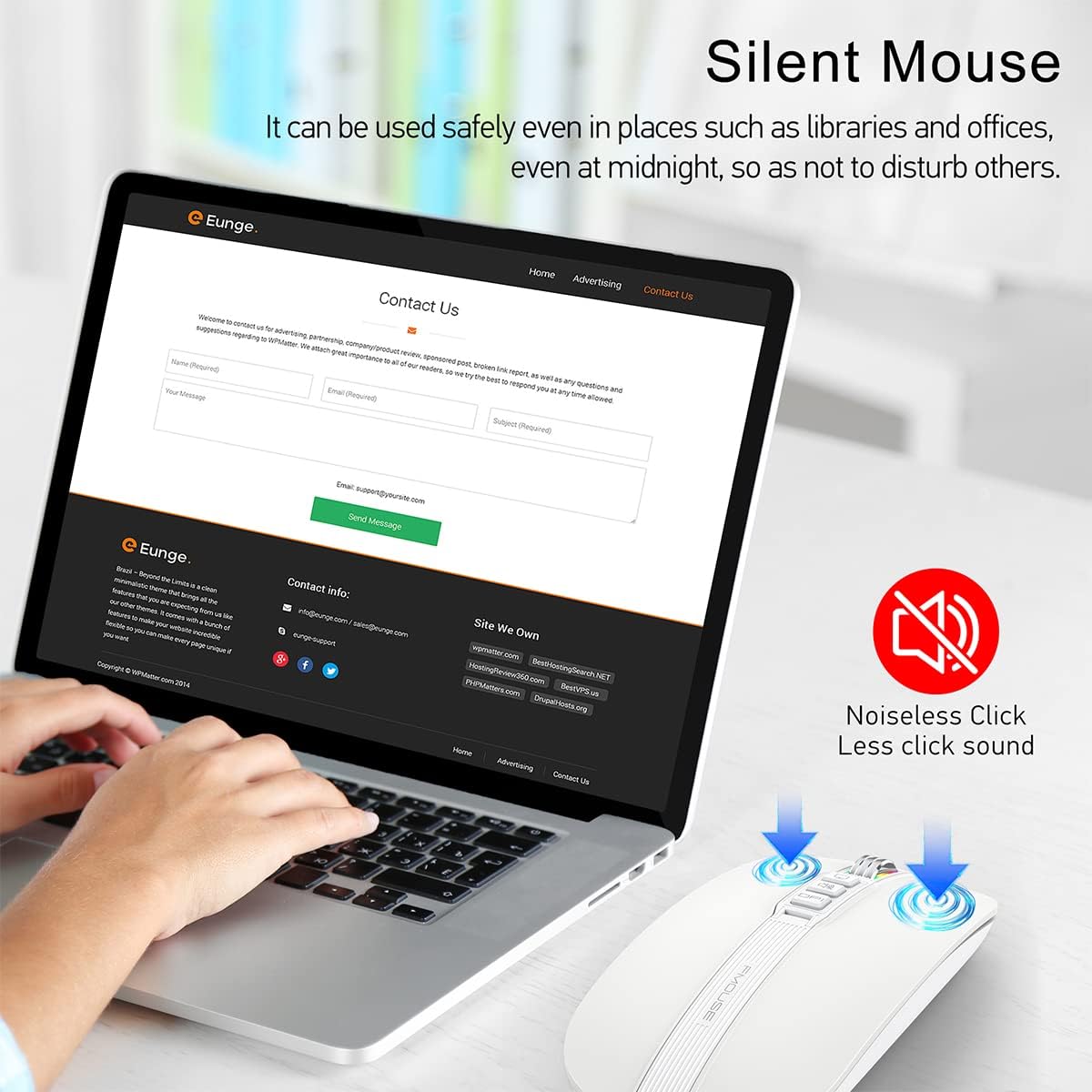
Image 8: Silent click feature of the mouse
5. Întreținere
5.1 Curățare
- Disconnect the mouse from your device before cleaning.
- Folosiți o lavetă moale, uscată și fără scame pentru a șterge suprafața mouse-ului.
- Pentru murdăria încăpățânată, ușor dampCurățați cârpa cu apă sau cu un detergent electronic delicat. Evitați umiditatea excesivă.
- Nu utilizați substanțe chimice dure, agenți de curățare abrazivi sau solvenți.
5.2 Îngrijirea bateriei
- Încărcați mouse-ul în mod regulat pentru a menține bateria sănătoasă.
- Evitați descărcarea completă frecventă a bateriei.
- Do not expose the mouse to extreme temperatures, as this can affect battery life.
5.3 Depozitare
- Când nu este utilizat pentru perioade lungi de timp, depozitați mouse-ul într-un loc răcoros și uscat.
- Asigurați-vă că mouse-ul este oprit pentru a economisi bateria.
- The USB receiver can be stored in its magnetic slot on the bottom of the mouse to prevent loss.
6. Depanare
6.1 Probleme de conectare
- Mouse not connecting via 2.4GHz USB receiver:
- Ensure the USB receiver is securely plugged into a working USB port.
- Verify the switch on the bottom of the mouse is set to the 2.4G position.
- Încercați să conectați receptorul la un alt port USB. - Mouse-ul nu se conectează prin Bluetooth:
- Ensure the switch on the bottom of the mouse is set to the Bluetooth position.
- Check that Bluetooth is enabled on your device.
- Remove any previous pairings of the mouse from your device's Bluetooth settings and attempt to pair again.
- Ensure the mouse is sufficiently charged.
6.2 DPI Light Behavior
- DPI light not changing color: Press the DPI button to cycle through settings. If it still doesn't change, ensure the mouse is powered on and charged.
- DPI light is off: Long-press the DPI button for 2 seconds to toggle the light on/off.
6.3 Probleme de încărcare
- Mouse-ul nu se încarcă:
- Ensure the Type-C charging cable is securely connected to both the mouse and a power source.
- Try using a different USB port or power adapter.
- Check if the charging cable is damaged. - Scroll wheel light flashing red: This indicates a low battery. Connect the mouse to a power source for charging.
6.4 Cursor Movement
- Erratic or no cursor movement:
- Ensure the mouse is properly connected (2.4GHz or Bluetooth).
- Check the battery level and charge if necessary.
- Clean the optical sensor on the bottom of the mouse.
- Ensure the mouse is used on a suitable surface (not highly reflective or transparent).
7. Specificații
| Caracteristică | Caietul de sarcini |
|---|---|
| Dimensiunile produsului | 4.45 x 2.24 x 0.98 inchi (113 x 57 x 25 mm) |
| Greutatea articolului | 2.4 uncii (68 grame) |
| Tehnologia de conectivitate | Bluetooth 5.1, 2.4GHz Wireless (USB) |
| Tehnologia de detectare a mișcării | Optic |
| Niveluri DPI | 800 / 1200 / 1600 / 2400 |
| Tip baterie | 1 baterie litiu-ion (inclusă) |
| Port de încărcare | Tip-C |
| Caracteristici speciale | One-click DPI adjustment, One-click access to desktop, One-click muting, Three shortcut keys |

Image 9: Dimensions of the FMOUSE M113 mouse
8. Garanție și asistență
8.1 Informații despre garanție
FMOUSE products are designed and manufactured to the highest quality standards. For specific warranty details, please refer to the warranty card included in your product packaging or visit the official FMOUSE webPăstrați bonul fiscal ca dovadă a achiziției pentru reclamații în garanție.
8.2 Asistență pentru clienți
If you encounter any issues or have questions regarding your FMOUSE M113 mouse that are not covered in this manual, please contact FMOUSE customer support through the following channels:
- Oficial Website: Visit the FMOUSE Store on Amazon
- E-mail: Consultați ambalajul produsului sau informațiile oficiale. website pentru e-mail de contact.