
INLAND 12700KPROZ790PWFD5
INLAND CPU Motherboard Intel Core i7-12700K & MSI PRO Z790-P WiFi DDR5 Instruction Manual
Model: 12700KPROZ790PWFD5
1. Produs terminatview
This manual provides detailed instructions for the INLAND CPU Motherboard bundle, featuring the Intel Core i7-12700K processor and the MSI PRO Z790-P WiFi DDR5 motherboard. This bundle is designed for high-performance computing, offering advanced features for gaming, content creation, and professional applications.

Imagine: Pesteview of the INLAND CPU Motherboard bundle, showing the Intel Core i7-12700K processor box and the MSI PRO Z790-P WiFi DDR5 motherboard.
2. Conținutul pachetului
Verificați dacă toate articolele enumerate mai jos sunt incluse în colet. Dacă lipsesc sau sunt deteriorate articole, contactați distribuitorul.
- Procesor Intel Core i7-12700K
- MSI PRO Z790-P WiFi DDR5 Motherboard
- Scut I / O
- 3 x M.2 Clips
- 2 cabluri SATA
- Antena Wi-Fi
- Driver DVD (for system drivers and utilities)
- Notificare de reglementare a Uniunii Europene
- Ghid de instalare rapidă
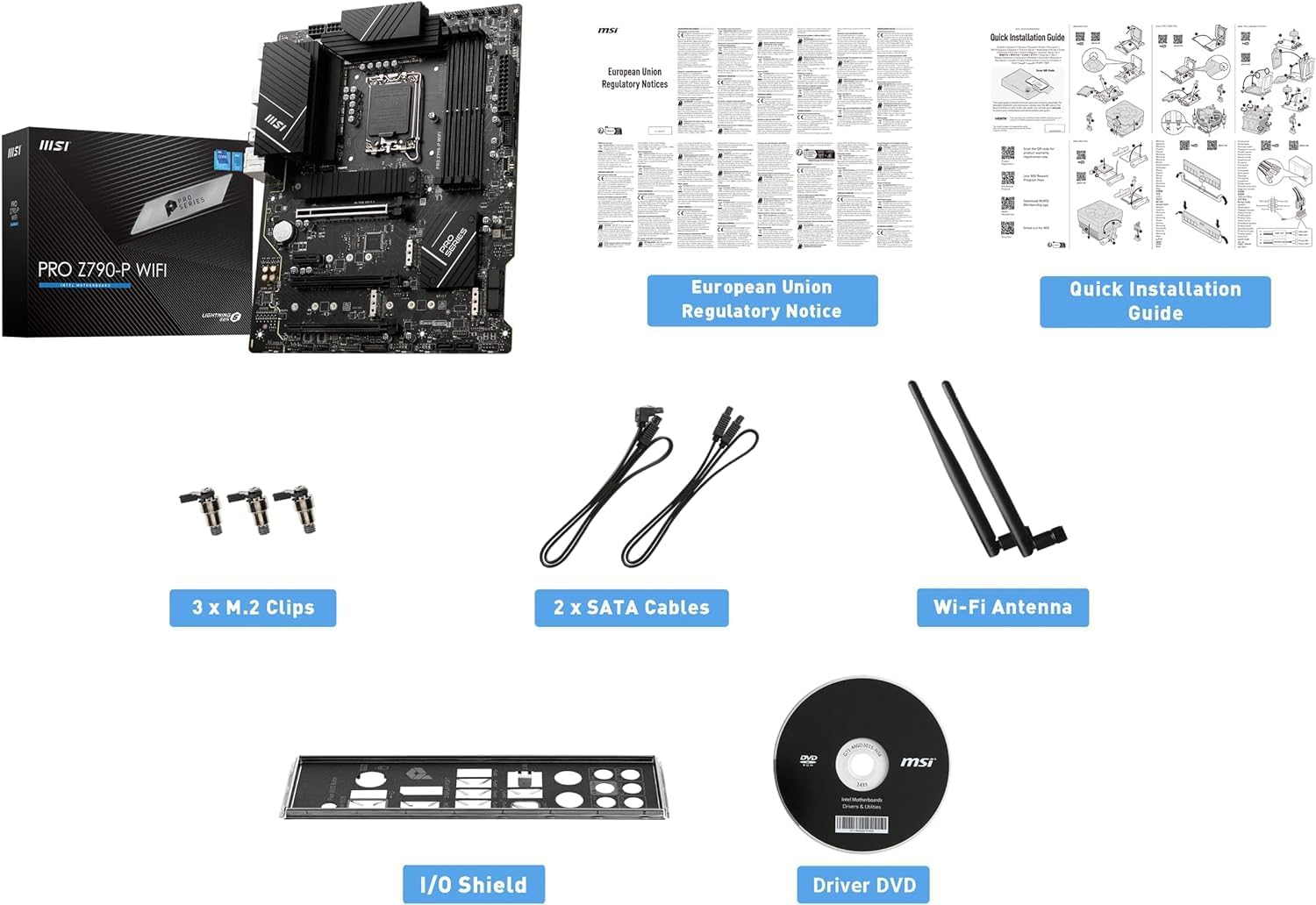
Image: All components included in the INLAND CPU Motherboard bundle, including the CPU, motherboard, I/O shield, M.2 clips, SATA cables, Wi-Fi antenna, driver DVD, and documentation.
3. Intel Core i7-12700K Processor Features
The Intel Core i7-12700K is a 12th Generation processor designed for high performance. Key features include:
- Miezuri: 12 (8 nuclee de performanță + 4 nuclee eficiente)
- fire: 20
- Max Turbo Frequency: Până la 5.0 GHz
- Priză: LGA 1700
- Grafică integrată: Intel UHD Graphics 770
- Suport memorie: DDR5 și DDR4
- Versiunea PCI Express: PCIe 5.0 & 4.0
- Max # of PCI Express Lanes: 20
- Unlocked & Overclockable: Da
- Processor Base Power: 125 W
- Total L2 Cache: 12 MB
- Smart Cache: 25 MB

Image: Close-up of the Intel Core i7-12700K processor, highlighting its specifications.
4. MSI PRO Z790-P WiFi DDR5 Motherboard Features
The MSI PRO Z790-P WiFi DDR5 motherboard provides a stable and feature-rich platform for your system. Key features include:
- Factor de formă: ATX
- Socket CPU: LGA 1700 (Supports 12th and 13th Gen Intel Core processors)
- Chipset: Intel Z790
- Tehnologia memoriei RAM: Dual Channel DDR5 7000+MHz (OC) up to 192GB
- Proiectare energetică: 14+1+1 DRPS with 55A DrMOS for stable power delivery
- Răcire: Premium Cooling design with Extended Heatsink, Heavy Plated VRM Heatsink, 7W/mK Thermal Pad, and Chipset Heatsink.
- Depozitare: 4x PCIe 4.0 x4 M.2 slots, 6x SATA 6Gb/s ports
- Sloturi PCIe: Lightning Gen 5 PCIe slot with Steel Armor for enhanced durability and bandwidth.
- USB: USB 3.2 Gen 2x2 Type-C for high-speed data transfer.
- Rețea: 2.5G LAN with Wi-Fi 6E Solution and Bluetooth 5.3.
- Audio: AUDIO BOOST for high-quality sound.
- PCB: 6-Layer 2oz copper PCB for improved signal integrity and durability.
- Suport pentru sistemul de operare: Windows 11/10 Supported.

Image: The MSI PRO Z790-P WiFi DDR5 motherboard, showcasindesignul și caracteristicile sale.

Image: Diagram illustrating the 14+1+1 phase power design of the MSI PRO Z790-P WiFi DDR5 motherboard, ensuring stable power delivery to the CPU.

Image: Visual representation of the cooling components on the MSI PRO Z790-P WiFi DDR5 motherboard, including heatsinks for VRM and chipset, and M.2 Shield Frozr.

Image: Diagram showing the multiple M.2 slots (4x PCIe Gen4) and SATA ports (6x) available on the MSI PRO Z790-P WiFi DDR5 motherboard for various storage configurations.

Image: Close-up of the rear I/O panel of the MSI PRO Z790-P WiFi DDR5 motherboard, highlighting the USB 3.2 Gen 2x2 Type-C port for high-speed connectivity.

Image: Illustration of the DDR5 memory slots on the MSI PRO Z790-P WiFi DDR5 motherboard, emphasizing support for high-frequency DDR5 modules.

Imagine: Detaliată view of the Lightning Gen 5 PCIe slot with Steel Armor on the MSI PRO Z790-P WiFi DDR5 motherboard, designed for next-generation graphics cards.
MSI Z790 Series Motherboard Overview Video
Video: Un oficial s-a terminatview of the MSI Z790 Series Motherboards, highlighting key features and design elements relevant to the PRO Z790-P WiFi DDR5 model.
5. Ghid de instalare
This section provides a general guide for setting up your CPU and motherboard. Refer to the detailed Quick Installation Guide included in your package for specific steps and diagrams.
5.1. Pregătirea plăcii de bază
- Descărcare statică: Before handling components, ensure you discharge any static electricity by touching a grounded metal object.
- Instalați scutul I/O: If not pre-installed, secure the I/O shield into your computer case.
- Montați placa de bază: Carefully align the motherboard with the standoffs in your computer case and secure it with screws.
5.2. Instalarea procesorului
- Deschideți soclul procesorului: Gently lift the load lever and open the CPU socket cover on the motherboard.
- Aliniați procesorul: Carefully align the Intel Core i7-12700K processor with the LGA 1700 socket. Ensure the triangular mark on the CPU matches the mark on the socket. Do not force the CPU into place.
- Închideți soclul procesorului: Lower the socket cover and push down the load lever until it clicks into place, securing the CPU.
- Apply Thermal Paste & Cooler: Apply a thin, even layer of thermal paste to the CPU (if not pre-applied on your cooler) and install your CPU cooler according to its manufacturer's instructions.
5.3. Instalarea memoriei RAM (memorie DDR5)
- Open DIMM Slot Clips: Deschideți clemele de fixare de la ambele capete ale sloturilor DIMM DDR5.
- Introduceți modulele RAM: Align the notch on the DDR5 memory module with the key in the DIMM slot. Insert the module firmly until the clips snap into place. Refer to your motherboard manual for recommended dual-channel configurations.
5.4. Installing Storage Devices
- SSD-uri M.2: For M.2 NVMe SSDs, insert the drive into an M.2 slot and secure it with the provided M.2 clip or screw. Ensure the M.2 Shield Frozr heatsink is installed over the SSD for optimal cooling.
- Unități SATA: Connect SATA data cables from your SSDs/HDDs to the SATA ports on the motherboard. Connect power cables from your power supply to the drives.
5.5. Conectarea perifericelor și a alimentării
- Placa grafica: Install your graphics card into the primary PCIe 5.0 x16 slot and secure it. Connect necessary PCIe power cables from your power supply.
- Alimentare electrică: Conectați conectorul de alimentare ATX cu 24 de pini și conectorul de alimentare CPU cu 8 pini (sau 4+4 pini) de la sursa de alimentare la placa de bază.
- Conectori panoului frontal: Connect the front panel headers (power button, reset button, USB ports, audio jacks) from your case to the corresponding pins on the motherboard. Refer to the motherboard manual for pin layouts.
- Antena Wi-Fi: Attach the Wi-Fi antenna to the connectors on the rear I/O panel.
- Periferice externe: Connect your monitor, keyboard, mouse, and other peripherals.
6. Instrucțiuni de utilizare
După ce toate componentele sunt instalate și conectate, puteți porni sistemul.
- Pornire inițială: Press the power button on your computer case. The system should power on and display the BIOS/UEFI screen.
- Configurație BIOS/UEFI: Access the BIOS/UEFI setup (usually by pressing DEL or F2 during boot) to configure boot order, enable XMP for RAM, and adjust other settings as needed.
- Instalarea sistemului de operare: Install your preferred operating system (Windows 10 or 11 recommended) from a bootable USB drive or DVD.
- Instalare driver: After OS installation, install all necessary drivers from the included Driver DVD or download the latest versions from the MSI website for your motherboard and Intel website for your CPU. This includes chipset, graphics, audio, LAN, and Wi-Fi drivers.
- Actualizări de sistem: Ensure your operating system and all drivers are up to date for optimal performance and security.
7. Întreținere
Regular maintenance helps ensure the longevity and optimal performance of your system.
- Îndepărtarea prafului: Periodically clean dust from inside your computer case, especially from fans, heatsinks, and vents, using compressed air. Ensure the system is powered off and unplugged before cleaning.
- Actualizări ale driverului: Keep your motherboard and component drivers updated to the latest versions from the manufacturer's website-uri.
- Actualizări BIOS/UEFI: Verificați MSI-ul website for BIOS/UEFI updates. Update only if necessary and follow the instructions carefully to avoid system instability.
- Organizare de cabluri: Ensure internal cables are neatly managed to promote good airflow within the case.
- Monitorizarea temperaturii: Use monitoring software to keep an eye on CPU and motherboard temperatures, especially during heavy loads, to prevent overheating.
8. Depanare
Dacă întâmpinați probleme, consultați următorii pași comuni de depanare:
- Fără putere:
- Verificați toate conexiunile de alimentare (ATX cu 24 de pini, CPU cu 8 pini, GPU).
- Asigurați-vă că întrerupătorul de alimentare este în poziția ON.
- Testați sursa de alimentare cu un alt sistem sau cu un tester de surse de alimentare.
- Fără afișare:
- Ensure the monitor is connected to the graphics card (or motherboard if using integrated graphics) and powered on.
- Reinstalați placa grafică și modulele RAM.
- Încearcă să bootezi cu un singur stick de RAM.
- Instabilitate/Blocaje ale sistemului:
- Verificați temperaturile procesorului și GPU-ului.
- Asigurați-vă că toate driverele sunt instalate corect și actualizate.
- Rulați instrumente de diagnosticare a memoriei pentru a verifica dacă există erori în RAM.
- Verificați sursa de alimentaretage este suficient pentru toate componentele.
- Performanță lentă:
- Verificați dacă există procese în fundal care consumă resurse.
- Ensure storage drives are not full.
- Verify XMP profile is enabled for RAM in BIOS/UEFI.
- Check for thermal throttling.
- Probleme de conectivitate la rețea:
- Ensure LAN cable is properly connected or Wi-Fi antenna is attached.
- Update LAN/Wi-Fi drivers.
- Verificați starea routerului/modemului.
For more specific troubleshooting or persistent issues, consult the MSI motherboard manual or contact technical support.
9. Specificații
| Componentă | Caracteristică | Caietul de sarcini |
|---|---|---|
| Intel Core i7-12700K CPU | Miezuri | 12 (8 Performance + 4 Efficient) |
| Fire | 20 | |
| Frecvența Turbo maximă | Până la 5.0 GHz | |
| Soclu CPU | LGA 1700 | |
| Grafică integrată | Intel UHD Graphics 770 | |
| Suport memorie | DDR5 & DDR4 | |
| PCI Express Version | PCIe 5.0 & 4.0 | |
| Număr maxim de benzi PCI Express | 20 | |
| Putere de bază a procesorului | 125 W | |
| Cache | 12 MB L2, 25 MB Smart Cache | |
| MSI PRO Z790-P WiFi DDR5 Motherboard | Factor de formă | ATX |
| Soclu CPU | LGA 1700 | |
| Chipset | Intel Z790 | |
| Tehnologia memoriei RAM | DDR5 (Dual Channel, up to 7000+MHz OC, 192GB Max) | |
| Sloturi PCIe | 1x PCIe 5.0 x16, 1x PCIe 4.0 x16 (mod x4), 3x PCIe 3.0 x1 | |
| M.2 Fante | 4x PCIe 4.0 x4 M.2 slots | |
| Porturi SATA | 6x SATA 6Gb/s | |
| Porturi USB | USB 3.2 Gen 2x2 Tip-C, USB 3.2 Gen 2, USB 3.2 Gen 1, USB 2.0 | |
| LAN | LAN 2.5G | |
| Conectivitate wireless | Wi-Fi 6E, Bluetooth 5.3 | |
| Audio | AUDIO BOOST | |
| Sistem de operare | Windows 11/10 pe 64 de biți |
10. Garanție și asistență
This product is manufactured by Inland. For warranty information and technical support, please refer to the documentation included with your product or visit the official websites of INLAND and MSI.
- Producător: În interior
- Politica standard de returnare: 30 de zile (rambursare/înlocuire)
- Planuri de protecție opționale: Available (e.g., 4-Year Protection Plan, Complete Protect)
It is recommended to register your product with MSI to ensure access to full warranty benefits and support resources.
Ask a question about this manual
Ask about setup, troubleshooting, compatibility, parts, safety, or missing instructions. Manuals+ will review the question and use this page’s manual context to help answer it.