
Perixx PERIBOARD-332
Manual de utilizare pentru tastatura USB cu fir Perixx PERIBOARD-332 cu iluminare din spate
Introducere
This manual provides detailed instructions for the setup, operation, maintenance, and troubleshooting of your Perixx PERIBOARD-332 Wired Backlit USB Keyboard. Please read this manual thoroughly before using the product to ensure optimal performance and longevity.

Image: The Perixx PERIBOARD-332 Wired Backlit USB Keyboard, showcasindatorită designului său compact.
Conținutul pachetului
Verificați dacă toate articolele sunt prezente în colet:
- Perixx PERIBOARD-332 Wired Backlit USB Keyboard
- Cablu USB integrat
- Manual de utilizare (acest document)

Image: The Perixx PERIBOARD-332 keyboard, its integrated USB cable, the user manual, and the product packaging.
Instrucțiuni de configurare
Conectați tastatura: Locate an available USB port on your computer (PC, laptop, tablet, or smartphone with appropriate adapter). Insert the USB cable from the PERIBOARD-332 into the USB port.
Instalare driver: The keyboard is plug-and-play and typically does not require additional drivers for basic functionality on Windows, macOS, Linux, or Chrome OS. Your operating system should automatically detect and configure the device.
Plasare: Place the keyboard on a stable, flat surface. The compact design is ideal for small workspaces.

Image: A user typing on the Perixx PERIBOARD-332 keyboard, demonstrating its compact size and wired connection on a desk.
Instrucțiuni de operare
Utilizare generală
The Perixx PERIBOARD-332 features a standard US English QWERTY layout with 84 keys. Its low-profile scissor keys provide a quiet and comfortable typing experience, similar to laptop keyboards. The compact design helps optimize desk space.

Image: A user typing on the Perixx PERIBOARD-332 keyboard, highlighting its compact size and ergonomic placement in a workspace.

Imagine: Prim-plan view of the sculpted, low-profile scissor keys of the Perixx PERIBOARD-332, highlighting their design.
Function Keys (Fn Hotkeys)
The keyboard includes integrated Fn hotkeys for quick access to multimedia and system functions. These functions are primarily designed for Windows operating systems. For other operating systems (macOS, Linux, Chrome OS), their functionality may vary or require specific system settings/configurations.
- Fn+F1: Blocare Fn
- Fn+F2: Backlight Brightness Adjustment (Cycle through levels)
- Fn+F3: Mut
- Fn+F4: Reducerea volumului
- Fn+F5: Creșterea volumului
- Fn+F6: Piesa anterioară
- Fn+F7: Redare/Pauză
- Fn+F8: Următoarea piesă
- Fn+F9: Pauză
- Fn+F10: Blocare derulare
- Fn+F11: Introduce
- Fn+F12: Imprimare ecran

Image: Diagram illustrating the integrated Fn hotkeys on the Perixx PERIBOARD-332, showing the function of each F-key when pressed with the Fn key.
Controlul luminii de fundal
The PERIBOARD-332 features white LED backlighting with adjustable brightness. To adjust the backlight brightness, press the Fn + F2 keys simultaneously. Repeatedly pressing this combination will cycle through different brightness levels (including off).
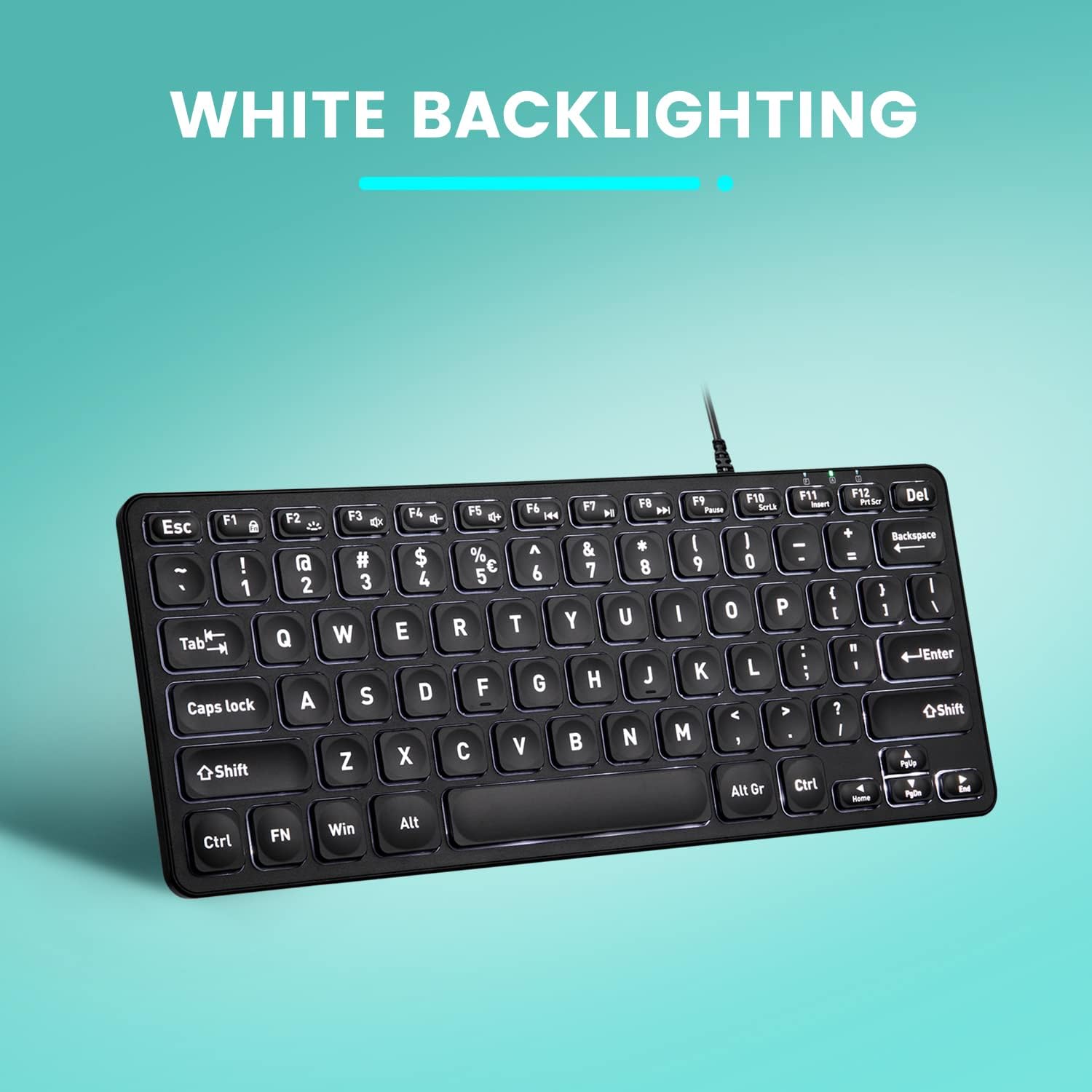
Imagine: De sus în jos view of the Perixx PERIBOARD-332 keyboard with its white LED backlighting illuminated, showcasing the clear, large font on the keys.
Întreţinere
To ensure the longevity and proper functioning of your keyboard, follow these maintenance guidelines:
- curatenie: Folosiți o cârpă moale, fără scame dampened with water or a mild cleaning solution to wipe the surface of the keyboard. Avoid excessive moisture. Do not spray cleaners directly onto the keyboard.
- Îndepărtarea prafului: Folosește aer comprimat pentru a îndepărta praful și resturile dintre taste.
- Evitați scurgerile: Keep liquids away from the keyboard to prevent damage. The keyboard is not water-resistant.
- Depozitare: Când nu este utilizată, depozitați tastatura într-un mediu curat și uscat, ferit de temperaturi extreme.
Depanare
If you encounter issues with your Perixx PERIBOARD-332, refer to the following common solutions:
Tastatura nu răspunde
- Verificați conexiunea USB: Ensure the USB cable is securely plugged into both the keyboard and the computer's USB port. Try a different USB port.
- Reporniți computerul: Uneori, o simplă repornire a computerului poate rezolva problemele de conectivitate.
- Testați pe un alt dispozitiv: Connect the keyboard to another computer or device to determine if the issue is with the keyboard or the original computer.
Backlight Not Working or Adjusting
- Check Brightness Setting: Presa Fn + F2 repeatedly to cycle through all brightness levels, including off. Ensure it's not set to the lowest or off setting.
- Sursa de alimentare: Ensure the keyboard is properly connected to a powered USB port.
Tastele nu funcționează corect
- Curățați tastele: Verificați dacă există resturi sau obstrucții sub tastele afectate. Folosiți aer comprimat pentru a le curăța.
- Conflicte software: If specific keys are not working, check for any software or driver conflicts on your computer.
Multimedia Keys Not Working on macOS/Linux/Chrome OS
- Compatibilitate cu sistemul de operare: The multimedia shortcut keys are primarily designed for Windows. On other operating systems, their functionality may vary or require specific system settings/configurations.
Specificații
| Caracteristică | Detaliu |
|---|---|
| Marca | Perixx |
| Numărul de model | PERIBORD-332 |
| Tehnologia de conectivitate | USB (cu fir) |
| Descrierea tastaturii | US English QWERTY |
| Caracteristica specială | Iluminare din spate (LED alb) |
| Tip comutator | Scissor Switches |
| Numărul de chei | 84 |
| Dimensiuni produs (L x l x H) | 11.22" x 4.57" x 0.83" (28.5 cm x 11.6 cm x 2.1 cm) |
| Greutatea articolului | 0.79 lbs (12.3 Ounces / 350 grams approx.) |
| Dispozitive compatibile | PC, Laptop, Tablet, Smartphone (with compatible USB port/adapter) |
| Compatibilitatea sistemelor de operare | Windows 7, 8, 10, 11; macOS; Linux; Chrome OS |
| Material | Plastic |
Garanție și suport
Informații despre garanție
Your Perixx PERIBOARD-332 keyboard comes with a 12 luni garanție limitată from the date of purchase. This warranty covers manufacturing defects and workmanship under normal use. It does not cover damage caused by misuse, accidents, unauthorized modifications, or external factors.
Vă rugăm să păstrați dovada achiziției pentru cererile de garanție.
Asistență pentru clienți
For technical assistance, warranty claims, or any questions regarding your Perixx product, please visit the official Perixx website or contact their customer support team. Contact information can typically be found on the Perixx website-ul sau în ambalajul produsului.
De asemenea, puteți vizita Magazinul Perixx pe Amazon pentru mai multe informații și resurse de asistență.
Ask a question about this manual
Ask about setup, troubleshooting, compatibility, parts, safety, or missing instructions. Manuals+ will review the question and use this page’s manual context to help answer it.