
1. Introducere
This manual provides instructions for the installation and use of the NFHK Slim Type Mini PCI-E mSATA SSD to 2.5 inch SATA 3.0 Adapter, Model SA-166. This adapter allows you to convert an mSATA Solid State Drive (SSD) into a standard 2.5-inch SATA form factor, enabling its use in devices that support 2.5-inch SATA hard drives, such as desktop computers, laptops, and external enclosures.
2. Produs terminatview
The NFHK SA-166 adapter is a compact printed circuit board assembly (PCBA) designed for seamless integration of mSATA SSDs into SATA systems. It maintains the original speed of the mSATA SSD after conversion.
Caracteristici cheie:
- Converts Mini PCI-E mSATA SSD to 2.5 inch SATA 3.0 interface.
- Supports bootable installation.
- Compatible with various operating systems including DOS, Win98/2000, WinXP, Vista, Win7, Mac OS, and Linux.
- Maintains SSD speed after conversion.
Dimensiuni produs:
- PCBA Size: 71 x 53 x 5 mm (Length x Width x Height)

Imaginea 2.1: Sus view of the NFHK mSATA to SATA adapter, showing the mSATA slot and SATA data/power connectors.
3. Specificații
| Caracteristică | Caietul de sarcini |
|---|---|
| Numărul de model | SA-166 |
| Marca | NFHK |
| Interfață | Mini PCI-E mSATA to SATA 3.0 (6.0 Gbit/s) |
| PCBA Dimensions (L x W x H) | 71 x 53 x 5 mm |
| Dispozitive compatibile | Desktop computers, laptops, hard drive enclosures, SSDs |
| Sisteme de operare acceptate | DOS, Win98/2000, WinXP, Vista, Win7, Mac OS, Linux |
| Țara de origine | China |
4. Compatibilitate
This adapter is designed for specific mSATA SSDs. Please review the following compatibility notes:
- mSATA Connector: This adapter is exclusively compatible with the standard mSATA connector type.
- Incompatible Types: Este nu compatible with 50mm Mini PCI-e SATA or Mini PCI-e PATA interfaces. Ensure your SSD is a true mSATA type before attempting installation.
- Sisteme de operare: Full support is provided for DOS, Windows (98/2000, XP, Vista, 7), Mac OS, and Linux. No special drivers are typically required.
5. Instrucțiuni de configurare
Follow these steps to install your mSATA SSD onto the adapter and then integrate it into your system.
5.1 Installing mSATA SSD onto the Adapter
- Pregătiți adaptorul: Place the NFHK SA-166 adapter on a clean, static-free surface.
- Align the mSATA SSD: Carefully align your mSATA SSD with the mSATA slot on the adapter. The SSD should slide in smoothly.
- Introduceți SSD-ul: Gently push the mSATA SSD into the slot until it is fully seated. It will typically sit at an angle.
- Securizează SSD-ul: Press the SSD down towards the adapter board. Use the provided small screw(s) to secure the mSATA SSD to the adapter's standoff. Ensure the SSD is firmly held in place.
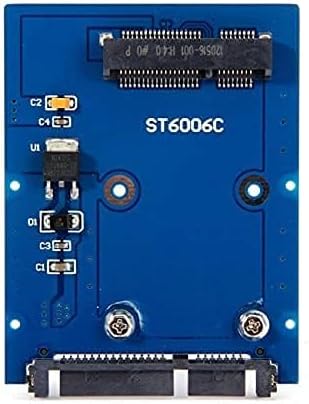
Image 5.1: An mSATA SSD secured onto the adapter board with a screw.
5.2 Installing the Adapter into a 2.5-inch SATA Bay
- Pregătiți sistemul: Power off your computer or device and disconnect it from the power source. Open the computer case or external enclosure to access the 2.5-inch drive bay.
- Montați adaptorul: Insert the assembled adapter (with mSATA SSD) into an available 2.5-inch drive bay. Secure it using the appropriate screws for the drive bay.
- Cabluri de conectare: Connect a standard SATA data cable from the adapter to an available SATA port on your motherboard or controller. Connect a SATA power cable from your power supply unit to the adapter.
- Închideți și porniți: Close your computer case or enclosure. Reconnect the power and power on your system. The mSATA SSD should now be recognized as a standard SATA drive.

Image 5.2: The adapter showing the standard SATA data and power connectors for connection to a system.
6. Instrucțiuni de utilizare
Once installed, the mSATA SSD converted by the NFHK SA-166 adapter operates like any standard 2.5-inch SATA SSD. Your operating system should detect it automatically. You may need to initialize and format the drive if it is new or contains no data.
- New Drive: For a new mSATA SSD, access your operating system's Disk Management utility (Windows) or Disk Utility (Mac OS/Linux) to initialize, partition, and format the drive before use.
- Unitate de bootare: If using as a boot drive, ensure your system's BIOS/UEFI settings are configured to boot from the newly installed SATA drive.
7. Întreținere
The NFHK SA-166 adapter requires minimal maintenance. Keep the adapter and connected SSD free from dust and moisture. Ensure all cable connections are secure to prevent data transfer issues.
- curatenie: Use a soft, dry cloth to clean the adapter if necessary. Avoid liquid cleaners.
- Mediu: Operate the adapter within standard computer operating temperatures and humidity levels.
8. Depanare
If you encounter issues with the NFHK SA-166 adapter, consider the following troubleshooting steps:
- Unitate nedetectată:
- Ensure the mSATA SSD is fully seated and secured on the adapter.
- Verify that both the SATA data and power cables are securely connected to the adapter and the system.
- Check your system's BIOS/UEFI settings to confirm the SATA port is enabled and the drive is recognized.
- Confirm the mSATA SSD itself is functional by testing it in another compatible device if possible.
- Incorrect SSD Type: Double-check that your SSD is indeed an mSATA type. This adapter is not compatible with Mini PCI-e SATA (50mm) or Mini PCI-e PATA SSDs.
- Performanță lentă: While the adapter does not inherently reduce speed, ensure your SATA port on the motherboard supports SATA 3.0 (6.0 Gbit/s) for optimal performance. Older SATA 2.0 ports will limit speed.
- Șuruburi de montare: Some users have reported that the included screws for securing the mSATA SSD to the adapter might be too short. If this occurs, you may need to source slightly longer M2 screws.
9. Informații despre garanție
Warranty information for the NFHK SA-166 adapter is not available in the provided product data. Please refer to your point of purchase or the manufacturer's official website-ul pentru detalii privind acoperirea garanției.
10. Suport
For further assistance or technical support, please visit the manufacturer's website:
Website: www.cablecc.com