
D-Link DWR-M960
D-LINK 4G AC1200 LTE Router DWR-M960
Manual de utilizare
1. Introducere
The D-Link DWR-M960 4G AC1200 LTE Router provides high-speed mobile broadband access, allowing users to connect to 3G/4G networks from virtually anywhere. This device enables sharing of your mobile internet connection through a secure wireless network or via its four Gigabit Ethernet ports. It is designed for fast, responsive internet access, suitable for web browsing, streaming media, and online activities.

Figura 1.1: D-Link DWR-M960 4G AC1200 LTE Router. This image displays the router's front view, highlighting its four external antennas and the row of LED indicators for power, internet, Wi-Fi, and signal strength.
2. Conținutul pachetului
Please verify that all items listed below are present in your package. If any item is missing or damaged, please contact your retailer.
- D-Link DWR-M960 4G AC1200 LTE Router
- Adaptor de alimentare
- Cablu Ethernet
- Ghid de instalare rapidă

Figura 2.1: Package Contents. This image shows the DWR-M960 router, its power adapter, and the quick installation guide, all laid out next to the product box.
3. Caracteristicile produsului
The DWR-M960 router is equipped with advanced features to provide a robust and reliable internet connection:
- Fast Mobile Internet: Supports 3G/4G mobile connections with downlink speeds up to 150 Mbps and uplink speeds up to 50 Mbps.
- AC1200 Wi-Fi: Dual-band wireless connectivity (802.11ac) for high-speed Wi-Fi performance.
- Conexiuni sigure: Features dual-active firewalls (SPI and NAT) and WPA/WPA2 wireless encryption to protect your network.
- Porturi Gigabit multiple: Includes four Gigabit Ethernet LAN ports for high-speed wired connections.
- Configurare ușoară: Can be configured quickly through a web browser without special software.
- Slot card SIM: Allows direct insertion of a 3G/4G SIM/UICC card to share your mobile broadband.
4. Ghid de instalare
4.1 Instalare fizică
- Introduceți cartela SIM: Locate the SIM card slot on the router. Gently insert your 3G/4G SIM/UICC card into the slot until it clicks into place. Ensure the card is oriented correctly as indicated by the diagram near the slot.
- Conectați antenele: The DWR-M960 features internal antennas. No external antenna connection is required.
- Conectare alimentare: Plug the provided power adapter into the router's power port and then into a wall outlet. The Power LED on the router should illuminate.
- Conectați dispozitivele (opțional):
- Conexiune prin cablu: Connect one end of the Ethernet cable to any of the LAN ports (1-4) on the router and the other end to your computer's Ethernet port.
- Conexiune wireless: Note the Wi-Fi Network Name (SSID) and Wi-Fi Password (Key) printed on the label at the bottom of the router.
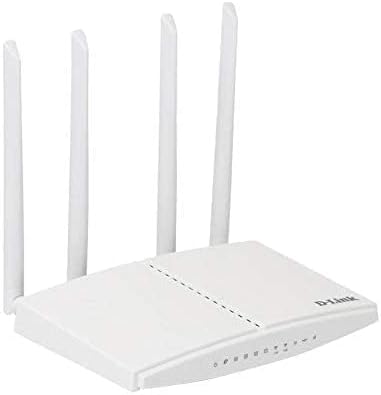
Figura 4.1: Router Ports and SIM Slot. This image provides a side view of the DWR-M960, illustrating the location of the SIM card slot and the various Ethernet ports for wired connections.
4.2 Configurație inițială (Web Interfață)
To configure your router, you will need to access its webinterfață de management bazată pe:
- Ensure your computer is connected to the router either via Ethernet or Wi-Fi.
- Deschide a web browser (de exemplu, Chrome, Firefox, Edge).
- In the address bar, type the default IP address of the router, usually
192.168.0.1or192.168.1.1, and press Enter. This information is typically found on the router's bottom label. - When prompted, enter the default username and password. For D-Link routers, the default username is often
adminand the password field may be left blank or alsoadmin. Refer to the label on your router for exact credentials. - Follow the on-screen setup wizard to configure your internet connection settings (APN, PIN for SIM if required) and customize your Wi-Fi network name (SSID) and password. It is highly recommended to change the default Wi-Fi password and the router's login password for security.
5. Instrucțiuni de utilizare
5.1 Indicatori LED
The LEDs on the front panel of the DWR-M960 provide information about the router's status:
- LED de alimentare:
- Solid Green: Router is powered on.
- Oprit: Routerul este oprit.
- LED Internet:
- Solid Green: Connected to the internet.
- Blinking Green: Data activity.
- Red: No internet connection or SIM card error.
- LED Wi-Fi:
- Verde continuu: Wi-Fi-ul este activat.
- Blinking Green: Wi-Fi data activity.
- Dezactivat: Wi-Fi este dezactivat.
- Signal Strength LEDs (3-4 bars):
- Indicates the strength of the 3G/4G mobile signal. More bars mean a stronger signal.
5.2 Conectarea dispozitivelor
- Dispozitive wireless: On your smartphone, tablet, or laptop, search for available Wi-Fi networks. Select the SSID you configured (or the default one) and enter the Wi-Fi password.
- Dispozitive cu fir: Connect an Ethernet cable from the LAN port of your device (e.g., PC, game console) to any of the available LAN ports on the router.
6. Întreținere
- Actualizări firmware: Verificați periodic suportul D-Link website for firmware updates for your DWR-M960. Firmware updates can improve performance, add new features, and fix security vulnerabilities. Follow the instructions provided by D-Link for safe firmware upgrades.
- Repornire obișnuită: Rebooting your router every few weeks can help clear its memory and resolve minor network issues, improving overall performance and stability. Simply unplug the power adapter, wait 10-15 seconds, and plug it back in.
- curatenie: Keep the router in a clean, dust-free environment. Use a soft, dry cloth to gently wipe the exterior of the device. Do not use liquid cleaners or aerosols.
- Plasare: Plasați routerul într-o locație centrală, departe de obstrucții și alte dispozitive electronice care pot cauza interferențe, pentru a asigura o acoperire Wi-Fi optimă.
7. Depanare
7.1 Fără conexiune la internet
- Verificați cartela SIM: Asigurați-vă că este introdusă corect cartela SIM și că aceasta este activă la operatorul dvs. de telefonie mobilă.
- Verificați LED-ul de internet: If the Internet LED is red, there might be an issue with the SIM card or mobile network. Verify your APN settings in the router's web interfata.
- Reporniți routerul: Power cycle the router by unplugging it for 10 seconds and plugging it back in.
- Verificați puterea semnalului: Ensure you have adequate 3G/4G signal strength (check Signal Strength LEDs). If the signal is weak, try relocating the router.
- Contact Carrier: Verify with your mobile carrier if there are any network outages or issues with your SIM plan.
7.2 Viteză redusă a internetului
- Puterea semnalului: A weak 3G/4G signal will result in slower speeds. Try to improve router placement.
- Aglomerație în rețea: Mobile networks can experience congestion during peak hours.
- Interferențe Wi-Fi: Other wireless devices or networks can interfere with your Wi-Fi signal. Try changing your Wi-Fi channel in the router settings.
- Prea multe dispozitive: Too many devices connected simultaneously can reduce speeds for all users.
7.3 Nu se poate accesa routerul Web Interfață
- Adresa IP: Ensure you are using the correct IP address (e.g.,
192.168.0.1). - Conexiune prin cablu: Încearcă să conectezi computerul direct la router printr-un cablu Ethernet.
- Firewall/Antivirus: Dezactivați temporar orice firewall sau software antivirus de pe computerul dvs. care ar putea bloca accesul.
- Resetare router: As a last resort, perform a factory reset. Locate the reset button (usually a small pinhole) on the router. With the router powered on, use a paperclip to press and hold the reset button for 5-10 seconds until the LEDs flash. Avertizare: This will erase all your custom settings, and you will need to reconfigure the router from scratch.
8. Specificații
| Caracteristică | Descriere |
|---|---|
| Nume de marcă | D-Link |
| Numele modelului | DWR-M960 |
| Numărul de model al articolului | DWR-M960 |
| Comunicare wireless standard | 802.11ac |
| Clasa de bandă de frecvență | Dual-Band |
| Tehnologia de conectivitate | Fără fir |
| Tip antenă | Intern |
| Protocol de securitate | WPA2 |
| Dispozitive compatibile | Computer personal |
| Componente incluse | router |
| Producător | D-Link Systems, Inc. |
| Dimensiuni pachet | 33.6 x 22 x 5.8 cm |
| Greutatea articolului | 724 g |
| Data primului disponibil | 7 iulie 2021 |
9. Garanție și asistență
The D-Link DWR-M960 LTE Router is manufactured by D-Link Systems, Inc. For specific warranty information, please refer to the warranty card included with your product or visit the official D-Link support website for your region. Typically, D-Link products come with a limited warranty covering manufacturing defects from the date of purchase.
For technical support, driver downloads, firmware updates, and additional product information, please visit the D-Link support portal:
Visit D-Link Support Website-ul
When contacting support, please have your product model number (DWR-M960) and serial number ready.
Ask a question about this manual
Ask about setup, troubleshooting, compatibility, parts, safety, or missing instructions. Manuals+ will review the question and use this page’s manual context to help answer it.