
Introducere
Thank you for choosing the Renkforce RF-SBS-500 2D Wired Barcode Scanner. This device is designed for efficient and reliable scanning of both 1D and 2D barcodes from various surfaces, including paper and smartphone screens. Its omnidirectional scanning capability and hands-free operation make it suitable for a wide range of applications. This manual provides essential information for the proper setup, operation, and maintenance of your scanner.
Instrucțiuni de siguranță
- Nu expuneți scanerul la temperaturi extreme, umiditate sau lumină directă a soarelui.
- Evitați să scăpați scanerul sau să îl supuneți la impacturi puternice.
- Nu încercați să dezasamblați sau să modificați scanerul. Aceasta va anula garanția.
- Keep the scanning window clean to ensure optimal performance. Use a soft, dry cloth.
- Ensure the USB cable is connected securely to prevent accidental disconnection.
Conținutul pachetului
- Renkforce RF-SBS-500 2D Wired Barcode Scanner
- Integrated USB-A Cable
- Manual de utilizare (acest document)
Înființat
Follow these steps to set up your Renkforce RF-SBS-500 barcode scanner:
- Despachetați scanerul: Scoateți cu grijă scanerul din ambalaj.
- Conectați-vă la un computer: Plug the integrated USB-A cable from the scanner into an available USB port on your desktop or laptop computer.
- Instalare driver: The scanner is typically plug-and-play. Your operating system (Windows, macOS, Linux) should automatically detect and install the necessary drivers. Wait for the installation to complete.
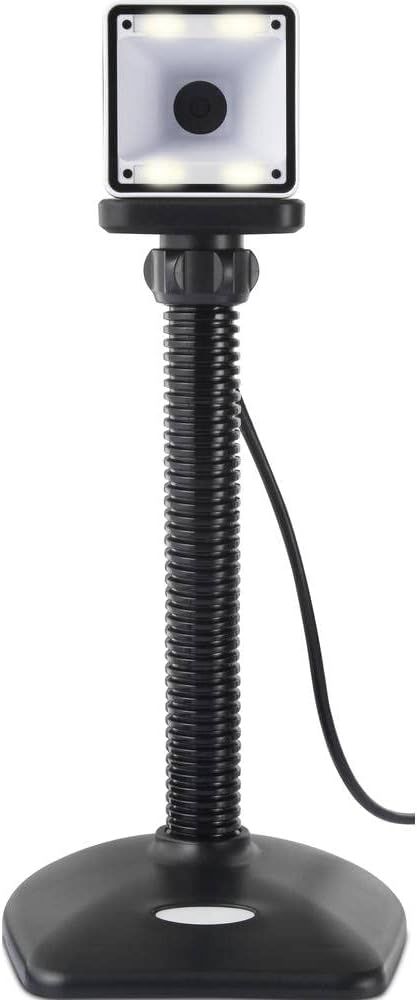
- Plasare: Place the scanner on a stable, flat surface. The flexible neck allows for adjustment of the scanning head angle for optimal positioning.

Operarea scanerului
The Renkforce RF-SBS-500 is designed for ease of use with its omnidirectional and hands-free capabilities.
- Pornire: Once connected via USB, the scanner will power on automatically. The LED indicators on the scanner head may illuminate briefly.
- Scanarea unui cod de bare: Position the barcode within the scanning area of the scanner head. The scanner will automatically detect and read the barcode.
- Feedback vizual și sonor: Upon successful scanning, the integrated buzzer will emit a short beep, and the LED display on the scanner will flash or change color, indicating a successful read.
- Citire omnidirecțională: The scanner can read barcodes regardless of their orientation, eliminating the need to align the barcode precisely.
- Hands-Free Mode (Presentation Mode): The scanner operates continuously in a presentation mode, allowing you to simply pass items with barcodes in front of the scanning window without pressing any buttons. This saves time and improves workflow efficiency.
- Coduri de bare acceptate: The scanner supports both 1D (e.g., EAN, UPC, Code 39) and 2D (e.g., QR Code, Data Matrix, PDF417) barcode types.
Întreţinere
Întreținerea corespunzătoare asigură longevitatea și performanța optimă a scanerului dumneavoastră.
- Curățarea ferestrei de scanare: Curățați periodic fereastra de scanare cu o lavetă moale, fără scame. Pentru murdăria persistentă, ștergeți ușor.ampen the cloth with water or a mild, non-abrasive cleaner. Do not spray cleaner directly onto the scanner.
- Curatenie generala: Wipe the exterior of the scanner with a dry or slightly damp pânză. Evitați utilizarea substanțelor chimice dure sau a materialelor abrazive.
- Depozitare: Când nu îl utilizați, depozitați scanerul într-un mediu curat și uscat, ferit de lumina directă a soarelui și de temperaturi extreme.
Depanare
Dacă întâmpinați probleme cu scanerul, consultați următoarele probleme și soluții frecvente:
| Problemă | Cauza posibila | Soluţie |
|---|---|---|
| Scanerul nu pornește. | USB cable not connected properly or faulty USB port. | Ensure the USB cable is firmly connected to both the scanner and the computer. Try a different USB port. |
| Scanerul nu citește coduri de bare. | Barcode damaged, scanning window dirty, or incorrect barcode type. | Check the barcode for damage. Clean the scanning window. Ensure the barcode type is supported (1D/2D). Adjust the distance and angle of the barcode to the scanner. |
| No beep or LED feedback after scanning. | Barcode not read successfully. | Refer to the "Scanner does not read barcodes" solution. If the issue persists, contact support. |
| Datele scanate apar incorect. | Keyboard layout mismatch or software issue. | Ensure your computer's keyboard layout matches the expected output. Test with a simple text editor. |
If the problem persists after trying these solutions, please contact Renkforce customer support.
Specificații
| Caracteristică | Caietul de sarcini |
|---|---|
| Numărul de model | RF-4679568 |
| Capacitate de scanare | Coduri de bare 1D și 2D |
| Tehnologia de conectivitate | USB-A (cu fir) |
| Rata de scanare | 60 de imagini pe secundă |
| Modul de scanare | Omnidirectional, Hands-free (Presentation Mode) |
| Feedback | Integrated Buzzer, LED Display |
| Dispozitive compatibile | Desktop Computer, Laptop, Smartphone (via appropriate adapter if needed) |
| Dimensiuni (L x l x H) | 150 x 5.2 x 5.2 cm |
| Greutatea articolului | 102 grame |
| Sursa de alimentare | USB Powered |
| Țara de origine | Germania |
Garanție și suport
Renkforce products are manufactured to high-quality standards and come with a standard warranty. Please refer to your purchase documentation or the Renkforce official webpentru termenii și condițiile specifice de garanție aplicabile regiunii dumneavoastră.
For technical support, troubleshooting assistance, or warranty claims, please contact Renkforce customer service. Contact details can typically be found on the Renkforce website sau pe ambalajul produsului dumneavoastră.