
1. Introducere
Thank you for choosing the DELTACO GAMING GAM-106 Wired Gaming Mouse. This manual provides essential information for setting up, operating, maintaining, and troubleshooting your new gaming mouse. Please read this manual carefully before use to ensure optimal performance and longevity of your device.
2. Produs terminatview
The DELTACO GAMING GAM-106 is a high-performance wired gaming mouse designed for precision and comfort. It features an ergonomic design, a lightweight honeycomb shell, and an optical sensor for accurate tracking.
2.1 Conținutul pachetului
- DELTACO GAMING GAM-106 Wired Gaming Mouse
- Manual de utilizare (acest document)
2.2 Mouse Features and Components
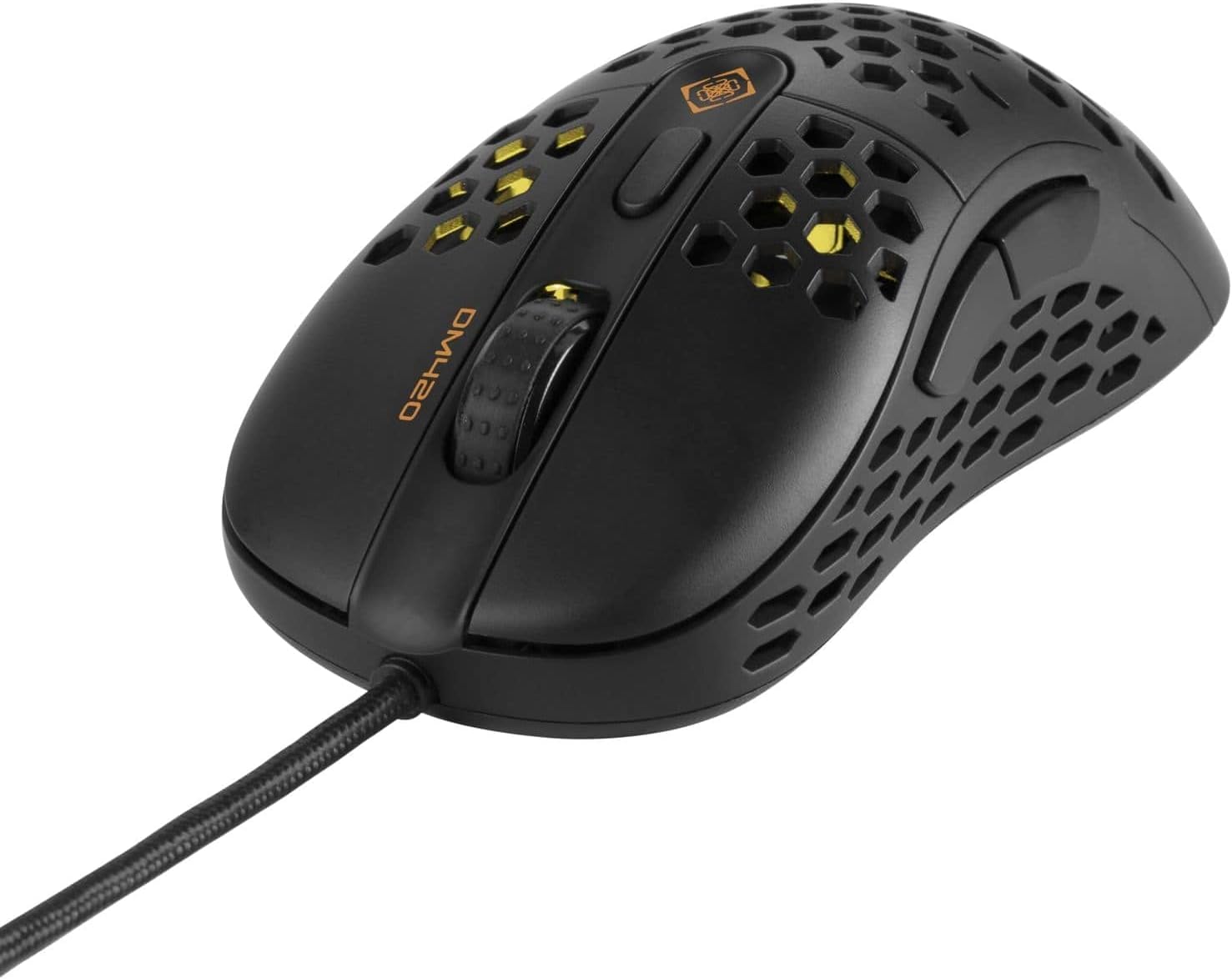
Figura 2.2.1: Partea superioară view of the DELTACO GAMING GAM-106 mouse, showcasing its honeycomb design and wired connection.

Figura 2.2.2: Top view of the mouse, highlighting the left and right click buttons, scroll wheel, and DPI adjustment button.

Figura 2.2.3: Latura view of the mouse, showing the ergonomic contour and the two programmable side buttons.

Figura 2.2.4: Spate-sus view of the mouse, illustrating the internal lighting visible through the honeycomb shell.
- Butonul stânga pentru clic: Butonul principal standard al mouse-ului.
- Buton clic dreapta: Buton secundar standard al mouse-ului.
- Rotiță de defilare: Pentru derulare verticală și poate funcționa și ca buton de clic din mijloc.
- Buton de ajustare DPI: Cycles through different DPI (Dots Per Inch) sensitivity settings.
- Buton înainte: Default function for navigating forward in web browsere sau file exploratori.
- Buton înapoi: Default function for navigating backward in web browsere sau file exploratori.
- Senzor optic: Situat pe partea inferioară, oferă o urmărire precisă.
- Cablu USB: Connects the mouse to your computer.
3. Configurare
Setting up your DELTACO GAMING GAM-106 mouse is a simple plug-and-play process.
- Conectați mouse-ul: Locate an available USB port on your computer. Insert the USB connector of the GAM-106 mouse firmly into the USB port.
- Instalare driver: Your operating system (Windows, macOS, Linux) will automatically detect and install the necessary drivers for the mouse. This process usually takes a few seconds. No additional software installation is typically required for basic functionality.
- Gata de folosit: Odată ce driverele sunt instalate, mouse-ul este gata de utilizare imediată.
4. Instrucțiuni de utilizare
4.1 Operare de bază
- Circulaţie: Mișcați mouse-ul pe o suprafață plană pentru a controla cursorul pe ecran.
- Făcând clic: Use the left and right click buttons for primary and secondary actions, respectively.
- Derulare: Rotate the scroll wheel up or down to scroll through documents or web pages. Press the scroll wheel for a middle-click action.
4.2 Ajustare DPI
The GAM-106 mouse features a dedicated DPI adjustment button (usually located behind the scroll wheel) that allows you to change the mouse's sensitivity on the fly. Pressing this button will cycle through predefined DPI settings, indicated by a change in the mouse's LED lighting color or pattern. Higher DPI settings result in faster cursor movement for the same physical mouse movement, which is often preferred for gaming, while lower DPI settings offer more precise control for tasks like graphic design.
4.3 Butoane laterale
The two side buttons (Forward and Backward) are pre-programmed for navigation in web browsere și file explorers. In many games and applications, these buttons can be customized to perform specific actions or macros through in-game settings or third-party software (if supported by the application).
5. Întreținere
Proper maintenance will help extend the life of your DELTACO GAMING GAM-106 mouse.
- curatenie: Regularly clean the mouse to prevent dust and debris buildup. Use a soft, dry, lint-free cloth to wipe the surface. For stubborn dirt, slightly dampClătiți laveta cu apă sau o soluție de curățare delicată. Evitați utilizarea substanțelor chimice dure sau a materialelor abrazive.
- Curățarea senzorului: Occasionally inspect the optical sensor on the underside of the mouse. If dust or lint accumulates, gently clean it with a cotton swab or compressed air.
- Îngrijirea cablului: Evitați îndoiturile sau îndoiturile bruște ale cablului USB. Nu trageți de mouse ținând de cablu.
- Depozitare: Când nu este utilizat, depozitați mouse-ul într-un mediu curat și uscat, ferit de temperaturi extreme și de lumina directă a soarelui.
6. Depanare
If you encounter issues with your DELTACO GAMING GAM-106 mouse, try the following troubleshooting steps:
6.1 Mouse-ul nu răspunde
- Verificați conexiunea USB: Asigurați-vă că cablul USB este conectat corect la un port USB funcțional al computerului. Încercați să îl conectați la un alt port USB.
- Reporniți computerul: Uneori, o simplă repornire a computerului poate rezolva problemele de conectivitate.
- Testați pe un alt computer: Dacă este posibil, testați mouse-ul pe un alt computer pentru a determina dacă problema este cu mouse-ul sau cu configurația computerului.
6.2 Mișcare neregulată a cursorului
- Curățați senzorul: Praful sau resturile de pe senzorul optic pot cauza mișcări neregulate. Curățați senzorul conform descrierii din secțiunea Întreținere.
- Verificați suprafața: Ensure you are using the mouse on a clean, non-reflective, and uniform surface. Mouse pads are recommended for optimal tracking.
- Interferență: While less common for wired mice, ensure no strong electromagnetic interference sources are near the mouse.
6.3 Butoanele sau rotița de derulare nu funcționează
- Verificați pentru obstacole fizice: Asigurați-vă că nu există resturi blocate în jurul butoanelor sau al rotiței de derulare.
- Conflict software: If you have installed any third-party mouse customization software, try temporarily disabling it to see if it resolves the issue.
7. Specificații
| Caracteristică | Caietul de sarcini |
|---|---|
| Numărul de model | GAM-106 |
| Tehnologia de conectivitate | USB (cu fir) |
| Tehnologia de detectare a mișcării | Optic |
| Culoare | Negru |
| Caracteristica specială | Design ergonomic |
| Dimensiunile produsului | 12.5 x 6.5 x 0.25 cm |
| Greutate | 65 grame |
8. Garanție și asistență
DELTACO GAMING products are built to high-quality standards. For information regarding warranty terms and conditions, please refer to the warranty card included with your purchase or visit the official DELTACO GAMING website. For technical support or further assistance, please contact DELTACO GAMING customer service through their official channels.
Official DELTACO GAMING Store: Vizitați magazinul