
1. Produs terminatview
The SIIG JU-DK0L11-S1 is a versatile USB 3.0 Dual Monitor Docking Station designed to expand your laptop or desktop's connectivity and display capabilities. It supports up to two 1080p@60Hz Full HD video displays via two HDMI ports, along with multiple USB ports, Gigabit Ethernet, and a 3.5mm audio jack. This docking station is compatible with both Windows and macOS operating systems, including Mac M1/M2/M3 Pro&Max.
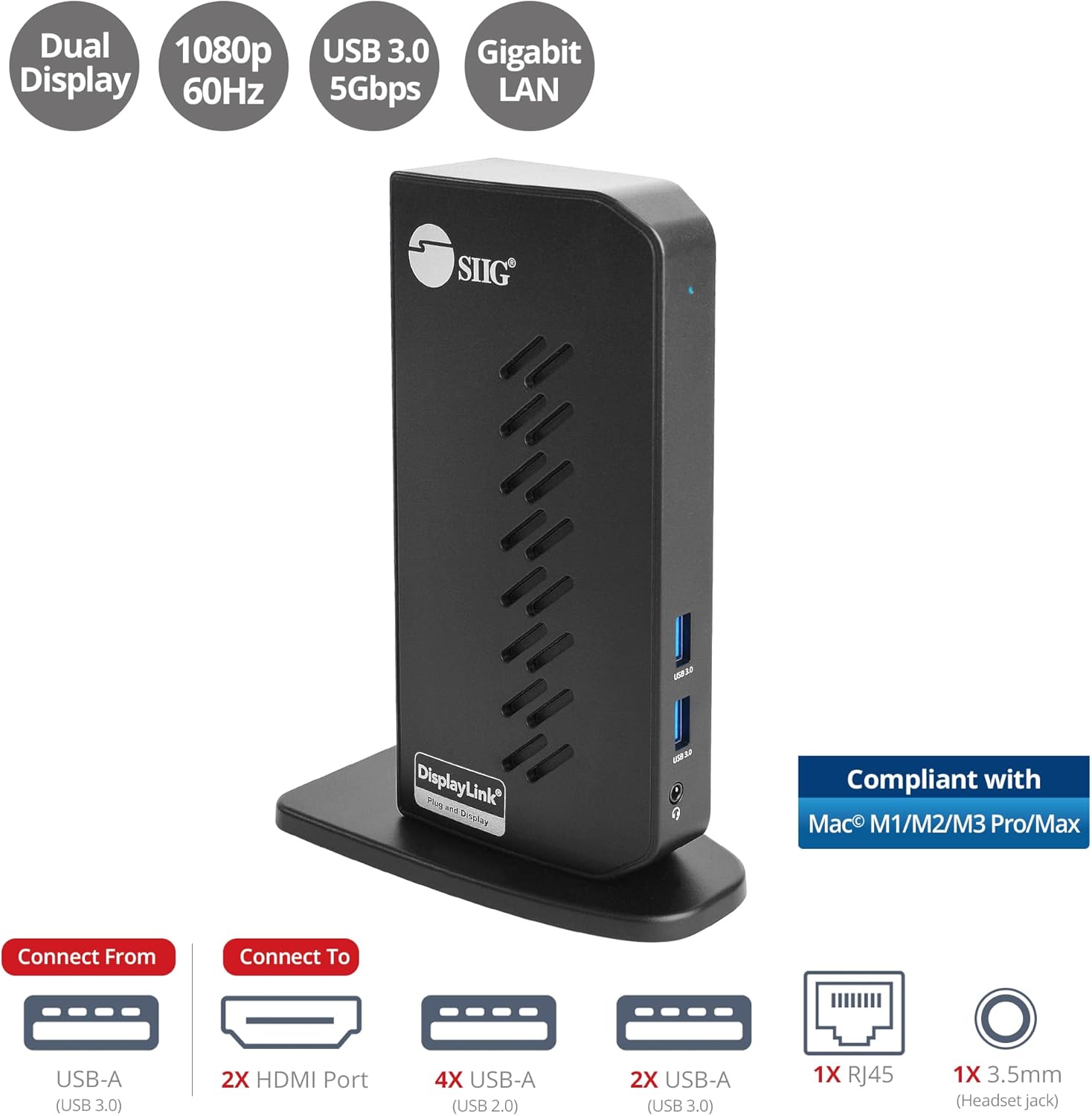
Image 1.1: The SIIG JU-DK0L11-S1 Dual Monitor Docking Station, showcasing its compact vertical design and various connectivity options.
2. Conținutul pachetului
Verificați dacă toate articolele sunt prezente în pachet înainte de a continua instalarea.
- SIIG JU-DK0L11-S1 Dual Head Full HD HDMI Video Docking Station
- Adaptor de alimentare (12V/2A)
- USB 3.0 Type-A to Type-B Cable
- Driver CD (Drivers can also be downloaded from the official SIIG website)
- Manual de utilizare

Image 2.1: All components included in the SIIG JU-DK0L11-S1 docking station package, including the docking station, power adapter, USB cable, driver CD, and user manual.
3. Aspect hardware
Familiarize yourself with the ports and indicators on the docking station.
Panoul frontal
- LED de alimentare: Indică starea de alimentare.
- 2 porturi USB 3.0: For connecting high-speed USB devices (5Gbps, 4.5W/900mA).
- Mufă pentru căști de 3.5 mm: For connecting headphones or stereo speakers with microphone input.
Panoul din spate
- 4 porturi USB 2.0: For connecting standard USB devices (480Mbps, 5V/900mA).
- Port Gigabit Ethernet RJ45: Pentru conexiune la rețea prin cablu (10/100/1000 Mbps).
- 2x HDMI Outputs: For connecting external displays (up to 1080p@60Hz).
- USB 3.0 Type-B Port: For connecting the docking station to your host computer.
- Mufă de alimentare: Pentru conectarea adaptorului de alimentare de 12V/2A.

Imaginea 3.1: Detaliată view of the front and rear panels of the docking station, highlighting all available ports and their functions.
4. Instrucțiuni de configurare
Urmați acești pași pentru a configura stația de andocare:
- Instalați driverele DisplayLink: Before connecting the docking station, install the necessary DisplayLink drivers on your computer. You can use the included driver CD or download the latest drivers from the official DisplayLink website (www.displaylink.com/downloads) or SIIG's support page.
- Conectare alimentare: Plug the provided 12V/2A power adapter into the docking station's power jack and then into a wall outlet. The Power LED on the front panel should illuminate.
- Conectare la computerul gazdă: Use the supplied USB 3.0 Type-A to Type-B cable to connect the docking station's USB 3.0 Type-B port to an available USB 3.0 Type-A port on your laptop or desktop computer.
- Conectați afișajele: Connect your external monitors to the two HDMI output ports on the rear of the docking station using HDMI cables.
- Conectați periferice: Connect your USB devices (keyboard, mouse, printer, flash drives, etc.) to the available USB 3.0 and USB 2.0 ports. Connect an Ethernet cable to the RJ45 port for a wired network connection. Plug your headset or speakers into the 3.5mm audio jack.
Video 4.1: An official video demonstrating the setup and connectivity of the SIIG JU-DK0L11-S1 Dual Head Full HD HDMI Docking Station, showing how to connect monitors and peripherals.
5. Instrucțiuni de utilizare
Once the docking station is set up, you can configure your display settings and utilize the connected peripherals.
Moduri de afișare
The docking station supports three primary display modes:
- Modul oglindă: Duplică afișajul principal pe monitoarele externe.
- Modul extindere: Extinde desktopul pe mai multe ecrane, permițând un spațiu de lucru sporit.
- Mod principal: Designates one of the connected displays as the main display.
You can configure these settings through your operating system's display settings (e.g., Windows Display Settings or macOS System Settings > Displays).

Image 5.1: A typical dual 1080p monitor setup utilizing the SIIG docking station, demonstrating an extended display configuration for enhanced productivity.
Conectivitate USB
The docking station provides two USB 3.0 ports for high-speed data transfer (e.g., external hard drives, SSDs) and four USB 2.0 ports for standard peripherals (e.g., keyboard, mouse, printer). Simply plug your devices into the corresponding ports.
Gigabit Ethernet
For a stable and fast internet connection, connect an Ethernet cable from your router or modem to the RJ45 port on the docking station. This provides a more reliable connection than Wi-Fi, supporting 10/100/1000 BASE-T wired networks.

Imaginea 5.2: Prim-plan view of the Gigabit RJ45 Ethernet port and USB ports, illustrating their use for network and high-speed data transmission.
Conexiune audio
The 3.5mm headset jack allows you to connect headphones, speakers, or a microphone. Ensure your operating system's audio settings are configured to use the docking station's audio output/input.
6. Specifications (Model: JU-DK0L11-S1)
| Marca | SIIG |
| Numărul de model | JU-DK0L11-S1 |
| Interfață hardware | 3.5mm Audio, Ethernet, HDMI, USB 1.1, USB 2.0, USB 3.0 |
| Dispozitive compatibile | Desktop or laptop computer with an available USB 3.0 Type-A port. Compatible with Windows® 11/10/8.1/8/7 and macOS® 11 / 10.15 to 10.10. |
| Total porturi USB | 6 (2x USB 3.0, 4x USB 2.0) |
| Total porturi HDMI | 2 |
| Rezoluție Max | 1080p@60Hz (per display) |
| Viteza Ethernet | Gigabit (10/100/1000Mbps) |
| Vol. De intraretage | 100 volți (AC) |
| Dimensiuni produs (L x l x H) | 5.31 cm x 2.87 cm x 7.36 cm |
| Greutatea articolului | 0.75 lire sterline |

Image 6.1: Physical dimensions of the SIIG JU-DK0L11-S1 docking station, illustrating its compact and space-saving design.
7. Depanare
- Fără ieșire de afișare:
- Ensure the docking station is powered on and the Power LED is lit.
- Verify that the USB 3.0 cable is securely connected between the docking station and your computer.
- Check that HDMI cables are firmly connected to both the docking station and your monitors.
- Confirm that DisplayLink drivers are correctly installed and up to date.
- Încercați să reporniți computerul.
- Dispozitive USB nerecunoscute:
- Ensure the docking station is powered and connected to your computer.
- Încercați să conectați dispozitivul USB la un alt port al stației de andocare.
- Connect the USB device directly to your computer to rule out device issues.
- Fără conexiune la rețea:
- Verify the Ethernet cable is securely connected to the RJ45 port on the docking station and your network source.
- Check your computer's network settings to ensure the Ethernet adapter is enabled.
- Confirm that your router/modem is functioning correctly.
- Probleme audio:
- Ensure your headset/speakers are properly plugged into the 3.5mm jack.
- Check your computer's sound settings to select the docking station as the default audio output/input device.
8. Întreținere
To ensure the longevity and optimal performance of your SIIG docking station, follow these maintenance guidelines:
- Mențineți dispozitivul curat ștergându-l cu o lavetă moale și uscată. Evitați utilizarea de produse de curățare lichide sau aerosoli.
- Ensure proper ventilation around the docking station to prevent overheating. The vertical design with heat dissipation features aids in this.
- Evitați expunerea dispozitivului la temperaturi extreme, umiditate sau lumina directă a soarelui.
- Manevrați cablurile și conectorii cu grijă pentru a preveni deteriorarea.
9. Garanție și asistență
For warranty information and technical support, please refer to the documentation included with your product or visit the official SIIG website. SIIG is committed to providing reliable products and customer assistance.
For further assistance, you may contact SIIG customer support directly through their website-ul sau informațiile de contact furnizate pe ambalajul produsului.