
Introducere
This manual provides essential instructions for setting up, operating, maintaining, and troubleshooting your Surfans K7 Kids Tablet. Please read this guide thoroughly to ensure proper use and to maximize the tablet's features for a safe and engaging experience for children.
Produs terminatview
Caracteristici cheie
- Sistem de operare Android 10.0: Provides a secure and fast user experience.
- 7-inch IPS FHD Display: Features a 1920 x 1200 resolution eye-care touchscreen with a 178-degree wide viewunghiul de ing.
- Procesor quad-core: Ensures smooth performance for apps and games.
- 2GB RAM, 32GB ROM: Sufficient memory for multitasking and storage, expandable via MicroSD card.
- Camere duble: Equipped with 2MP front and 5MP rear cameras for photos and video calls.
- Conectivitate: Includes Wi-Fi and Bluetooth for wireless connections.
- Pre-installed iWAWA App: Offers updated educational content including games, videos, e-books, drawing, puzzles, and creative arts.
- Acces la Magazinul Google Play: Allows downloading additional applications like YouTube Kids, Netflix, and Hulu.
- Mod de control parental: Enables parents to manage content, set time limits, and customize child profiles.
- Durable Kid-Proof Case: Comes with a colorful, soft, and high-quality silicone case with an integrated 360-degree adjustable stand, suitable for children aged 2 to 10 years.

Image: The Surfans K7 Kids Tablet showcasing its GMS Certified Android 10.0 operating system and access to various applications via Google Play Store.

Image: The Surfans K7 Kids Tablet in use, illustrating its key features including quad-core processor, Android 10.0, 2GB RAM, 32GB ROM, WiFi, and Parent Mode.
Componentele tabletei
Familiarizați-vă cu componentele fizice ale tabletei dvs.:
- Buton de alimentare: Typically located on the side, used to turn the tablet on/off or put it to sleep/wake it up.
- Butoane de volum: Reglați nivelul de ieșire audio.
- Port USB-C: For charging the tablet and connecting to a computer for data transfer.
- Mufă audio de 3.5 mm: Pentru conectarea căștilor sau a difuzoarelor externe.
- Slot pentru card MicroSD: Allows for memory expansion using a compatible MicroSD card.
- Camera frontală: Used for video calls and taking selfies.
- Camera spate: Pentru capturarea de fotografii și videoclipuri.
- Vorbitor: Provides audio output for media and notifications.
Înființat
1. Încărcarea tabletei
Before first use, fully charge the tablet. Connect the provided USB cable to the tablet's USB-C port and the other end to the power adapter. Plug the adapter into a wall outlet. The battery indicator on the screen will show the charging status.
2. Pornire/Oprire
- Pentru a porni: Press and hold the Power Button until the screen lights up and the Surfans logo appears.
- Pentru a opri: Press and hold the Power Button until a menu appears on the screen. Select "Power off" and confirm.
- A dormi/a te trezi: Apăsați scurt butonul de pornire/oprire pentru a pune tableta în modul repaus sau pentru a o activa.
3. Configurare inițială
Upon first power-on, follow the on-screen prompts to configure basic settings:
- Selectați limba preferată.
- Connect to a Wi-Fi network (see next step).
- Set up your Google account or create a new one. This is necessary for downloading apps from the Google Play Store.
- Review și acceptați termenii și condițiile.
4. Conectarea la Wi-Fi
To connect your tablet to the internet:
- Du-te la Setări.
- Atingeți Rețea și internet.
- Selecta Wifi și pornește-l.
- The tablet will scan for available networks. Select your desired network from the list.
- Enter the Wi-Fi password if prompted, then tap Conectați-vă.
Instrucțiuni de operare
1. Navigare de bază
The Surfans K7 tablet uses a touchscreen for interaction:
- Robinet: Atingeți ecranul o dată pentru a selecta un element, a deschide o aplicație sau a apăsa un buton.
- Beţivan: Trageți degetul pe ecran pentru a derula pagini, liste sau pentru a comuta între ecranele de pornire.
- Ciupire pentru zoom: Așezați două degete pe ecran și depărtați-le sau apropiați-le pentru a mări sau a micșora imaginea.
- Notificări și setări rapide: Glisează în jos din partea de sus a ecranului pentru a accesa notificările și setările rapide (Wi-Fi, Bluetooth etc.).
2. Downloading Apps from Google Play Store
With a Google account set up, you can download a wide variety of applications:
- Atingeți Magazin Play icon on your home screen or app drawer.
- Browse or search for apps, games, movies, and books.
- Select an item and tap Instala pentru a-l descărca și instala.
3. Using Pre-installed iWAWA App
The iWAWA app provides a safe and engaging environment for children:
- Localizați și atingeți iWAWA pictograma.
- Explore the various categories such as games, videos, e-books, and creative activities.
- Content within iWAWA is curated to be age-appropriate and educational.
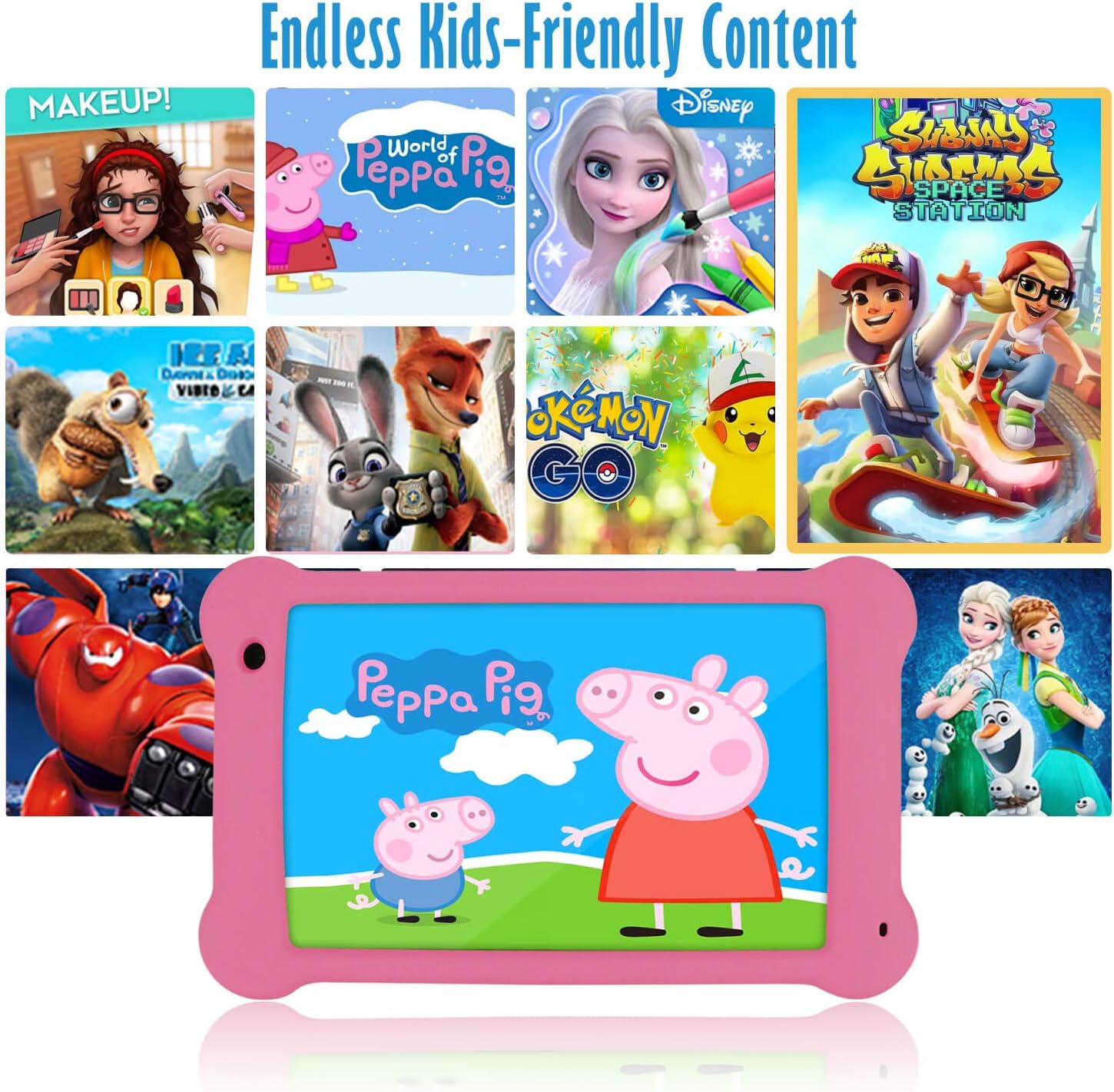
Image: The Surfans K7 Kids Tablet showcasing a variety of popular kid-friendly content, accessible through pre-installed apps and Google Play Store.
Modul de control parental
The Surfans K7 tablet includes a dedicated Parental Control Mode to manage your child's usage and ensure a safe digital environment.
1. Accessing Parental Mode
To access and configure parental controls:
- Localizați și deschideți Modul Părinte or iWAWA Parent aplicație pe tabletă.
- You will be prompted to set up a password or PIN for secure access. Remember this password.
2. Setting Time Limits
Manage how long your child can use the tablet:
- Configure daily usage limits for the tablet.
- Set specific time blocks during which the tablet can or cannot be used (e.g., bedtime restrictions).
3. Content Filtering
Ensure your child accesses only appropriate content:
- Select and approve specific applications, websites, and media content that your child is allowed to access.
- Block inappropriate content categories or specific website-uri.
4. Managing Child Profiles
Create personalized experiences for each child:
- Creați un profesionist individualfilepentru mai mulți copii.
- Customize settings, content access, and time limits for each profile based on age and preferences.

Image: A parent and child using the Surfans K7 Kids Tablet, demonstrating the ease of setting up and managing parental controls for time limits, child lock, and content filtering.
Întreţinere
1. Curățarea tabletei
To keep your tablet clean and functional:
- Use a soft, lint-free cloth (e.g., microfiber cloth) to gently wipe the screen and tablet body.
- Pentru pete persistente, ușor dampen the cloth with water. Avoid using harsh chemicals, abrasive cleaners, or excessive moisture, as these can damage the screen or internal components.
- Asigurați-vă că tableta este oprită și deconectată de la priză înainte de curățare.
2. Îngrijirea bateriei
Proper battery care extends the tablet's lifespan:
- Avoid fully discharging the tablet frequently. Charge the tablet when the battery level is low (e.g., below 20%).
- Do not expose the tablet to extreme temperatures (hot or cold), as this can degrade battery performance.
- Folosiți doar încărcătorul furnizat sau un încărcător compatibil certificat.
3. Actualizări software
Keep your tablet's software up-to-date for optimal performance and security:
- Periodically check for system updates by going to Setări > Sistem > Actualizare sistem.
- Asigurați-vă că tableta este conectată la Wi-Fi și are bateria suficient încărcată înainte de a începe o actualizare.
4. Protective Case Care
The included kid-proof silicone case offers protection:
- Curățați carcasa cu adamp o cârpă dacă se murdărește.
- Ensure the case is properly fitted around the tablet to provide maximum protection against drops and bumps.

Imagine: O imagine detaliată view of the Surfans K7 Kids Tablet's durable kid-proof case, highlighting its soft silicone material and anti-drop corner design for enhanced protection.
Depanare
This section addresses common issues you might encounter with your Surfans K7 Kids Tablet.
Tablet Does Not Turn On
- Verificați bateria: Asigurați-vă că tableta este încărcată. Conectați-o la încărcător timp de cel puțin 30 de minute, apoi încercați să o porniți din nou.
- Repornire forțată: Press and hold the Power Button for about 10-15 seconds until the tablet restarts.
Screen is Black but Audio is Playing
This can sometimes occur:
- Briefly press the Power Button to put the screen to sleep, then press it again to wake it up.
- If the issue persists, perform a force restart by pressing and holding the Power Button for 10-15 seconds.
Probleme de conexiune Wi-Fi
- Activați Wi-Fi: Du-te la Setări > Rețea și internet > Wi-Fi and ensure Wi-Fi is turned on.
- Reporniți routerul: Reporniți routerul și modemul Wi-Fi.
- Uită de rețea: Go to Wi-Fi settings, tap on your network, and select "Forget network." Then, reconnect to the network and re-enter the password.
- Puterea semnalului: If the signal is weak, move closer to your Wi-Fi router.
Apps Are Slow or Crashing
- Închideți aplicațiile neutilizate: Swipe up from the bottom of the screen (or tap the square navigation button) to view recent apps, then swipe them away to close.
- Reporniți tableta: A simple restart can often resolve performance issues.
- Ștergeți memoria cache a aplicației: Du-te la Setări > Aplicații > [Nume aplicație] > Stocare și memorie cache > Ștergeți memoria cache.
Tablet is Unresponsive
If the tablet freezes and does not respond to touch:
- Perform a force restart by pressing and holding the Power Button for approximately 10-15 seconds until the device powers off and restarts.
Resetare la setările din fabrică (ultimă soluție)
If all other troubleshooting steps fail, a factory reset may be necessary. Warning: This will erase all data on the tablet, including apps, photos, and user settings. Back up any important data before proceeding.
- Du-te la Setări > Sistem > Opțiuni de resetare.
- Robinet Ștergeți toate datele (resetarea din fabrică).
- Confirmați decizia și urmați instrucțiunile de pe ecran.
Specificații

Image: Visual comparison highlighting the superior clarity of the 1920x1200 FHD IPS display with a 178-degree wide viewing angle on the Surfans K7 Kids Tablet.
| Caracteristică | Caietul de sarcini |
|---|---|
| Marca | Surfani |
| Numele modelului | K7 |
| Sistem de operare | Android 10.0 |
| Dimensiunea ecranului | 7 inchi |
| Rezoluția maximă a ecranului | 1920 x 1200 pixeli |
| Marca procesorului | ARM (Quad-core 1.6GHz) |
| Memorie RAM instalată | 2 GB |
| Capacitate de stocare a memoriei | 32 GB |
| Stocare extensibilă | Slot pentru card microSD |
| Front Photo Sensor Resolution | 2 MP |
| Max WebCam Rezoluția imaginii | 5 MP |
| Rezoluție de înregistrare video | FHD 1080p |
| Tehnologia de conectivitate | Bluetooth, USB, Wi-Fi |
| Compatibilitate wireless | 802.11a/b/g/n |
| hardware-ul Suport conectare | 3.5 mm Audio Jack, USB-C Port |
| Tip baterie | Polimer de litiu |
| Capacitatea bateriei | 3000 mAh |
| Durata medie a bateriei | 8 de ore |
| Greutatea articolului | 450 grame |
| Culoare | Roz |
| Descrierea intervalului de vârstă | Baby, Children (2-10 years) |
Garanție și suport
The Surfans K7 Kids Tablet comes with a standard manufacturer's warranty. For specific warranty terms, conditions, and duration, please refer to the warranty card included in the product packaging or contact Surfans customer support.
For technical assistance, troubleshooting beyond this manual, or further inquiries, please visit the official Surfans website-ul lor sau contactați departamentul lor de asistență pentru clienți prin intermediul informațiilor de contact furnizate odată cu achiziția sau pe site-ul lor website-ul.