
1. Introducere
The TELLUR Dash Patrol DC2 is a Full HD 1080P car camera designed to record your driving journeys and provide enhanced security for your vehicle. This manual provides essential information for the proper installation, operation, and maintenance of your device. Please read it carefully before use.
2. Conținutul pachetului
Verificați dacă toate articolele sunt prezente și în stare bună la despachetare.
- TELLUR Dash Patrol DC2 Car Camera
- Car Mount (Magnetic)
- Cablu USB
- Încărcător auto

Imagine: Explodată view of the Dash Patrol DC2 showing the camera, magnetic mount, and key features like GPS, Magnetic Charging, Wi-Fi, and Full HD recording.
3. Produs terminatview
Familiarize yourself with the components of your Dash Patrol DC2 camera.
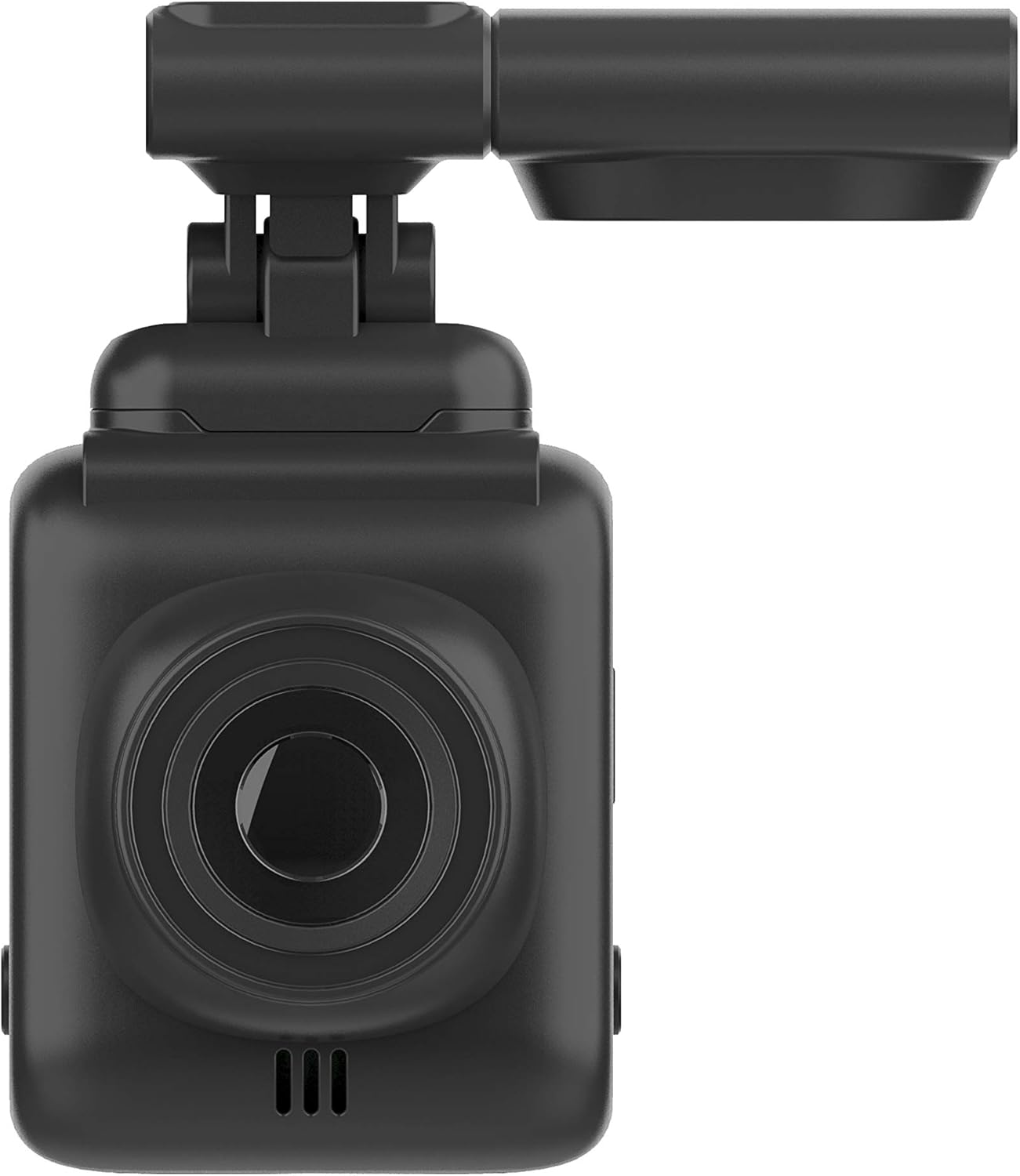
Imagine: față view of the Dash Patrol DC2, highlighting the camera lens.
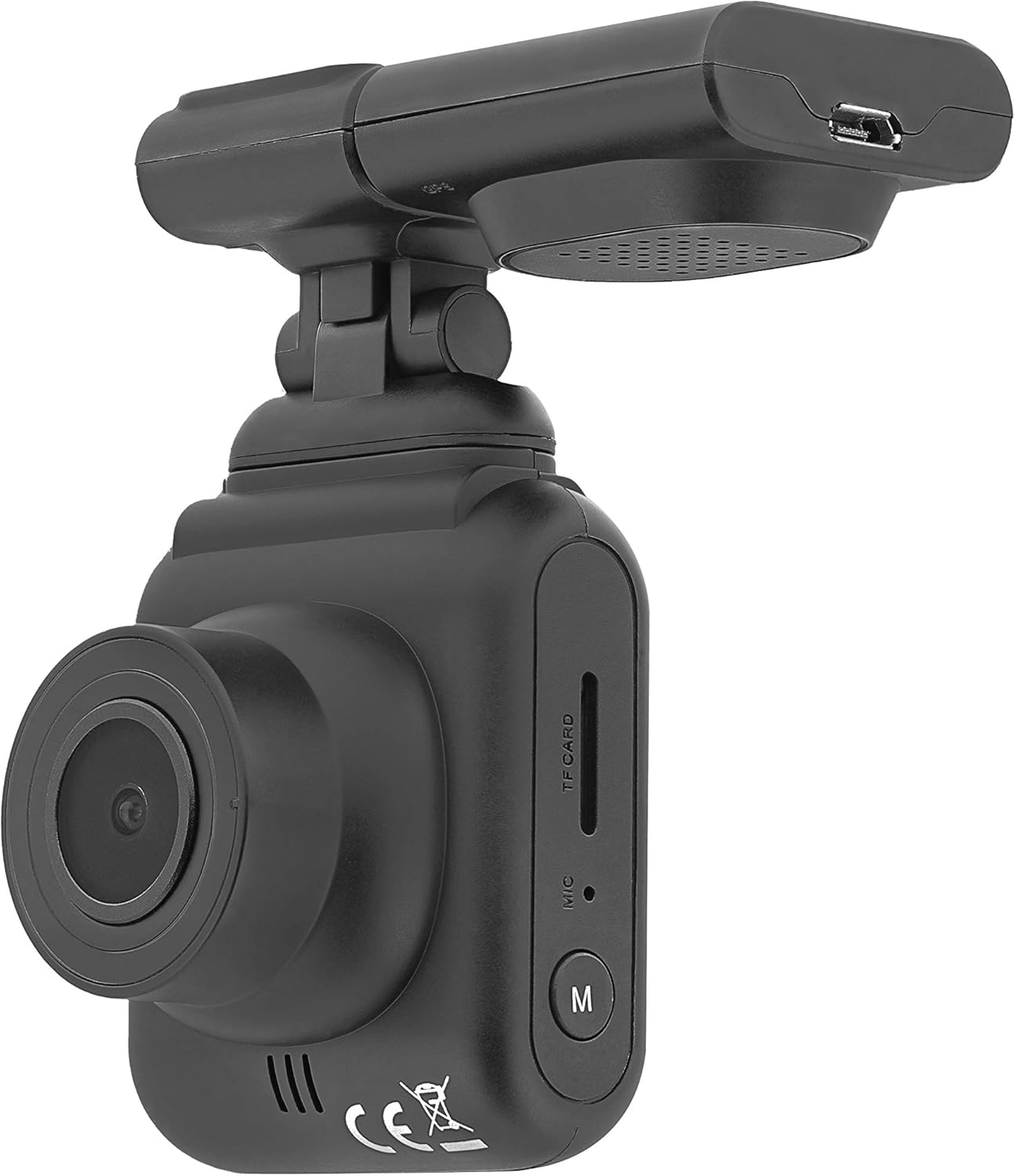
Imagine: Laterală view of the Dash Patrol DC2, showing the TF card slot, microphone, and 'M' button.

Imagine: Spate view of the Dash Patrol DC2, displaying the screen, navigation buttons, USB port, Reset button, and Power button.
Componente cheie:
- Obiectivul camerei: Captează video footage.
- 2.7-inch Display Screen: Pentru viewing live footage, redare și navigare în meniu.
- Slot pentru carduri TF: Insert MicroSD card for storage.
- Microfon: Records audio (can be disabled in settings).
- Butonul „M”: Mode button to switch between video, photo, and playback modes.
- Butoane de navigare (sus/jos): For menu navigation and specific functions.
- Buton OK: Confirmă selecțiile și pornește/oprește înregistrarea.
- Buton de alimentare: Pornește/oprește dispozitivul.
- Buton de resetare: For factory reset (use a thin object to press).
- Port USB: Pentru alimentarea cu energie electrică și transferul de date.
- Magnetic Mount Connector: For attaching the camera to the car mount.
4. Configurare
4.1 Instalarea cardului MicroSD
- Asigurați-vă că camera este oprită.
- Insert a Class 10 or higher MicroSD card (up to 64GB, not included) into the TF card slot until it clicks into place.
- Pentru a scoate cardul, împingeți ușor până când acesta iese.
4.2 Montarea camerei
- Curățați zona de pe parbriz unde intenționați să montați camera.
- Attach the magnetic car mount to the windshield using its adhesive or suction cup. Ensure it does not obstruct your view.
- Align the camera with the magnetic connector on the mount until it securely attaches.
- Reglați unghiul camerei pentru a asigura o imagine clară view a drumului din fata.
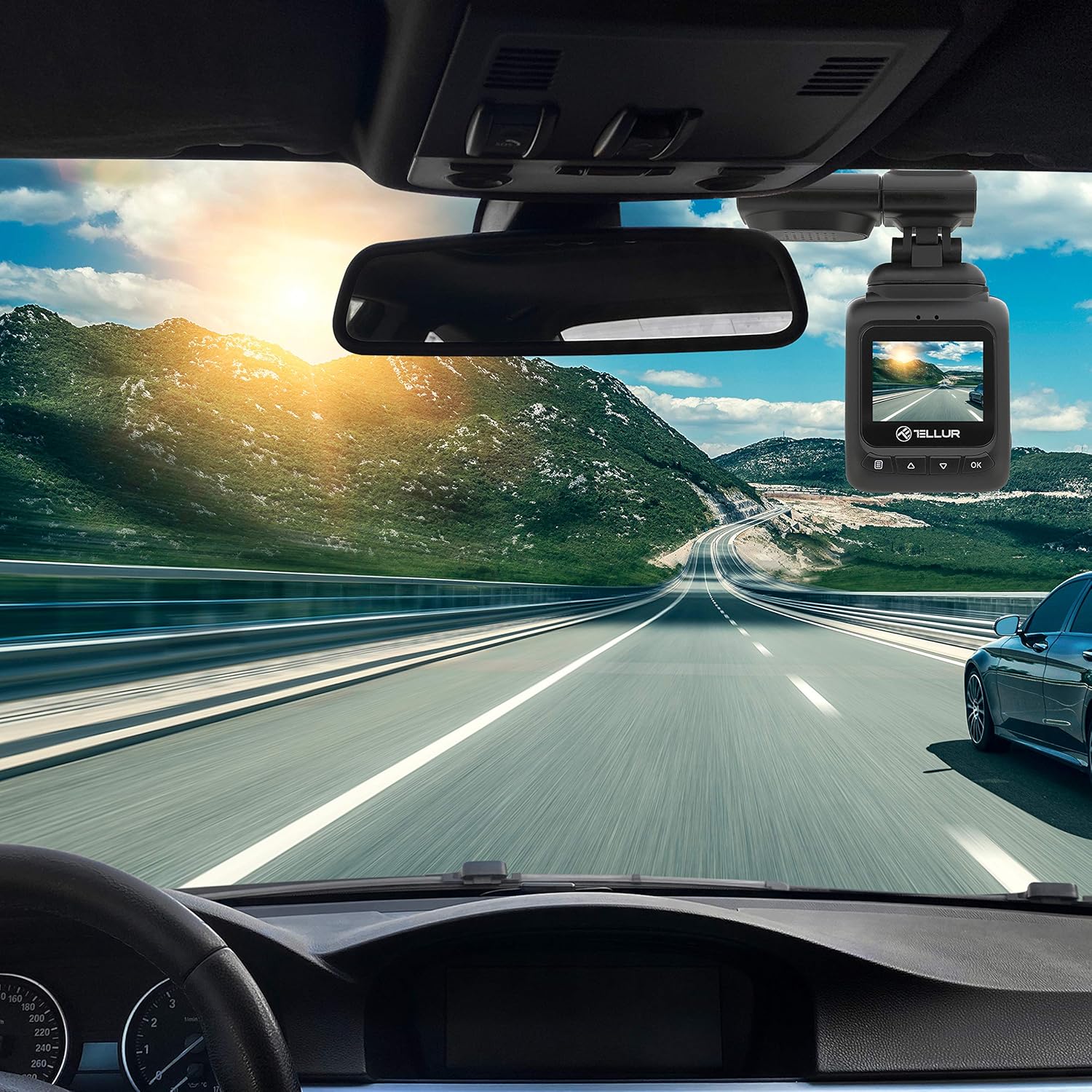
Image: The Dash Patrol DC2 camera mounted on a car windshield, showing its position relative to the rearview mirror for optimal road visibility.
4.3 Alimentarea camerei
- Connect the car charger to your vehicle's 12V power outlet (cigarette lighter socket).
- Connect the other end of the USB cable to the camera's USB port.
- The camera will automatically power on and begin recording when your vehicle starts. It will power off shortly after the vehicle is turned off.
4.4 Setări inițiale
Upon first use, or after a reset, you may need to set the date and time. Navigate through the menu using the Up/Down buttons and confirm with the OK button.
5. Instrucțiuni de utilizare
5.1 Înregistrare de bază
The camera automatically starts loop recording when powered on. Older files are overwritten when the memory card is full, except for locked files.
5.2 G-Sensor (Automatic Incident Detection)
The built-in G-sensor detects sudden impacts or collisions. When an event is detected, the current video segment is automatically locked to prevent it from being overwritten during loop recording.

Image: Illustration of the G-sensor function, showing the camera recording and a lock icon appearing when a collision is detected, indicating the video is protected.
5.3 Parking Monitor Function
When enabled, the parking monitor function allows the camera to automatically record when motion or impact is detected while the vehicle is parked and the engine is off. This provides surveillance even when you are away from your vehicle.

Image: Diagram illustrating the parking monitor function, where the dashcam automatically records when motion is detected around a parked car.
5.4 Funcționalitatea GPS
The integrated GPS module records your vehicle's speed and location data alongside the video footage. Aceste informații pot fi viewed during playback using compatible software on a computer.
5.5 Wi-Fi Connectivity and App
The Dash Patrol DC2 features Wi-Fi connectivity, allowing you to connect to a smartphone app for live view, video playback, and settings adjustment. The compatible app is typically named GoPlus Cam.
- Descărcați GoPlus Cam aplicație din magazinul de aplicații al smartphone-ului tău.
- Turn on the Dashcam.
- Press and hold the 'Down' button on the camera until the Wi-Fi symbol appears on the screen.
- On your smartphone, go to Wi-Fi settings and connect to the camera's Wi-Fi network (SSID usually starts with 'TELLUR' or similar).
- Open the GoPlus Cam app to manage your camera.

Image: Icon for the GoPlus Cam mobile application, used for connecting to the dashcam via Wi-Fi.
6. Întreținere
6.1 Gestionarea cardului MicroSD
- Regularly format the MicroSD card (at least once a month) to ensure optimal performance and prevent data corruption. This can usually be done through the camera's menu settings.
- Replace the MicroSD card if you notice frequent errors or degraded performance.
6.2 Curățare
- Use a soft, dry cloth to clean the camera lens and screen. Avoid abrasive materials or chemical cleaners.
- Keep the camera free from dust and debris.
7. Depanare
If you encounter issues with your Dash Patrol DC2, refer to the following common solutions:
| Problemă | Soluție posibilă |
|---|---|
| Camera nu pornește. |
|
| Camera turns on but screen is white/blank. |
|
| Camera stops recording or records intermittently. |
|
| Probleme cu conexiunea Wi-Fi. |
|
| GPS data not showing speed on screen. |
|
8. Specificații
| Caracteristică | Detaliu |
|---|---|
| Marca | TELLUR |
| Model | TLL711002 |
| Rezoluție captură video | 1080p (FullHD) |
| Dimensiunea ecranului în picioare | 2.7 inchi |
| Real Viewunghiul ing | 140 de grade |
| Tip memorie flash | MicroSD (up to 64GB, Class 10 or higher recommended) |
| Caracteristici speciale | Automatic Incident Detection (G-Sensor), Parking Monitor Function, Built-in GPS, Wi-Fi Connectivity |
| Tip de montare | Dashboard Mount (Magnetic Car Mount) |
| Dimensiunile produsului | 50 x 50 x 28 cm |
| Greutatea articolului | 270 g |
9. Garanție și asistență
For warranty information or technical support, please refer to the documentation provided with your purchase or visit the official TELLUR webPăstrați dovada achiziției pentru orice reclamații în garanție.