
1. Introducere
This manual provides essential instructions for the safe and efficient operation of your CAIWEI Android TV Projector 4K, Model 900DAB-05F. Please read this manual thoroughly before using the projector and retain it for future reference. This projector features Android 9.0 OS, native 1080P resolution with 4K support, dual-band WiFi, Bluetooth connectivity, and advanced keystone correction.
2. Conținutul pachetului
Verificați dacă toate articolele sunt prezente în colet:
- CAIWEI Android TV Projector
- Telecomanda (baterii nu sunt incluse)
- Cablu de alimentare
- Cablu HDMI
- Cablu AV
- Manual de utilizare
3. Instrucțiuni de siguranță
- Do not block the ventilation openings of the projector. Ensure adequate airflow to prevent overheating.
- Avoid direct exposure to the projector lens light.
- Nu așezați proiectorul pe suprafețe instabile.
- Nu lăsați proiectorul să intre în contact cu apă sau alte lichide.
- Folosiți doar adaptorul de alimentare furnizat împreună cu proiectorul.
- Deconectați proiectorul în timpul furtunilor cu fulgere sau când nu este utilizat pentru perioade lungi de timp.
4. Produs terminatview
Familiarize yourself with the main components and ports of your CAIWEI projector.
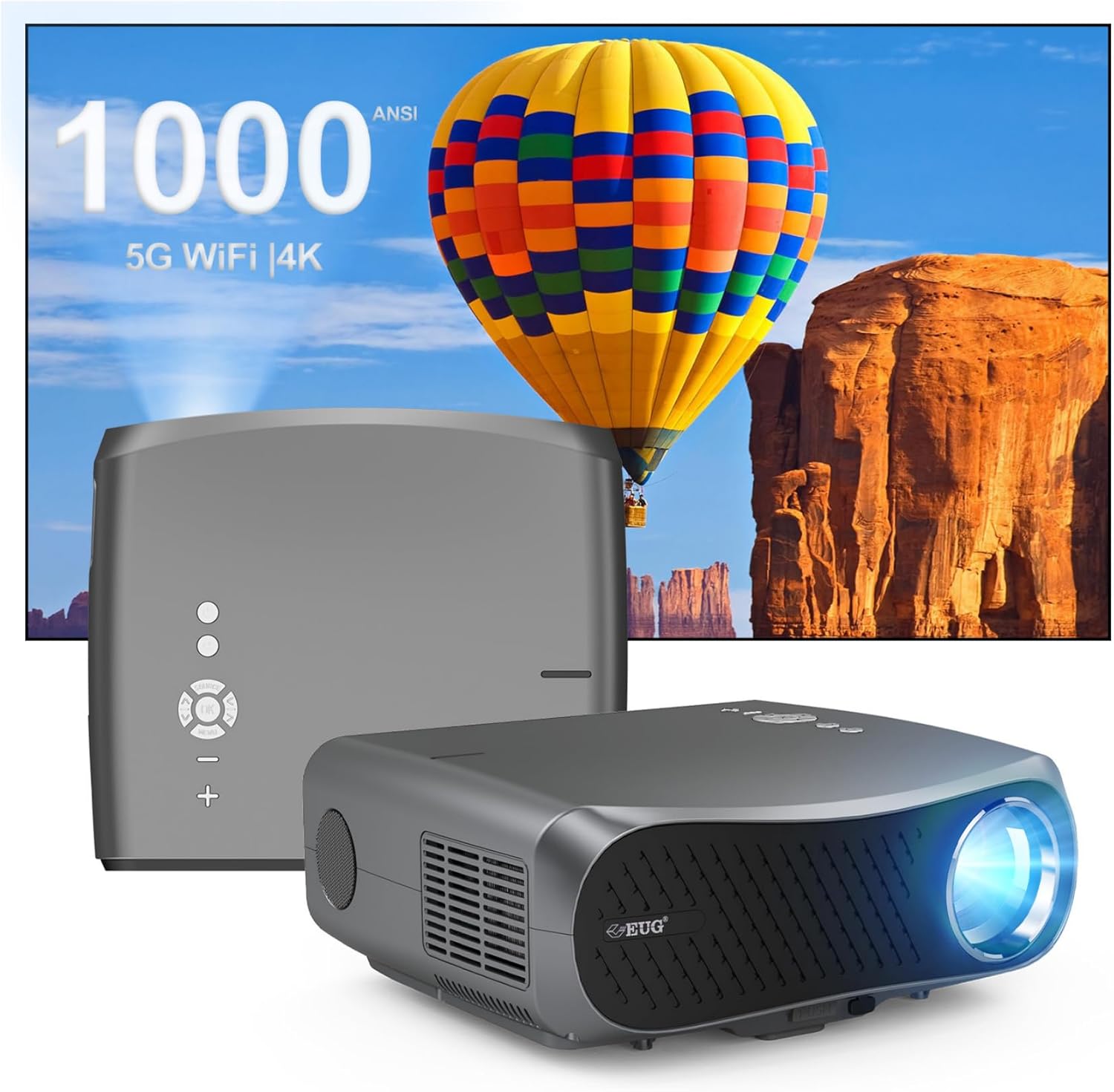
Imaginea 1: Față și spate view of the CAIWEI Android TV Projector, highlighting its compact design and control panel.
The projector features a lens at the front, control buttons on the top, and various input/output ports on the rear and sides, including HDMI, USB, VGA, and AV ports for versatile connectivity.
5. Configurare
5.1 Plasarea
Position the projector on a flat, stable surface or mount it to a ceiling or tripod. Ensure the lens is perpendicular to the projection surface for optimal image geometry. The projector supports various installation methods including front, rear, ceiling front, and ceiling rear projection.

Image 2: Illustration of flexible projector placement options, including ceiling mount, tripod table, and desktop setup, for various viewing medii.
5.2 Conexiune la alimentare
Conectați cablul de alimentare la intrarea de alimentare a proiectorului și apoi la o priză de curent.
5.3 Pornirea inițială
Press the power button on the projector or the remote control to turn on the device. The projector will boot into the Android TV interface.
5.4 Reglarea focalizării și a trapezului
Adjust the focus ring on the projector lens until the image is clear. Use the digital keystone correction feature to correct trapezoidal distortion if the projector is not perfectly aligned with the screen. The projector supports D ±50° keystone correction and 40% digital zoom.

Image 3: Visual representation of the projector's screen adjustment capabilities, including Auto Keystone, Digital Zoom (100%-60%), and Electronic 4D/4P Keystone Correction for optimal image display.
6. Instrucțiuni de utilizare
6.1 Navigație cu sistemul de operare Android 9.0
Use the remote control to navigate the Android 9.0 operating system. The home screen provides access to pre-installed applications and settings. You can download additional applications from the integrated app store.

Image 4: The projector's interface powered by Android TV 9.0, showcasing a wide array of streaming and entertainment applications available.
6.2 Conexiune Wi-Fi
Pentru a vă conecta la o rețea fără fir:
- Du-te la Setări pe ecranul de start.
- Selecta Rețea și Internet.
- Porniți Wifi și selectați rețeaua dorită din listă.
- Introduceți parola dacă vi se solicită și conectați-vă.
The projector supports dual-band 5G WiFi for faster and more stable connections.
6.3 Conexiune Bluetooth
To connect Bluetooth devices (e.g., speakers, headphones):
- Du-te la Setări.
- Selecta Dispozitive conectate or Bluetooth.
- Porniți Bluetooth și căutați dispozitivele disponibile.
- Selectați dispozitivul din listă pentru a-l asocia.
6.4 Conectarea dispozitivelor externe
Proiectorul oferă mai multe opțiuni de intrare:
- HDMI: Connect Blu-ray players, game consoles, laptops, etc.
- USB: Redați conținut media filedirect de pe unități USB.
- VGA: Connect older computers.
- DE: Connect legacy video devices.
Select the appropriate input source from the projector's menu.
6.5 Oglindire/Transmitere ecran
Utilize the 5G WiFi connectivity to mirror content from your smartphone or laptop to the projector screen. Refer to your device's casting instructions for specific steps.

Image 5: The projector demonstrating connectivity with a smartphone via 5G WiFi for screen mirroring and a Bluetooth speaker for enhanced audio, illustrating its versatile wireless capabilities.
7. Întreținere
- Curățarea lentilei: Folosiți o lavetă moale, fără scame, special concepută pentru lentile optice. Nu utilizați produse de curățare abrazive.
- Curățarea C-uluiasing: Ștergeți exteriorul proiectorului cu o lavetă moale și uscată.
- Ventilare: Regularly check that the ventilation openings are clear of dust and debris. Use compressed air if necessary.
- Depozitare: When not in use, store the projector in a cool, dry place, protected from dust and extreme temperatures.
8. Depanare
Dacă întâmpinați probleme cu proiectorul, consultați următoarele probleme și soluții frecvente:
- Fără putere:
• Ensure the power cable is securely connected to both the projector and the power outlet.
• Check if the power outlet is functional. - Fără imagine/semnal:
• Verify that the correct input source is selected on the projector.
• Check the HDMI/VGA/AV cable connections to the external device and the projector.
• Ensure the external device is powered on and outputting a signal. - Imaginea este neclară:
• Adjust the focus ring on the projector lens.
• Ensure the projection surface is flat and the projector is at an appropriate distance. - Imaginea este distorsionată (formă trapezoidală):
• Use the digital keystone correction feature in the projector settings to adjust the image geometry. - Supraîncălzire și oprire automată:
• Ensure the projector's ventilation openings are not blocked. Provide ample space around the projector for airflow.
• Operate the projector in a well-ventilated room with a suitable ambient temperature. - Probleme de conectivitate Wi-Fi/Bluetooth:
• Ensure the Wi-Fi network is active and within range. Re-enter the password if necessary.
• For Bluetooth, ensure the device is in pairing mode and within range.
• Restart the projector and the external device. - Fără sunet:
• Verificați setările de volum atât pe proiector, cât și pe dispozitivul sursă conectat.
• Dacă folosiți difuzoare externe, asigurați-vă că sunt conectate și pornite corect.
• If connecting via HDMI, ensure the source device is sending audio. - HDMI ARC/HDCP Compatibility:
• Note that this projector may not fully support HDMI ARC (Audio Return Channel) or certain HDCP (High-bandwidth Digital Content Protection) versions (e.g., HDCP 2.2) with some receivers. If connecting via a receiver, try connecting devices directly to the projector or using alternative audio output methods.
9. Specificații
| Caracteristică | Detaliu |
|---|---|
| Marca | CAIWEI |
| Numărul de model | 900DAB-05F |
| Sistem de operare | OS Android 9.0 |
| Rezoluția afișajului | Native 1920 x 1080 (Supports 4K decoding) |
| Tehnologia de conectivitate | Bluetooth, Dual-Band WiFi (2.4G/5G), HDMI, USB, VGA, AV, Audio Out |
| Caracteristici speciale | Built-In Speaker, Digital Keystone Correction (D ±50°), 40% Digital Zoom |
| Dimensiunile produsului | 12.4 x 9.33 x 5.31 inci |
| Greutatea articolului | 9.98 lire sterline |
| Culoare | Sliver Gray |
| Utilizări recomandate | Home Entertainment, Gaming, Presentations |
10. Garanție și asistență
Your CAIWEI projector comes with a standard manufacturer's warranty. Please refer to the warranty card included in your package for specific terms and conditions. For technical support, troubleshooting assistance, or warranty claims, please contact CAIWEI customer service through the contact information provided with your purchase or on the official CAIWEI website-ul.