
1. Introducere
The OWC Mercury Elite Pro is a high-performance external hard drive enclosure designed for 3.5-inch SATA drives, offering versatile connectivity and robust data storage solutions. This manual provides essential information for setting up, operating, maintaining, and troubleshooting your device.
Caracteristici cheie:
- Top Tier Performance: Achieve real-world data transfer speeds of 252MB/s, ideal for professional video editing, backups, and data storage.
- Compatibilitate versatilă: Compatible with Mac, Windows, and Linux systems, as well as PlayStation, Xbox, and Smart TVs.
- Conectivitate rapidă: Features USB 3.2 Gen 1 Type-B for up to 5Gb/s transfer speeds and supports both USB-C (Thunderbolt) and USB-A connections.
- Opțiuni flexibile de configurare: Position vertically using the included stand or horizontally with non-skid feet. Multiple units can be stacked for expanded storage.
2. Configurare
2.1 Ce se află în cutie
- OWC Mercury Elite Pro External Storage Solution
- USB 3.2 (5Gb/s) Type-B to Type-A Cable
- Sursă de alimentare externă
- US Power Cable
- Ghid de pornire rapidă
- Manual de asamblare și ghid de utilizare
- Adaptor AC
2.2 Instalarea unității
- Asigurați-vă că carcasa este oprită și deconectată de la computer.
- Consultați instrucțiunile incluse Manual de asamblare și ghid de utilizare for detailed instructions on opening the enclosure and securely installing your 3.5-inch SATA drive.
- Once the drive is installed, close the enclosure according to the manual.
2.3 Conectarea la computer
- Connect the external power supply to the enclosure's power input and then to a power outlet.
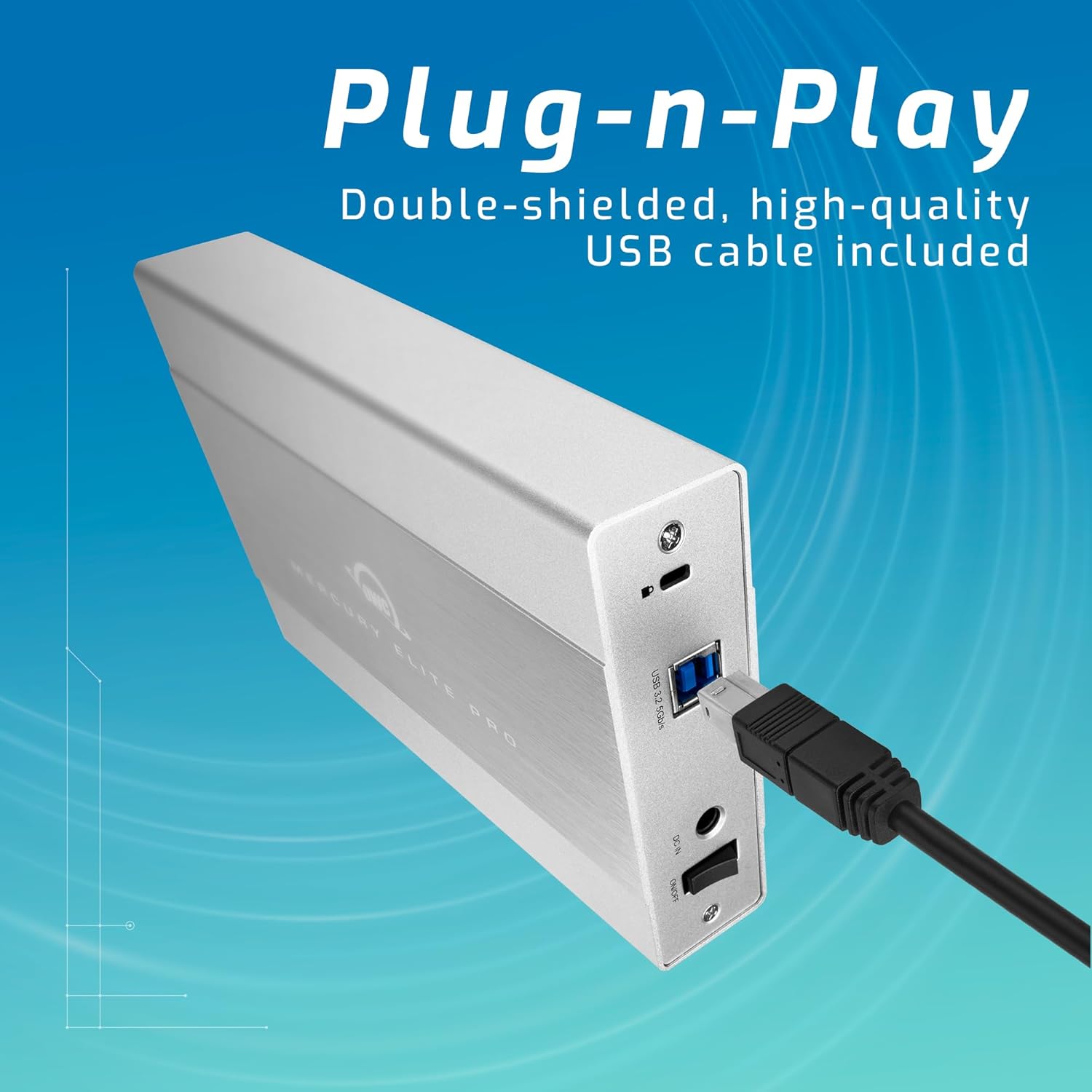
- Connect one end of the USB 3.2 Type-B to Type-A cable to the enclosure and the other end to an available USB-A port on your computer. For USB-C/Thunderbolt connections, use an appropriate adapter or cable (not included unless specified).
- Power on the OWC Mercury Elite Pro enclosure. The device should be recognized by your operating system.
3. Operare
3.1 Compatibilitate
The OWC Mercury Elite Pro is compatible with a wide range of operating systems and devices:
- Mac (macOS)
- Windows
- Linux
- PlayStation (PS4, PS5)
- Xbox
- Televizoare inteligente

3.2 Transfer de date și performanță
The enclosure supports USB 3.2 Gen 1 (5Gb/s) for fast data transfer. Actual speeds may vary based on the installed drive, system configuration, and data type. It is designed to achieve real-world data transfer speeds of up to 252MB/s.
3.3 Plasare flexibilă
The OWC Mercury Elite Pro can be positioned either vertically using the included stand or horizontally using its non-skid feet. This allows for optimal placement in your workspace. Multiple units can be stacked for efficient use of space when expanding your storage.

4. Întreținere
4.1 Disiparea căldurii
The aluminum enclosure acts as a large heat sink, helping to keep the internal hard drive cool during operation. This passive cooling design minimizes thermal throttling and ensures stable performance.
4.2 Curățare
To maintain optimal performance, periodically clean the exterior of the enclosure with a soft, dry cloth. Ensure that the ventilation areas are free from dust and debris. For internal cleaning or drive replacement, refer to the Manual de asamblare și ghid de utilizare.
5. Depanare
- Dispozitiv nerecunoscut: Ensure all cables (USB and power) are securely connected. Try connecting to a different USB port or computer to rule out port-specific issues. Verify the drive is properly seated within the enclosure.
- Performanță lentă: Check that your computer's USB port supports USB 3.2 Gen 1 (5Gb/s) or Thunderbolt for optimal speeds. Ensure the internal hard drive is functioning correctly. Large file transfers or intensive tasks can sometimes cause temporary slowdowns.
- Frequent Disconnects: Ensure the power adapter is providing stable power. Check the USB cable for damage and try a different cable if necessary. Ensure the enclosure is placed on a stable surface.
- Drive Noise: While the enclosure is designed for quiet operation, some mechanical hard drives may produce audible noise during activity. If the noise is excessive or unusual, consult the hard drive manufacturer's documentation.
6. Specificații
| Caracteristică | Detaliu |
|---|---|
| Marca | OWC |
| Serie | Mercury Elite Pro |
| Numărul de model | ME3NH7T02 |
| Capacitate hard disk | Hard disk mecanic de 2 TB |
| Interfață pentru hard disk | Serial ATA-600 |
| Tehnologia de conectivitate | USB |
| Interfață USB | USB 3.2 Gen 1 Type-B (5Gb/s) |
| Dispozitive compatibile | Mac, Windows, Linux, Gaming Consoles, Smart TVs |
| Platformă hardware | Mac |
| Greutatea articolului | 2.97 lire sterline |
| Dimensiunile produsului | 7.7 x 1.4 x 4.6 inci |
| Culoare | Negru |
| Caracteristica specială | Lumină LED |
7. Garanție și asistență
The OWC Mercury Elite Pro External Storage Solution includes a 3-Year OWC Limited Warranty. For technical support, warranty claims, or additional assistance, please refer to the contact information provided in your Quick Start Guide or visit the official OWC website-ul.