
Introducere
The Homcloud Mini 8S Wi-Fi Camera is designed to enhance your home security with smart, intuitive features. This camera allows you to monitor, program, and automate your home devices directly from your smartphone, providing control from anywhere. It integrates seamlessly into your smart home ecosystem, offering convenience and peace of mind.
Caracteristicile cheie includ:
- Full HD 1080p Video Recording
- Viziune nocturnă de până la 10 metri
- Motion Detection with Live Notifications
- Two-Way Audio and Noise Reduction
- Opțiuni de stocare pe card SD și în cloud
- Conectivitate Wi-Fi
- Compatibility with Homcloud App, Amazon Alexa, and Google Home

Image: The Homcloud Mini 8S Wi-Fi Camera on a desk, highlighting its key features such as HD Video, Night Vision, SD Card & Cloud storage, Motion Detection, and Live Notifications.
Componentele produsului
The Homcloud Mini 8S Wi-Fi Camera package typically includes the following items:
- Homcloud Mini 8S Wi-Fi Camera
- Cablu de alimentare USB
- Adaptor de alimentare (poate varia în funcție de regiune)
- Mounting Accessories (for wall mounting)
- Manual de utilizare (acest document)

Image: The Homcloud Mini 8S Wi-Fi Camera positioned on a desk, demonstrating its compact design and typical indoor placement.
Ghid de instalare
Follow these steps to set up your Homcloud Mini 8S Wi-Fi Camera:
- Download the Homcloud App: Caută "Homcloud" in the Apple App Store or Google Play Store, or scan the QR code below to download the official application.
- Creați un cont: Open the Homcloud app and register for a new account or log in if you already have one.
- Porniți camera: Connect the camera to a power source using the provided USB cable and power adapter. Wait for the indicator light to flash, indicating it's ready for pairing.
- Adăugați dispozitiv: In the Homcloud app, tap the "+" icon (usually in the top right corner) to add a new device. Select "Security Camera" or "Smart Camera" from the device list.
- Conectați-vă la Wi-Fi: Follow the in-app instructions to connect the camera to your 2.4GHz Wi-Fi network. You may need to scan a QR code displayed on your phone screen with the camera lens.
- Plasare: Position the camera in your desired location. It supports standalone placement or wall mounting. Ensure it has a clear view a zonei pe care doriți să o monitorizați.

Image: Multiple smartphones displaying the Homcloud application interface, along with the Homcloud logo and a QR code for easy app download. The QR code links to https://smartapp.tuya.com/homcloudsmart.
Instrucțiuni de operare
Once your Homcloud Mini 8S Wi-Fi Camera is set up, you can control and monitor it using the Homcloud app:
- Trăi View: Deschide aplicația și selectează camera pentru a view live video feed in Full HD 1080p resolution.
- Audio bidirecțional: Use the microphone and speaker icons in the app to communicate with people near the camera.
- Vedere de noapte: Camera comută automat la modul de vedere nocturnă în condiții de lumină slabă, oferind filmări clare alb-negru de până la 10 metri.
- Detectarea mișcării: Enable motion detection in the app settings to receive instant notifications on your smartphone when movement is detected. You can adjust sensitivity levels.
- Înregistrare și stocare:
- Card SD: Insert a microSD card (not included) into the camera's slot for local video storage. The camera supports continuous recording or event-triggered recording.
- Stocare în cloud: Subscribe to Homcloud's cloud storage service (if available) for secure off-site video backup.
- Integrare Smart Home: Connect your Homcloud account with Amazon Alexa or Google Home to control the camera using voice commands (e.g., "Alexa, show me the living room camera").
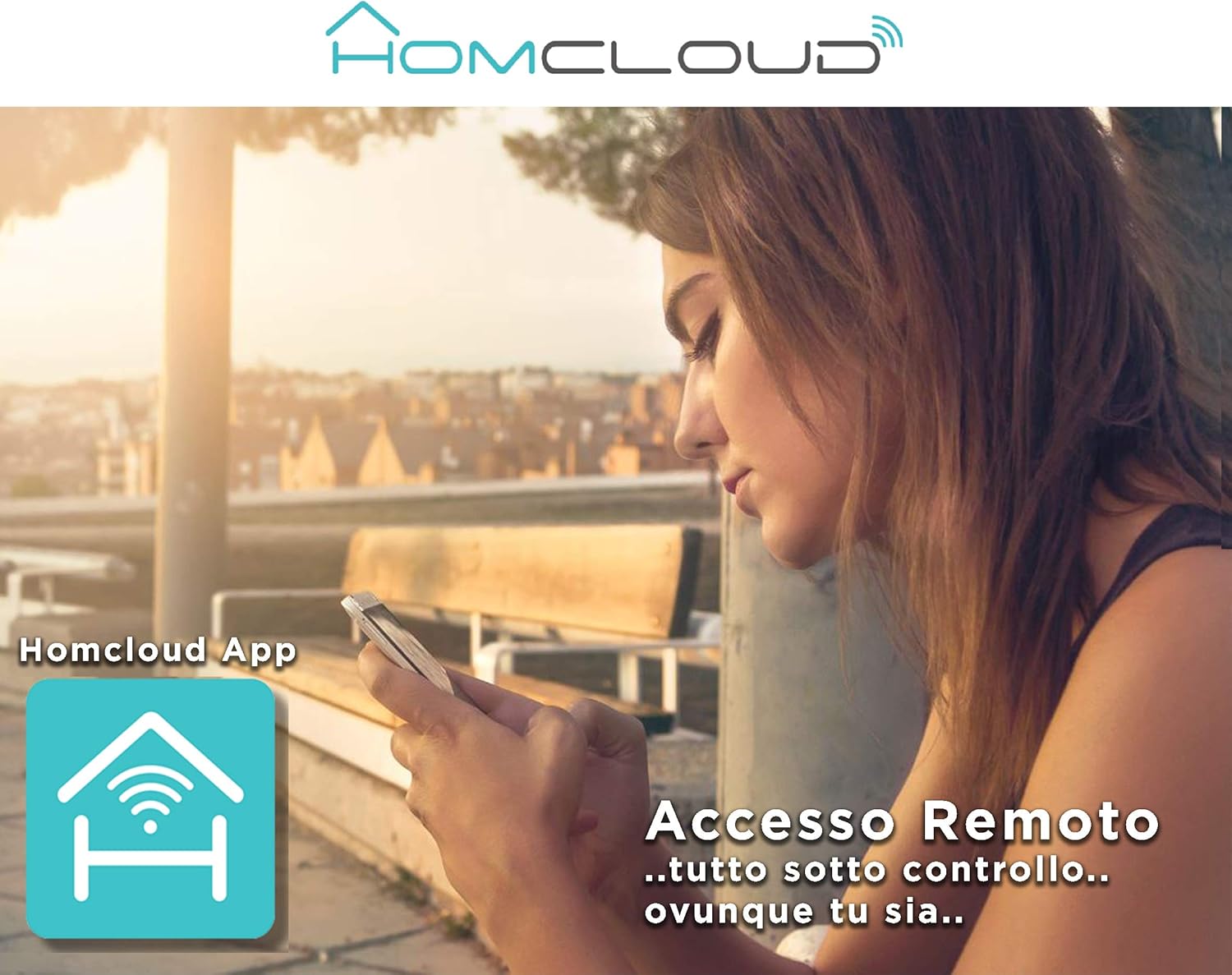
Image: A woman using her smartphone, illustrating the remote access capabilities of the Homcloud App to control and monitor the camera from any location.

Image: A family enjoying their smart home, demonstrating the integration of Homcloud solutions with Amazon Alexa and Google Assistant for convenient control.
Întreţinere
Întreținerea corespunzătoare asigură longevitatea și performanța optimă a camerei dumneavoastră:
- curatenie: Gently wipe the camera lens and body with a soft, dry cloth. Avoid using harsh chemicals or abrasive materials that could scratch the lens or damage the casing.
- Actualizări firmware: Regularly check the Homcloud app for available firmware updates. Keeping your camera's firmware up-to-date ensures you have the latest features, security patches, and performance improvements.
- Alimentare electrică: Use only the original power adapter and cable provided with the camera. Ensure the power connection is secure and free from damage.
- Mediu: The camera is designed for indoor use. Avoid exposing it to extreme temperatures, direct sunlight, high humidity, or water. While it is listed as "waterproof" in some specifications, this typically refers to splash resistance and not full submersion or outdoor exposure.
Depanare
If you encounter issues with your Homcloud Mini 8S Wi-Fi Camera, refer to the following common solutions:
- Aparat foto offline:
- Check if the camera is powered on and the power cable is securely connected.
- Ensure your Wi-Fi router is working and the internet connection is stable.
- Reporniți camera deconectând-o și reconectând-o.
- Verify that the camera is within range of your Wi-Fi router.
- If the issue persists, try re-pairing the camera with the Homcloud app.
- Calitate video slabă:
- Curăţaţi obiectivul camerei cu o cârpă moale.
- Ensure adequate lighting in the monitored area, especially for color video.
- Verifică puterea semnalului Wi-Fi; un semnal slab poate afecta calitatea streamingului.
- Detectarea mișcării nu funcționează:
- Verify that motion detection is enabled in the Homcloud app settings for your camera.
- Reglați sensibilitatea detectării mișcării.
- Asigurați-vă că nu există obstacole care blochează camera view.
- Nu se poate conecta la aplicație:
- Make sure your smartphone is connected to a 2.4GHz Wi-Fi network during the pairing process.
- Confirm that you are entering the correct Wi-Fi password.
- Reset the camera (refer to the app or product for specific reset instructions, usually a small button) and try the pairing process again.
Specificații
| Caracteristică | Detaliu |
|---|---|
| Marca | Homcloud |
| Numărul de model | TY-WCM8S |
| Rezoluție de înregistrare video | Full HD 1080p |
| Rezoluție video eficientă | 1080 |
| Frame Rate | 25 fps |
| Tehnologia comunicațiilor fără fir | Wifi |
| Protocol de conectivitate | Wifi |
| Viewunghiul ing | 100 de grade |
| Gama de vedere nocturnă | 10 metri |
| Caracteristici speciale | Two-Way Audio, Noise Reduction, HD Resolution, Night Vision |
| Utilizare recomandată | Securitate interioară |
| Utilizare în interior/exterior | De interior |
| Dispozitive compatibile | Homcloud App, Amazon Alexa, Android, Google Home, Smart Life, iOS |
| Sursa de alimentare | Cablu electric |
| Voltage | 5 volți |
| Consumul de energie | 2.5 wați |
| Material | Plastic |
| Dimensiuni (L x l x H) | 8 x 5 x 9 cm |
| Greutate | 350 grame |
| Tip de montare | Montare pe perete |
| Nivel de rezistență la apă | Waterproof (Note: Typically splash resistant for indoor use) |
Garanție și suport
For warranty information, please refer to the documentation provided at the time of purchase or visit the official Homcloud website. If you require technical assistance or have questions not covered in this manual, please contact Homcloud customer support through their official channels.
You can find more information and support resources on the Homcloud website or through the Homcloud application.