
TERIOS T-12
TERIOS Mobile Game Controller User Manual
Model: T-12
Introducere
Welcome to your new TERIOS Mobile Game Controller. This manual provides detailed instructions for setup, operation, and maintenance to ensure optimal performance and an enhanced gaming experience across various platforms including Android smartphones, Windows PCs, and PlayStation 3 consoles. Please read this manual thoroughly before using the device.
Caracteristici cheie
- Innovative Gaming: Designed to enrich your mobile gaming experience with precision and responsiveness.
- Compatibilitate largă: Connects via Bluetooth 4.0 to Android smartphones, and is compatible with Windows PC and PlayStation 3. Supports popular games like PUBG, Call of Duty, and Mobile Legends.
- Gaming Joysticks: Features dual analog sticks for comprehensive and precise control.
- Design ergonomic: Comfortable grip with an integrated smartphone holder for extended gaming sessions.
- Funcția Turbo: Allows for rapid, continuous input with a single button press.
- Responsive Active Buttons: Includes 2 quick access buttons on the back and numerous action buttons for enhanced accuracy.
- Durată lungă de viață a bateriei: Up to 12 hours of continuous play on a single charge.
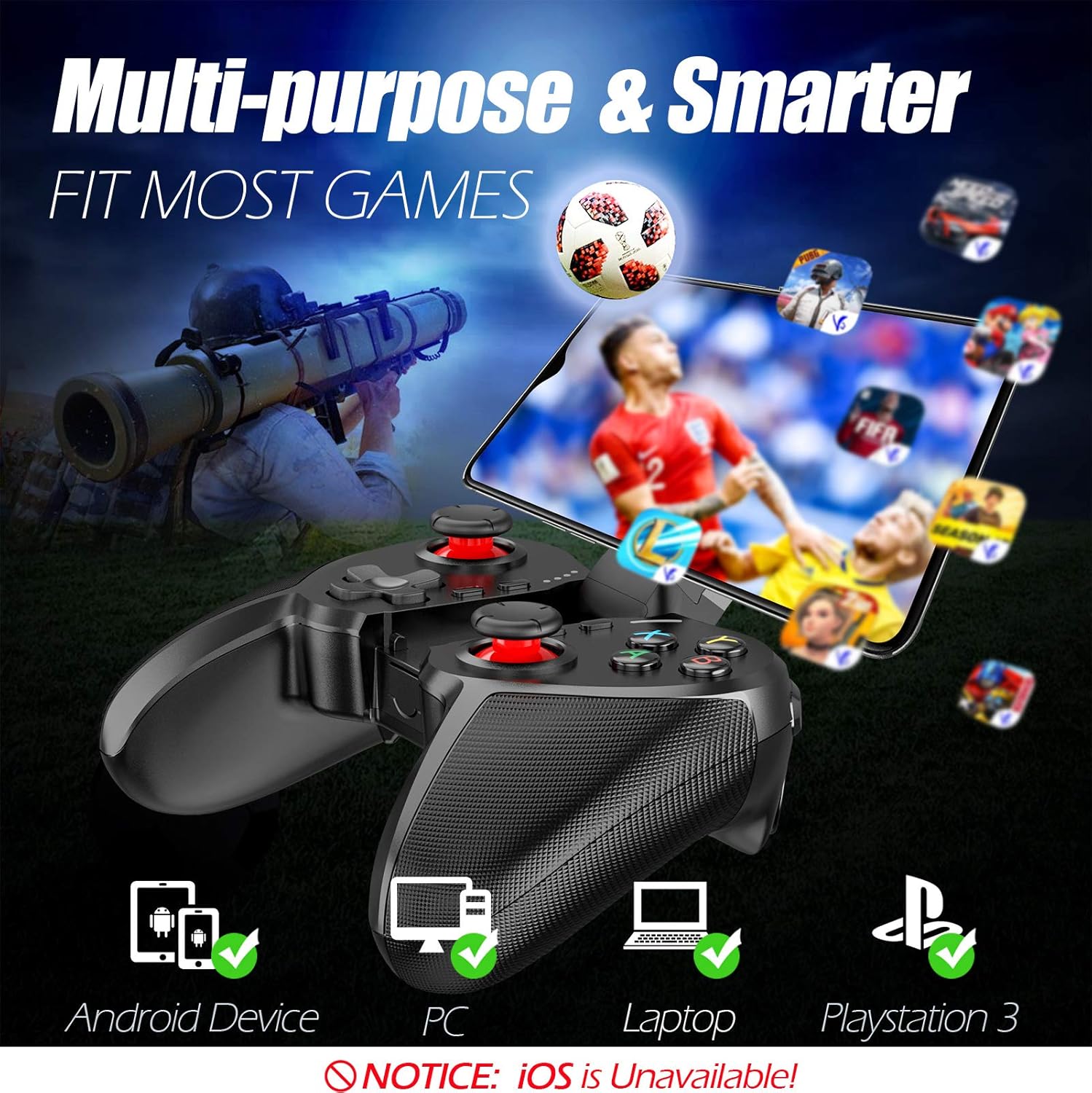
Figure 1: The TERIOS controller is compatible with Android devices, PCs, Laptops, and PlayStation 3.

Figure 2: Detail of the controller's built-in smartphone bracket, accurate buttons, and comfortable soft rubber grips.
Configurare și conectare
1. Încărcarea controlerului
Before first use, fully charge the controller. Connect the provided Micro USB cable to the controller's charging port and the other end to a USB power source (e.g., computer USB port, USB wall adapter). The indicator lights will show charging status and turn off when fully charged.

Figure 3: The controller features a 400mAh battery, providing 12-14 hours of playtime with a 2-3 hour charging time.
2. Pornire/Oprire
- Pentru a porni: Țineți apăsat butonul ACASĂ button for 2 seconds. The indicator lights will flash.
- Pentru a opri: Țineți apăsat butonul ACASĂ button for 5 seconds until the indicator lights turn off. The controller will automatically power off after 5 minutes of inactivity.
3. Bluetooth Pairing (Android Smartphones / PS3)
- Asigurați-vă că controlerul este oprit.
- On your Android smartphone or PS3, enable Bluetooth.
- Țineți apăsat butonul ACASĂ button on the controller until the indicator lights flash rapidly, indicating pairing mode.
- On your device, search for new Bluetooth devices. Select "TERIOS Gamepad" or similar from the list.
- După conectare, indicatorul luminos va deveni continuu.
4. Conexiune PC
For PC connection, the controller typically uses a USB dongle (often included). Insert the USB dongle into an available USB port on your PC. The controller should automatically connect. If not, press the ACASĂ button to initiate connection.
5. Initial Setup and App (V3 App)
For optimal customization and compatibility with certain mobile games, it is recommended to download the V3 app from the Google Play Store. This app allows you to map virtual keys on your screen to the physical buttons of the controller.
- Download the "V3" app from the Google Play Store.
- Connect the TERIOS gamepad to your smartphone via Bluetooth.
- Open the V3 app and follow the on-screen instructions to customize key mappings for your desired games.

Figure 4: The V3 app allows for easy customization of virtual keys to match controller buttons, creating more combinations.
Instrucțiuni de operare
1. Aranjamentul și funcțiile butoanelor

Figure 5: The TERIOS Mobile Game Controller with a smartphone securely mounted in its integrated holder.
- Stick analogic stâng: Controlul mișcării primare.
- Stick analogic drept: Camera control or secondary movement.
- D-Pad (D-Pad direcțional): Intrare direcțională precisă.
- Butoane ABXY: Standard action buttons (A, B, X, Y).
- L1/L2, R1/R2 Buttons: Butoane de umăr și de declanșare pentru diverse acțiuni în joc.
- Buton SELECT: De obicei folosit pentru navigarea în meniu sau pentru funcții specifice jocului.
- Butonul de start: De obicei, folosit pentru întreruperea jocurilor sau accesarea meniurilor.
- Butonul HOME: Powers on/off, enters pairing mode, and returns to home screen on some devices.
- Butonul TURBO: Activates the turbo function for other buttons.
- Buton CLEAR: Deactivates the turbo function.

Figure 6: The dual analog sticks are designed for precise control and execution in games.
2. Funcția Turbo
The Turbo function allows a button to be pressed repeatedly as long as you hold it down, which is useful for rapid-fire actions in games.
- A activa: Țineți apăsat butonul TURBO button, then press the desired action button (e.g., A, B, X, Y, L1, R1). Release both buttons. Now, holding down the action button will activate turbo fire.
- A dezactiva: Țineți apăsat butonul CLAR button, then press the action button for which turbo was activated. Release both buttons.

Figure 7: The dedicated Turbo button enables rapid-fire functionality with one click.
3. Smartphone Holder Usage
The integrated smartphone holder can accommodate most smartphone sizes. Gently extend the holder and place your smartphone securely within the clamps. Ensure the phone is centered for balance.
Întreţinere
- curatenie: Folosiți o lavetă moale și uscată pentru a curăța controlerul. Nu utilizați substanțe de curățare abrazive sau solvenți.
- Depozitare: Depozitați controlerul într-un loc răcoros și uscat, ferit de lumina directă a soarelui și de temperaturi extreme.
- Îngrijirea bateriei: Pentru a prelungi durata de viață a bateriei, evitați descărcarea completă frecventă a controlerului. Încărcați-l regulat, chiar dacă nu îl utilizați pentru perioade lungi de timp.
Depanare
| Emisiune | Cauza posibila | Soluţie |
|---|---|---|
| Controller not connecting via Bluetooth. | Controller not in pairing mode; device Bluetooth off; interference. | Ensure controller is in pairing mode (rapid flashing lights). Check device Bluetooth settings. Move closer to the device. Try restarting both controller and device. |
| Buttons are unresponsive or delayed. | Low battery; software glitch; interference. | Charge the controller fully. Restart the controller. Ensure no other strong wireless signals are nearby. For mobile games, check V3 app settings. |
| Controlerul se deconectează frecvent. | Low battery; too far from device; interference. | Charge the controller. Stay within the recommended Bluetooth range. Minimize wireless interference. |
| Funcția turbo nu funcționează. | Incorrect activation sequence; button not supported. | Ensure you press and hold TURBO, then press the desired action button, then release both. Some games or buttons may not fully support turbo. |
Specificațiile produsului
| Caracteristică | Detaliu |
|---|---|
| Marca | TERIOS |
| Model | T-12 |
| Tehnologia de conectivitate | Bluetooth 4.0 |
| Dispozitive compatibile | Android Smartphones, Windows PC, PlayStation 3 |
| Sursa de alimentare | Alimentat cu baterii (litiu-polimer) |
| Capacitatea bateriei | 400mAh (approx. 1.48 Watt Hours) |
| Timp de joacă | Până la 12-14 ore |
| Timp de încărcare | 2-3 ore |
| Numărul de butoane | 16 (including ABXY, D-pad, analog sticks, L/R triggers/bumpers, Select, Start, Home, Turbo, Clear) |
| Caracteristici speciale | Turbo Function, Dual Analog Sticks, In-built Smartphone Holder, Responsive Action Buttons |
| Dimensiuni (pachet) | 17 x 12.4 x 7.7 cm |
| Greutate (pachet) | 310 g |
Informații despre garanție și asistență
The TERIOS Mobile Game Controller is designed for durability and performance. For any product-related inquiries, technical support, or warranty claims, please refer to the contact information provided with your purchase or visit the official TERIOS support website. Vă rugăm să păstrați dovada achiziției în scopul garanției.
Documente aferenteT-12

Ask a question about this manual
Ask about setup, troubleshooting, compatibility, parts, safety, or missing instructions. Manuals+ will review the question and use this page’s manual context to help answer it.