
Introducere
This manual provides detailed instructions for setting up, operating, and maintaining your HUION KAMVAS Pro 16 Drawing Tablet. Please read this guide thoroughly to ensure proper use and to maximize your creative experience.
Conținutul pachetului
Verificați dacă toate articolele enumerate mai jos sunt incluse în pachetul dumneavoastră:
- HUION KAMVAS Pro 16 Pen Display
- Stilou digital PW507
- Cablu 3-în-1
- Adaptor de alimentare
- Foldable Stand ST200
- Pen Holder PH05 (with 10 replacement nibs inside)
- Clip cu penita
- Mănușă
- Laveta de curatare
- Ghid de pornire rapidă

Imagine: A visual representation of all items included in the HUION KAMVAS Pro 16 package, neatly arranged on a surface. This includes the pen display, stylus, various cables, stand, pen holder, nibs, glove, and cleaning cloth.
Ghid de instalare
1. Connecting the Pen Display
The KAMVAS Pro 16 connects to your computer using the provided 3-in-1 USB-C cable. This cable handles power, video (HDMI signal), and data transfer.
- Connect the USB-C end of the 3-in-1 cable to the USB-C port on the side of the Kamvas Pro 16.
- Connect the HDMI and USB-A ends of the 3-in-1 cable to the corresponding ports on your computer.
- Connect the power adapter to the power port on the 3-in-1 cable and then plug it into a power outlet.

Imagine: An illustration showing the HUION KAMVAS Pro 16 connected to a laptop using the 3-in-1 USB-C cable. The cable branches into HDMI, USB-A, and a power adapter, demonstrating the connection points on both the tablet and the computer.
Video: This video demonstrates the connection process for the Huion Pen display, showing how to properly connect the cables to the tablet and computer for initial setup.
2. Instalarea driverului
For the pen display to function correctly, you must install the latest drivers from the official HUION website-ul.
- Vizitați pagina oficială HUION website: www.huion.com
- Navigate to the "Support" section and then click "Download".
- Select "Kamvas Pro 16" as your product model, choose your operating system (Windows, macOS, or Linux), and select "Driver" as the category.
- Download the latest driver and follow the on-screen instructions to complete the installation.
- Reporniți computerul după instalare, dacă vi se solicită.
3. Adjustable Stand Setup
The included ST200 foldable stand allows you to adjust the viewing angle of your Kamvas Pro 16 for comfortable use. Adjust the stand to your preferred angle between 20 and 60 degrees to reduce strain on your neck, shoulders, and back.

Imagine: A user demonstrating the adjustable foldable desk stand (ST200) for the HUION KAMVAS Pro 16, showing different angles at which the tablet can be positioned for ergonomic comfort during use.
Instrucțiuni de operare
1. Pen Features and Customization
The Digital Pen PW507 is battery-free and offers 8192 levels of pressure sensitivity with 60° tilt recognition, providing a natural drawing experience.
- Sensibilitate la presiune: The pen detects 8192 levels of pressure, allowing for varied line thickness and opacity based on how hard you press.
- Recunoaștere înclinare: Supports 60° tilt, enabling brush strokes to mimic traditional art tools.
- Butoane programabile: The pen features two side buttons that can be customized to perform various functions (e.g., right-click, eraser, undo) within the driver software.
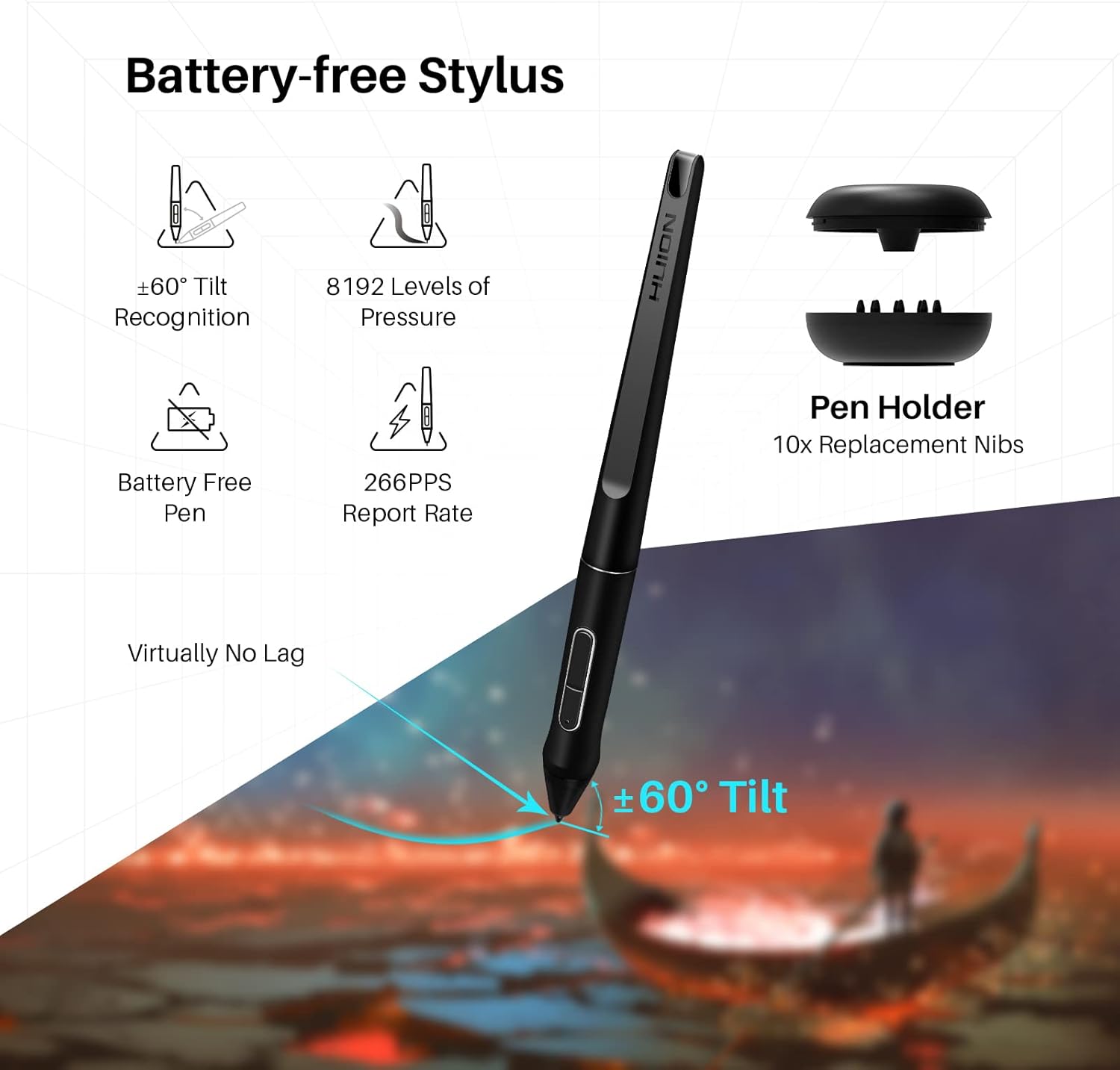
Imagine: Un detaliat view of the battery-free Digital Pen PW507, highlighting its features such as ±60° tilt recognition, 8192 levels of pressure, 266PPS report rate, and virtually no lag. The image also shows the pen holder with replacement nibs.
2. Express Keys and Touch Bar
The Kamvas Pro 16 is equipped with 6 customizable express keys and a touch bar to streamline your workflow.
- Chei expres: Assign frequently used shortcuts (e.g., zoom in/out, brush size adjustment, undo/redo) to these keys via the HUION driver software.
- TouchBar: The touch bar can be configured for functions like zooming, scrolling, or adjusting brush size, offering quick and intuitive control.

Imagine: A close-up of the HUION KAMVAS Pro 16 showing the 6 customizable express keys and the touch bar on the side. Labels indicate their functions and the OSD function key.
3. Caracteristici de afișare
The 15.6-inch full-laminated screen with anti-glare glass provides outstanding visuals and a comfortable drawing surface.
- Anti-Glare Glass: Reduce reflexiile și strălucirea, îmbunătățind vizibilitatea în diverse condiții de iluminare.
- Full Lamination: Minimizes parallax between the pen tip and the cursor, making the drawing experience more precise and natural.
- Gama de culori: Features 120% sRGB (92% AdobeRGB) color gamut volume and 1000:1 contrast ratio for vibrant and accurate colors.

Imagine: A visual comparison demonstrating the effect of anti-glare glass on the HUION KAMVAS Pro 16, showing how it reduces reflections compared to normal glass. Icons also highlight full-laminated technology, more sensitive pen, and higher transparency.

Imagine: The HUION KAMVAS Pro 16 display showcasing its wide gamut colors with a vibrant image. Icons indicate 120% sRGB Gamut, 16.7 Million Display Colors, 5080 LPI Pen Resolution, and 178° Viewing Angle.
Video: This video provides an introduction to the anti-glare glass feature of the Huion Kamvas Pro 16, demonstrating its benefits in reducing reflections and improving visual clarity.
4. Compatibilitate
The Kamvas Pro 16 is compatible with a wide range of operating systems and creative software:
- Sisteme de operare: Windows 7 or later, macOS 10.12 or later, and Linux (Ubuntu).
- Software: Compatible with major creative software such as Adobe Photoshop, Clip Studio Paint, SAI, Lightroom, and more.
Întreţinere
- curatenie: Folosește laveta de curățare furnizată pentru a șterge ușor ecranul și corpul tabletei. Evită utilizarea substanțelor chimice dure sau a materialelor abrazive.
- Penițe pentru stilou: Replace pen nibs when they show signs of wear to maintain optimal drawing performance. Use the nib clip to easily remove and insert new nibs from the pen holder.
- Depozitare: When not in use, store the tablet in a safe place to prevent scratches or damage.
Depanare
- Fără afișaj/semnal: Ensure all cables (HDMI, USB, Power) are securely connected. Check your computer's display settings to ensure the tablet is detected and configured correctly.
- Stiloul nu funcționează: Verify that the driver is correctly installed and updated. Check the pen's settings in the HUION driver software. Ensure the pen nib is properly inserted.
- Probleme cu driverul: If experiencing driver-related problems, uninstall the current driver, restart your computer, and then install the latest driver from the official HUION website-ul.
- Probleme de calibrare: Recalibrate the screen and pen in the HUION driver software if the cursor does not align with the pen tip.
Specificatii tehnice
| Caracteristică | Detaliu |
|---|---|
| Marca | HUION |
| Numele modelului | Kamvas Pro 16 |
| Dimensiunea ecranului | 15.6 inci |
| Rezoluție nativă | 1920x1080 |
| Tip de afișare | LCD |
| Sensibilitate la presiune | 8192 niveluri |
| Recunoașterea înclinării | Suport pentru înclinare la 60° |
| Tehnologia de conectivitate | USB (3-in-1 Cable) |
| Compatibilitatea sistemelor de operare | Windows 7+, macOS 10.12+, Linux (Ubuntu) |
| Caracteristici speciale | Anti-Glare Glass, Full Lamination, Programmable Press Keys |
| Greutatea articolului | 3 lire sterline |
| Dimensiuni articol (L x l) | 9.88" L x 17.24" l |
| Suprafață activă | 344.16 x 193.59 mm |

Imagine: Un de sus în jos view of the HUION KAMVAS Pro 16 with its length (17.24") and width (9.88") clearly labeled, providing a visual reference for its physical dimensions.
Garanție și suport
For warranty information, technical support, or to access additional resources, please visit the official HUION website-ul sau contactați serviciul pentru clienți.
- Oficial Website: www.huion.com
- Pagina de asistență: Find FAQs, troubleshooting guides, and contact information on the support section of the website-ul.