
1. Informații importante privind siguranța
Please read all safety instructions carefully before using your monitor. Keep this manual for future reference.
- Nu așezați monitorul pe un cărucior instabil, suport, trepied, suport sau masă.
- Asigurați o ventilație adecvată în jurul monitorului. Nu blocați orificiile de ventilație.
- Folosiți doar cablul de alimentare și adaptorul furnizate împreună cu monitorul.
- Avoid exposing the monitor to rain or moisture to prevent fire or electric shock.
- Nu deschideți monitorul casing. Apelați la personal de service calificat pentru toate lucrările de service.
- Deconectați monitorul de la priza de perete în timpul furtunilor cu fulgere sau când nu este utilizat pentru perioade lungi de timp.
2. Conținutul pachetului
Verificați dacă toate articolele sunt prezente în pachetul produsului:
- Samsung LC27F396FHNXZA 27-Inch Curved Monitor
- Stand de bază
- Stand Gât
- Power Adapter and Power Cable (1.5 m)
- Cablu HDMI
- Ghid de instalare rapidă
- Card de garanție
3. Configurare
3.1 Asamblarea standului
- Așezați cu grijă monitorul cu fața în jos pe o cârpă moale și curată pentru a preveni zgârieturile.
- Atașați gâtul suportului în spatele monitorului până când se fixează în poziție cu un clic.
- Connect the stand base to the stand neck by aligning the tabs and tightening the screw at the bottom of the base.

3.2 Cabluri de conectare
Asigurați-vă că monitorul și computerul sunt oprite înainte de a conecta orice cabluri.
- Cablu de alimentare: Connect the power adapter to the monitor's power input, then plug the power cable into the adapter and a wall outlet.
- Cablu video (HDMI sau VGA): Connect one end of the HDMI or VGA cable to the corresponding port on your computer's graphics card and the other end to the HDMI or VGA input on the monitor. Ensure cables are tightened securely.
- Cablu audio (opțional): If you wish to use external speakers or headphones, connect a 3.5mm audio cable from your computer's audio output to the monitor's 3.5mm audio input.
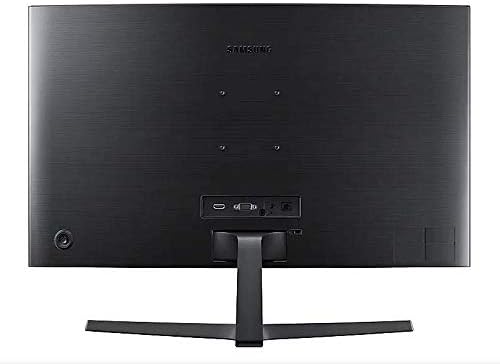
3.3 Pornire
După conectarea tuturor cablurilor necesare, porniți computerul, apoi apăsați butonul de alimentare de pe monitor. Monitorul ar trebui să detecteze automat semnalul de intrare.
4. Operarea monitorului
4.1 Basic Functions and OSD Menu
The monitor features a single joystick button located on the back for navigating the On-Screen Display (OSD) menu. Press the joystick to open the OSD menu, then move it up/down/left/right to select and adjust settings.
4.2 Setări imagine
Adjust picture quality settings via the OSD menu:
- Luminozitate/Contrast: Adjust these to your preferred viewniveluri de ing.
- Rezoluţie: The optimal resolution for this monitor is 1920 x 1080 (FHD 1080p).
- Raport de aspect: Set to 16:9 for widescreen content.
- MagicBright: Select from various preset modes (e.g., Standard, Cinema, Dynamic Contrast) for optimized viewing medii.
- Active Crystal Color: Enhances color reproduction for a more vibrant display.

4.3 AMD FreeSync and Game Mode
This monitor supports AMD FreeSync technology, which synchronizes the screen refresh rate with your graphics card's frame rate to reduce input latency and minimize image tearing and stutter during gaming. Enable FreeSync through the OSD menu for a smoother gaming experience.

4.4 Curved Display Benefits
The 1800R curvature of this monitor is designed to match the natural curve of the human eye, providing a more immersive viewing experience. This curvature helps to reduce peripheral distractions and enhances depth perception, drawing you deeper into your content.

5. Întreținere
5.1 Curăţarea monitorului
- Deconectați întotdeauna monitorul înainte de curățare.
- Utilizați ușor o cârpă moale, fără scame dampcurățate cu apă sau cu o soluție specializată de curățare a ecranelor.
- Nu pulverizați soluția de curățare direct pe ecran.
- Evitați utilizarea detergenților abrazivi, ceară sau solvenți.
5.2 Depozitare
When storing the monitor for an extended period, ensure it is kept in a cool, dry place, preferably in its original packaging to protect it from dust and physical damage.
6. Depanare
Dacă întâmpinați probleme cu monitorul, consultați următorii pași comuni de depanare:
| Problemă | Soluție posibilă |
|---|---|
| Fără putere | Ensure the power cable is securely connected to the monitor, power adapter, and wall outlet. Check if the wall outlet is functioning. |
| Fără semnal / Ecran gol | Verify that the video cable (HDMI/VGA) is firmly connected to both the monitor and the computer. Try a different video input source on the monitor if available. Ensure the computer is powered on and not in sleep mode. |
| Imagine distorsionată / Rezoluție incorectă | Adjust the display resolution on your computer to 1920 x 1080. Check the video cable for damage. |
| Screen Tearing / Stuttering (during gaming) | Ensure AMD FreeSync is enabled in the monitor's OSD menu and your graphics card settings. |
| Monitor does not wake up from sleep | Try unplugging and replugging the monitor's power cable. Check your computer's power management settings. |
7. Specificații
| Caracteristică | Detaliu |
|---|---|
| Numărul de model | LC27F396FHNXZA |
| Dimensiunea ecranului | 27 inchi |
| Rezoluţie | 1920 x 1080 (FHD 1080p) |
| Raportul de aspect | 16:9 |
| Curbura ecranului | 1800R |
| Tip panou | VA |
| Timp de răspuns | 4 de milisecunde |
| Rata de reîmprospătare | 60 Hz |
| Conectivitate | 1x HDMI, 1x VGA, 1x 3.5mm Audio Out |
| Tehnologia Adaptive Sync | AMD FreeSync |
| Consumul de energie | 25 Watts (Typical) |
| Dimensiuni (cu suport) | 62.28 x 24.26 x 46.61 cm (24.5" x 9.6" x 18.4") |
| Greutate (cu suport) | 4.1 kg (9.04 livre) |
| Tip de montare | Montabil pe perete |
8. Garanție și asistență
8.1 Garanția producătorului
This Samsung monitor is covered by a Garanție de 1 ani de la producător de la data achiziției. Vă rugăm să păstrați dovada achiziției pentru reclamațiile în garanție. Garanția acoperă defectele de materiale și de fabricație în condiții normale de utilizare.
8.2 Asistență pentru clienți
For technical assistance, troubleshooting, or warranty service, please contact Samsung Customer Support. You can find contact information on the official Samsung website pentru regiunea dvs.
Informații de contact ale producătorului: Mississauga, ON L5M 9Z9, CA
Pentru mai multe informații, vizitați oficialul Samsung Canada Support website-ul.


