
COMTREND PG-9172PT-KIT
Manual de utilizare pentru adaptorul Ethernet Comtrend PG-9172PT-KIT G.hn Powerline
Model: PG-9172PT-KIT
1. Introducere
The Comtrend PG-9172PT-KIT G.hn Powerline Ethernet Adapter transforms your standard electrical outlets into a high-speed wired network connection. This kit provides a reliable internet connection, extending network access to areas where Wi-Fi signals may be weak or inconsistent. It is an ideal solution for applications requiring stable bandwidth, such as online gaming, high-definition streaming, and home office setups.
2. Conținutul pachetului
Verificați dacă toate articolele sunt prezente în colet:
- 2 x Comtrend G.hn Powerline Adapters (PG-9172PT)
- 1 x cablu Ethernet RJ-45
- 1 x Ghid de instalare rapidă
3. Produs terminatview
Each Comtrend PG-9172PT adapter features a compact design with a pass-through electrical outlet and essential indicators for easy monitoring.

Figure 1: Two Comtrend PG-9172PT G.hn Powerline Ethernet Adapters included in the kit.
3.1 Panoul frontal
The front panel includes the pass-through electrical outlet and LED indicators.

Figura 2: Față view of a single Comtrend PG-9172PT Powerline Adapter, showing the pass-through outlet and LED indicators.
- Priză de trecere: Allows you to plug in another electrical device, ensuring the power outlet remains available.
- LED de alimentare: Indică starea de alimentare a adaptorului.
- LED-uri Powerline: Indicates the status of the powerline connection. A solid light typically means a stable connection.
- LED Ethernet: Indicates the status of the Ethernet connection to a device.
3.2 Panoul inferior
The bottom panel houses the Ethernet port.

Figura 3: De jos view of the Comtrend PG-9172PT Powerline Adapter, highlighting the Ethernet port.
- Port Ethernet: Connects to your router, computer, gaming console, or other network-enabled devices using an RJ-45 Ethernet cable.
3.3 Panou lateral
The side panel features the Security/Reset button.
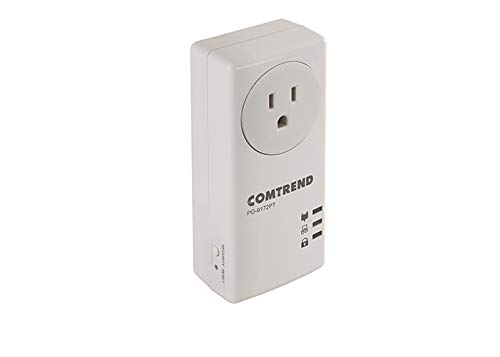
Figura 4: lateral view of the Comtrend PG-9172PT Powerline Adapter, showing the Security/Reset button.
- Security/Reset Button: Used for establishing a secure powerline network or resetting the device to factory defaults.
4. Configurare și instalare
The Comtrend PG-9172PT-KIT is designed for easy plug-and-play setup. Follow these steps to establish your powerline network:
- Conectați primul adaptor: Plug one PG-9172PT adapter directly into a wall electrical outlet near your internet router. Avoid using surge protectors or power strips, as they can interfere with powerline performance.
- Conectați-vă la router: Use an Ethernet cable to connect the Ethernet port on this adapter to an available LAN port on your internet router.
- Conectați al doilea adaptor: Plug the second PG-9172PT adapter directly into a wall electrical outlet in the room where you need network access. Again, avoid surge protectors or power strips.
- Conectați-vă la dispozitiv: Use an Ethernet cable to connect the Ethernet port on this second adapter to your computer, smart TV, gaming console, or other network-enabled device.
- Verificați conexiunea: Wait a few moments for the adapters to establish a connection. The Powerline LED on both adapters should turn solid, indicating a successful connection. The Ethernet LED should also light up when connected to a device.
- Secure Network (Optional): To enhance security, press the Security/Reset button on one adapter for 1-2 seconds, then within two minutes, press the Security/Reset button on the other adapter for 1-2 seconds. The Powerline LEDs will flash during this process and then turn solid when a secure connection is established.
Note: Performance may vary based on home wiring and electrical conditions. For optimal performance, plug adapters directly into wall outlets.
5. Instrucțiuni de utilizare
Once installed, the Comtrend G.hn Powerline Ethernet Adapters operate automatically. They extend your network by transmitting data over your home's electrical wiring. Any device connected via Ethernet to an adapter will have network access.
- G.hn Technology: This technology optimizes bandwidth efficiency, which can improve video quality and reduce lag for online activities.
- Priză de trecere: The integrated pass-through outlet allows you to continue using the electrical socket for other devices without compromising the powerline connection.
6. Întreținere
To ensure the longevity and optimal performance of your Comtrend Powerline Ethernet Adapters, consider the following:
- Keep the adapters clean and free from dust. Use a soft, dry cloth for cleaning.
- Avoid placing the adapters in direct sunlight or in areas with high humidity or extreme temperatures.
- Do not block the ventilation holes on the adapters.
- Always plug the adapters directly into a wall outlet. Avoid power strips, extension cords, or surge protectors, as these can degrade performance.
7. Depanare
If you encounter issues with your Comtrend Powerline Ethernet Adapters, refer to the following common solutions:
- No Powerline Connection (Powerline LED Off/Flashing):
- Asigurați-vă că ambele adaptoare sunt conectate direct la prizele de perete și pornite.
- Try plugging the adapters into different outlets to rule out issues with a specific electrical circuit.
- Avoid plugging adapters into surge protectors, power strips, or extension cords.
- Ensure the electrical wiring in your home is suitable for powerline communication. Performance can be affected by older or complex wiring.
- Nu există acces la internet pe dispozitivul conectat:
- Verify that the Powerline LED is solid on both adapters.
- Check the Ethernet cable connection between the adapter and your device, and between the first adapter and your router.
- Asigurați-vă că routerul are o conexiune activă la internet.
- Restart your router and both powerline adapters.
- Viteză mică de conectare:
- Performance is highly dependent on electrical wiring conditions. Try moving adapters to outlets on the same electrical circuit if possible.
- Ensure no high-power electrical appliances (e.g., washing machines, refrigerators) are on the same circuit as the adapters, as they can cause interference.
- Avoid using surge protectors or power strips.
- Configuration Issues (Advanced Users):
- The adapters may default to a static IP address (e.g., 192.168.0.5) with DHCP disabled. If you need to access the web interface for advanced configuration, connect a computer directly to one adapter and manually configure your computer's IP address to be on the same subnet (e.g., 192.168.0.10).
- A factory reset will revert all settings, including IP configuration, to their defaults. To perform a factory reset, press and hold the Security/Reset button for more than 10 seconds until the LEDs flash, then release.
8. Specificații
| Caracteristică | Detaliu |
|---|---|
| Numărul de model | PG-9172PT-KIT |
| Marca | COMTREND |
| Interfață hardware | Ethernet |
| Protocol de legătură de date | Ethernet |
| Rata de transfer de date | 1200 de megabiți pe secundă (Mbps) |
| Dimensiunile produsului | 2.25 x 4.85 x 1.45 inci |
| Greutatea articolului | 1.32 lire sterline |
| UPC | 897384000876 |
| Culoare | Alb |
9. Informații despre garanție
Specific warranty details for the Comtrend PG-9172PT-KIT are typically provided with the product packaging or available on the manufacturer's official website. Vă rugăm să consultați aceste resurse pentru termenii și condițiile complete ale garanției.
10. Suport
For further assistance, technical support, or to download the latest firmware and documentation, please visit the official Comtrend website. Support resources often include FAQs, troubleshooting guides, and contact information for customer service.
Ask a question about this manual
Ask about setup, troubleshooting, compatibility, parts, safety, or missing instructions. Manuals+ will review the question and use this page’s manual context to help answer it.