
1. Introducere
The Yealink WPP20 is a wireless presentation pod designed for seamless content sharing in meeting environments. It integrates a self-built 5G Wi-Fi network to facilitate high-quality wireless content sharing with Yealink new-generation video conferencing systems. The WPP20 offers a plug-and-play experience, enabling users to share content with a single tap.
Caracteristicile cheie includ:
- Conectivitate USB 2.0
- 5GHz 802.11ac Wi-Fi Network for stable connection
- Funcționalitate Plug and Play
- Low Latency content sharing
- 1080P30fps Full HD Content Sharing
- Embedded Meeting Assistant Software for conference control
- Support for Windows and macOS operating systems
- Support for Apple AirPlay
- Ability to connect up to 8 devices simultaneously
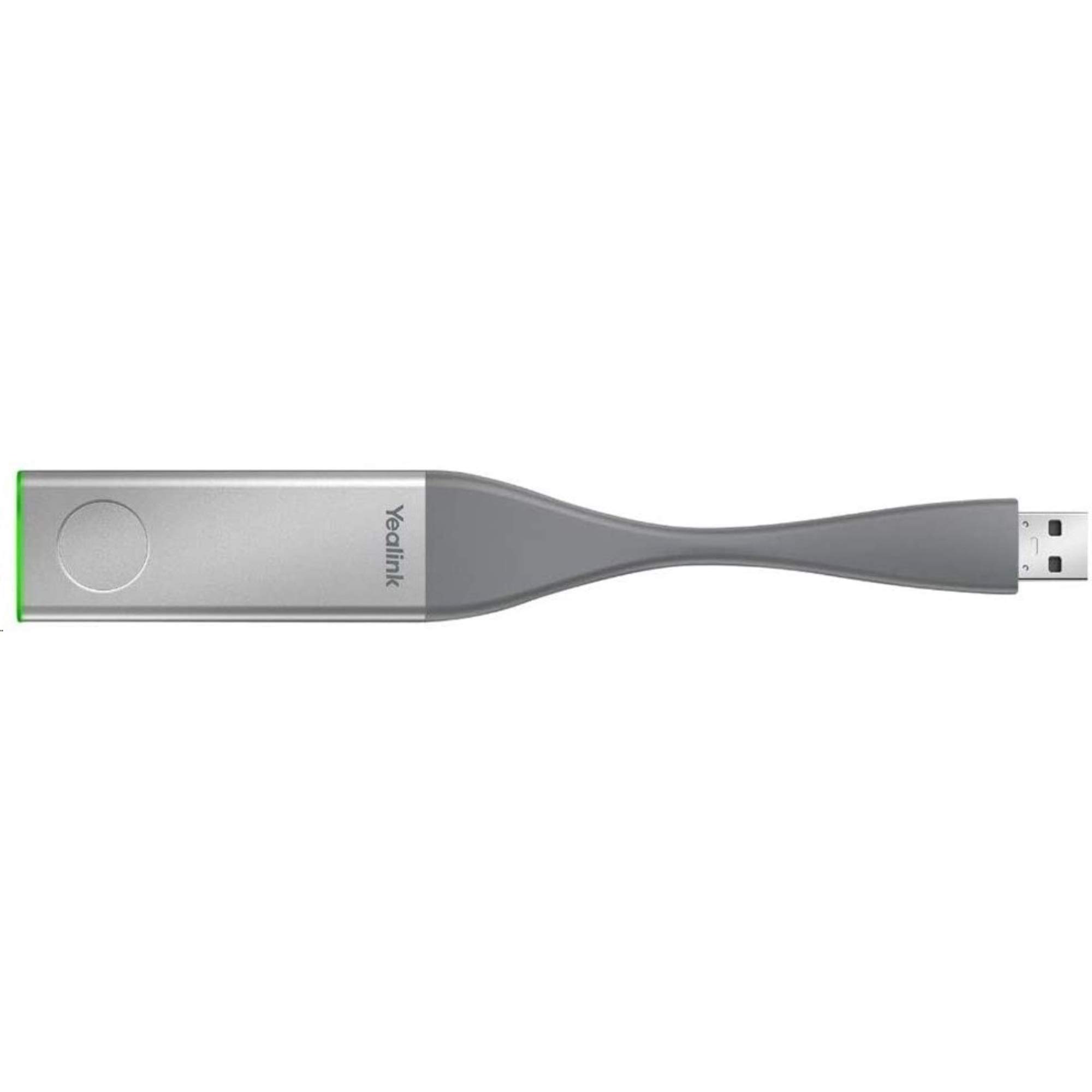
Figure 1: Yealink WPP20 Wireless Presentation Pod
2. Instrucțiuni de configurare
Follow these steps to set up your Yealink WPP20 Wireless Presentation Pod:
- Connect the WPP20: Insert the Yealink WPP20 into an available USB 2.0 port on your computer (desktop or laptop) or directly into a compatible Yealink video conferencing system.
- Lansați software: The WPP20 functions as a USB drive. Open the drive from your computer's file explorer and locate the embedded meeting assistant software. Double-click the executable file pentru a lansa aplicația.
- Stabiliți conexiunea: The software will guide you to connect to the self-built 5G Wi-Fi network provided by the Yealink video conferencing system. Ensure your video conferencing system is powered on and properly configured.
- Ready for Sharing: Once the software indicates a successful connection, the WPP20 is ready for content sharing.

Figure 2: Yealink WPP20 in a typical conference room setup, facilitating content sharing.
3. Instrucțiuni de utilizare
The Yealink WPP20 simplifies content sharing with its intuitive design:
- Initiate Sharing: After successful setup, simply tap the WPP20 device to begin sharing your computer's screen content to the connected Yealink video conferencing system display.
- Opriți partajarea: To stop sharing your content, tap the WPP20 device again. Alternatively, you can use the controls within the embedded meeting assistant software on your computer.
- Multi-Device Collaboration: Up to 8 WPP20 devices can be connected to a single Yealink video conferencing system simultaneously, allowing multiple participants to share content collaboratively. The system will manage the display of shared content.
- Compatibilitate cu sistemul de operare: The WPP20 supports content sharing from devices running Windows (Windows 10 and later) and macOS (Mac OS 12 Monterey and later).
- Apple AirPlay Support: For Apple devices, the WPP20 supports content sharing via Apple AirPlay, providing an additional method for wireless presentation.
4. Întreținere
To ensure the longevity and optimal performance of your Yealink WPP20, observe the following maintenance guidelines:
- curatenie: Use a soft, dry cloth to gently clean the exterior of the WPP20. Avoid using liquid cleaners, aerosols, or solvents, as these can damage the device.
- Conditii de mediu: Store and operate the device in a clean, dry environment. Protect it from extreme temperatures, direct sunlight, and excessive moisture.
- Manipulare fizică: Handle the WPP20 with care. Avoid dropping it or subjecting it to strong impacts, which can damage internal components or the USB connector.
- Actualizări de software: Periodically check the official Yealink support website for any available software or firmware updates for the WPP20. Keeping the software updated can improve performance and add new features.
5. Depanare
If you encounter issues with your Yealink WPP20, refer to the following troubleshooting tips:
- Dispozitiv nerecunoscut:
- Ensure the WPP20 is fully inserted into a functional USB 2.0 port.
- Try connecting the WPP20 to a different USB port on your computer or conferencing system.
- Restart your computer or the Yealink video conferencing system.
- Meeting Assistant Software Not Launching:
- Check if your antivirus software is blocking the executable file. Temporarily disable it and try again (ensure to re-enable afterward).
- Manually browse to the WPP20 drive in your file explorer and attempt to run the application directly.
- Ensure your operating system meets the minimum requirements (Windows 10+, Mac OS 12+).
- No Content Sharing:
- Verify that the WPP20 is successfully connected to the correct 5G Wi-Fi network of the Yealink video conferencing system.
- Ensure the Yealink video conferencing system is powered on and its display is active.
- Confirm that the WPP20's indicator light (if present) shows a connected status.
- Poor Performance or Lagging Content:
- Ensure the WPP20 is within optimal range of the 5G Wi-Fi network.
- Minimize potential interference from other wireless devices operating on the 5GHz band.
- Închideți aplicațiile inutile de pe computer pentru a elibera resurse de sistem.
6. Specificații
| Caracteristică | Detaliu |
|---|---|
| Marca | Yealink |
| Numărul de model | WPP20 |
| Interfață hardware | USB 2.0 |
| Protocol de legătură de date | USB |
| standard wireless | 802.11ac (5 GHz) |
| Dispozitive compatibile | Desktop, Laptop |
| Sisteme de operare compatibile | Windows (Windows 10+), macOS (Mac OS 12 Monterey+) |
| Greutatea articolului | 45 grame |
| Producător | Yealink Network Technology Co., Ltd |
| UPC | 753459334447 |
7. Informații despre garanție
Warranty information for the Yealink WPP20 is not available in the provided product details. For specific warranty terms and conditions, please refer to the official Yealink website or contact your authorized vendor or reseller at the time of purchase.
8. Suport
For further assistance, technical support, or to download the latest software and firmware updates for your Yealink WPP20, please visit the official Yealink support website:
Yealink Official Support Website-ul
You may also contact your authorized Yealink reseller or distributor for local support and service.


