
1. Introducere
This manual provides essential information for the installation, operation, and maintenance of the MADRIX Software 5 Key Start. This software is a professional LED lighting control solution designed to manage complex lighting installations with ease and precision. It offers control over 1,024 DMX channels (2 DMX Universes) and 16,384 DVI voxels, making it suitable for a wide range of applications.
MADRIX is a Windows-based application that functions as both an effect generator and a media server. It supports various industry standards, including DMX512, DVI, Art-Net, and Streaming ACN, ensuring broad compatibility with existing lighting setups.
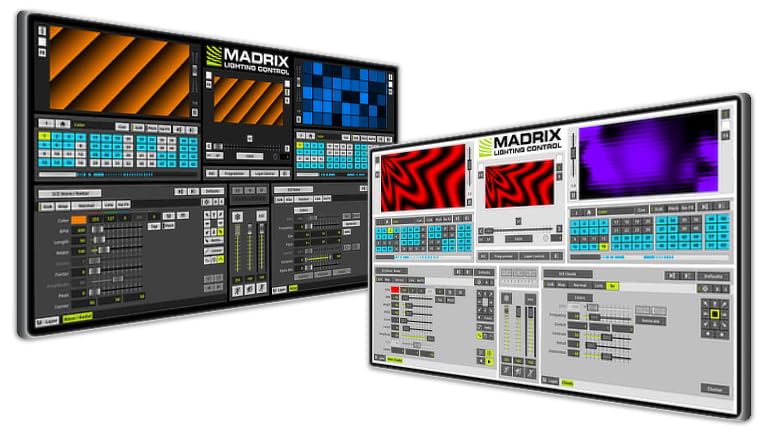
Figure 1: MADRIX Software 5 Key Start USB Dongle. This image shows the physical USB dongle required to activate and use the MADRIX 5 Key Start software.
2. Configurare și instalare
2.1 Cerințe de sistem
- Sistem de operare: Windows 7, 8, 10, or 11 (64-bit recommended)
- Procesor: Dual-core CPU, 2 GHz or faster
- RAM: 4 GB sau mai mult
- Placa grafica: Dedicated graphics card with 1 GB VRAM (NVIDIA or AMD recommended)
- Depozitare: 1 GB spațiu liber pe disc pentru instalare
- Port USB: Available USB 2.0 or 3.0 port for the MADRIX Key
- Reţea: Ethernet port for Art-Net/sACN (optional)
2.2 Instalare software
- Descărcați: Obtain the latest MADRIX 5 software installer from the official MADRIX website-ul.
- Rulați programul de instalare: Faceți dublu clic pe programul de instalare descărcat file și urmați instrucțiunile de pe ecran.
- Cheia de licență: Insert the MADRIX 5 Key Start USB dongle into an available USB port on your computer. The software will detect the key automatically upon launch.
- Instalare driver: Ensure all necessary drivers for your DMX/DVI interfaces are installed correctly.
2.3 Conexiune hardware
Connect your LED fixtures and DMX/DVI interfaces to your computer. MADRIX supports various protocols for output:
- DMX512: Connect DMX interfaces (e.g., MADRIX NEO, MADRIX LUNA) via USB or Ethernet.
- DVI: Connect DVI-controlled LED displays via a DVI output from your graphics card.
- Art-Net/Streaming ACN (sACN): Connect network-enabled DMX nodes or fixtures to your computer's Ethernet port.
Refer to the specific hardware's manual for detailed connection instructions.
3. Instrucțiuni de utilizare
3.1 Software terminatview
Upon launching MADRIX 5, you will be presented with the main interface. Key areas include:
- Matrix Generator: Define your LED layout and pixel mapping.
- Depozitare: Store and organize effects, scenes, and shows.
- Effect Generator: Create and customize visual effects.
- Ieșire: Monitor and control DMX/DVI output.
- MIDI/DMX Input: Configure external control devices.
3.2 Operare de bază
- Create a New Setup: Du-te la "Preferences" > "Device Manager" to configure your DMX/DVI outputs.
- Define Matrix: Utilizați "Matrix Generator" to create a virtual representation of your LED setup. This is crucial for pixel mapping.
- Generate Effects: Navigați la "Effect Generator" section. Select from a variety of built-in effects or create custom ones. Adjust parameters such as speed, color, and intensity.
- Store Scenes: Save your configured effects and settings as scenes in the "Storage" section for quick recall.
- Control ieșire: Ensure your output devices are enabled in the "Device Manager" and that the output is active to send data to your LEDs.
3.3 Caracteristici avansate
- Maparea pixelilor: Map video content or effects directly onto your LED layout, regardless of its physical arrangement.
- Server media: Redați videoclipul files and images as lighting content.
- Control extern: Integrate with DMX/MIDI consoles for live control and automation.
- Scriptare: Utilize scripting capabilities for advanced customization and automation.
4. Întreținere
4.1 Actualizări de software
Regularly check the official MADRIX website for software updates. Updates often include new features, performance improvements, and bug fixes. It is recommended to keep your software up-to-date for optimal performance and compatibility.
4.2 Backup de sistem
Periodically back up your MADRIX show files, settings, and custom content. This ensures that your configurations are safe in case of system failure or data loss. The MADRIX software typically stores user data in a dedicated folder within your Documents directory.
5. Depanare
Dacă întâmpinați probleme, consultați următorii pași comuni de depanare:
- Software-ul nu se lansează:
- Ensure the MADRIX Key USB dongle is properly inserted.
- Verificați dacă sistemul dumneavoastră îndeplinește cerințele minime.
- Încercați să reinstalați software-ul.
- No DMX/DVI Output:
- Check all physical cable connections (USB, Ethernet, DVI).
- Confirm that your DMX/DVI interfaces are recognized in the MADRIX Device Manager.
- Ensure the output is enabled in the software.
- Verify that the correct drivers for your hardware are installed.
- Effects Not Displaying Correctly:
- Review your Matrix Generator setup to ensure it accurately reflects your physical LED layout.
- Check effect parameters and color settings.
- Ensure your LED fixtures are correctly addressed and configured.
- Probleme de performanță:
- Închideți alte aplicații solicitante.
- Asigurați-vă că driverele plăcii grafice sunt actualizate.
- Reduce the complexity of effects or the number of active layers if your system is struggling.
For further assistance, consult the official MADRIX support resources.
6. Specificații
| Caracteristică | Detaliu |
|---|---|
| Numele produsului | MADRIX Software 5 Key Start |
| Numărul de model | IA-SOFT-001001 |
| Marca | MADRIX |
| Canale DMX | 1,024 (2 DMX Universes) |
| DVI Voxels | 16,384 (128 x 128) |
| Standarde acceptate | DMX512, DVI, Art-Net, Streaming ACN, Philips Color Kinetics, Insta/ROBE protocols, Eurolite T9, ColourSmart Link |
| Sistem de operare | Windows (7, 8, 10, 11) |
| Funcționalitate | Effect Generator, Media Server, Pixel Mapping |
| Intrare de control | DMX, MIDI console/desk |
| UPC | 683258961110 |
7. Garanție și asistență
7.1 Informații despre garanție
Warranty terms for the MADRIX Software 5 Key Start are typically provided at the point of purchase or can be found on the official MADRIX website. Vă rugăm să păstrați dovada achiziției pentru reclamații în garanție.
7.2 Suport tehnic
For technical assistance, software issues, or advanced inquiries, please visit the official MADRIX support portal or contact their customer service directly.
Official MADRIX Website: www.madrix.com