
1. Introducere
The HUION Inspiroy H610X is a versatile drawing tablet designed for digital artists, graphic designers, and online educators. It features a large 10x6.25 inch work area, a battery-free stylus with 8192 pressure levels and ±60° tilt support, and 8 customizable press keys for enhanced efficiency. Compatible with Windows, macOS, Linux, and Android, the H610X offers a natural pen-on-paper drawing experience.

Image: The HUION Inspiroy H610X drawing tablet with its battery-free stylus, showcasing its sleek design and large work area.
Produs terminatview Video
Video: Un pesteview of the HUION Inspiroy H610X, highlighting its features and applications in various creative and educational scenarios.
2. Conținutul pachetului
Verify that all items are present in your Inspiroy H610X package:
- Digital Pen (PW100 Battery-Free Stylus)
- Pen Holder (PH03)
- Replacement Nibs (PN04 x 8)
- Cablu USB (USB-C la USB-A)
- OTG Adapter (for Android connectivity)
- Ghid de pornire rapidă
- Inspiroy H610X Pen Tablet

Image: All components included in the HUION Inspiroy H610X package, neatly arranged.
Unboxing Video
Video: A demonstration of unboxing the HUION Inspiroy H610X, showing each item as it is removed from the packaging.
3. Ghid de instalare
3.1 Conectarea tabletei
- Connect the USB-C end of the provided cable to the Inspiroy H610X tablet.
- Conectați capătul USB-A al cablului la un port USB disponibil al computerului.
- For Android devices, use the included OTG adapter to connect the tablet to your phone or tablet.

Image: Illustration showing how to connect the Inspiroy H610X tablet to a laptop via the USB cable.
3.2 Instalarea driverului
For optimal performance and customization, install the latest driver from the official HUION website-ul.
- Vizita www.huion.com/download/.
- Select your product model (Inspiroy H610X) and operating system (Windows, macOS, or Linux).
- Descărcați și rulați programul de instalare. Urmați instrucțiunile de pe ecran pentru a finaliza instalarea.
- Reporniți computerul după instalare, dacă vi se solicită.
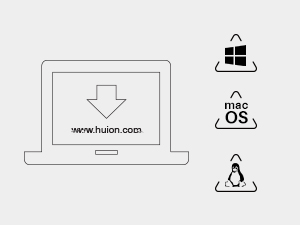
Image: Graphic depicting a laptop screen with the HUION website address, indicating where to download drivers for Windows, macOS, and Linux.
3.3 Driver Interface Overview
The HUION driver interface allows you to customize the tablet's settings, including pen pressure, button functions, and working area.

Image: Screenshot of the HUION driver interface, showing options for customizing press keys and working area.
4. Operating Your Inspiroy H610X
4.1 Using the Battery-Free Stylus (PW100)
The PW100 stylus offers a natural drawing experience without the need for charging. It features 8192 levels of pressure sensitivity and ±60° tilt function, allowing for precise and expressive strokes.
- Sensibilitate la presiune: Adjust the pressure curve in the driver settings to match your drawing style.
- Functia Inclinare: The stylus supports ±60° tilt, providing smoother and more natural lines when using brushes that respond to tilt.
- Butoane stilou: The two customizable buttons on the stylus can be assigned to various functions like right-click, eraser, or undo/redo.

Image: Close-up of the PW100 battery-free stylus, highlighting its design and buttons.

Image: Diagram illustrating the key features of the PW100 stylus, including battery-free operation, 8192 pressure levels, >220PPS report rate, and ±60° tilt support.
4.2 Customizing Programmable Press Keys
The Inspiroy H610X features 8 programmable press keys on the tablet, allowing you to assign frequently used functions for increased efficiency.
- Open the HUION driver software.
- Navigate to the 'Press Key' tab.
- Click on each key to assign a custom function (e.g., keyboard shortcuts, mouse clicks, program launches).
- You can also set application-specific shortcuts.

Image: Close-up of the 8 programmable press keys on the Inspiroy H610X tablet, with icons indicating common functions.
How to Set Press Key Functions Video
Video: A step-by-step guide on how to customize the functions of the programmable press keys on your HUION Inspiroy H610X tablet.
4.3 Working Area and Ergonomics
The tablet offers a large 10x6.25 inch active drawing area. Its ergonomic design with a narrow frame and rounded corners helps reduce hand fatigue during long work sessions. The tablet can also be rotated to 90°, 180°, or 270° in the driver settings to suit your preferred orientation, including left-hand mode.
Image: Diagram illustrating the 10x6.25 inch active working area of the Inspiroy H610X tablet with its dimensions.

Image: Illustration showing the Inspiroy H610X tablet rotated to different angles (0°, 90°, 180°, 270°) to accommodate various user preferences, including left-handed use.
4.4 Compatibilitate
The Inspiroy H610X is compatible with a wide range of operating systems and creative software:
- Sisteme de operare: Windows 7 or later, macOS 10.12 or later, Linux (Ubuntu), Android 6.0 or later.
- Software: Supports major creative applications such as Adobe Photoshop, SAI, Illustrator, CorelDRAW, Corel Painter, Sketchbook, and more. It is also suitable for online teaching and learning platforms like Word, PDF, OneNote, and Zoom.

Image: Visual representation of the Inspiroy H610X's compatibility with Windows, macOS, Android, and Linux operating systems, as well as various creative software applications.
5. Specificațiile produsului
| Caracteristică | Caietul de sarcini |
|---|---|
| Dimensiunile produsului | 12.7 x 8.1 x 0.3 inci |
| Greutatea articolului | 1.13 lire sterline |
| Numărul de model al articolului | H610X |
| Tehnologia de conectivitate | USB |
| Sensibilitate la presiune | 8192 niveluri |
| Compatibilitatea sistemelor de operare | Android 6.0 and above, Mac OS 10.12 and above, Windows 7 and above, Linux (Ubuntu) |
| Caracteristici speciale | 60° Tilt Support, Large Drawing Area, Programmable Press Key, Stylus Dock, Support Android Device |
6. Întreținere
To ensure the longevity and optimal performance of your Inspiroy H610X tablet and stylus, follow these maintenance guidelines:
- curatenie: Use a soft, dry cloth to wipe the tablet surface and stylus. Avoid using harsh chemicals or abrasive materials.
- Depozitare: Depozitați tableta și stylus-ul într-un loc răcoros și uscat, ferit de lumina directă a soarelui și de temperaturi extreme.
- Înlocuirea penei: Replace the stylus nib when it becomes worn to maintain drawing precision. Extra nibs are provided in the pen holder. Use the nib clip to carefully remove and insert new nibs.
- Îngrijirea cablului: Evitați îndoirea sau răsucirea excesivă a cablului USB pentru a preveni deteriorarea.
7. Depanare
If you encounter issues with your Inspiroy H610X, try the following steps:
- No Pen Pressure/Functionality:
- Asigurați-vă că driverul este instalat corect și actualizat la cea mai recentă versiune.
- Check if the tablet is properly connected to your computer.
- Reporniți computerul și încercați din nou.
- Test the tablet on a different USB port or computer.
- Mișcare inexactă a cursorului:
- Recalibrate the working area in the HUION driver settings.
- Ensure there are no other drawing tablet drivers installed that might conflict.
- Press Keys Not Working:
- Verify that the press keys are enabled and correctly configured in the HUION driver.
- Check for any software conflicts with your drawing application.
For further assistance, refer to the official HUION support website-ul sau contactați serviciul pentru clienți.
8. Garanție și asistență
The HUION Inspiroy H610X comes with a standard manufacturer's warranty. For detailed information regarding warranty coverage, terms, and conditions, please visit the official HUION website-ul web sau consultați cardul de garanție inclus în pachet.
Asistență clienți:
- Suport online: Vizitați HUION Support Center pentru întrebări frecvente, drivere și ghiduri de depanare.
- Contact: For direct assistance, you can contact HUION customer service through their website-ul.