
1. Introducere
The Gembird EG-SST-01 is an external DVD±RW drive designed for convenient reading and writing of CD and DVD media. This device connects to your computer via a USB 2.0 interface, offering broad compatibility with various Windows operating systems. Its compact and lightweight design makes it an ideal portable solution for laptops and desktop computers without an integrated optical drive.
This manual provides essential information on setting up, operating, maintaining, and troubleshooting your Gembird EG-SST-01 drive to ensure optimal performance and longevity.
2. Conținutul pachetului
Vă rugăm să verificați dacă toate articolele sunt prezente în colet:
- Gembird EG-SST-01 External DVD±RW Drive (Black)
- Cablu de conexiune USB
- Manual de utilizare
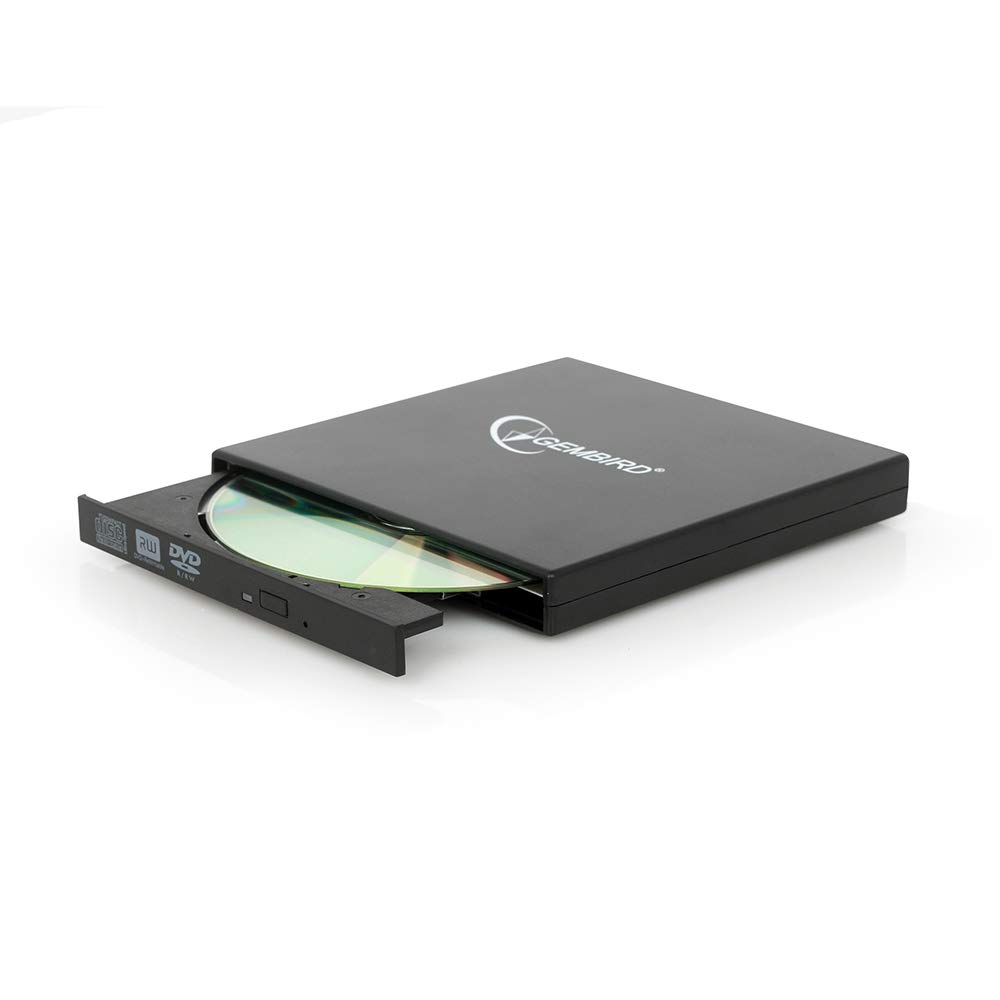
Image: The Gembird EG-SST-01 External DVD±RW Drive in black, shown with its USB connection cable. This image illustrates the compact design and the included accessories.
3. Instrucțiuni de configurare
- Conectați unitatea: Plug the USB cable into the Gembird EG-SST-01 drive and then connect the other end to an available USB 2.0 port on your computer. For optimal performance, use a direct USB port on your computer rather than a USB hub.
- Recunoașterea sistemului: Your operating system (Windows 7, Windows 8, or Windows 10) should automatically detect and install the necessary drivers for the drive. No manual driver installation is typically required.
- Verificați instalarea: Once connected, the drive should appear in 'This PC' or 'My Computer' as a new optical drive. If it does not appear, try connecting to a different USB port or restarting your computer.
4. Instrucțiuni de utilizare
4.1. Încărcarea unui disc
- Gently press the eject button on the front of the drive to open the disc tray.
- Place the CD or DVD onto the tray with the label side facing up. Ensure the disc is seated correctly on the spindle.
- Împingeți ușor tava înapoi în unitate până când se închide cu un clic.
4.2. Citirea discurilor
- After loading a disc, your computer's operating system may automatically prompt you to choose an action (e.g., play a movie, open files, install software).
- If no prompt appears, navigate to 'This PC' or 'My Computer', locate the optical drive icon, and double-click it to browse the disc's contents.
- The drive supports CD read speeds of up to 24x and DVD read speeds of up to 8x (DVD-ROM).
4.3. Scrierea discurilor
- To write data to a blank CD-R/RW or DVD±R/RW/RAM disc, you will need compatible burning software (not included).
- Insert a blank, writable disc into the drive.
- Follow the instructions provided by your chosen burning software to select files, configure burning options, and start the writing process.
- The drive supports CD-R/RW write speeds of up to 24x and DVD±R/RW write speeds of up to 8x (5x for DVD-R DL, DVD+R DL, and DVD-RAM).
5. Întreținere
- curatenie: Use a soft, dry, lint-free cloth to clean the exterior of the drive. Do not use liquid cleaners or solvents. Avoid opening the drive casing.
- Îngrijirea discurilor: Always handle discs by their edges. Keep discs clean and free from scratches, dust, and fingerprints to ensure reliable reading and writing.
- Depozitare: Store the drive in a cool, dry place away from direct sunlight, extreme temperatures, and high humidity when not in use.
- Transport: When transporting the drive, ensure no disc is inside the tray and the tray is fully closed.
6. Depanare
- Unitate nerecunoscută:
- Asigurați-vă că cablul USB este conectat corect atât la unitate, cât și la computer.
- Încercați să conectați unitatea la un alt port USB al computerului.
- Reporniți computerul.
- Check Device Manager (Windows) to see if the drive is listed without errors.
- Disc Not Reading/Writing:
- Ensure the disc is clean and free from scratches or damage.
- Verify that the disc type (CD-R, DVD-RW, etc.) is compatible with the drive and the operation you are attempting.
- For writing, ensure you are using a blank, writable disc and appropriate burning software.
- Încercați un alt disc pentru a exclude o defecțiune.
- Performanță lentă:
- Ensure the drive is connected to a USB 2.0 port or higher for optimal data transfer speeds.
- Închideți toate aplicațiile inutile care rulează în fundal și care ar putea consuma resurse de sistem.
7. Specificații
| Caracteristică | Caietul de sarcini |
|---|---|
| Numărul de model | EG-SST-01 |
| Tip de produs | External DVD±RW Drive |
| Interfață | USB 2.0 |
| Disc Loading Type | Tavă |
| Culoare | Negru |
| Dimensiuni (L x l x H) | 135 mm x 130 mm x 17 mm |
| Greutate | 290 g |
| Sisteme de operare acceptate | Windows 10, Windows 7, Windows 8 |
| CD Write Speed | 24x (CD-R, CD-RW) |
| DVD Write Speed | 8x (DVD+R, DVD-R, DVD+RW, DVD-RW), 5x (DVD-R DL, DVD+R DL, DVD-RAM) |
| Viteză de citire CD | 24x (CD, CD-R, CD-RW, CD-ROM) |
| Viteză de citire DVD | 8x (DVD+R, DVD-R, DVD-RW, DVD+RW, DVD-ROM), 6x (DVD-RAM), 4x (Video DVD) |
| Optical Disc Diameter | 80 mm, 120 mm |
| Certificari | ISO 9002, CE, RoHS |
8. Garanție și asistență
The Gembird EG-SST-01 External DVD±RW Drive comes with a garantie de doi ani against factory defects. This warranty covers manufacturing faults and material defects under normal use conditions.
For technical support, warranty claims, or further assistance, please contact your retailer or visit the official Gembird website for contact information. Please have your product model number (EG-SST-01) and proof of purchase ready when seeking support.