
1. Introducere
This manual provides instructions for the ROCCAT KONE Aimo Gaming Mouse. The KONE Aimo features an Owl-Eye Optical Sensor, customizable RGB AIMO LED illumination, and 23 programmable keys. It is designed for precision and ergonomic comfort during extended use.
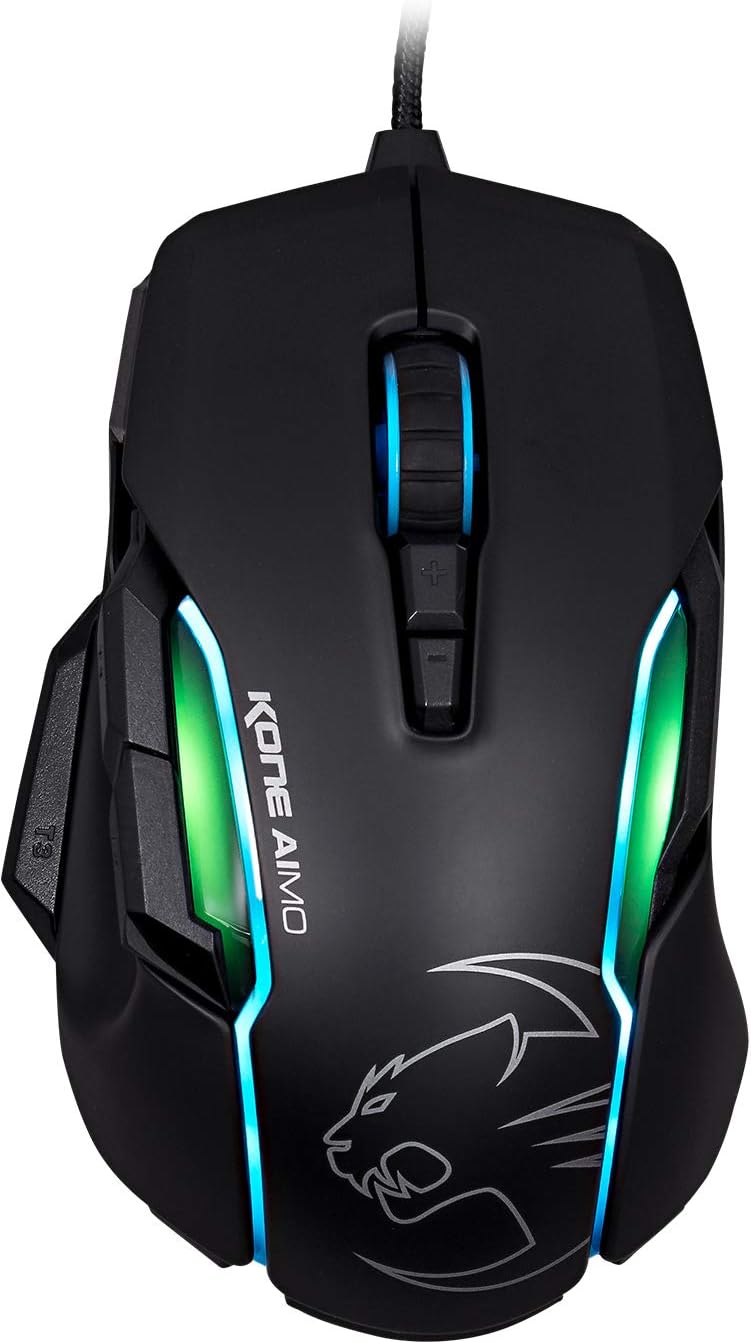
Figura 1: Sus view of the ROCCAT KONE Aimo Gaming Mouse, showcasing its ergonomic shape and RGB lighting zones.
2. Conținutul pachetului
Verificați dacă toate articolele sunt prezente în colet:
- KONE AIMO Mouse with Attached Braided USB Cable
- Ghid rapid
- ROCCAT Stickers

Figure 2: Retail packaging of the ROCCAT KONE Aimo Gaming Mouse.
3. Configurare
- Conectați mouse-ul: Plug the USB cable of the ROCCAT KONE Aimo mouse into an available USB port on your computer.
- Instalare driver: Your operating system (Windows 7, 8, 8.1, 10) should automatically detect and install the necessary drivers.
- Install ROCCAT Swarm Software: For full customization of DPI settings, button assignments, and AIMO lighting, download and install the ROCCAT Swarm software from the official ROCCAT website. Acest software vă permite să creați și să gestionați profiles.

Figure 3: The ROCCAT KONE Aimo mouse in use on a mouse pad, connected to a computer.
4. Instrucțiuni de utilizare
4.1. Funcții butoane
The KONE Aimo features 23 programmable keys, including a tri-button thumb zone and a 4D tilting Titan wheel. These can be customized via the ROCCAT Swarm software.
- Clic stânga/dreapta: Funcții standard ale mouse-ului.
- Scroll Wheel (4D Titan Wheel): Scrolls vertically and can tilt horizontally for additional functions. Also acts as a clickable button.
- DPI Adjustment Buttons: Located above and below the scroll wheel, these buttons allow for on-the-fly DPI sensitivity changes. Settings are configured in the Swarm software.
- Thumb Buttons (T1, T2, T3): Three buttons located on the left side, easily accessible by the thumb. The bottom-most button (T3) is often defaulted to the Easy-Shift[+] function.
- Easy-Shift[+] Button: This exclusive ROCCAT feature doubles the number of programmable functions for other buttons when held down, effectively expanding the total programmable keys.

Figura 4: Detaliat view of the programmable thumb buttons (T1, T2, T3) on the left side of the mouse.
4.2. AIMO Lighting System
The AIMO lighting system provides intelligent, reactive RGB illumination across four independently configurable LED light zones and the glowing mouse wheel. It can synchronize with other compatible ROCCAT devices and is programmable through the ROCCAT Swarm software.

Figure 5: The KONE Aimo mouse displaying its multi-zone RGB AIMO illumination.
4.3. Owl-Eye Optical Sensor
The mouse is equipped with the ROCCAT Owl-Eye Optical Sensor, a modified PixArt 3361 sensor, offering adjustable DPI from 100 to 12,000. This sensor provides precise tracking and responsiveness. A built-in tracking distance control unit monitors the lift-off distance for enhanced accuracy.

Figure 6: The bottom of the mouse, highlighting the Owl-Eye Optical Sensor.
4.4. Ergonomie
The KONE Aimo features refined ergonomics designed for comfort during extended use. Its shape provides a natural fit for the hand, with a dedicated thumb rest area.

Figure 7: A hand gripping the KONE Aimo mouse, illustrating its ergonomic design.
5. Întreținere
- curatenie: Folosiți o lavetă moale și uscată pentru a curăța suprafața mouse-ului. Pentru murdăria persistentă, ștergeți ușor.amp se poate folosi o cârpă, asigurându-vă că nu pătrunde umezeală în componentele interne.
- Îngrijirea senzorului: Keep the optical sensor on the underside of the mouse clean and free of dust or debris to ensure optimal tracking performance.
- Organizare de cabluri: Evitați îndoirile bruște sau tragerea excesivă a cablului USB împletit pentru a preveni deteriorarea.
6. Depanare
- Mouse-ul nu răspunde:
- Asigurați-vă că cablul USB este conectat corect la un port USB funcțional.
- Try a different USB port or another computer to rule out port or system issues.
- Reporniți computerul.
- Tracking Issues / Inaccurate Movement:
- Curățați senzorul optic din partea inferioară a mouse-ului.
- Asigurați-vă că utilizați mouse-ul pe un pad sau o suprafață curată și adecvată.
- Check DPI settings in the ROCCAT Swarm software.
- RGB Lighting Not Working / Incorrect:
- Verify that the ROCCAT Swarm software is running and updated.
- Verificați setările de iluminare din software-ul Swarm.
- Asigurați-vă că niciun software conflictual nu controlează iluminarea RGB.
- Butoanele nu funcționează:
- Check button assignments in the ROCCAT Swarm software.
- Ensure the software is not experiencing issues (try restarting it).
7. Specificații
| Caracteristică | Detaliu |
|---|---|
| Marca | ROCCAT |
| Numărul de model | ROC-11-815-BK |
| Senzor | Owl-Eye Optical Sensor (modified PixArt 3361) |
| Interval DPI | 100 to 12,000 DPI |
| Butoane programabile | 23 (cu Easy-Shift[+]) |
| Iluminare | RGBA AIMO LED Illumination (4 independent zones + scroll wheel) |
| Conectivitate | USB (cu fir) |
| Compatibilitatea sistemelor de operare | Windows 7, Windows 8, Windows 8.1, Windows 10 (32-bit and 64-bit versions) |
| Greutatea articolului | 11.2 uncii (aproximativ 317.5 de grame) |
| Dimensiunile produsului (Lxlxh) | 5.12 x 2.95 x 1.57 inchi (aproximativ 13 x 7.5 x 4 cm) |
8. Garanție și asistență
For warranty information, technical support, and additional resources, please visit the official ROCCAT website or contact ROCCAT customer service. Keep your proof of purchase for warranty claims.
De asemenea, puteți vizita Magazinul ROCCAT pe Amazon pentru mai multe informații despre produs.