
1. Introducere
The AVerMedia AM310 is a plug-and-play USB microphone designed for high-quality audio recording. It is suitable for various applications including podcasting, streaming, gaming, and vocal performances. This manual provides detailed instructions for setting up, operating, and maintaining your AM310 microphone to ensure optimal performance.

Figure 1: AVerMedia AM310 USB Microphone
2. Produs terminatview
2.1 Caracteristici cheie
- Driver-Free and Plug-and-Play: Easy setup on PC or Mac without additional driver installation.
- Cardioid Condenser Microphone: Records sound sources directly in front of the microphone, providing detailed and clear audio.
- Mufă pentru căști de 3.5 mm: Allows real-time audio monitoring or playback of computer audio.
- Comenzi integrate: Features a volume knob and mute button for convenient audio management.
2.2 Componente
Familiarize yourself with the main components of your AM310 microphone:

Figure 2: Labeled components of the AM310 USB Microphone
- Indicator LED: Displays microphone status (Blue: Powered on, Red: Muted).
- Buton pentru volumul căștilor: Adjusts the volume for the connected headphones.
- Munte: Connects the microphone to the base or other compatible stands.
- Base and Shaft: Provides stable support for the microphone.
- Headphone Mode Switch: Toggles between PC Audio Playback and Microphone Monitoring.
- Mufă pentru căști de 3.5 mm: Output for connecting headphones.
3. Configurare
The AVerMedia AM310 is designed for quick and easy setup. Follow these steps to get started:
- Asamblați microfonul: Attach the microphone unit to the provided base and shaft. Ensure it is securely fastened.
- Conectare la computer: Plug the USB cable from the AM310 microphone into an available USB port on your PC or Mac. The microphone is driver-free and will be automatically recognized by your operating system.
- Conectați căștile (opțional): If you wish to monitor your audio, plug your 3.5mm headphones into the headphone jack on the microphone.
- Selectați ca dispozitiv de intrare: In your computer's sound settings, select the AVerMedia AM310 as your default audio input device.

Figure 3: Connection diagram for AM310 USB Microphone

Figure 4: AM310 compatibility with Mac and Windows operating systems
3.1 Ghid video de configurare
For a visual guide on setting up and using your AVerMedia AM310 microphone, please watch the official product video below.
Video 1: AVerMedia AM310 USB Microphone Overview și Configurare
4. Instrucțiuni de utilizare
4.1 Adjusting Volume and Muting
The AM310 features an integrated volume knob and mute button for easy control:
- Buton de volum: Rotate the knob to adjust the headphone output volume.
- Buton mut: Press the knob to mute or unmute the microphone. The LED indicator will change from blue (powered on) to red (muted) when activated.

Figure 5: Volume knob and LED indicator
4.2 Monitorizare prin căști
The 3.5mm headphone jack allows you to monitor your audio in two modes:
- PC Audio Playback: Slide the switch to the 'PC' position to hear audio playing from your computer through your headphones.
- Microphone Monitoring: Slide the switch to the 'MONITOR' position to hear your own voice in real-time through your headphones, which is useful for adjusting your speaking volume and clarity.

Figure 6: Headphone mode switch (PC/Monitor)

Figure 7: User utilizing the AM310 for streaming with headphones
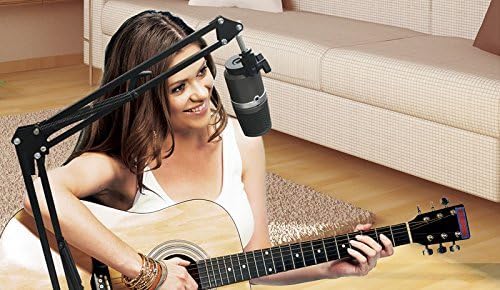
Figure 8: User recording music with the AM310 microphone
5. Specificații
Below are the technical specifications for the AVerMedia AM310 USB Microphone:
| Caracteristică | Caietul de sarcini |
|---|---|
| Tip | Uni-directional Condenser Microphone |
| Model polar | cardioid |
| Sample Rate | 48 kHz |
| Rata de biți | 16 de biți |
| Putere necesară | USB (5V DC) |
| Sensibilitate | -60 ± 5 dB (at 1 kHz) |
| Raspuns in frecventa | 20–20,000 Hz |
| Sensibilitate Audio | 60 de decibeli |
| Impedanta | 600 ohmi |
| Raportul semnal-zgomot | 80 dB |
| Platformă hardware | PC |
| Numărul de canale | 1 |
| Tehnologia de conectivitate | USB |
| Tip conector | USB |
| Greutatea articolului | 1.03 lire sterline |
| Dimensiunile produsului | 10 x 4 x 6 inci |
| Material | Aluminiu |
6. Depanare
If you encounter issues with your AVerMedia AM310 microphone, please refer to the following common troubleshooting steps:
- Fără intrare audio:
- Ensure the microphone is securely plugged into a USB port.
- Verify that the AM310 is selected as the default input device in your computer's sound settings.
- Check if the microphone is muted (red LED indicator). Press the volume knob to unmute.
- Try a different USB port or a different computer to isolate the issue.
- Volum scăzut:
- Adjust the input gain for the microphone in your computer's sound settings or recording software.
- Ensure you are speaking directly into the front of the microphone, as it has a cardioid polar pattern.
- Static or Noise:
- Ensure the USB cable is not damaged and is properly connected.
- Avoid placing the microphone near sources of electromagnetic interference (e.g., power cables, unshielded electronics).
- Consider using a pop filter to reduce plosive sounds and a shock mount to minimize vibrations.
- Probleme cu monitorizarea căștilor:
- Check the headphone volume knob on the microphone.
- Verify the Headphone Mode Switch is set to the desired position (PC or MONITOR).
- Ensure your headphones are fully plugged into the 3.5mm jack.
7. Întreținere
To ensure the longevity and optimal performance of your AVerMedia AM310 USB Microphone, follow these maintenance guidelines:
- curatenie: Use a soft, dry cloth to clean the exterior of the microphone. Avoid using liquid cleaners or solvents, as they may damage the finish or internal components.
- Depozitare: Când nu îl utilizați, depozitați microfonul într-un loc răcoros și uscat, ferit de lumina directă a soarelui și de temperaturi extreme.
- Manipulare: Handle the microphone with care. Avoid dropping it or subjecting it to strong impacts, which can damage the sensitive internal components.
- Îngrijirea cablului: Nu îndoiți și nu răsuciți excesiv cablul USB. Prindeți întotdeauna de ștecher, nu de cablu, atunci când îl deconectați.
8. Garanție și asistență
For warranty information, technical support, or further assistance with your AVerMedia AM310 USB Microphone, please visit the official AVerMedia website-ul sau contactați serviciul de asistență pentru clienți.
Puteți găsi mai multe informații și resurse de asistență la AVerMedia Store.