
1. Configurare
This section guides you through the initial setup of your Apple iPhone 7, from unboxing to first use.
1.1 Ce se află în cutie
Verify that all components are present in your iPhone 7 package:
- iPhone 7 Device
- Cablu Lightning la USB
- Adaptor de alimentare USB
- EarPods cu conector Lightning
- Adaptor Lightning la mufă pentru căști de 3.5 mm
- Documentație (Ghid de pornire rapidă, Informații de siguranță)
- Instrument de evacuare SIM

Image 1.1: The Apple iPhone 7 in Rose Gold, showcasing designul său elegant.
1.2 Introducerea cartelei SIM
- Locate the SIM tray on the right side of your iPhone.
- Insert the SIM eject tool into the small hole on the SIM tray and press firmly until the tray pops out.
- Place your nano-SIM card into the tray with the gold contacts facing down and the cut corner aligned.
- Carefully push the SIM tray back into the iPhone until it is flush with the side.
1.3 Pornirea inițială și configurarea
To power on your iPhone, press and hold the Side button until the Apple logo appears. Follow the on-screen instructions to complete the initial setup, which includes selecting your language, connecting to Wi-Fi, setting up Touch ID, and signing in with your Apple ID.
1.4 Încărcarea dispozitivului
Connect the Lightning to USB cable to the iPhone's Lightning port and the USB power adapter. Plug the adapter into a wall outlet. The battery icon on the screen will indicate charging status. For optimal battery life, use the provided Apple charging accessories.
2. Instrucțiuni de utilizare
This section details the basic functions and features of your iPhone 7.
2.1 Pornirea și oprirea
- Pentru a porni: Apăsați și mențineți apăsat butonul lateral până când apare sigla Apple.
- Pentru a opri: Press and hold the Side button until the 'Slide to Power Off' slider appears. Drag the slider to the right.
- To Force Restart: Press and hold both the Volume Down button and the Side button simultaneously until the Apple logo appears.
2.2 Navigare de bază
- Buton Acasă: Press once to return to the Home screen. Double-press to open the App Switcher. Press and hold to activate Siri.
- Touch ID: Use your fingerprint to unlock your iPhone and make purchases. Set up in Settings > Touch ID & Passcode.
- Atingere 3D: Press firmly on the display to access shortcuts and contextual menus. This feature allows for new interactions based on pressure.
- Centru de control: Swipe up from the bottom edge of the screen to access quick settings and controls.
- Centru de notificari: Glisați în jos de la marginea superioară a ecranului pentru a view notificări.
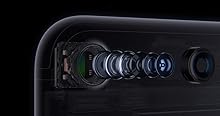
Image 2.1: Illustration of 3D Touch functionality on the iPhone 7 screen.
2.3 Funcțiile camerei
The iPhone 7 features a 12-megapixel iSight camera. Open the Camera app to capture photos and videos.
- Moduri foto: Swipe left or right to switch between Photo, Portrait, Square, Pano, Video, Slo-mo, and Time-lapse modes.
- Înregistrare video 4K: The camera supports 4K video recording at 30 frames per second. Adjust video settings in Settings > Camera > Record Video.
- Camera frontală: Tap the camera switch icon to use the 7-megapixel FaceTime HD camera for selfies and video calls.
2.4 Rezistență la apă și praf
The iPhone 7 is splash, water, and dust resistant and was tested under controlled laboratory conditions with a rating of IP67 under IEC standard 60529. Resistance is not a permanent condition and might decrease as a result of normal wear. Do not attempt to charge a wet iPhone; refer to the user guide for cleaning and drying instructions. Liquid damage is not covered under warranty.
3. Întreținere
Proper care and maintenance will help extend the life of your iPhone 7.
3.1 Curățarea iPhone-ului
- Unplug all cables and turn off your iPhone before cleaning.
- Folosiți o cârpă moale, fără scame, ușor umezităampened with water, to wipe the exterior surfaces.
- Avoid getting moisture in any openings. Do not use cleaning products or compressed air.
3.2 Îngrijirea bateriei
The iPhone 7 uses a Lithium-Ion battery. To maximize battery lifespan:
- Avoid extreme ambient temperatures.
- Keep your software updated to the latest iOS version.
- Enable Low Power Mode when battery is low.
- Pentru depozitarea pe termen lung, încărcați dispozitivul la aproximativ 50% și opriți-l.
3.3 Actualizări de software
Regularly update your iPhone's operating system (iOS) to ensure optimal performance, security, and access to new features. Go to Settings > General > Software Update to check for and install available updates.
4. Depanare
This section provides solutions to common issues you might encounter with your iPhone 7.
4.1 Probleme comune și soluții
- Dispozitivul nu răspunde: If your iPhone is frozen or unresponsive, perform a force restart (see Section 2.1).
- Apps Crashing or Not Opening: Închide aplicația din Comutatorul de aplicații și redeschide-o. Dacă problema persistă, repornește iPhone-ul. Asigură-te că aplicația și iOS-ul sunt actualizate.
- Wi-Fi or Cellular Connectivity Issues: Try toggling Wi-Fi or Cellular Data off and on in Control Center or Settings. Restart your router or contact your carrier if problems persist.
- Se descarcă rapid bateria: Check battery usage in Settings > Battery to identify apps consuming significant power. Reduce screen brightness, enable Low Power Mode, or disable background app refresh for non-essential apps.
4.2 Resetare din fabrică
If troubleshooting steps do not resolve your issue, you may consider a factory reset. Warning: This will erase all data and settings on your iPhone. Back up your device to iCloud or a computer before proceeding. Go to Settings > General > Transfer or Reset iPhone > Erase All Content and Settings.
5. Specificații
Specificații tehnice cheie pentru Apple iPhone 7.
| Caracteristică | Detaliu |
|---|---|
| Marca | Măr |
| Numele modelului | iPhone 7 |
| Sistem de operare | iOS 10 (at launch) |
| Capacitate de stocare a memoriei | 32 GB |
| Dimensiunea ecranului | 4.7 inchi |
| Tehnologia celulară | 4G LTE |
| Tehnologia de conectivitate | Fulger |
| Culoare | Rose Gold (as per product variant) |
| Nivel de rezistență la apă | Rezistent la apă (IP67) |
| Descrierea camerei | 12 MP spate, 7 MP față |
| Descrierea bateriei | Litiu-Ion |
| Greutatea articolului | 4.8 uncii |
| Dimensiuni articol (Lxlxh) | 5.44 x 2.64 x 0.28 inci |
| Securitate biometrică | Fingerprint Recognition (Touch ID) |
6. Garanție și asistență
For detailed warranty information and technical support, please refer to Apple's official resources.
6.1 Garanția produsului
Your Apple iPhone 7 is covered by a limited warranty provided by Apple. The terms and conditions of this warranty, including duration and coverage, are available on Apple's official website or within the documentation included with your device. Please retain your proof of purchase for warranty claims.
6.2 Asistență pentru clienți
If you require further assistance, have questions, or need to report an issue, please contact Apple Support:
- Suport online: Vizitați pagina oficială de asistență Apple website for articles, troubleshooting guides, and contact options. support.apple.com/iphone
- Apple Store: Visit an authorized Apple Store for in-person assistance.